
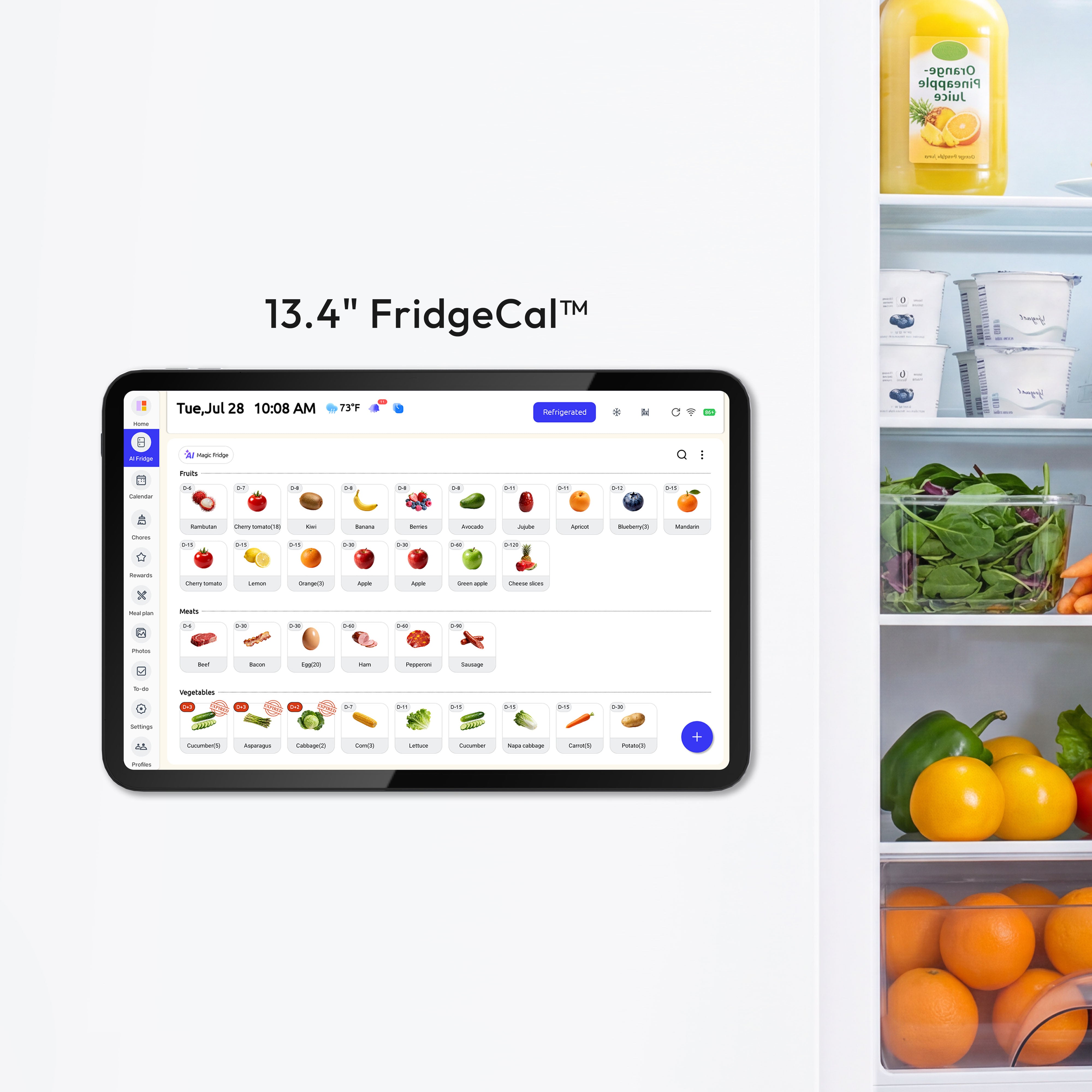
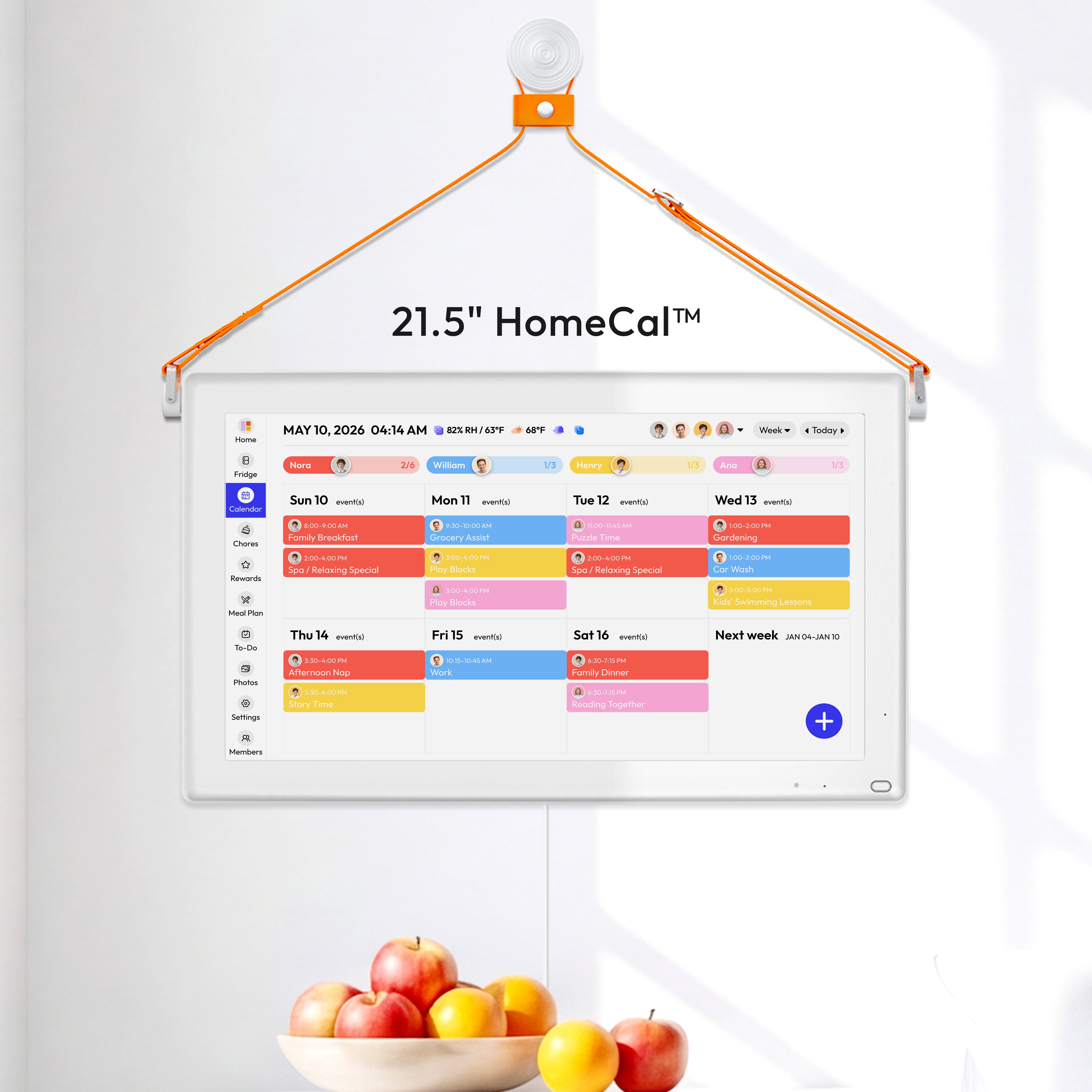
Update Summary
Calendar Version 3.0.3 introduces enhanced Parental Lock controls, more flexible Chore and To-Do customization, smarter AI meal recommendations, improved device status indicators, and new built-in user guides.
This update also improves the Home screen layout and makes frequently used features easier to find, customize, and manage.
What’s New
01. Enhanced Parental Lock
Parental Lock has been upgraded to support individual locking controls for selected device features.
Parents can independently lock modules such as:
- Entertainment Hub
- Chore Management
When a module is locked, children cannot open restricted entertainment applications or accidentally edit or delete assigned Chores.
Path: Settings → General → Parental Lock → Select the Features You Want to Lock
Once configured, the settings remain active until a parent changes them, giving parents greater control over how FridgeCal™ is used.

02. Customize the Order of Chore Cards
Chore cards can now be manually rearranged based on your family’s preferences.
Path: Chores → Press and Hold a Chore Card → Drag It to the Desired Position
This makes it easier to keep important or frequently used Chores at the top of the list.

03. Customize the Order of To-Do Cards
To-Do cards now support custom sorting, allowing families to arrange different lists in their preferred order.
Path: To-Do → Press and Hold a To-Do Card → Drag It to the Desired Position

04. Swipe to Edit or Delete To-Do Lists
The previous press-and-hold editing action has been replaced with a faster swipe interaction.
Path: To-Do → Swipe a To-Do List → Select Edit or Delete
This updated interaction makes managing To-Do lists faster and more intuitive.

05. Power-Saving Reminder at 50% Battery
When the battery level reaches 50%, FridgeCal™ will display a reminder recommending that Energy Saving Mode be enabled.
Path: Settings → Display → Power Saving Mode → On
Power Saving Mode helps reduce unnecessary battery consumption and extend the time between charges.

06. Scheduled Power Reminder
FridgeCal™ will now display a reminder before a scheduled power setting takes effect.
This gives users time to review the current scheduled power-on and power-off settings, helping prevent unexpected shutdowns or startups caused by forgotten schedules.
Path: Settings → Display → Scheduled Power On/Off

07. Charging Dock Bluetooth Status
A Bluetooth status icon has been added to the Home screen.
When the Everblog Charging Dock is successfully connected to FridgeCal™ via Bluetooth, the icon will automatically appear, making it easier to confirm the Dock’s current connection status.

08. Add Notes to Chores
Notes can now be added when creating or editing a Chore.
Path: Chores → Add or Edit a Chore → Notes → Enter Additional Instructions → Save
Notes can include cleaning requirements, completion standards, special reminders, or other helpful details.

09. Smarter AI Meal Recommendations
AI Meal recommendations have received a major upgrade through the integration of the Gemini API.
The updated AI Meal feature can identify ingredients available in your fridge and generate more personalized recipe recommendations.
The updated experience provides:
- More accurate ingredient matching
- More personalized meal recommendations
- Faster recipe generation
- Better use of food already available at home
The available recipe library has also expanded from approximately 8,000 recipes to more than 40 million recipes.
10. AI-Created Event Indicators
Events created with AI now display a dedicated AI icon, making it easier to identify how each event was created.
Additional image options have also been added, giving users more ways to personalize their events.
11. Press Enter to Add the Next To-Do Item
When adding To-Do items, users can now press Enter to automatically create the next item.
Path: To-Do → Add an Item → Press Enter → Continue Entering the Next Item
This makes it faster and more convenient to create multiple To-Do items in one session.

12. Improved Member Filters
The member filter now displays the total number of family members.
Users can also see whether each member is currently enabled for display, making it easier to manage whose schedules appear on the Calendar.

13. Built-In Digital User Guide
A digital user guide is now available directly on FridgeCal™.
Users can open the guide whenever they need help setting up or using the device.
The guide includes instructions for key device features and common operations.
14. Built-In Everblog Tutorials
Everblog tutorials are now available directly on the device.
These step-by-step tutorials explain how to use key features, including Calendar, Chores, To-Do lists, meal planning, and other family organization tools.

15. Dedicated Calendar Email Tutorial
The Dedicated Email section on the Member Management page now includes an interactive setup guide.
Path: Member Management → Dedicated Email → Tap the Email Address
A tutorial will explain how to use the dedicated email address to import schedules into FridgeCal™.
This makes it easier to add appointments, school schedules, activities, and other Calendar information.

16. Entertainment Hub Added to the Default Layout
The Entertainment Hub is now included in the default Home screen layout.
Previously, the Entertainment Hub was not displayed by default, which could make users think the feature had been removed.
After this update, the Entertainment Hub is easier to find and access directly from the Home screen.
17. Updated Chore Display Rules
Chores are now automatically organized according to their status and scheduled time.
The new display order is:
-
Overdue Chores
Chores that have been overdue for the longest time appear first. -
Incomplete Chores with a Specific Time
Displayed from the earliest scheduled time to the latest. - Incomplete All-Day Chores
- Completed Chores with a Specific Time
- Completed All-Day Chores
This updated structure keeps urgent and unfinished Chores at the top while moving completed Chores further down the list.


