
By 7:15 a.m., a family calendar can already look like a puzzle. One kid has PE, another has band practice, someone needs picking up early, and there’s a dentist appointment buried between work calls. Most of the stress doesn’t come from planning those events. It comes from having to keep opening apps just to remember what happens next.
That’s why the google calendar widget for iphone is so useful. It puts the day where you can see it with one glance, right on the Home Screen or Lock Screen. For parents, that matters more than it sounds. A visible schedule cuts down on missed handoffs, repeated “what time is that again?” texts, and the mental load of holding every detail in your head.
Google Calendar’s footprint is already broad. More than 606,719 websites actively embed Google Calendar widgets, and 370,061 of those tracked implementations are in the United States, according to Google Calendar support data. That lines up with what many families want from their phones now: fast, synced, cross-device access to the schedule.
Your Family's Schedule at a Glance on Your iPhone
For family life, the widget works best when you treat it like a mini dashboard, not just a shortcut. When you check your phone, you immediately see whether today is normal, overloaded, or heading off the rails. That tiny moment of visibility changes how the whole day feels.
There are two solid ways to do this on iPhone. You can use the official Google Calendar widget, or you can connect your Google account to Apple’s built-in Calendar app and use the Apple Calendar widget instead. Both can work well. The better choice depends on whether your household lives mostly in Google, or whether you mix Google calendars with Apple features.
A lot of parents also use older devices as kitchen counters, hallway displays, or dedicated family organizers. If that’s your setup, browsing refurbished iPhones can be a practical way to put a spare screen into rotation without using your main phone.
A good widget doesn’t organize your family for you. It removes friction so your system actually gets used.
If your household also relies on a shared planning routine, this kind of phone setup pairs well with a broader digital family calendar approach where everyone can see the same commitments from different devices.
Why this works for busy families
- Morning checks get faster because the first event is visible before you open anything.
- Shared calendars become more useful because they stop hiding behind taps and menus.
- Transitions go smoother when one parent can glance down and confirm pickup times, practice times, or who’s free for errands.
The key is choosing the version that fits how your family already works. That’s where this decision either simplifies the day, or accidentally makes it more confusing.
Choosing Your Widget Google App vs Apple Calendar
Before you add anything, pick the workflow you want to live with every day. On iPhone, users can either use the native Google Calendar widget or add a Google account to Apple’s default Calendar app, and both methods are designed for reliable synchronization on iOS 14 and later according to this iPhone setup guide.

The simple version
The Google Calendar app widget is usually the better fit if your household already runs on Google accounts, shared Google calendars, and Google reminders. It keeps the look and feel consistent, and tapping an event takes you straight back into Google Calendar.
The Apple Calendar widget with your Google account connected makes more sense when your family mixes systems. Maybe one parent uses iCloud calendars, the kids’ school events come through Google, and personal appointments live in Apple’s ecosystem. In that case, Apple’s widget can feel cleaner because it pulls your view into one place.
Practical rule: If your family shares calendars mainly inside Google, start with Google’s widget. If your household merges Google and iCloud calendars every day, Apple’s widget is often easier to live with.
Google Widget vs Apple Widget Which is Best for Your Family?
| Feature | Google Calendar App Widget | Apple Calendar App Widget (with Google Account) |
|---|---|---|
| Best for | Families already using Google Calendar as the main shared system | Families combining Google calendars with Apple calendars |
| Visual style | Google’s own widget design and layout | Apple’s default iOS widget style |
| Tap behavior | Opens directly into Google Calendar | Opens into Apple Calendar |
| Setup path | Install Google Calendar app, sign in, then add widget | Add Google account in iPhone Settings, then use Apple Calendar widget |
| Household fit | Cleaner if everyone shares the same Google calendars | Better if family members use mixed calendar services |
| Potential downside | Less useful if your family keeps key events elsewhere | May not surface every Google-specific preference the same way |
Where families usually land
A Google-first family usually prefers the Google widget because it mirrors the way they already share school events, activity calendars, and partner schedules. An Apple-heavy household often prefers Apple’s widget because it feels more native on iPhone.
If you’re building a broader household system, it’s worth looking at how other families structure an Apple family calendar setup before you commit. The wrong widget isn’t disastrous. It just adds little bits of friction that show up every day.
How to Add Your Google Calendar Widget
Setup is quick, but one skipped permission can make the widget look broken. That’s why it helps to do this in the right order instead of tapping through on autopilot.

Add the widget to your Home Screen
Start by installing the Google Calendar app from the App Store if it isn’t already on your phone. Open it, sign in to the Google account you use for family scheduling, and allow calendar access when iPhone asks. That permission matters because the widget can’t show anything useful if the app itself doesn’t have access.
Then go to your Home Screen, press and hold an empty area until the icons jiggle, and tap the + button. Search for Google Calendar, choose the widget size you want, and place it where your eye naturally lands. For most parents, the medium size is the sweet spot because it shows enough upcoming events without swallowing the whole screen.
If you only want one widget, make it big enough to answer the question you ask most often: “What’s next?”
Pick the right widget size
Different sizes solve different problems.
- Small widget works if you only need the next event and time.
- Medium widget is usually best for family use because it gives a quick list view.
- Large widget makes sense if your day is packed and you want more events visible without opening the app.
If you’d rather use Apple’s widget instead, first add your Google account through iPhone Settings under Calendar and Accounts. Then add the Apple Calendar widget the same way you’d add any iPhone widget.
A visual walkthrough can help if this is your first time using iPhone widgets:
Add it to your Lock Screen too
The Lock Screen version is useful when your hands are full and you just need a fast check before heading into school drop-off or practice pickup. Open Settings, go to Lock Screen, tap Customize, choose your Lock Screen, and add the calendar widget from the widget gallery.
The Home Screen widget is better for scanning a few events. The Lock Screen widget is better for fast confirmation.
Avoid the setup mistakes that cause blank widgets
For a reliable setup, install the latest Google Calendar app, grant full permissions, and add the widget. Success rates exceed 95% on iOS 16+ devices, but drop significantly if Background App Refresh is disabled. A common pitfall for 40% of users is forgetting to also add the Google account in iOS Settings, which can cause blank widgets, as noted in TechRepublic’s coverage of Google calendar widgets on iPhone.
Use this checklist if the widget looks empty:
Check Background App Refresh: Go to Settings, then General, then Background App Refresh, and make sure it’s enabled for Google Calendar.
- Confirm the right account: Make sure the signed-in Google account is the one holding your family calendars.
- Verify calendar visibility: Inside Google Calendar, confirm the calendars you want are turned on.
- Add the account in iPhone Settings too: Even if you plan to use Google’s own widget, this can act as a useful fallback.
That last point fixes more problems than people expect.
Pro Tips for a Family Command Center
Once the basic widget is working, the primary improvement comes from using more than one. One widget shows your schedule. Multiple widgets can show your household.

Advanced users can stack 4 to 8 widgets and filter them by shared calendar. User tutorials also report 80% retention for families using 4+ widgets versus 50% for single-widget users, tied to this more useful “command center” layout, according to this YouTube tutorial source.
Split your widgets by role, not by app
The smartest family setups don’t mirror apps. They mirror decisions.
For example, one medium widget can show Kids Activities, another can show Work, and a third can focus on Appointments. That matters because those categories answer different questions during the day. “What time is practice?” is not the same question as “Can I take a call at 3?”
Try layouts like these:
- School and activities: Put this near the top if your afternoons are the hardest part of the day.
- Parent work calendar: Helpful if pickup logistics depend on who’s free.
- Appointments only: Great for weeks with checkups, therapy, dentist visits, or parent-teacher meetings.
Don’t build your screen around every possible calendar. Build it around the categories that create the most last-minute scrambling.
Use stacking when your day changes shape
If your mornings and evenings look different, Smart Stack can help keep the screen from getting cluttered. Some families prefer a cleaner Home Screen with one visible widget and a stack that rotates depending on what matters most at that time.
This works especially well for:
- Shared custody schedules
- After-school activity seasons
- Short-term needs, like a week full of medical visits or exam schedules
Make the layout easier to scan
A family command center works better when it’s visually calm. If you like to customize your phone so each category stands out faster, browsing aesthetic icon packs for iOS customization can help you build a Home Screen that feels organized instead of noisy.
The biggest practical gain isn’t style, though. It’s separation. When each widget has one job, your brain stops parsing one long mixed list and starts spotting the right information instantly.
When Your Widget Won't Update What to Do
A stale widget is worse than no widget because it looks trustworthy when it isn’t. If your google calendar widget for iphone stops updating, start with the simple fixes first.
Run this quick checklist
- Background App Refresh is on: If it’s off, widgets often stop pulling fresh calendar data.
- You’re signed into the correct Google account: Many parents have a work Google account, a personal one, and sometimes a school-linked account. The widget might be pulling from the wrong one.
- The right calendars are visible: Open Google Calendar and check whether the family calendars you expect to see are turned on.
- Re-add the widget: Remove it, restart the phone, and add it again if it stays blank.
Most widget problems come from account mix-ups, visibility settings, or iPhone background refresh rules. Not from the calendar itself.
If sync is still messy
When the problem goes beyond the widget, the issue may be with account sync rather than the Home Screen. In that case, this guide to Google Calendar not syncing is a useful next stop.
Also check whether you added your Google account only inside the app, but not in iPhone Settings. That mismatch can create confusing results, especially if you switch between the Google and Apple widget paths.
Bringing Your Family Schedule Into Focus
The best part of this setup is how ordinary it feels once it’s working. You stop thinking about calendar management and start trusting the glance. That’s a genuine win for family life.
For some households, the Google Calendar app widget is the cleanest choice because it stays close to the Google system they already use. For others, the Apple Calendar widget synced with Google is better because it blends more naturally with the rest of the iPhone. Neither option is universally better. The right one is the one your family checks without friction.
A visible schedule won’t eliminate busy weeks, but it does remove a surprising amount of avoidable chaos. Fewer forgotten appointments. Fewer text chains. Fewer moments where everyone realizes too late that two things were booked at the same time.
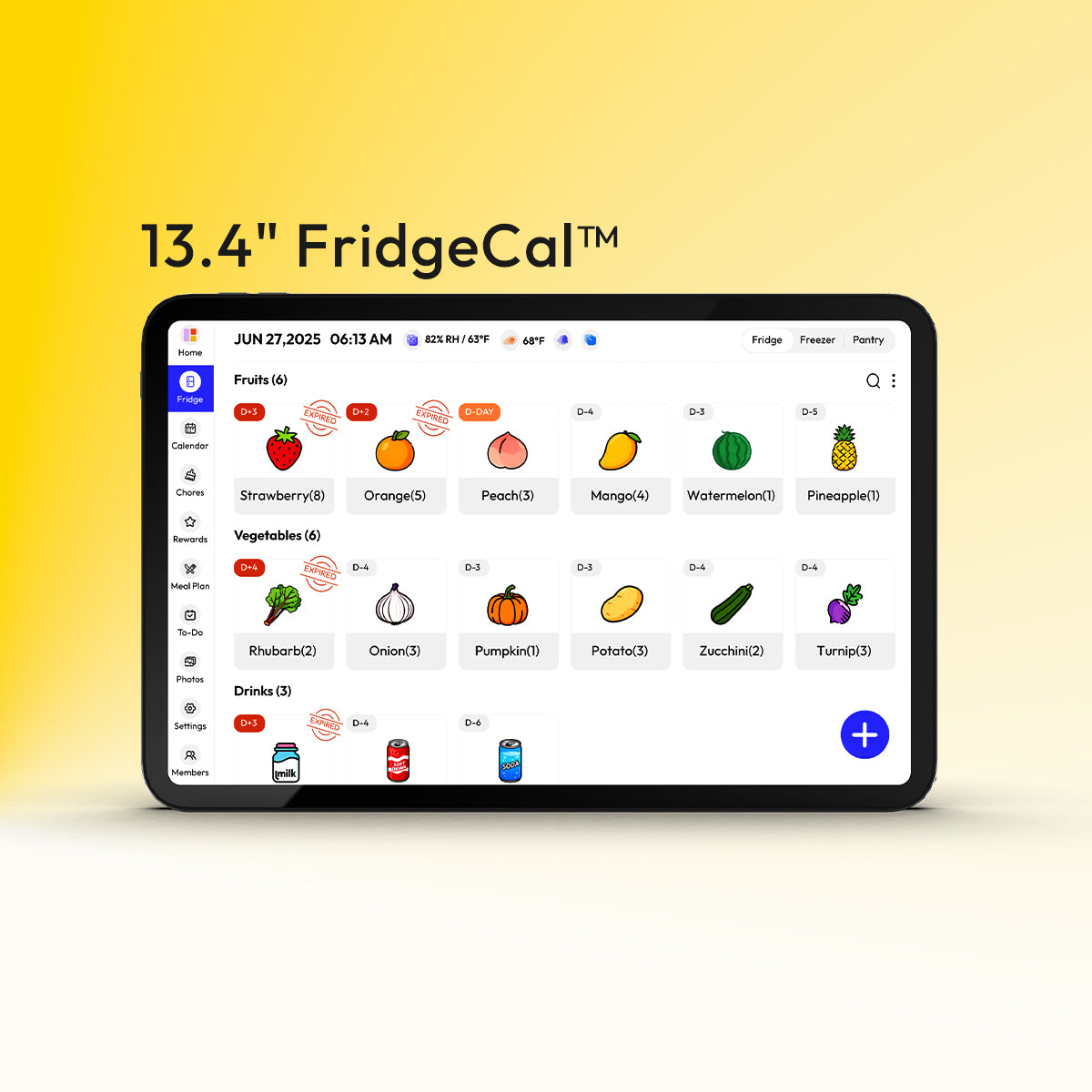
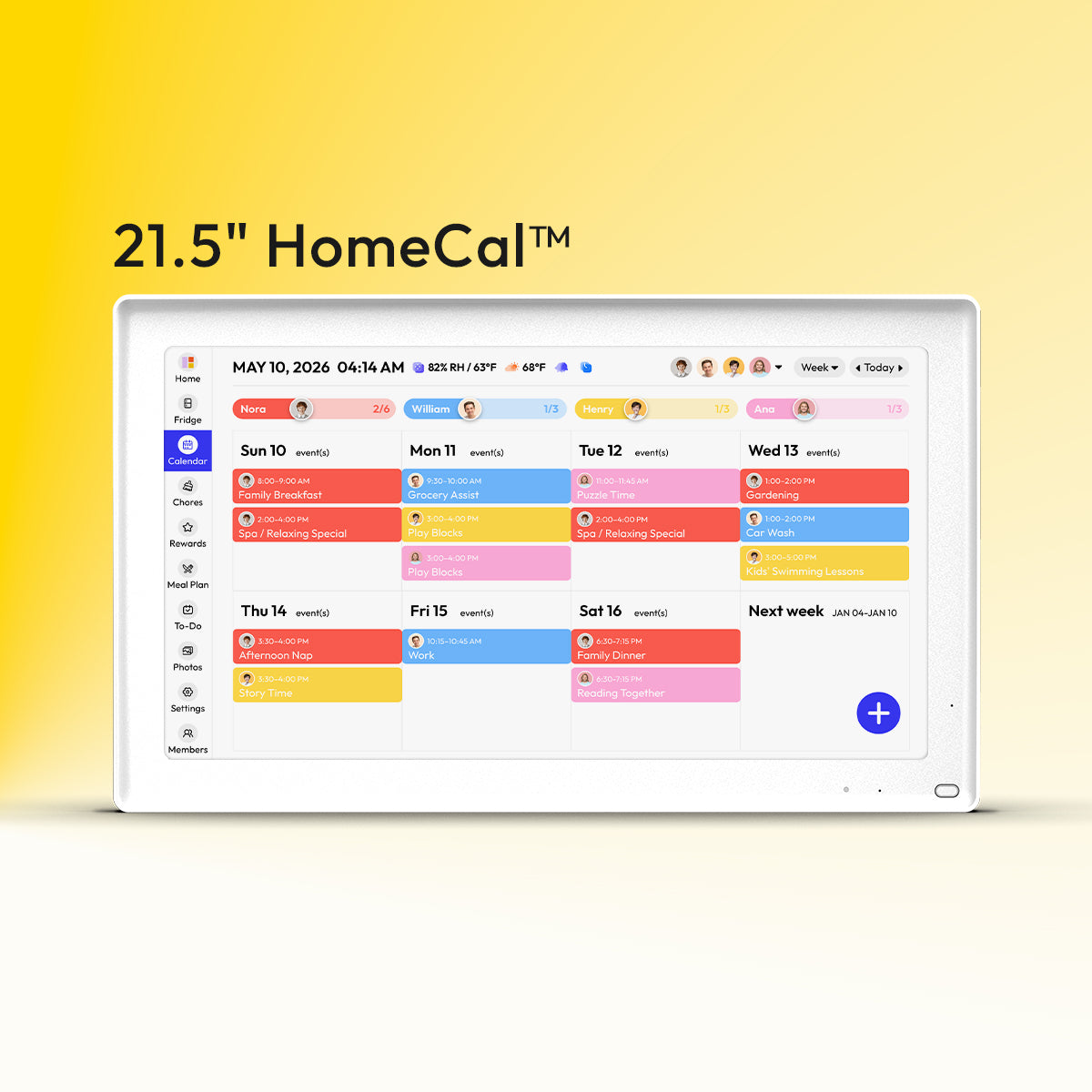
If you want that same at-a-glance clarity on a bigger shared screen at home, Everblog brings calendars, chores, meals, and family planning into one central hub the whole household can see. It works especially well alongside your iPhone widget, giving you quick personal access on the go and a clear shared view when everyone’s back under one roof.


Leave a comment
This site is protected by hCaptcha and the hCaptcha Privacy Policy and Terms of Service apply.