





Somewhere in your week, the schedule broke.
Maybe it was the dentist appointment that never made it from your phone to the family calendar. Maybe soccer practice changed, one parent saw the update, the other didn't, and now everyone is texting from the parking lot. Maybe the school email said early dismissal, but the paper planner on the counter still showed a normal day.
That kind of chaos usually isn't a time-management problem. It's a visibility problem. The information exists, but it lives in too many places. One calendar is on your iPhone. Another is tied to work in Outlook. School events come through a public feed. A co-parent needs access to the kids' schedule, but not every personal detail in your week.
Learning how to sync calendars helps, but the advantage extends beyond that. You're building a single source of truth for the household, so the right people can see the right schedule at the right time.
Why Your Family Schedule Feels So Chaotic
The most common family scheduling mistake is simple. Everyone thinks they're looking at the calendar, but they're not looking at the same calendar.
One parent adds a pediatrician visit to Apple Calendar. The other keeps work and personal events inside Google Calendar. Grandparents helping with pickup rely on a text thread. The school sends event reminders by email. By Friday, the family has four partial versions of the week and no one knows which one is current.

The real problem is stale information
Years ago, calendar management often meant updating one device, exporting something, or manually re-entering the event elsewhere. A major shift happened when calendar systems moved to real-time, cloud-based synchronization, where updates on one device can propagate to others in milliseconds, turning separate calendars into a continuously updated source of truth for busy households, as described in Schedly's explanation of real-time calendar syncing.
That change matters at home because family logistics fall apart when even one person is looking at old information. If your partner sees the old pickup time and you see the corrected one, the calendar didn't fail because no one cared. It failed because the system still depends on memory and manual updates.
Practical rule: If a date matters to more than one person, it shouldn't live in only one place.
Families who get ahead of this usually stop treating calendars like private notebooks. They start treating them like shared infrastructure. Work stays where it belongs. Personal appointments stay controlled. But the events that affect pickup, dinner, rides, practices, and who's home when become visible in one dependable flow.
A synced calendar reduces mental load
You still need routines. You still need someone to notice the email from school and add the event. But once that event enters the right calendar, syncing cuts down the repeated work. You're not rewriting the same orthodontist appointment in three apps and on a sticky note.
That's also why many parents look for broader strategies for organizing family life instead of chasing one more app. A good system doesn't just store dates. It makes sure the dates show up where your family looks.
If you're trying to move from scattered reminders to one reliable household view, this guide on why every mom needs a digital calendar is a useful next read.
Calendar Subscribe vs Sync Whats the Difference
Families run into trouble here because these two setups solve different problems. If you use the wrong one, you get the kind of mix-up that causes real stress. A soccer practice shows on one phone but not the other, or a dentist appointment looks editable even though it belongs to the school office calendar.

What subscribing means
A subscription is usually one-way. You pull someone else's calendar into your view, and their updates appear for you, but you usually cannot change the original event.
That makes subscriptions a good fit for calendars your family does not control:
- School calendars: holidays, early dismissals, testing dates
- Sports calendars: game times, field changes, tournament weekends
- Community calendars: church events, camp schedules, district programs
This is a visibility tool, not a coordination tool.
If the school moves Friday pickup from 3:00 to 1:00, a subscription can show the new time on your calendar. But if you edit that event on your phone to remind yourself about aftercare, that change usually stays on your side only, or the app will block the edit entirely. For family planning, that distinction matters.
What syncing means
Syncing keeps calendars aligned across accounts, apps, or devices. Depending on the setup, it can be one-way or two-way.
For parents, the practical question is simple. Do you just need to see the event, or do you need the event to update across the people and tools managing it?
Here's the difference in plain language:
| Method | Best use at home | What happens |
|---|---|---|
| Subscribe | Outside calendars your family follows | You see updates, usually read-only |
| Sync | Calendars your family manages | Changes can carry across linked calendars and devices |
If your goal is “show me the school calendar on my phone,” subscribe is often enough.
If your goal is “when I add Lily's dentist appointment, my co-parent sees it, and the shared family calendar stays current,” you need a sync setup or a shared calendar with clear editing permissions.
A subscription works like posting the school's printed calendar on the fridge. Syncing works like one family planner that updates wherever each parent checks it.
When families should use each one
Most busy households use both, and that is usually the cleanest setup.
Use subscriptions for outside schedules you want to reference but do not own. Use sync for calendars tied to your household's decisions, such as pickups, custody exchanges, medical appointments, and anything that changes who needs to be where.
Before you connect a calendar, answer these three questions:
- Who owns it? If the school or league owns it, subscribe instead of trying to control it.
- Who should be allowed to edit it? A co-parent may need full edit access to the kids' calendar, while a grandparent may only need to view it.
- Do you need visibility or a single source of truth? Visibility helps with holiday dates. A single source of truth helps when a changed soccer time affects dinner, rides, and a 4:30 dentist appointment.
That last point is where families save themselves the most friction. Read-only subscriptions are useful, but they do not replace a shared system your household operates on.
If you rely heavily on Google Calendar for scheduling, a few Google Calendar add-ons for meetings can also help with the event-management side once your main calendar structure is set.
Your Guide to Syncing Core Calendars
When parents ask how to sync calendars, they usually mean one of three things. They want Google and Apple calendars to show the same personal events. They want a work Outlook calendar visible on an iPhone. Or they want Google and Outlook to stop acting like separate lives.
The cleanest setup starts before you tap any settings. First, list every calendar source you already use. Work, personal, shared family, school subscriptions, activity calendars, booking tools, and any third-party app that creates events. A careful rollout works better than a giant one-day merge. Schedly recommends inventorying each calendar source, choosing the sync tool, setting conflict rules, running a trial sync, and then monitoring for mismatches in a gradual rollout in its guide to multi-calendar sync for work and private life.
Getting Google Calendar and iCloud to talk
This is the pairing many families struggle with because one parent may live on an iPhone while the other keeps everything in Google Calendar.
If you use an iPhone and want Google Calendar events visible in Apple Calendar, add your Google account to the phone's calendar accounts and turn calendar access on. That usually gives you visibility in the built-in Apple Calendar app without forcing you to abandon Google.
If your goal goes the other direction, where iCloud events should also be visible in another shared workflow, keep one rule in mind. Pick a home base for editing. If you edit the same appointment in multiple places without a clear owner, duplicates and mismatches get more likely.
A practical setup for families looks like this:
- Personal appointments: Keep them in the calendar you already trust and use daily.
- Shared family events: Put them in a dedicated family calendar, not mixed into one parent's private calendar.
- School and sports feeds: Subscribe to them. Don't copy them by hand unless you have to.
Viewing an Outlook work calendar on your iPhone
This is usually a visibility problem, not a syncing problem.
Many parents don't need their work calendar to fully merge with the family calendar. They just need the family to know when they're blocked for pickup, travel, or late meetings. In that case, it's often smarter to display the Outlook calendar on your phone and create a separate family calendar for household events.
If your employer allows broader calendar sharing, be selective. Don't expose meeting titles if “Budget Review” or “HR Check-In” doesn't belong in a family view. Marking work blocks as busy without sharing sensitive details is often enough.
Keep work visible, not exposed. Your family needs your availability more than your meeting subjects.
Connecting Google and Outlook without creating a mess
This pairing can work well, but it's where people often overcomplicate things. They try to merge everything, then wonder why two lunch appointments appear or why an event can only be edited in one app.
Start smaller. Choose one purpose for the connection:
- Visibility only if you just want to see your work day alongside home logistics
- Shared planning if a family calendar needs to sit beside both systems
- Selective sync if certain events should flow across platforms while others should stay put
If you use meeting-heavy calendars, it also helps to clean up the source before syncing. Extra holds, duplicated invites, and temporary scheduling placeholders get messy fast once they appear in multiple tools. If your schedule revolves around appointments and call blocks, these Google Calendar add-ons for meetings can help you tighten the calendar before you connect it elsewhere.
What works better than a full merge
Parents often assume the goal is one giant calendar where every event from every system lands in the same bucket. That usually isn't the cleanest answer.
A better model is:
- One calendar for family operations
- One calendar for each adult's private commitments
- Subscriptions for outside schedules
- A clear editing owner for each calendar
That setup gives you less confusion than total merger. You can still view calendars together, but you don't lose control over who edits what.
Smart Sharing for Families and Co-Parents
Tuesday at 3:30, one parent is driving to the dentist while the other thinks pickup is still covered after soccer. The problem usually is not the phone. It is that the family has no clear rule for what gets shared, who can change it, and where the final version lives.
Families need shared visibility with boundaries. Co-parents, grandparents, sitters, and older kids all play different roles, and your calendar should reflect that. If everyone sees everything, private details leak. If nobody knows which calendar to trust, people start texting screenshots and asking, “Is this still on?”
Share by role, not by relationship
Set permissions based on what each person needs to do.
A co-parent may need to add pickup changes or school events. A grandparent may only need to see game times. A sitter may need the address, start time, and emergency contact, but not your work meetings or medical appointments. Apple and Google both support shared calendars and view-only access, but the better decision is choosing the right level of access before you send the invite, as noted earlier.
A setup that holds up in real family life usually looks like this:
- Shared family calendar: School events, practices, pickups, travel, birthday parties, and anything that affects handoffs
- Child-specific calendar: Helpful if one kid has a packed schedule or two households need cleaner separation
- Private adult calendars: Medical appointments, work items, social plans, and anything that does not belong in the family feed
- Read-only subscriptions: School district dates, team schedules, camp calendars, and other outside sources you do not control
That split keeps the shared calendar useful. It also protects privacy without making the system hard to maintain.
One-way visibility and two-way editing are not the same thing
This distinction matters a lot for kids' schedules.
A read-only subscription works well for things like the school calendar or a league schedule. You want those events visible, but you do not want anyone in the family accidentally editing early dismissal or moving Saturday's game. Two-way sharing is better for plans your household owns, like who handles the dentist appointment, whether grandma covers pickup, or when a makeup practice gets added.
For co-parents, this is usually the cleanest rule. Share child logistics two ways only when both adults need to update them. Keep outside calendars one way. Keep personal calendars private, or share only blocked time if the other adult just needs to know you are unavailable.
What co-parents should and should not share
Good co-parent calendar sharing is specific. It is not a running journal.
“Emma dentist appointment, Tuesday, 3:30 PM, Dr. Patel, bring insurance card” helps the next adult act. “Mom annual physical” belongs on a private calendar. “Work event, unavailable for pickup from 4 to 6” may belong as a time block with limited detail.
That line matters even more in higher-conflict situations. The shared calendar should answer operational questions fast: Who is taking whom, where, and when? If you want a stronger structure around that, this guide to co-parenting calendars and why they matter is a useful reference.
Permission mistakes that create tension
The biggest problem I see is giving edit access to too many people. Once several adults can rename, move, or delete events without a clear rule, the calendar stops being a record and turns into an argument.
Use a simple ownership model:
- One owner per calendar: One adult manages settings, color labels, and sharing permissions
- A small group of editors: Usually parents or co-parents only
- View access for helpers: Caregivers and relatives can see what they need without changing it
- Consistent event names: “Liam soccer practice. Field 3. Dad pickup” is better than “Practice”
- Sensitive notes kept out of titles: Put private details in the right place, not in a shared event name
This is the same logic teams use in shared work systems. The principles behind improving content team workflows apply at home too. Clear ownership prevents confusion.
The goal is bigger than getting two phones to match. The goal is a single source of truth for the family, a calendar everyone can trust when plans change midweek.
How to Fix Common Calendar Sync Problems
Even a good setup will misbehave sometimes. The trick is knowing whether you're looking at a real failure or a normal delay.

Events are showing up late
Ask this first. Has enough time passed for the calendars to refresh?
Calendar updates aren't always instant. Troubleshooting guidance notes that events may take up to 30 minutes to appear across devices due to refresh timing, connectivity issues, or rate limiting, which is why a short delay doesn't automatically mean the sync is broken, according to CalendHub's calendar sync troubleshooting guide.
If an event isn't showing yet:
- Wait briefly before rebuilding everything: A delayed event is common.
- Check internet access on the device: Phones often look connected when the app hasn't refreshed.
- Open the calendar app directly: Sometimes widgets lag behind the actual app.
- Confirm you changed the right calendar: It's easy to add an event to a local or hidden calendar by mistake.
You're seeing duplicate appointments
Duplicates usually happen because the same calendar entered your view twice, or because two people manually recreated the same event in separate calendars.
Look for overlap like this:
| Symptom | Likely cause | Fix |
|---|---|---|
| Same event appears twice | One calendar is both subscribed and shared | Remove one connection |
| Appointment repeats with small differences | Someone recreated it manually | Keep one version, delete the other |
| Family calendar and personal calendar both show same item | No clear owner for shared events | Assign one calendar as the source |
If you keep chasing duplicates, stop editing from every device for a day or two. Add and update events from one primary app, then see whether the clutter settles down.
For a platform-specific walkthrough, this guide on Google Calendar not syncing covers the commonly overlooked checks.
A shared calendar isn't updating
This problem is often permission-related. Someone thinks they shared the calendar, but they sent a view-only link. Or the recipient accepted access on one account while expecting it under another.
Try this sequence:
- Verify which email account received the share
- Confirm whether the calendar is view-only or editable
- Remove the broken connection if needed
- Recreate the share cleanly
- Test with one small event before trusting it
A short visual walkthrough can help if the settings screens are giving you trouble.
Last resort for stubborn sync issues
If the setup looks right and still won't behave, simplify first. Hide extra calendars. Remove unused subscriptions. Reconnect only the calendars you need. Most families don't need a complex web of overlapping feeds. They need one clear structure that survives a busy Tuesday.
From Synced Phones to a Central Family Hub
At 7:15 a.m., one parent is checking a phone for soccer practice, the other is trying to remember whether the dentist appointment was moved, and the kids are asking what happens after school. The calendars may already be synced. The problem is that the plan is still trapped inside personal screens.
Families usually do better with a single source of truth. That means one shared place where the household can see the accurate schedule without chasing texts, paper notes, or whoever happens to remember.

Visibility changes follow-through. A synced phone helps one person stay organized. A family hub helps everyone act on the same plan.
That difference matters in busy homes. If the weekly view is visible at breakfast or by the door, kids can see that Wednesday means practice first and homework later. A grandparent helping with pickup can confirm the address without calling. Co-parents can check handoff times without digging through separate apps.
The trade-off is privacy. A good family setup does not dump every calendar onto one screen. It shows what the household needs to coordinate and keeps personal details controlled. For many families, that means work blocks appear as busy time, a child's activity calendar shows full event details, and sensitive appointments stay limited to the adults who need them.
A practical setup usually includes:
- Synced phones for adults: Add and update events from anywhere
- Imported outside calendars: School, sports, and activity schedules stay in view
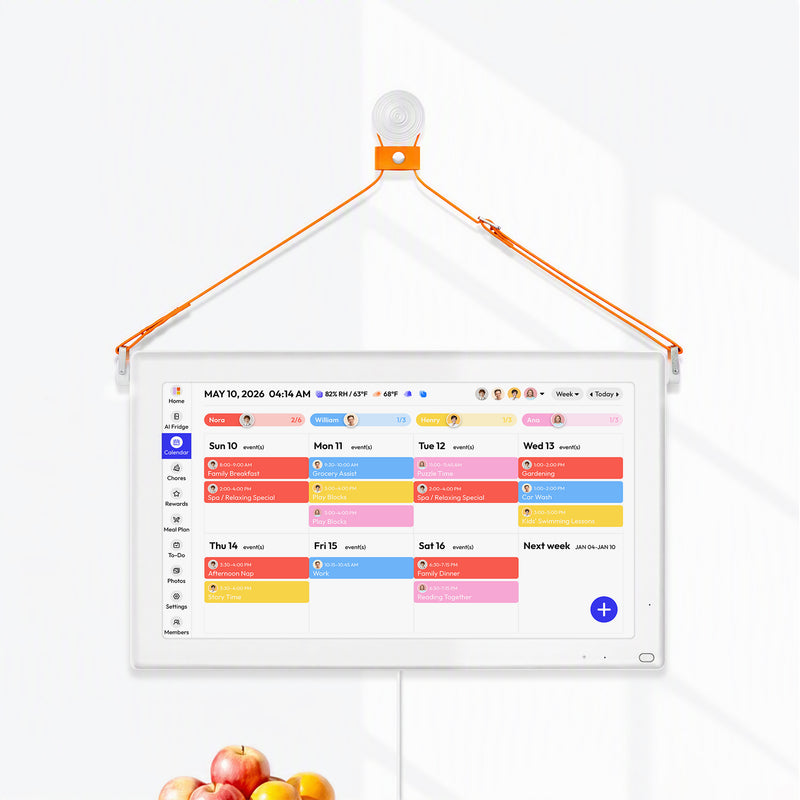
- One shared household display: The same week is visible to everyone
- Clear display rules: Family events are public to the house. Personal calendars stay selective
This is how synced calendars become useful in real life. The end goal is not technical connection for its own sake. The end goal is a household system that answers, in one glance, who needs to be where and when.
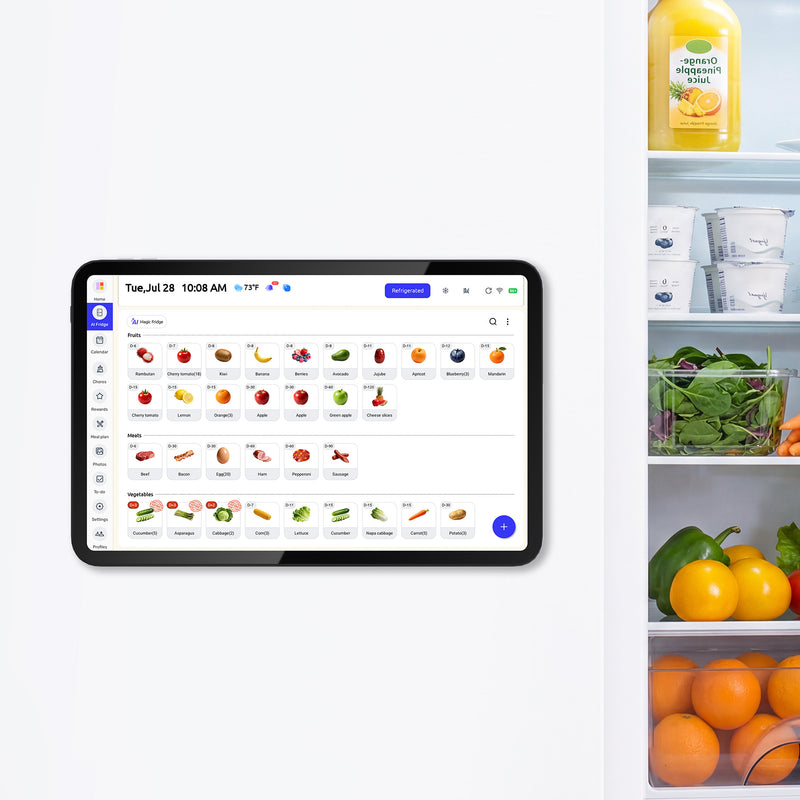
Everblog is one example of that kind of setup. It pulls together calendars from Google, Outlook, and Apple into one household view, so the schedule lives in a shared family hub instead of being scattered across separate phones.
When that hub is in place, parents spend less time being the human reminder system. Kids can check what is coming up. Co-parents can verify the plan. The calendar becomes part of how the house runs.


