


A digital family hub can do its job perfectly and still feel cold. It can show carpools, dentist appointments, grocery reminders, and the Tuesday night pasta plan, yet read more like office equipment than home. Family photos change that. They add the glow of recognition: a beach towel draped over little shoulders, a flour-dusted birthday cake, the dog asleep under the breakfast table. Suddenly the screen is not only useful. It belongs to your people.

That shift matters. Pictures can act as autobiographical memory cues, and family memory-sharing is linked with identity, connection, and wellbeing. In practical terms, the right photo rotation does more than decorate a device. It makes the device easier to live with because it feels like part of family life, not another demand on it.
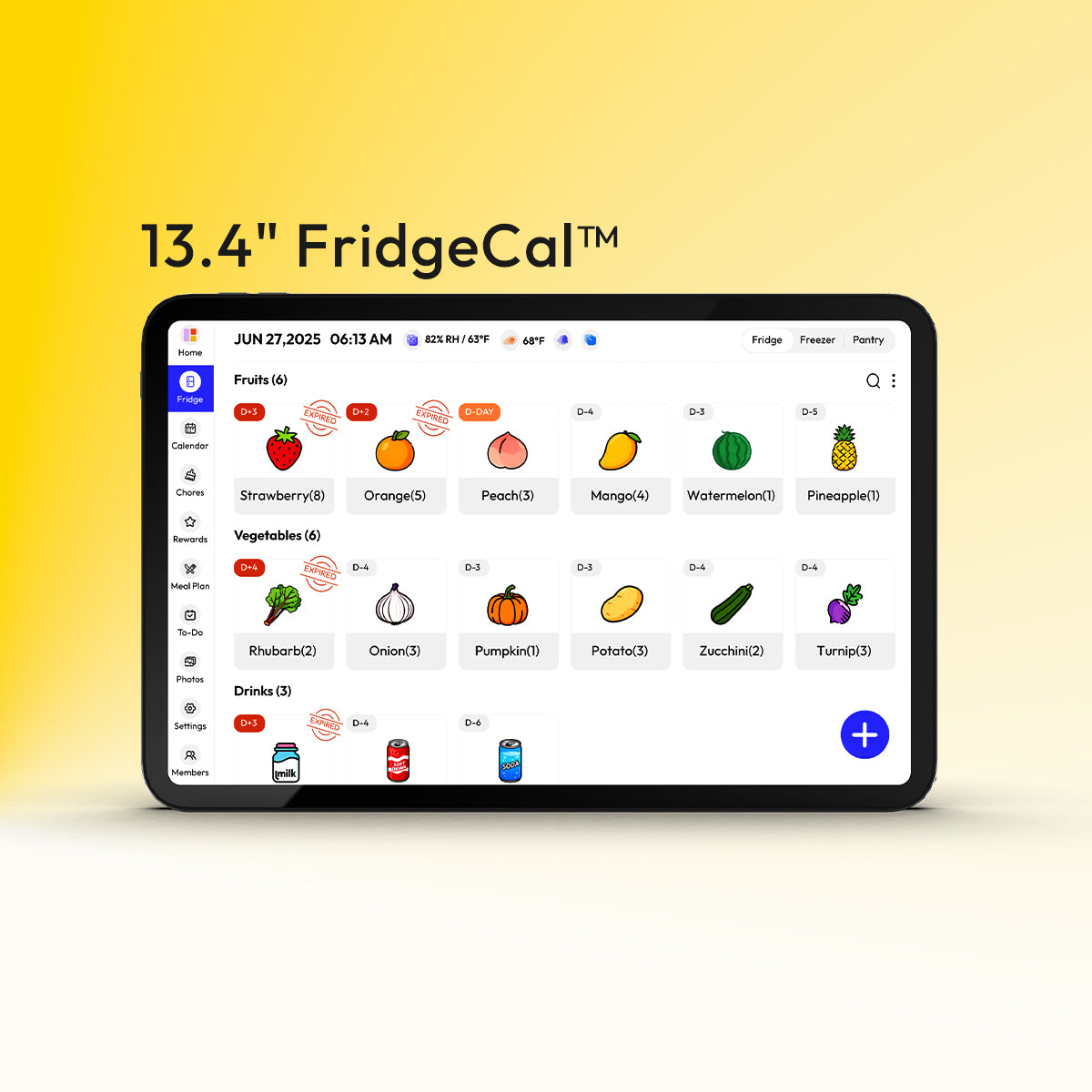
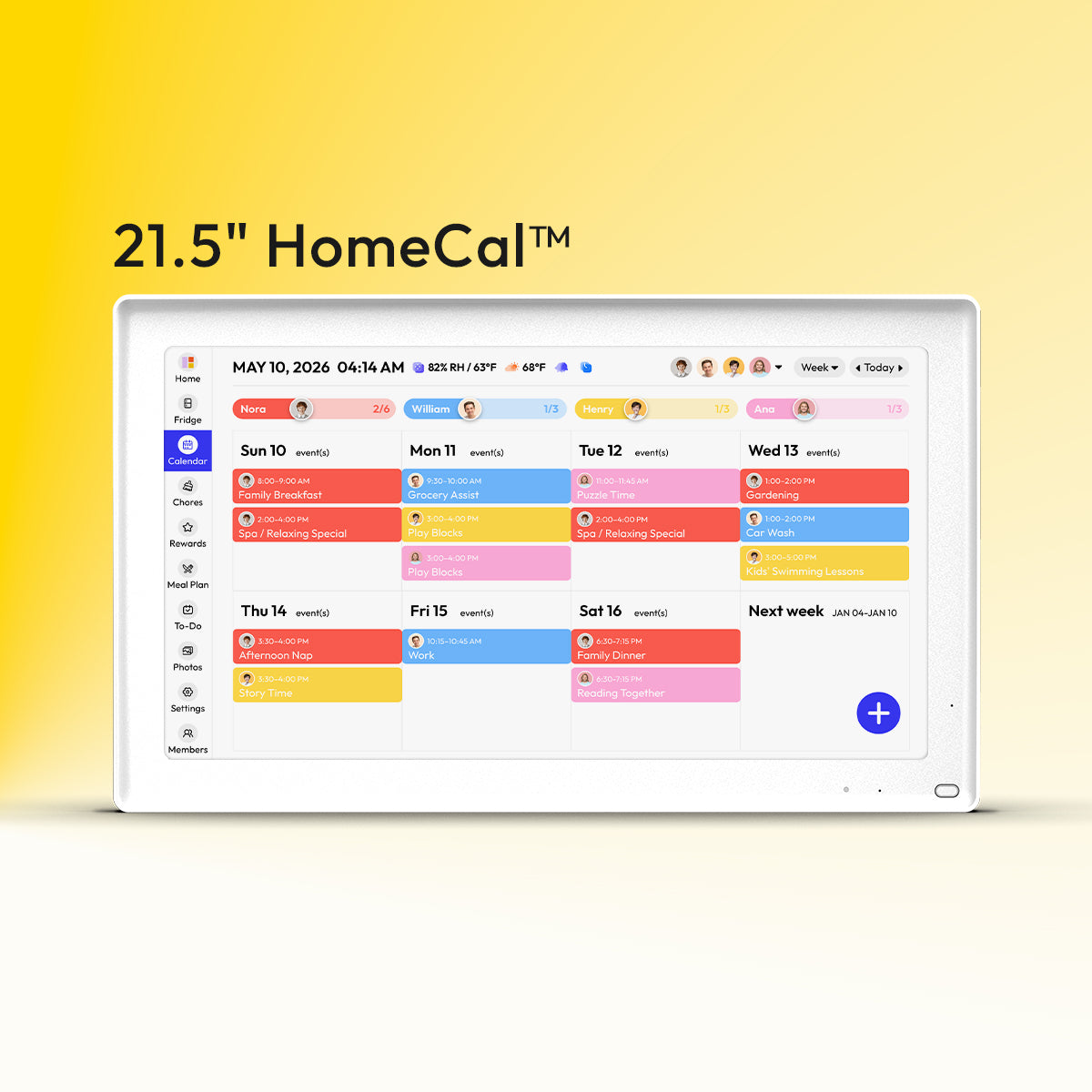
For families merging multiple calendars, a wall hub like the Everblog 21.5-inch Digital Calendar makes sense when you want one large shared view with calendar sync and photo screensaver mode. If the kitchen is the real command center, the Everblog 13.4-inch FridgeCal Calendar fits better for meal planning, shopping reminders, and a smaller stream of family photos on the fridge door.
What makes a photo set feel personal instead of random
The best screen albums do not chase perfection. They create recognition at a glance.
Choose images that do at least one of these jobs:
- Show a family ritual: pancake Saturdays, first-day-of-school photos, Friday movie night.
- Mark a season: summer lake day, Halloween costumes, a December cookie tray.
- Catch a relationship: grandparents reading, siblings arguing and laughing, a parent tying cleats.
- Hold a place: the porch swing, the cabin, the kitchen island everyone leans on.
Aim for 12 to 20 photos in your main rotation. That is enough variety to keep the screen fresh without making it feel chaotic. A good starting mix is 70% everyday moments, 20% milestone photos, and 10% scenic or detail shots. The everyday images are what make the screen feel lived in. The milestone shots add sparkle. The detail shots let the eye rest.

Low-budget or low-skill alternative: Start with 8 photos from your phone favorites album and call it done for now. A short, coherent set almost always looks better than a bloated one.
Four curation choices that elevate the screen
1. Build around one family story, not a camera roll dump
Treat the album like a tiny exhibit. Maybe the theme is “our kitchen year,” “weekends outside,” or “the kids growing into the house.” When the images share a mood or thread, the display feels intentional.
Keep 3 to 5 anchor photos that are instantly readable from across the room: faces turned toward the camera, strong light, simple background. Then layer in 6 to 10 supporting photos with action or texture.
Low-budget or low-skill alternative: Use one event only, such as “last summer trip,” and trim it to the best 10 images.
2. Crop for the room, not just the picture
A working family device is not a museum wall. It has widgets, calendar blocks, reminders, and bright ambient light to compete with. Leave breathing room around faces and key details. A useful rule is to keep the main subject inside the center 80% of the frame so it still reads well if the interface overlays text or trims the edges.
Favor:
- Mid-shots and close-ups over distant group photos
- Clean backgrounds over busy ones
- Horizontal images for wide displays and slightly taller compositions for fridge displays
Low-budget or low-skill alternative: Use your phone’s built-in crop tool and make only one adjustment: center the faces and remove clutter near the edges.
Match the crop to the screen shape first: a company affect whether faces get trimmed or stretched on digital displays. Keep an uncropped original for your archive, and for older adults or lower-vision viewers, favor tighter crops, clearer faces, and stronger contrast over busy wide shots.
3. Rotate by season, not by mood swings
The easiest systems are repeatable. Update the photo set every 8 to 12 weeks or around natural family markers: back-to-school, Thanksgiving, winter break, spring sports, summer travel. Seasonal rotation keeps the display feeling alive without turning it into one more weekly task.

If your home runs on meal planning and shared reminders, tie the refresh to an existing routine:
- Update photos on the first Sunday of each month
- Swap the album when you change the family meal template
- Refresh after a major holiday or birthday
Low-budget or low-skill alternative: Keep one permanent “greatest hits” album and replace only 3 photos per season.
4. Add captions sparingly
A short label can turn a nice image into a family touchstone. “Lake house, 2024.” “Nana’s peach pie.” “First cleats.” Keep captions to 3 to 5 words when possible. Short text feels warm; long text starts to look like admin.
This is especially helpful with multigenerational photos. Since family stories support meaning-making and connection over time, images that prompt “remember when” conversations can do more than fill empty screen space; they can invite those small moments of shared recall that make a house feel inhabited, not merely organized in the research on family storytelling and wellbeing.
Low-budget or low-skill alternative: Skip captions entirely and use the date only, such as “July 2025.”
A practical 4-step setup path
- Choose the album Pull 25 to 40 photos into a temporary folder, then cut down to 12 to 20. Effort: 30 to 45 minutes Cost: $0
- Crop and test readability Stand 4 to 8 ft from the screen location and check whether faces, hands, and important details still read clearly. Effort: 20 to 40 minutes Cost: $0
- Create a rotation rhythm Set a recurring reminder every 8 to 12 weeks so the display stays fresh without becoming work. Effort: 5 minutes Cost: $0
- Back up originals and finish the install Keep the display personal, but do not let it become your only photo archive. The Library of Congress recommends saving copies on at least two different storage media, in separate physical locations, and migrating them about every five years. Effort: 15 to 60 minutes Cost: $0 to $75.00, depending on whether you already own backup storage or need mounting hardware
Library guidance on external media is a good reality check here: do not leave your only good copy on a thumb drive or the device itself. If a photo will not display cleanly, re-export it, recrop for the device shape, and force a fresh sync or restart before you assume the file is lost.
Styling ideas for different homes
If you like a bright, modern look, choose airy photos with open space, pale walls, and daylight. Whites, warm wood tones, denim blue, and soft greens look calm next to schedule blocks and reminder colors.

If your home is cozy and layered, lean into richer images: candlelight at dinner, plaid blankets, muddy boots by the door, pie crust on a floured counter. These photos make a device feel less like a screen and more like a hearth object.
If you prefer a polished, minimal style, use fewer images and repeat them longer. A set of 10 to 12 photographs with consistent editing can feel elegant without losing warmth.
- Busy parents: keep 12 to 15 photos and refresh every 8 to 12 weeks so the screen stays recognizable without becoming one more weekly chore.
- Single-person apartment: use 8 to 10 images and hold them longer so a smaller space feels curated instead of visually busy.
- Large extended family: use 18 to 20 images with a few repeat anchor faces in every batch so more relatives appear without turning the display into a camera-roll dump.
- Privacy-sensitive household: keep 8 to 12 lower-stakes images and skip school, uniform, or front-yard shots if visitors or clients can see the screen.
Safety & Boundaries
This advice is not for every household in the same way.
Avoid a DIY wall installation if you are unsure about studs, anchors, cable routing, masonry, tile, or landlord restrictions. In homes with toddlers or frequent child visitors, anchor heavy screens securely and keep cords out of reach. If you cannot do that confidently, consult a qualified installer or handyman.
Before installation, confirm the wall or furniture can take the load, place the screen close enough to a real outlet to avoid improvised power runs, and keep cables out of child traffic paths; if anchoring is not possible, use a sturdy low base and push the screen back keep cords out of reach. In rentals, open-plan apartments, or home offices that clients see, a smaller rotation of lower-stakes images is often the better privacy tradeoff.
Be thoughtful about privacy. Skip highly personal images if your display is visible from the front door, shared hallways, or a home office used for client calls. Ask teens before displaying photos that include friends, school events, or anything they may experience as embarrassing.
Pause before building a memory-heavy rotation if your family is in acute grief, conflict, or a sensitive custody transition. In those cases, a calmer mix of landscapes, recent everyday shots, or neutral seasonal images may feel safer than emotionally loaded archives. If family imagery brings distress rather than comfort, it is reasonable to scale back and talk with a therapist or counselor.
Decision checklist
Before you finalize the setup, check these five points:
- Do the photos show real family life, not just formal milestone shots?
- Can you read faces and key details from 4 to 8 ft away?
- Is the album small enough to maintain, ideally 12 to 20 images?
- Are the original files backed up in at least two places?
- Is the device mounted and cabled safely for kids, pets, and daily traffic?
A family device becomes personal when it reflects the rhythm of the house: appointments and anniversaries, yes, but also wet swimsuits on the railing, Saturday waffles, missing front teeth, and the way everyone gathers where the light is good. The photos do not need to be perfect. They need to feel true.
References
- Everblog 21.5" Smart Digital Calendar | Family Planner
- Everblog 13.4" Magnetic Digital Fridge Calendar | Smart Meal Planner
- Library of Congress: Reformatting, Digitizing, and Digital Preservation FAQ
- U.S. Consumer Product Safety Commission: Anchor TVs and Furniture Before Super Bowl LX
- The picture of the past: Pictures to cue autobiographical memory in Alzheimer’s disease
- The role of intergenerational family stories in mental health and wellbeing


