



A lot of family scheduling problems don't start as big problems. They start as one dentist appointment entered on a phone, one school event scribbled on paper, one practice time texted to the wrong parent, and one work meeting that never made it onto the shared calendar. By the time someone realizes two things overlap, it's usually late, everyone's irritated, and the problem feels bigger than it should.
That's why calendar syncing with iCloud matters so much in real households. It isn't just about making Apple's Calendar app work. It's about giving the family one place where changes travel across devices, so one update doesn't stay trapped on one person's phone.
The End of Scheduling Chaos Starts Here
The familiar version of this problem looks like this. One parent adds a school conference on an iPhone. The other checks the Mac later and doesn't see it. A teen says the event never showed up on the iPad. Someone prints the weekly schedule because “the app keeps missing things,” and now there are two versions of reality floating around the house.
That's when families usually blame the calendar app itself. Often, the underlying issue is that nobody has a true shared system yet.

Apple describes Calendar on iCloud as a web-based organizer for events and shared calendars, and notes that changes “will sync across your devices with iCloud” on iCloud Calendar. That's the part families need to care about. iCloud Calendar is meant to be the sync layer, not just a place to view events on one device.
What this changes at home
When the setup is right, an event created on an iPhone, iPad, Mac, or in a browser should move through iCloud to the other signed-in devices. For family life, that means less duplicate entry, fewer “I never saw that” arguments, and fewer paper backups taped to the fridge.
Practical rule: A family calendar only works when everyone is looking at the same source of truth.
The technical side matters, but the benefit is simple. A cloud-synced calendar turns scheduling from a memory test into a shared system.
If your family is also trying to improve the habits around planning, not just the tech, these effective calendar and scheduling strategies are worth reviewing alongside your sync setup.
Get The Foundation Right Your iCloud Calendar Setup
Most iCloud calendar problems start before anyone shares a calendar. They start with one bad basic setting.
Apple's guidance is straightforward. For reliable syncing, check that the same Apple Account is signed in on each device, that Calendars is enabled in iCloud settings, and that the default calendar is set correctly in the Calendar app settings, according to Apple's syncing checklist.

The three settings that matter most
If you only verify three things, verify these:
-
Use the same Apple Account everywhere
If one device is signed into a different Apple Account, it may look normal at first. The Calendar app still opens. Events still exist. They just won't land in the same iCloud space. -
Turn Calendars on in iCloud settings
This sounds obvious, but it gets missed all the time, especially on an iPad that was set up years ago or a Mac that someone uses less often. -
Set the right default calendar
This is the setting that saves families from a lot of confusion. If the default calendar points somewhere else, new events can be created in the wrong place even though iCloud is technically enabled.
A quick visual walkthrough can help if you're setting this up across multiple devices at once:
The shortest setup path
Use this checklist on each Apple device:
- On iPhone or iPad: Open Settings, tap your name, open iCloud, then confirm Calendars is turned on.
- On Mac: Open System Settings, click your name, open iCloud, then confirm Calendars is enabled.
- Inside Calendar settings: Make sure your default calendar is an iCloud calendar, not a local or secondary account calendar.
- Check date and time: Apple also recommends verifying correct date and time settings when syncing behaves oddly.
If one family member says, “I added it, but nobody else can see it,” the first question should be, “Which calendar did you save it to?”
What works and what doesn't
Here's the practical difference:
| Setup choice | What usually happens |
|---|---|
| Same Apple Account, Calendars on, iCloud set as default | New events are much more likely to appear consistently across Apple devices |
| Calendars on, but default calendar is local or another provider | Events may appear on one device only |
| Different Apple Accounts across devices | Sync looks random because devices aren't writing to the same iCloud data |
| Correct account, but wrong date/time settings | Updates can appear delayed or inconsistent |
For calendar syncing with iCloud, the boring setup details do most of the heavy lifting.
Mastering Shared Calendars for Family Coordination
Once your own devices are behaving, the next step is building a calendar structure that a family can live with. A single giant shared calendar sounds efficient, but in practice it often becomes a cluttered feed of school notices, work travel, sports, appointments, and reminders that nobody wants to scan.
A cleaner approach is to create separate shared calendars by purpose.
A structure families can maintain
A setup like this works well in real homes:
- Kids' Activities for practice, games, lessons, and club events
- Family Appointments for medical visits, school meetings, and services at home
- Work Travel for days when one parent is away or unavailable
- Household Planning for birthdays, visitors, and major errands
This keeps the calendar readable. It also makes permissions easier to manage.
For the actual sharing steps, Everblog's guide on how to share an iCloud calendar is a useful walkthrough if you want the taps and clicks laid out clearly.
Choose permissions on purpose
Not everyone in the household should have the same editing rights.
Use view only when:
- a child needs visibility but shouldn't edit events
- grandparents want to see school programs or games
- a co-parent needs awareness without changing household logistics
Use view and edit when:
- both parents actively manage appointments
- a caregiver needs to add pickups or schedule changes
- an older teen manages their own activities responsibly
Shared calendars work better when each one has a clear owner, even if several people can edit it.
A simple rule for naming calendars
Don't get fancy with names. Use labels that answer one question fast: What kind of event belongs here?
Good names:
- Family Appointments
- Kids Sports
- School Events
- Parent Work Travel
Bad names:
- Main
- Shared
- Calendar 2
- Misc
Those vague names create mistakes later because no one knows where a new event should go.
Keep privacy and visibility balanced
Families often swing between two extremes. Either everything is visible to everyone, or nobody shares enough to be helpful.
A better middle ground is to share the calendar category, not every detail of family life. For example, a teen may need to know there's a parent appointment affecting pickup time without needing full private context in the title. The same goes for co-parenting arrangements and extended family viewers.
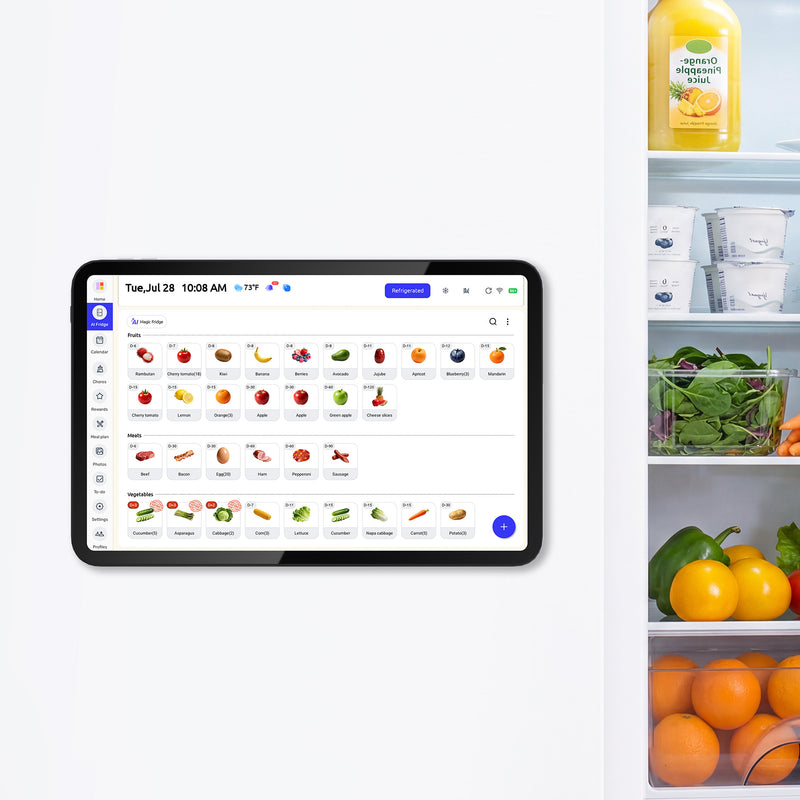
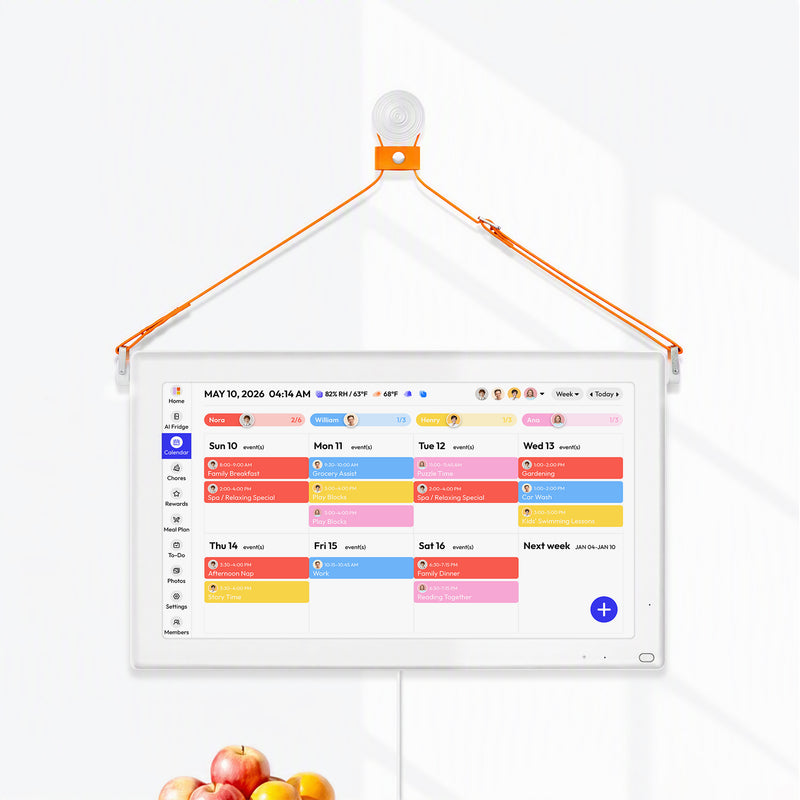
If you use a wall display or family dashboard, this is also where tools differ. Some households keep the master schedule inside Apple Calendar and then surface it elsewhere. For example, Everblog can act as a shared family display that pulls calendars into one view for household coordination, while the actual event ownership stays in the underlying calendar accounts.
The best family system is the one people will keep updating without being reminded.
Syncing iCloud Calendars Beyond the Apple Ecosystem
Many families aren't all-Apple. One parent uses Outlook on a work PC. A child has an Android phone. A grandparent checks schedules from a browser. In these situations, calendar syncing with iCloud usually stops feeling simple.
The first trade-off to understand is this: Apple-to-Apple syncing is one thing. Cross-platform syncing is another. Once Outlook, Android apps, or third-party sync tools enter the picture, there are more moving parts and more places for authentication to fail.

What works on Windows
On Windows, Apple's practical route is usually iCloud for Windows, especially if Outlook is part of the picture. Microsoft's support guidance for failed Outlook and iCloud syncing points users toward updating iCloud for Windows and signing out and back in again in some cases, as noted in this Microsoft Answers discussion about Outlook and iCloud calendars not syncing.
That advice tells you something important. When Outlook and iCloud stop talking, the issue often isn't “calendar data is broken.” It's that the connection layer needs to be refreshed.
For browser access, the simplest fallback is often just using iCloud Calendar on the web. It's not the same as full app integration, but it gives non-Mac users a reliable view of the same calendar data.
Why app-specific passwords trip people up
Apple's tighter security model often requires an app-specific password for non-Apple apps and sync tools, instead of the normal Apple ID password. Support guides now treat that as a prerequisite, and one guide explicitly warns, “Do not use your Apple iCloud password,” in Skylight's Apple iCloud Calendar two-way sync instructions.
That's not a minor detail. It explains a huge share of “it won't connect” complaints.
A failed iCloud sync with a non-Apple app is often an authentication problem wearing a calendar problem costume.
A workable pattern for mixed-device households
If your home uses iPhone, Mac, Windows, and Android together, this pattern is usually the least frustrating:
- Keep iCloud as the Apple-side source for the family members already using Apple Calendar
- Use iCloud for Windows where Outlook needs to stay involved
- Use a connector or compatible app on Android or non-Apple systems
- Expect extra setup for security, especially app-specific passwords
- Test with one small calendar first before syncing every family calendar at once
If you also need to bridge Apple and Google accounts, this guide on syncing iCal with Google Calendar covers the common integration path families try next.
A Practical Guide to Troubleshooting Sync Issues
When families say iCloud calendar sync is broken, the same few root causes show up again and again. The trick is not to try random fixes. Start with the complaint, then work backward.
A common one is: “I added an event on my iPhone, but it never appeared anywhere else.” Another is: “My partner can see old events but not the new one.” Those sound similar, but the diagnosis can be different.

Sync services that bridge Apple calendars with other systems commonly advertise two-way sync and a default refresh interval of about 10 minutes, according to SyncPenguin's Apple iCloud Calendar meetings sync documentation. That matters because many “missing” events are merely delayed in a cross-platform workflow, not lost.
Complaint one. My event disappeared
Most of the time, it didn't disappear. It was saved to the wrong calendar.
Check these first:
- Look at the event's calendar assignment: If it was saved to a local calendar such as “On My Mac,” it won't behave like an iCloud event.
- Open the event on the device where it was created: Confirm the calendar name attached to it.
- Create one new test event intentionally in iCloud: If that one syncs, the old problem was routing, not syncing.
Complaint two. It shows on iPhone but not on Mac
This often points to device state rather than the event itself.
Use this order:
- Confirm both devices are signed into the intended Apple Account
- Make sure Calendars is enabled in iCloud on both devices
- Check date and time settings
- Refresh the Calendar app view
- Restart the device if the view still looks stale
A lot of people skip step three, but incorrect date or time settings can create very strange sync behavior.
Complaint three. Third-party sync feels inconsistent
In this context, expectations matter. When a family mixes iCloud with Outlook, Google, or another service through a connector, updates may not land instantly. A delay can be normal.
Use this quick comparison:
| Symptom | Most likely cause |
|---|---|
| Apple devices sync, but external platform lags | Connector refresh timing |
| Only one manually created event fails | Wrong calendar selected during event creation |
| Nothing new syncs after password change | Authentication or re-linking issue |
| Old events remain visible, new ones do not | Default calendar or account routing problem |
For a deeper walk-through of edge cases, this guide on fixing an iCloud calendar that's not syncing is a practical companion.
Complaint four. Shared family updates aren't visible to everyone
At that point, stop thinking “sync” and start thinking “access.”
Check this before anything else: The person who can't see the event may not be subscribed to the same shared calendar, or they may be viewing a different account's calendar list.
Have each person confirm:
- the shared calendar is enabled in their Calendar app view
- they accepted the sharing invite
- they're looking at the correct account group
- the event was added to the shared calendar, not to a private one
Troubleshooting gets easier once you separate where the event was saved, who has access, and how often the connector refreshes. Those are three different failure points, and they need different fixes.
Advanced iCloud Calendar Questions Answered
What if edits from one device never seem to affect the others
That usually points to account routing, not a mysterious sync bug. Apple community guidance notes that calendars only update automatically when events are stored in iCloud, not in local calendars like “On My Mac” or in other accounts such as Exchange or Google, as discussed in this Apple Community thread about calendar syncing behavior.
If this keeps happening, make iCloud the default calendar and then create one fresh test event. Don't judge the setup by older events that may already be sitting in the wrong account.
Can we use iCloud Calendar if one parent has multiple calendar accounts
Yes, but you need a rule. Decide which account holds family logistics and stick to it. If work uses Exchange and personal scheduling uses iCloud, don't let family events bounce between both based on whichever account was open at the time.
The more accounts you add, the more important naming and default settings become.
What happens if we delete a shared calendar
The events in that shared calendar go with it. Before deleting anything, make sure the calendar is obsolete and not just cluttered. If you only want a cleaner view, hide the calendar first and see if anyone misses it.
How do we keep a family calendar useful without oversharing
Create separate calendars for categories with different privacy needs. A pickup schedule can be shared widely. A personal appointment calendar may need narrower visibility. The cleanest family systems separate logistics from sensitive details.
If your household is tired of juggling phones, paper notes, and half-synced appointments, Everblog is one option for turning those scattered calendars into a shared family view on the wall. It's built for families who want schedules, chores, meals, and daily planning visible in one place, while still working with the calendars they already use.


