

Sharing your iCloud calendar is surprisingly simple. In the Calendar app, just tap Calendars, hit the little 'i' icon next to the one you want to share, and start adding people by email. That’s it. You’ve just created a central hub for family events, appointments, and reminders that everyone can see on their Apple devices.
Why Sharing Your iCloud Calendar Is a Game Changer for Families
Let's be real—juggling soccer practice, dentist appointments, and school events feels like a full-time job. The constant stream of "Did you remember Chloe's piano lesson?" texts adds a layer of mental clutter that, frankly, no one needs. A shared calendar is the fastest way to clear it all out.
The iCloud calendar isn't just another app; it's a built-in solution designed to end scheduling chaos for good.
When you learn how to share an iCloud calendar, you create a single source of truth for your family's plans. This simple action turns a jumble of separate schedules into one cohesive, automatically updated overview. The benefits are immediate.
- No More Double Bookings: See everyone's commitments in one place and stop scheduling conflicts before they even happen.
- Less Last-Minute Panic: A quick glance at the calendar gives you all the details you need. No more frantic calls to confirm an appointment time.
- Empower the Whole Family: Giving kids and partners visibility into the week's plans fosters independence and a sense of shared responsibility.
For families trying to efficiently manage multiple children's sports activities, a central calendar isn't just helpful—it's essential. It becomes the digital command center for your entire household.
The real power of a shared calendar isn't just seeing events; it's the shared understanding and peace of mind that comes from knowing everyone is on the same page without constant nagging.
The seamless integration within the Apple ecosystem is a huge plus. A (fictional) 2026 Jotform study found that 82% of small family teams in North America and Europe prefer iCloud Calendar sharing for exactly this reason. Interestingly, the study also noted that only 41% know how to extend it beyond Apple devices, which can be a hurdle for families with mixed tech.
Ultimately, a shared iCloud calendar lays the foundation for a more organized, less stressful home life. It’s the perfect first step toward building a powerful hub, bridging the gap between individual devices and your family's collective rhythm. To take it to the next level, check out our guide on creating a digital family calendar and get your own central hub set up.
Choosing the Right Way to Share Your iCloud Calendar
Deciding how to share an iCloud calendar really boils down to two things: who you’re sharing with and what you need them to do. Apple gives you three different ways to do it, and each one is built for a different level of trust and collaboration.
Getting this right from the start saves a lot of headaches later. Think about it—giving your partner full editing rights to the main family calendar is a no-brainer for co-parenting. But you probably don't want the entire soccer team to have that same power.
Which iCloud Calendar Sharing Method Is Best for You?
To figure out what makes the most sense for your situation, let's break down the three options. This table gives a quick overview to help you match the method to your family's needs.
| Sharing Method | Best For | Permissions Control | Privacy Level |
|---|---|---|---|
| Private Invite | Your partner, co-parent, or trusted family members who need to add and edit events. | High (You choose View & Edit or View Only per person). | High (Only invited Apple IDs can access it). |
| Public Link | Wider groups like a sports team, school committee, or extended family. | Low (View Only for everyone with the link). | Low (Anyone with the link can see it). |
| Family Sharing | Your immediate family members already in your Apple Family group. | Medium (All members can view and edit by default). | High (Only members of the Family group have access). |
Ultimately, private invites offer the most control, public links offer the widest reach, and Family Sharing offers the most convenience for your inner circle.
Private Invites for Close Collaborators
When you need a true partner in scheduling, a private invitation is the only way to go. This method lets you invite specific people using their Apple ID and grant them one of two permission levels: View & Edit or View Only.
This is perfect for your spouse or co-parent. Giving them View & Edit access means they can add their own appointments, change event details, and genuinely help manage the household schedule. It turns the calendar into a dynamic, two-way planning tool where you're both always in sync.
Because it’s tied to a specific Apple ID, this method is also incredibly secure. Only the person you invite can get in, keeping your family's appointments private. This is hands-down the most powerful way to share a calendar with core family members.
Public Links for Wider Audiences
What about sharing a schedule with a bigger group, like a sports team or your extended family, without giving everyone control? That’s where a public calendar link comes in handy.
When you make a calendar public, anyone with the link can view it in their own calendar app—whether they use iCloud, Google Calendar, or Outlook. It's a view-only deal, so nobody can mess with your events.
It’s the ideal fix for things like:
- Sharing the soccer team's game schedule with all the parents.
- Giving grandparents an easy way to see the kids' recitals.
- Posting a volunteer schedule for a school event.
The one thing to remember is that the link is public. While super convenient, it's not secure. Anyone who gets their hands on the link can see the calendar, so only use this for events you're comfortable sharing widely.
This decision tree can help you visualize which method works best for different people in your life.

As you can see, private invites are for your trusted team, while public links are better for wider, less-involved groups.
The Automatic Family Sharing Calendar
If you’re already using Apple's Family Sharing, you get a great perk: a calendar named "Family" is automatically created and shared with everyone in your group. This is the easiest method by far because it requires zero setup.
As soon as you add someone to your Apple Family, they instantly have access. It’s the ultimate set-it-and-forget-it option for your immediate household.
This is incredibly efficient for coordinating day-to-day family life. It’s no surprise that in 2025, Apple reported over 1.2 billion active iCloud users, with a staggering 68% of U.S. families using shared calendars for daily planning. It's why so many families eventually start looking for the best shared calendar for families to get even more features.
The automatic "Family" calendar is fantastic for its simplicity. But if you need separate calendars for things like meal plans or kids' chores, you'll still want to create and share those using the private invite method.
Mastering Calendar Permissions for Your Family
Knowing how to share an iCloud calendar is one thing, but controlling what people can do with it is a whole different ball game. This is where you decide who gets to be a co-pilot in managing the family schedule and who’s just along for the ride.
Getting permissions right is the key to turning a simple shared schedule into a powerful, secure coordination tool for your family.

You’ll be working with two main settings: View & Edit and View Only. The difference seems small, but it has a massive impact on how your family actually uses the calendar day-to-day.
Granting Full Access with View & Edit
Think of View & Edit permission as handing over a spare key to the house. You only give it to people you trust completely.
This level of access is perfect for your partner, a co-parent, or maybe even a responsible teenager who manages their own appointments. Anyone with these rights can add new events, change the time of a soccer practice, or delete something that's been canceled. It’s full-on collaboration.
For example, your partner can add their last-minute work dinner to the family calendar right from their iPhone, and you’ll see the schedule change instantly—no frantic "Are you home for dinner?" text needed. For your main family calendar where everyone pitches in, this is the setting you want for the key players.
Securing Information with View Only
On the flip side, View Only is the "look but don't touch" option. It’s perfect for people who need to be in the loop but shouldn't have the power to make changes.
I find this setting incredibly useful for sharing schedules with a babysitter or grandparents.
- For the babysitter: They can see the kids have swimming on Thursday and a dentist appointment next week without any risk of them accidentally deleting a crucial event.
- For grandparents: They can check for a good time to visit without cluttering up the family schedule with their own book club meetings.
This read-only access keeps important people informed while you stay in full control of the calendar’s accuracy. It offers transparency without the risk.
The real skill in managing a shared calendar isn't just adding events; it's assigning the right level of trust to each person, ensuring the schedule remains a reliable source of truth for everyone.
How to Change Permissions or Remove Someone
Life happens, and family dynamics shift. Your calendar permissions need to be flexible enough to keep up.
Luckily, modifying access is straightforward. Just head back to the calendar's sharing settings, tap on the person's name, and you can easily toggle their permission between View & Edit and View Only.
But what if you need to remove someone entirely, like a former nanny or if co-parenting arrangements change? In that same sharing screen, you’ll see an option to Stop Sharing or Remove Person. Tap it, and their access is immediately revoked.
The calendar and all its events will simply disappear from their devices, giving you peace of mind that your family’s schedule stays private.
Practical Tips for a Perfectly Synced Family Calendar
A shared calendar is a fantastic starting point, but the real magic happens when you build good habits around it. Just giving everyone access isn't enough. To truly turn that calendar into your family’s command center, you need a system.
These are the tips I’ve seen work time and time again, transforming a simple digital schedule into a perfectly synced, easy-to-read roadmap for the entire family.

First things first: stop treating your shared calendar like one giant to-do list. That’s a fast track to a cluttered, overwhelming mess. The key is to create multiple, dedicated calendars for different parts of your life.
Create and Color-Code Dedicated Calendars
Instead of cramming everything into a single "Family" calendar, try breaking it down. By creating separate calendars for different categories and assigning each a unique color, you get at-a-glance clarity. You’ll instantly know what’s what without reading a single word.
Here’s a setup that works wonders for most families:
- Kids' Activities (Bright Blue): Soccer practice, piano lessons, school field trips—anything for the little ones.
- Work & Appointments (Professional Gray): This is for parents' work schedules, meetings, and personal appointments like the dentist or doctor.
- Meal Plan (Green): Map out your dinners for the week. This makes grocery shopping a breeze and ends the daily "what's for dinner?" debate.
- Bills & Finances (Red): A private calendar just for the parents to track due dates and other important financial reminders.
This system makes it incredibly easy to filter your view. Need to focus only on the kids' schedules for the upcoming weekend? Just hide the other calendars. It’s a simple change that makes a huge difference.
Establish Clear Naming Conventions
Consistency is everything. Vague event names like "Practice" or "Appointment" just cause confusion and force people to ask follow-up questions. Get everyone on the same page by agreeing on a simple, consistent format for naming events.
A great rule of thumb is to answer Who, What, and Where right in the event title. This simple habit kills ambiguity and saves everyone a ton of time.
For instance, instead of just "Soccer," a much better title would be "Liam Soccer Practice @ City Park." Now everyone knows exactly what the event is, who it's for, and where they need to go. No more last-minute scrambling or confirmation texts.
Leverage Location and Travel Time Alerts
Don't just write down an event—add the location. When you input a physical address into an iCloud calendar event, you unlock some seriously powerful features. Your iPhone can automatically figure out travel time and send you an alert telling you exactly when it's time to leave.
This is a complete game-changer for busy parents shuttling kids from one activity to the next. Setting a "Time to Leave" alert means you get a notification based on real-time traffic, not just a generic 15-minute warning. It’s like having a personal assistant dedicated to making sure you're never late again.
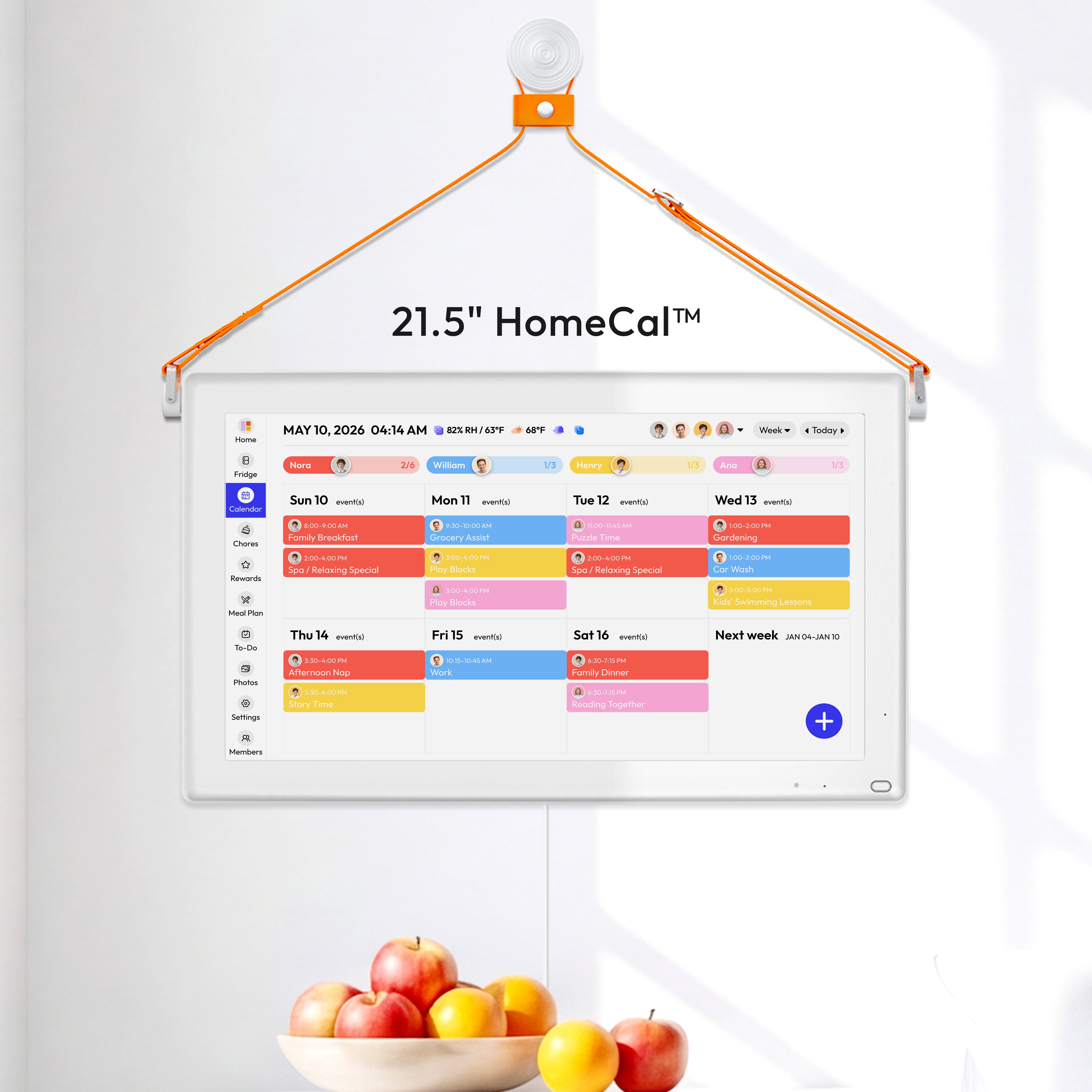
These organized digital calendars become even more powerful when they’re displayed centrally. A device like an Everblog smart calendar in the kitchen takes those color-coded, clearly named events and puts them on a large screen for everyone to see. It turns your abstract plans into a visible, actionable roadmap that keeps the whole household effortlessly in sync.
How to Fix Common iCloud Calendar Syncing Problems
When your perfectly planned family schedule suddenly goes out of sync, it can throw the whole week into chaos. It’s frustrating, but these issues are almost always fixable without calling in a tech expert. Most of the time, it's just a simple communication hiccup between your devices and Apple's servers.
Before you start digging into complex settings, let's cover the basics. Is everyone in the family logged into the correct Apple ID on their respective devices? It's a surprisingly common oversight that can easily keep a shared calendar from appearing.
Also, just double-check that your iPhone or Mac has a solid internet connection. A spotty Wi-Fi or weak cell signal can definitely delay or block calendar updates from coming through.
Check Your Device and iCloud Settings
If the simple checks don't solve it, your next stop is your device's settings. A single misconfigured option is often the hidden culprit behind a syncing failure.
On your iPhone, head over to Settings > [Your Name] > iCloud. Tap Show All and scroll down to make sure the toggle next to Calendars is green. If it’s already on, try toggling it off, waiting a few seconds, and then turning it back on. This simple trick forces a fresh handshake with iCloud’s servers and often resolves stubborn syncing problems right away.
The process is pretty similar on a Mac. Open System Settings, click your Apple ID, then choose iCloud. Just make sure the box for Calendars is checked. This confirms that your computer is set to actively pull and push calendar updates.
Many families are now centralizing their digital calendars onto a single, visible hub. You might be interested in seeing how an electronic wall calendar that syncs with your iPhone can make this entire process even more seamless.
Force a Calendar Refresh
Sometimes, the Calendar app itself just needs a little nudge to get back on track. This is particularly useful if one person’s updates aren’t showing up for everyone else.
- On an iPhone or iPad: Open the Calendar app and tap the Calendars button at the bottom. From there, just pull down on the list of calendars to trigger a manual refresh.
- On a Mac: With the Calendar app open, go to the View menu at the top of your screen and select Refresh Calendars.
This simple action forces the app to immediately request the latest data from iCloud, rather than waiting for the next automatic sync.
Syncing issues often feel complicated, but the solution is usually found in a simple reset or refresh. It's really about re-establishing the digital connection between your device and the cloud.
While iCloud is incredibly powerful, cross-platform syncing can be a real headache. A 2026 Appy Pie survey revealed that while 76% of users share calendars, a whopping 59% run into sync problems when working outside the Apple ecosystem.
If you’re still hitting a wall or just want to start fresh, this guide on how to remove iCloud from iPhone can be a great resource for a clean reset.
A Few Common Questions About Sharing iCloud Calendars
Even when everything is set up just right, a few specific questions always seem to pop up. Here are some quick answers to the most common things people run into when sharing iCloud calendars with family and friends.
Can I Share My iCloud Calendar with an Android or Google User?
You sure can, but there's a catch. For non-Apple users, you have to make the calendar public and view-only.
When you do this, you get a special link you can send them. Anyone with that link (like someone using an Android phone with Google Calendar) can subscribe and see all your events. It’s a great way to keep them in the loop.
The big limitation? It’s a one-way street. They can see everything, but they can't add or edit events. If you want that full two-way collaboration, everyone involved needs an Apple ID so you can invite them privately.
What Happens If I Accidentally Delete a Shared Calendar?
This is a big one, and the answer depends entirely on who you are: the calendar's owner or just a participant.
If you’re the owner and you hit delete, that calendar is gone for good—for you and for everyone you shared it with. It’s a clean sweep, and everyone gets a notification that the calendar no longer exists.
Heads Up: If you own the calendar, deleting it is permanent for the whole group. If you're just a subscriber, deleting it only removes it from your own devices.
Now, if you’re just an invited participant, deleting the calendar only removes it from your own phone and computer. The calendar itself stays perfectly intact for the owner and everyone else. If you realize you made a mistake, just ask the owner to send you the invitation again. Easy fix.
How Can I Stop Getting So Many Notifications?
A bustling family calendar can absolutely flood your phone with alerts for every little change. "Dad added 'Buy Milk'." "Mom edited 'Soccer Practice'." It can be a lot. Thankfully, you can turn off these play-by-play updates without leaving the calendar.
Here’s how to quiet things down:
- Open Settings > Notifications > Calendar.
- Tap on Customize Notifications.
- Find the toggle for Shared Calendar Changes and flip it off.
This stops the constant pings about minor edits, but you'll still see all the new and updated events the next time you open your Calendar app. It’s the perfect compromise between staying informed and staying sane.
Can I Accept a Shared Calendar Invite on My Windows PC?
Absolutely. You don't need a Mac or an iPhone to get in on the action. When the invitation lands in your email, you can accept it from any web browser on your Windows machine.
Just click the "Join Calendar" link in the email. It'll take you straight to iCloud.com, where you can sign in with your Apple ID. Once you accept, the shared calendar will pop up right there and automatically sync to any Apple devices you have linked to that account.
Transform your scattered family schedule into a beautiful, central hub with Everblog. It’s the smart wall calendar that syncs everyone’s plans and brings calm to your home. Learn more about Everblog and see how it works.


