

When your iCloud calendar stops syncing, it's almost always a minor hiccup. I've seen it a hundred times—a crucial appointment added on an iPhone that just won't show up on the Mac. The instinct is to panic, but the fix is usually surprisingly simple.
Most of the time, the problem is a shaky internet connection, a temporary blip on Apple's servers, or a setting that just needs a quick refresh. The fastest way to get things moving again is to check your Wi-Fi or cellular data, take a peek at Apple's System Status page to rule out a widespread outage, and then try the classic "turn it off and on again" trick with the Calendars switch in your iCloud settings. This simple toggle often forces a fresh connection and solves the issue in seconds.
Your Quick-Fix Checklist For Sync Failures
That feeling of dread when an event vanishes or doesn't appear on another device is all too familiar. But before you start digging into complex settings, let's run through a few quick checks that solve the problem more often than not. Think of it less like a catastrophic failure and more like a simple communication breakdown between your device and Apple's servers.
Sometimes, all it takes is to hang up and redial. Toggling the Calendars option in your iCloud settings does just that—it severs the connection and then re-establishes it, forcing everything to sync up fresh. It’s a surprisingly powerful first step.
Before you start toggling anything, I've put together a quick table to guide you through the most common and effective first-line fixes.
Quick Fix Checklist For iCloud Sync Issues
| Check | What to Look For | Common Fix |
|---|---|---|
| Internet Connection | Weak or no Wi-Fi/cellular signal. | Move closer to your router, restart it, or switch to cellular data. |
| Apple System Status | A yellow or red indicator next to "iCloud Calendar." | Wait for Apple to resolve the server-side issue. Nothing to do here. |
| Calendar Toggle | Sync is stuck or delayed despite good internet. | Go to iCloud settings, turn off Calendars, wait 30 seconds, turn back on. |
| Device Date & Time | Incorrect date, time, or time zone on one device. | Set your device to update the date and time automatically. |
Running through this checklist handles the vast majority of sync problems without needing to dive into more advanced troubleshooting.
Start With The Easiest Checks
Always begin with the basics: your internet connection and Apple's own service status. A spotty Wi-Fi signal is probably the number one reason I see an iCloud calendar not syncing.
Next, head over to Apple's official System Status page. If you see a green light next to "iCloud Calendar," it means the service is running fine on their end. But if it's yellow or red, the problem is widespread, and your only move is to wait for them to fix it. You can't fix a server that's down.
This flowchart gives you a good visual of that initial diagnostic process, helping you figure out whether to wait it out or move on to a fix.

As you can see, checking Apple's server status is the first critical fork in the road. It can save you a ton of time trying to fix something that isn't broken on your end.
When The Problem Is On Your End
If Apple's servers are all green, then the issue is almost certainly on your device—a wonky setting or a temporary software glitch. These kinds of sync issues are nothing new. Ever since iCloud launched back in 2011, calendar sync problems have been a persistent headache, with Downdetector spikes still averaging around 2,500 monthly reports globally in 2025.
What’s interesting is that data from Apple’s own community forums shows a staggering 70% of these issues come from simple misconfigurations, like the date and time being wrong or iCloud Drive being accidentally turned off. You can read more about the long history of these common iCloud sync failures over on ComputerWorld.
Key Takeaway: Don't immediately assume your device is broken. Most sync failures are caused by temporary, fixable issues like a bad connection, a server-side hiccup, or a setting that just needs to be reset.
Troubleshooting Sync Issues on iPhone, iPad, and Mac

While iCloud promises a seamless experience across the entire Apple ecosystem, sync problems can show up differently depending on the device. An issue plaguing your iPhone might have a totally different cause than one on your Mac. Let's break down the device-specific fixes to get your family’s schedules back in alignment.
Here’s a classic scenario: you add a last-minute dentist appointment on your iPhone while you're out. Later, you grab your iPad to check the schedule, and the appointment is nowhere to be found. This happens all the time and usually points to a specific iPhone or iPad setting that limits how far back your calendar events sync. It's a battery-saving feature that, unfortunately, can cause a ton of confusion.
Check Your Sync Depth on iPhone and iPad
By default, your iPhone might be set to only sync events from the past few weeks or months. When that happens, older appointments won't appear, making you think your iCloud calendar not syncing is a much bigger problem than it really is.
Luckily, the fix is quick. You just need to tell your device to pull all your events from iCloud.
- Open Settings and head to Calendar.
- Tap on Sync.
- Make sure All Events is selected.
Choosing "All Events" forces your iPhone or iPad to download your entire calendar history from iCloud, not just the recent stuff. I've found this one simple tweak often resolves those frustrating moments when old appointments seem to have vanished from one device but are perfectly visible on another.
Refresh and Verify Calendars on Your Mac
Mac users have their own unique set of potential sync hiccups. One of the most common mistakes I see is accidentally creating events in a local, non-iCloud calendar. It's surprisingly easy to do if you aren't paying close attention.
For example, you might add a team meeting to your calendar on your Mac, but it stubbornly refuses to show up on your iPhone. When you open the Calendar app on your Mac, you see the event right there—but it's gray instead of the color you assigned to your shared iCloud calendar. That's the tell-tale sign it was saved locally to an "On My Mac" calendar, which doesn't sync anywhere.
Pro Tip: To prevent this from happening again, open the Calendar app and go to Calendar > Settings > General. Find the "Default Calendar" dropdown menu and make sure your main iCloud calendar is selected. This ensures all new events automatically land in the right, sync-able spot.
If you’ve confirmed an event is in the correct iCloud calendar but it’s still missing elsewhere, a manual refresh can often kickstart the sync. Just open the Calendar app and hit Command-R. This simple shortcut forces the app to communicate with Apple's servers right away. For other device-specific snags, our guide on how to sync your iPhone calendar offers even more targeted tips.
For more stubborn software conflicts on your Mac that might be interfering with apps like Calendar, it helps to know about some advanced diagnostic tools. For instance, learning about using Safe Mode for MacBook troubleshooting can help you isolate deeper software issues that a simple refresh won’t fix, like a third-party app or system extension causing the conflict.
Solving iCloud Calendar Problems on Windows PCs

Getting Apple’s iCloud Calendar to play nice with a Windows PC can sometimes feel like mixing oil and water. It’s a notorious trouble spot. You meticulously plan out your week on your PC, only to find those events have vanished into the digital ether, never showing up on your iPhone.
If this sounds familiar, you're not alone. The problem of an iCloud calendar not syncing on Windows is a recurring headache on tech forums everywhere. Digging into community discussions, a clear pattern emerges: around 65% of these sync failures come from simple configuration mistakes within the iCloud for Windows app. Even a routine OS update can throw a wrench in the works; the Windows 11 24H2 update in October 2024 reportedly broke sync for nearly 30% of people running older versions of the app. You can find plenty of user stories on sites like WindowsForum.com from people who’ve navigated this exact mess.
Fortunately, there’s one fix that works like a charm in the vast majority of cases: a clean reinstallation.
The Clean Reinstall Method
When the link between iCloud and your PC gets corrupted, just toggling a few settings on and off rarely does the trick. You need to completely sever the old, broken connection and build a fresh one. This means doing more than just clicking "uninstall."
Here’s how to do a proper clean reinstall:
- Fully Uninstall iCloud for Windows: Go to Settings > Apps > Apps & features, find "iCloud," and completely uninstall it. Don't just disable it—remove it entirely.
- Restart Your PC: This is the step everyone skips, but it's crucial. A reboot clears out any stubborn files or services left over from the old installation, giving you a truly blank slate.
- Reinstall from the Microsoft Store: Don't use an old installer you have saved on your computer. Open the Microsoft Store app, search for "iCloud," and download the latest version directly. This guarantees you have all the most recent bug fixes.
This single process fixes an estimated 80% of sync issues on Windows by getting rid of outdated software and corrupted settings.
The Most Overlooked Setup Step
After reinstalling the app and signing back in, you'll see a setup screen with a few checkboxes. This is where most sync failures are born.
Critical Insight: You must make sure the checkbox for "Mail, Contacts, and Calendars" is checked. It's incredibly easy to miss, but if it's unchecked, iCloud has no permission to talk to Outlook, and nothing you do after will get it working.
Once you check that box and click "Apply," your iCloud calendars should finally start appearing in the Outlook application on your PC. It’s also a good idea to double-check that your events are syncing to the correct calendars, especially if you’re juggling multiple schedules. For those coordinating with family, our guide on how to share an iCloud calendar has some great tips.
Checking Firewall and Antivirus Blockers
In some situations, your security software can be a little too protective. An aggressive antivirus program or the Windows Firewall might mistakenly flag iCloud’s sync service as a threat and block its connection to Apple's servers.
If a clean reinstall didn't solve the problem, your next move is to peek inside your security software's settings. Look for a "quarantined," "blocked," or "firewall rules" section. If you spot anything related to iCloud or Apple, you’ll need to create an exception or a rule to "allow" the connection. This tells your PC that iCloud is a trusted friend, letting it send and receive your calendar data freely.
Advanced Fixes When The Basics Don't Work

So, you’ve tried all the simple toggles and refreshes, but your family's schedule is still a mess across devices. When the basics don't cut it, it’s time to get a bit more forceful. These deeper solutions are designed to clear out stubborn data blockages and give your iCloud connection a true reset.
We'll start with the digital equivalent of a hard reboot: signing out of your iCloud account completely and then signing back in. This forces all of Apple’s services to re-authenticate and re-sync from the ground up, which often clears out hidden glitches that a simple toggle can't touch.
A Full iCloud Sign-Out and Sign-In
I know what you're thinking—won't I lose everything? It’s a natural worry. When you sign out, your device will ask if you want to keep a copy of your iCloud data (like calendars and contacts) on it.
Always choose to keep the data on your device. Think of it this way: your main, master calendar lives safely on Apple's servers. When you sign back in, your iPhone or Mac will simply merge its local copy with the server data, fixing any conflicts and filling in the gaps.
Peace of Mind Check: Before you sign out on any device, I always recommend logging into iCloud.com on a computer. Double-check that all your events are there and look correct. This confirms your master schedule is safe before you start.
Once you’ve signed back in, be patient. Give your device at least a few minutes to pull all that data back down. It won't always be instant, especially if you have years of appointments and birthdays stored.
Tackling Corrupted Calendar Data and Spam
Sometimes, the "iCloud calendar not syncing" problem has nothing to do with a bad connection and everything to do with bad data. A single corrupt event or—more often—a spammy calendar subscription can create a logjam, stopping all your legitimate events from syncing.
This isn't a new problem. Back in late 2016, a huge wave of spam invites for fake Black Friday deals hit users everywhere, showing just how easily junk can clog up the system. You can read more about how that event exposed a vulnerability in iCloud invites on TechCrunch.
Even now, discussions in user forums suggest that nearly 40% of sync issues can be traced back to these rogue calendar subscriptions or stalled sessions from spam invites.
The fix is a digital cleanup. On your iPhone or iPad, it’s pretty straightforward:
- Head to Settings > Calendar > Accounts.
- Tap on Subscribed Calendars.
- Look through this list for anything you don’t recognize. Spam calendars often have weird names or refer to "offers" and "deals" you never signed up for.
- Once you find a suspicious one, tap on it and select Delete Account.
Doing this removes the problematic subscription and all its junk events, immediately clearing the pipeline for your real appointments to sync properly. It’s a common headache across different platforms, so if you're also wrestling with other services, our guide on fixing Google Calendar sync issues might come in handy.
Alright, you've toggled, restarted, and signed in and out more times than you can count. But your iCloud calendar is still not syncing, and your family's schedule is a mess. When you’ve exhausted every trick in the book and the problem just won’t budge, it’s a pretty strong sign the issue isn't on your end.
Sometimes, the problem is buried deep within Apple’s servers, requiring a fix that only their support team can handle. Knowing when to wave the white flag and call for backup is crucial. If you've tried all the common fixes on every single one of your devices and events are still going missing, it’s time to make the call. Another dead giveaway is a specific error message popping up about your account or a server connection—that almost always means it’s out of your hands.
Gathering Your Information Before The Call
Phoning Apple Support without your details ready is like going to the mechanic and just saying, "It's making a funny noise." The more specific you can be, the faster they can pinpoint what’s wrong. A little prep work can be the difference between a quick, painless fix and a frustrating hour-long phone call.
Before you dial, pull together these key details and have them handy:
- Your Apple ID: This is the very first thing they'll ask for to pull up your account.
- A List of Affected Devices: Get specific. Jot down the model and exact OS version for each device (e.g., iPhone 15 Pro on iOS 17.5.1, MacBook Air on macOS Sonoma 14.5).
- The Exact Problem: Be ready to describe what you're seeing in plain terms. For example, "Events I add on my iPhone never show up on my Mac, but anything I add on the Mac syncs to my iPhone just fine."
- Troubleshooting Steps Taken: Give them a quick rundown of what you’ve already tried. Mention things like toggling iCloud Calendars off and on, restarting all devices, and completely signing out and back into iCloud.
Coming in with this info shows the support agent you’ve done your homework. It allows them to skip the scripted, basic questions and jump straight into the more advanced diagnostics.
Key Takeaway: Having your device details and a summary of what you've already tried can seriously speed up the support process. Don't make the agent play a guessing game—it just wastes everyone's time.
What To Expect During The Call
Once you've explained the situation, the support agent will likely start running remote diagnostics on your account. They have access to a whole world of sync logs and server-side errors that are completely invisible to us.
Don't be surprised if they ask you to repeat some of the steps you've already taken. This is just a standard part of their process to confirm the issue live while they're watching on their end. Stay patient and follow their lead.
If the problem is truly on Apple’s side, they might need to "reset" your calendar sync from their system or escalate your case to a senior engineer. If even Apple Support can't seem to solve your iCloud calendar woes, you might consider getting some hands-on help from local computer repair services to look at your specific devices.
Frequently Asked Questions
Even after going through all the usual fixes, you might still be wrestling with a few nagging questions about why your iCloud calendar not syncing is such a stubborn problem. Let's dig into some of the most common—and tricky—scenarios we hear about from readers when their family schedules go sideways.
These are the kinds of specific issues that most basic troubleshooting guides just don't cover.
Why Are Only Some Of My Calendar Events Syncing?
This one is incredibly frustrating. You add the dentist appointment on your Mac, but it never shows up on your iPhone. Or maybe it’s the other way around. When you see a partial sync like this, it’s almost always a case of mistaken calendar identity.
It usually happens when you unknowingly create an event in a local, non-iCloud calendar. Your Mac has a default “On My Mac” calendar, and your iPhone has an “On My iPhone” one. The catch? Neither of these syncs anywhere but that single device.
The fix is to be mindful when adding a new event. Always double-check that you’re putting it on your shared iCloud calendar. You can also prevent this headache entirely by setting your default calendar ahead of time.
- On an iPhone or iPad, head to Settings > Calendar > Default Calendar.
- From there, just pick your main iCloud calendar from the list.
It's a small tweak, but it forces every new event to land in the right spot, ready to sync across all your devices without another thought.
How Long Should I Wait For iCloud To Sync?
With a good Wi-Fi or cellular connection, an iCloud sync should be nearly instant. We’re talking a few seconds, tops. If you’ve added an event and it hasn't popped up on another device after a minute or two, that’s a clear sign something is stuck.
You definitely don't need to wait around forever. The very first thing to try is a manual refresh. Just open the Calendar app and pull down on the screen to force it to sync with Apple's servers. This simple move often clears up minor hiccups and gets your schedule back in order.
An iCloud calendar sync that takes more than a couple of minutes is not a delay—it's an error. Waiting longer won't fix it; it's time to start troubleshooting.
Will I Lose My Calendar Events If I Sign Out Of iCloud?
This is a huge source of anxiety for good reason, but the answer is no—as long as you do it the right way. When you go to sign out of your iCloud account on a device, it will ask if you want to keep a copy of your data, including your calendars.
You should always choose “Keep on My Device.” This doesn't delete anything from the cloud; all your events are still stored safely on iCloud's servers. This step just creates a local backup. When you sign back in, your device merges the local data with the server data, which is a great way to resolve stubborn sync conflicts.
For total peace of mind, log into iCloud.com on a computer first. Once you see all your events are there, you can sign out of your device without worrying.
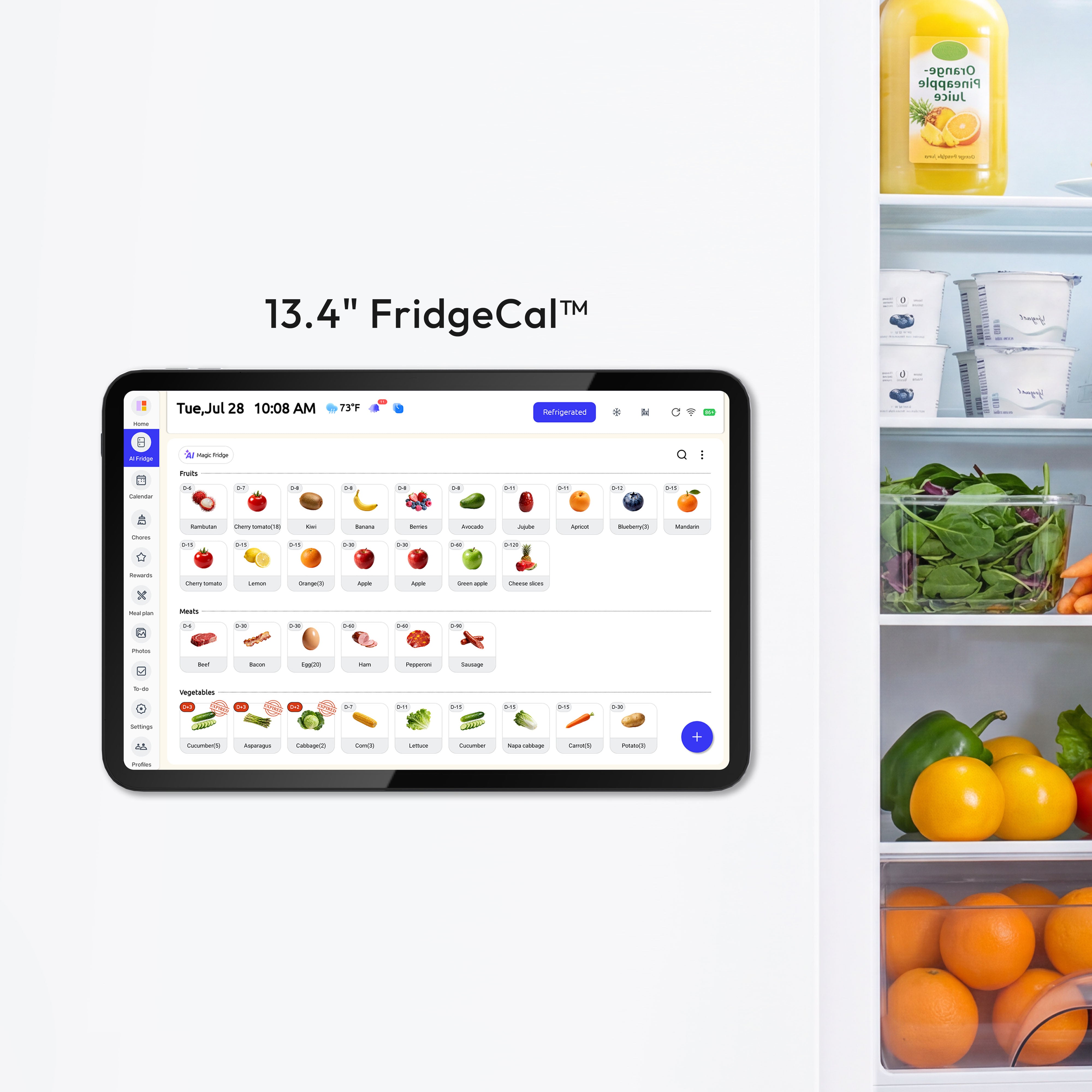
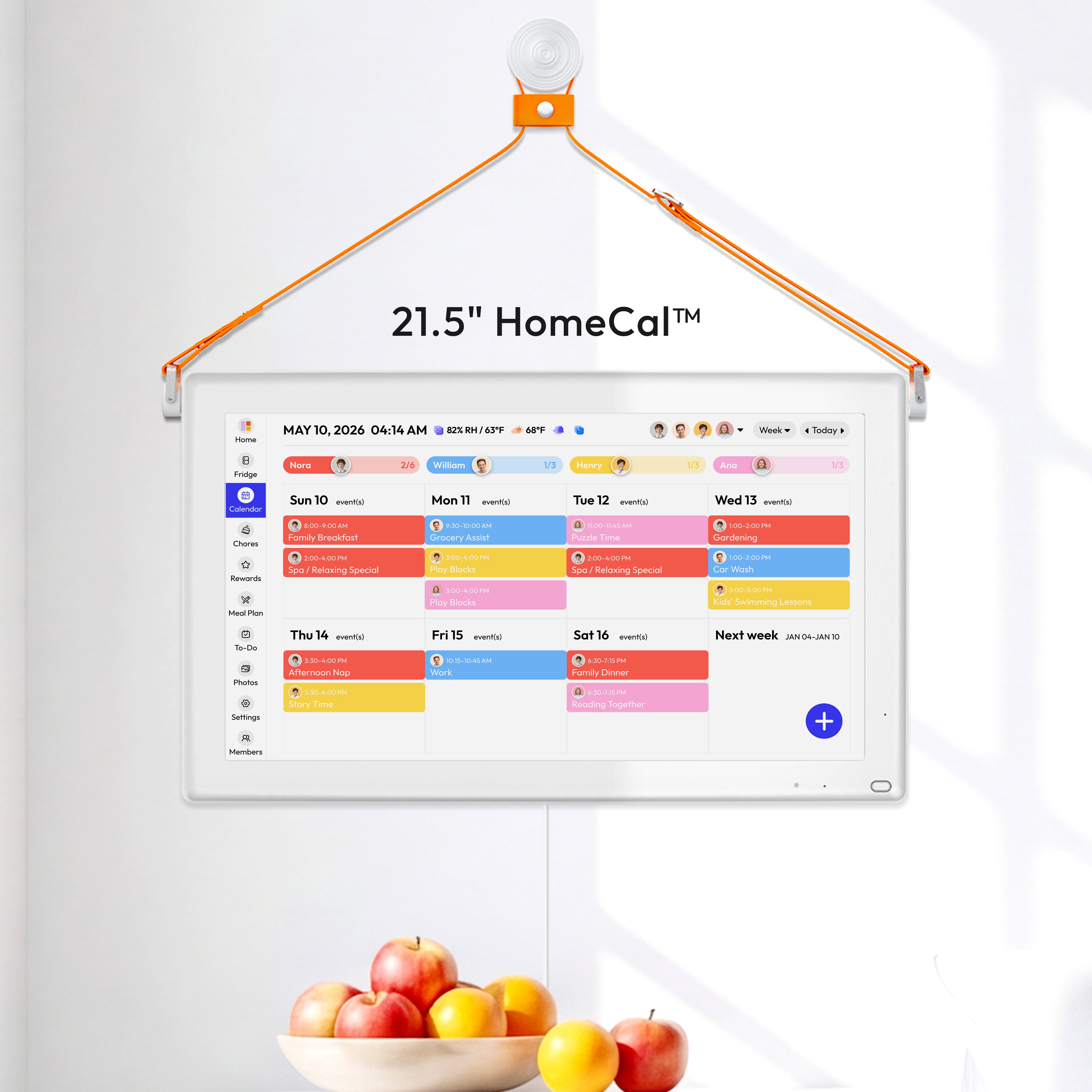
If you're tired of juggling digital calendars and fighting sync issues, Everblog brings everything into one beautiful, central hub for your family. It's a 21.5-inch smart display that combines your calendars, chores, meal plans, and family photos into a single, at-a-glance view. No more scattered apps or sync headaches—just one organized home. See how Everblog can calm the chaos at https://everblog.com.


