






You’re probably here because the default calendar on your phone isn’t cutting it. You want the month view on the home screen, the next few school pickups visible at a glance, and maybe a cleaner widget than what Google gives you out of the box. That instinct makes sense. When mornings are already a sprint, shaving even one extra tap off the routine matters.
I get the appeal of going down the calendar widget apk path. Parents do it for the same reason power users always do. Better customization, older versions that still work the way you like, and widget layouts that feel more practical than flashy. But family scheduling is one area where a fun Android tweak can become a reliability problem fast. If the widget freezes on old events, misses a sync, or asks for more access than it should, the cost isn’t abstract. It’s a missed appointment, a forgotten pickup, or your family calendar data sitting in an app you don’t fully trust.
The Allure and Alarms of Sideloading an APK
The attraction is real. Android calendar widgets took off around 2014 to 2016, and some apps passed 100,000 downloads by 2023. A big reason was Android 4.0 adding resizable widgets, which increased engagement by an estimated 40 to 50% because people could check schedules without opening the full app, according to the Google Play listing for Calendar Widget Month Agenda.

That history explains why people still search for APK versions now. Many of the most liked widgets came from a period when Android home screens were becoming personal dashboards. Apps like Calendar Widget: Month/Agenda, Your Calendar Widget, All-in-One Agenda Calendar Widget, and Simple Calendar Widget built their followings on one promise. Put the information you need where you can see it.
What an APK actually is
An APK is the installation file for an Android app. If you download an app from Google Play, Android handles the package for you behind the scenes. If you download the APK yourself from somewhere else, you’re installing it manually.
That’s not automatically unsafe. It is, however, a different trust model.
When you sideload, you’re taking responsibility for things Google Play usually helps handle:
- File trust. You have to decide whether the file is authentic or modified.
- Update discipline. You won’t always get automatic security or bug-fix updates.
- Permission judgment. You have to read what the app can access and decide whether it makes sense.
- Long-term stability. You’re also relying on the app to keep working after Android updates.
The risk isn’t just malware
A lot of guides reduce this to “watch out for malware.” That’s too narrow. The bigger risk for most families is a mix of privacy, maintenance, and silent failure.
A calendar widget can touch some very sensitive information. Event titles often include school names, doctor appointments, addresses, birthdays, work meetings, and travel plans. If the widget also asks for notifications, storage, or broad background access, you need a good reason for each permission.
Practical rule: If a calendar widget asks for more than calendar access and notifications, slow down and find out why before installing it.
The other issue is reliability. An app can be perfectly legitimate and still be the wrong choice for a busy household if it stops updating after an Android change or gets killed in the background by battery settings. That’s common with widgets because they sit in the awkward middle ground between app and system component.
Why parents should be stricter than hobbyists
If you’re customizing your own launcher for fun, occasional tinkering is part of the game. If you’re using a home screen widget as the front door to your family’s schedule, the standard has to be higher.
What works for a solo power user doesn’t always work for a household. A family calendar has to be visible, boringly dependable, and easy for the least technical person in the home to trust. That’s the lens I’d use before installing any calendar widget apk.
How to Safely Find and Verify a Calendar Widget APK
The safest approach is simple. Start with official app stores when you can. If you can’t, use a source with a reputation for curation or open-source transparency, then verify before you install.
One useful example from the open-source side is MinCal Widget. Repositories such as F-Droid host options like it, and it has been downloaded over 10,000 times, reflecting a steady audience that values ad-free minimalism and reliability in widgets, according to the IzzyOnDroid listing for MinCal Widget.
Better sources and worse sources
Not all APK sites are equal. A random results page stuffed with download buttons, cloned app names, and vague version labels should be an immediate no.
Use this rough filter:
| Source type | What it’s good for | Main concern |
|---|---|---|
| Official store | Default option, easiest updates | May not offer older versions |
| Open-source repository | Transparent projects, cleaner trust model | Smaller app selection |
| Curated APK archive | Useful when official store access fails | Still requires manual judgment |
| Random download site | Almost nothing | Highest risk of tampering, bundling, or misleading files |
When I’m checking an APK source, I’m not looking for perfection. I’m looking for signs that a human being maintains the listing, tracks versions, and makes it possible to understand who built the app.
A parent-proof vetting checklist
Run through these before you install any calendar widget apk:
-
Check the developer name
If the listing makes it hard to tell who made the app, skip it. -
Read the version history
A visible release trail tells you whether the app was maintained over time or just dumped online. -
Look for a consistent app identity
The package name, screenshots, feature descriptions, and permissions should all line up. If the app calls itself a simple widget but asks for unrelated access, that’s a red flag. -
Read user feedback for failure patterns
Don’t just scan star ratings. Look for comments about blank widgets, forced ads, broken sync, or suspicious permission prompts. -
Prefer simpler apps
For a family calendar display, minimalism usually beats feature overload. Fewer moving parts often means fewer places for sync to break.
A trustworthy APK source doesn’t make you feel rushed. It gives you enough context to say no.
If you want a good mental model for evaluating apps before they ever reach your phone, these key factors for developing an Android app are worth reading. It helps to think like a builder for a minute. You start noticing why update discipline, permission scope, and support quality matter so much.
For family scheduling specifically, privacy deserves its own checklist. This guide on digital family calendar privacy and secure setup is useful because it frames calendar data the way parents experience it. Not as “events,” but as daily life details that shouldn’t leak.
What I would skip immediately
I wouldn’t install a widget from a source that does any of the following:
- Hides the package details
- Shows copied screenshots from other apps
- Pushes “fast download” buttons that lead somewhere else
- Offers a modified or “restriction-free” build
- Doesn’t explain where updates come from
Those are all signs you’re not installing a productivity tool. You’re taking a gamble with your family’s schedule.
Step-by-Step Installation and Configuration
If you’ve vetted the file and still want to install a calendar widget apk, keep the process tight. The safest installs are the ones with the fewest unnecessary steps, the fewest unnecessary permissions, and a quick exit path if the widget acts strangely.

Install it without leaving your phone wide open
On current Android versions, you usually grant install permission to the app doing the download, such as your browser or file manager, rather than flipping one giant switch for the whole phone.
Use this order:
-
Download the APK from the source you already verified
Don’t bounce between mirrors once you’re at this step. -
Open the file and allow installation from that source
Android will usually prompt you to approve “Install unknown apps” for that one app. -
Finish the install, then turn that permission back off
This matters. You want sideloading available only when needed.
Quick check: After installation, go back into settings and disable “Install unknown apps” for the browser or file manager you used.
That last step gets skipped in a lot of guides. It shouldn’t. Leaving install permission enabled makes it easier for a bad download or deceptive prompt to slip through later.
Grant only the permissions that make sense
A calendar widget should generally need calendar access. It may also ask for notifications if it supports reminders. Beyond that, be skeptical.
Here’s a practical permission filter:
| Permission | Usually reasonable | Worth questioning |
|---|---|---|
| Calendar | Yes | No |
| Notifications | Often | No |
| Storage or photos | Sometimes for theme assets or backups | Yes |
| Contacts | Rare for a widget | Yes |
| Microphone | Unusual | Yes |
| Location | Usually not needed for a basic widget | Yes |
If the app asks for extra access during setup, deny it first and see whether the core widget still works. A surprising number of widgets function fine with less access than they request.
Connect the calendar accounts carefully
Many popular widgets are really display layers for calendars you already use. Some support feeds coming through Google Calendar, and certain setups can also reflect Outlook or Facebook events when those are already connected in your main calendar app.
When you configure it:
- Choose the calendars deliberately. Don’t expose every account by default.
- Hide low-value calendars such as imported promo calendars or cluttered task feeds.
- Keep event titles visible only if the home screen is private enough for that level of detail.
- Test one recurring event and one one-time event so you know the widget is reading current data.
For a cleaner sync setup with Google as the source of truth, this guide on syncing with Google Calendar is a practical reference.
Set the widget up for real life
Often, people over-customize and accidentally create a widget that looks great in a screenshot but fails in daily use.
My preference for a family-oriented widget is:
- Month or agenda layout, not both crammed into a tiny space
- Readable font size, especially if multiple people glance at the phone
- Limited event count, so today and tomorrow don’t disappear in a long list
- Conservative refresh behavior, because hyperactive refresh settings can create more battery friction than value
A widget should answer the fast questions. What’s next, where do I need to be, and did anything change? If it tries to become a full planning app on the home screen, it usually ends up harder to trust.
Troubleshooting When Your Widget Misbehaves
The most common complaint sounds like this. “It worked yesterday, and now it’s blank.” The second most common is worse. “It looks fine, but it’s showing old events.”
That’s not just annoying. It’s dangerous when you’re relying on the widget for school runs, shared custody transitions, or appointment reminders.

For widgets like Simple Calendar Widget, up to 65% of negative comments mention the widget going blank or not updating, and 40% of those non-update problems are caused by Android ignoring the widget’s update request. Exempting the app from battery optimization often fixes it, according to the Uptodown page for Simple Calendar Widget.
Scenario one: the widget is stuck on last week
You added events in Google Calendar, but the widget still shows the old list. This is usually a background restriction problem, not a “bad calendar” problem.
Try these in order:
- Open the phone’s battery settings and remove optimization for the widget app.
- Open the main calendar app and trigger a manual sync.
- Tap the widget settings if the app offers a refresh or reload option.
- Restart the phone once after changing battery settings.
This issue hits harder on phones with aggressive battery management. The widget may not be allowed to wake up and redraw itself when the calendar data changes.
Scenario two: no events are showing at all
This one often looks scary, but the cause is usually simple. The widget is installed, visible, and empty because it’s connected to the wrong calendar set or because sync is off in the source calendar.
Check three things:
- The correct account is signed in
- The specific calendars are enabled in the widget settings
- Calendar sync is turned on in the main calendar app
If your main Google Calendar is already having sync trouble, fix that first. This walkthrough for Google Calendar not syncing covers the usual root causes clearly.
Don’t troubleshoot the widget before you confirm the source calendar itself is current.
Scenario three: the widget keeps disappearing after reboot
This is the most frustrating version because it feels random. It often shows up on heavily customized Android skins, especially when the system decides the widget app isn’t important enough to keep active after startup.
A few practical fixes help:
- Re-add the widget after one full reboot
- Open the app once after restarting, not just the widget
- Check battery and auto-start permissions if your phone exposes them
- Avoid duplicate widgets from the same app until the first one stays stable
If you want a visual walkthrough for common Android calendar sync behavior, this is a useful reference:
What usually does not work
Parents lose time on these because they feel productive but rarely solve the actual issue:
- Force-closing the app repeatedly
- Changing widget colors or themes
- Installing a second widget app before fixing the first
- Blaming the calendar provider before checking battery settings
If the widget fails twice in a short span, I’d treat that as a reliability warning, not a one-off glitch.
A Smarter Calendar Solution for Busy Families
Monday at 7:12 a.m., one kid needs to be at school early, another has practice after dinner, and the dentist reminder is sitting on one parent’s phone widget that nobody else can see. That setup works right up until the phone battery dies, the widget stops updating, or the person who maintains it is stuck in a meeting.
A calendar widget on one phone can help one person stay organized. It is a weak foundation for family coordination. Busy households need something visible, shared, and boringly reliable, because missed events are not just annoying. They affect school pickups, work schedules, and family trust.

Where the widget approach starts to cost you
After enough APK testing, the pattern gets pretty clear. The technical setup is only half the problem. The bigger issue is that a widget is tied to one device, one launcher, and usually one adult who ends up owning the fix when something breaks.
That creates a few recurring problems in real family use:
-
Only one person has full visibility
Everyone else is working from memory, chat messages, or last-minute reminders. -
The admin load lands on one parent
Someone has to keep sync working, notice missing events, and check that the display is still accurate. -
Family planning needs more than event boxes
Households also track chores, meal plans, shopping lists, school tasks, and the general shape of the week. -
A personal phone is a fragile home base
Phones get replaced, launchers change, battery settings reset, and permissions get revoked after updates.
A family calendar should lower the mental load for the whole house. It should not turn one parent into unpaid IT support.
What tends to work better
Shared systems usually hold up better over time because they match how families operate. People glance at what is in front of them. A central display in the kitchen, hallway, or family room gets checked more often than a widget hidden on one personal phone.
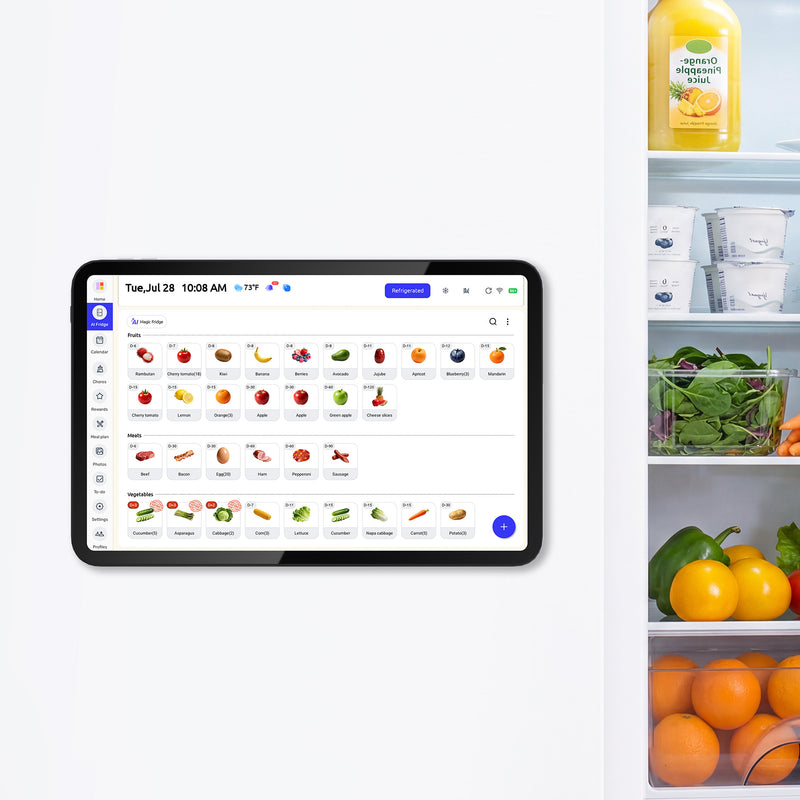
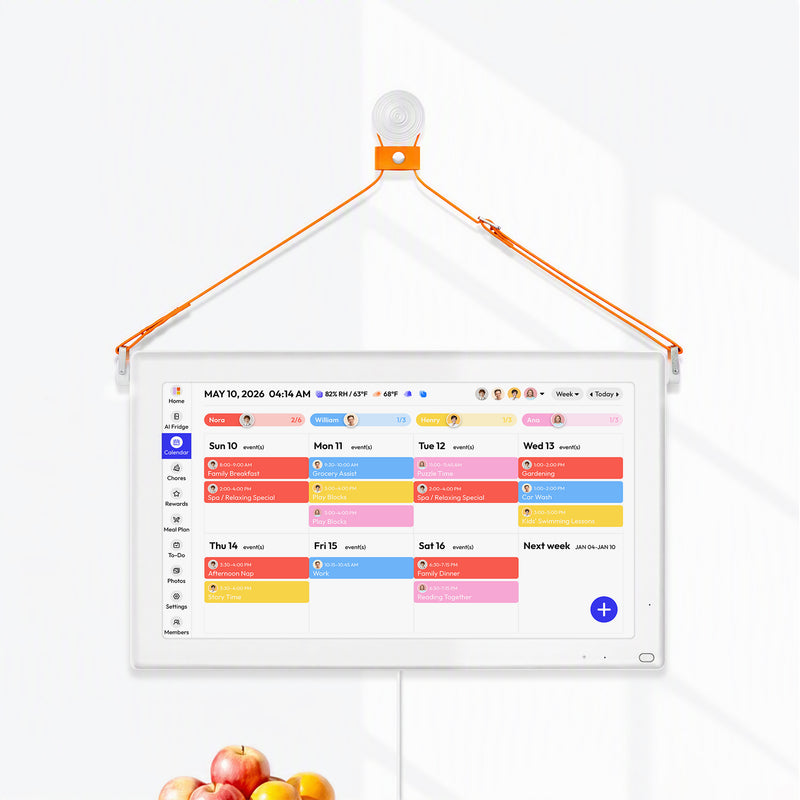
That is why a dedicated family hub can make more practical sense than a sideloaded widget. Everblog is one example. It is a 21.5-inch digital family wall calendar built for shared visibility, with scheduling, chores, meals, grocery lists, and calendar sync through its companion app. That solves a different problem than an APK does. The goal is not extra Android customization. The goal is making household coordination easier to see and harder to miss.
A better standard for reliability at home
I use three simple tests when I look at calendar tools for family use.
| Question | Widget on one phone | Shared family hub |
|---|---|---|
| Can everyone check it fast? | Sometimes | Usually |
| Does it depend on one person’s device settings? | Yes | Less often |
| Can it support family routines beyond appointments? | Limited | Usually better |
Not every household needs a wall display. Some families do fine with shared apps and disciplined habits. But if the calendar keeps failing in small ways, the answer is usually not more tweaking. It is choosing a system that matches the stakes.
If you are building those habits from scratch, this guide on setting up your first calendar event is a useful place to start. Consistent use beats clever setup every time.
My practical recommendation
Use a calendar widget apk if you have a specific reason to sideload, you trust the source, and you are willing to maintain it without making it the family’s single source of truth.
For actual household planning, use a shared system that stays visible and dependable even when one phone is offline, misconfigured, or in somebody’s pocket.
Frequently Asked Questions About Calendar APKs
Is using a calendar widget apk legal
Yes. Installing an APK is legal in ordinary use. You’re manually installing Android software rather than using the store’s install flow. The legal and ethical issues usually come from downloading modified or pirated builds, not from the APK format itself.
Will sideloading void my phone warranty
In general, installing an APK by itself isn’t the same as rooting your phone or altering system firmware. The practical concern is less about warranty and more about support. If something breaks, your phone maker or carrier may be less helpful if the problem seems tied to sideloaded software.
Can a calendar widget APK steal calendar data
It can access whatever you allow it to access. That’s why source trust and permission discipline matter so much. A calendar contains sensitive household information, so don’t treat a widget as harmless just because it looks small.
Why do some widgets work fine on one phone and fail on another
Android isn’t one uniform environment. On the technical side, event display success for a high-quality calendar widget can exceed 95% on stock Android, but it can drop to 82% on devices with aggressive third-party skins, and up to 68% of sync failures are tied to Doze mode, according to the All-in-One Agenda Calendar Widget reference page.
What’s the difference between a widget and a calendar app
A calendar app is the full application where you create, edit, search, and manage events. A widget is a smaller view that sits on the home screen and surfaces selected information from that app or from the Android calendar database.
A good rule is this: use the app to manage, use the widget to glance.
Why aren’t the nicest-looking widgets always on Google Play
Sometimes the developer stopped maintaining the Play listing. Sometimes the app moved to a niche repository. Sometimes it was never built for broad store distribution. And sometimes the reason is less innocent. That’s why appearance should never be your first filter.
Should parents use a calendar widget apk at all
Sometimes, yes. But only if the setup is easy to verify and easy to replace. If the family depends on one parent’s phone widget to know what’s happening, the setup is too brittle.
If your household schedule needs to be visible to more than one person, Everblog is worth considering as a shared calendar system rather than a phone-only workaround. It’s designed around family visibility, with one display for schedules, chores, meals, and lists, so the burden doesn’t sit on a single Android widget staying synced.


