


Protecting your privacy doesn't mean scrambling to hide the calendar every time someone drops by. It's really about making thoughtful choices upfront. What information belongs on the shared screen? Who needs the ability to make changes? How visible should everything be throughout the day? Get these decisions right from the start, and you'll have a family hub that coordinates without oversharing.
Why Calendar Privacy Matters More Than You Realize
Consider how often people come through your home. Weekly playdates? Monthly dinner parties? The babysitter, repair technicians, neighbors stopping by? Each visit means someone else is seeing your calendar. These casual drop-ins happen more often than you might think—and your calendar is visible for every single one.
What Information Gets Exposed?
| Privacy Category | What Your Calendar Shows | What Guests Learn |
| Medical | "Root canal - Dr. Chen 2 PM" | Your dental health problems |
| Medical | "Weekly physical therapy" | You have an injury or chronic condition |
| Financial | "Tax audit preparation" | You're having IRS troubles |
| Financial | "Loan officer meeting" | You're experiencing financial stress |
| Work | "Client X termination meeting" | Confidential business decisions |
| Family | "Marriage counseling Thursday" | Your relationship is struggling |
| Kids | "Teen therapy - 4 PM" | Your child's mental health treatment |
The Real Cost of Ignoring Calendar Privacy
- Awkward conversations you never agreed to: "I saw on your calendar you're seeing a fertility specialist—how's that going?" Um, not a conversation you planned to have with your neighbor.
- Broken trust within your family: Your teenager discovers their therapy appointments have been visible to every friend who's visited. They feel betrayed and exposed.
- Social discomfort: Guests know intimate details about your life you never intended to share. Every interaction feels a bit off because they know too much.
- Actual safety risks: "Family vacation July 10-20" on your calendar is basically advertising an empty home to anyone who sees it.
You want the coordination benefits of a shared display without the privacy risks. That balance requires intentional choices about what you display, how you label it, and where you position it.
What Actually Belongs on a Shared Display
Before you start syncing accounts and filling up your calendar, take a minute to think about this: does every event need the same level of detail? The key is balancing coordination value with privacy risk.
These are safe to display—they keep your family coordinated without privacy concerns:
- School logistics: "Pickup 3:15 PM," "Early dismissal 12:30." Your babysitter needs pickup times, and there's zero privacy risk here. Pure coordination details.
- Sports and activities: "Soccer practice - Lincoln Field 4:30," "Piano lesson 5:00." Public activities with nothing sensitive. Including locations helps anyone handle pickup if needed.
- Meal planning: "Taco Tuesday," "Meal prep 2-4 PM," "Defrost chicken." Normal household stuff. Just skip extremely detailed diet plans that could reveal medical conditions.
- Household chores: "Take out trash - Max," "Vacuum living room," "HVAC service 10 AM." Routine tasks everyone should know about anyway.
- General celebrations: "Dad's birthday dinner," "Grandma visiting this weekend." Happy family moments with nothing to hide.
The guiding question: "If my neighbor saw this while waiting in my kitchen, would I feel uncomfortable?" If yes, the label needs to be more vague or the event needs to stay on your personal phone calendar only.
Where to Place Your Digital Family Calendar for Maximum Privacy
Privacy isn't just about what's on screen—it's also about who can actually see the screen. Where you mount your digital family calendar makes a huge difference.
Calendar Placement Options
| Location | Privacy Level | Family Visibility | Best For |
| Kitchen - facing entry | Low | High | Families who rarely entertain |
| Kitchen - perpendicular to entry | Medium | High | Most families (good balance) |
| Kitchen - facing stove/pantry | Medium-High | High | Families who cook together often |
| Home office/bedroom | High | Low | Families with independent teens |
| Hallway/mudroom | Medium | Medium | Privacy-conscious families |
Kitchen Placement: The Most Common Choice

Why it works: The kitchen is often the central location where your family spends the most time together. Everyone looks in the kitchen during mealtimes, and it is the best place to use the meal planning feature.
The problem: The kitchen is also where your visitors spend the most time. They will be looking at your calendar during dinner parties, while getting a drink, or while going to the bathroom.
Position it like this:
✓ Mounting facing the stove or counter area - It will be visible to your family while preparing meals, but not visible to visitors
✓ Mounting it at an angle - It will be visible to someone standing near the sink or counter, but not visible to someone walking by
✗ Mounting facing the kitchen entrance - Everyone entering the kitchen will be able to see your entire schedule
✗ Mounting it across from the dining table - Everyone having dinner will be able to read your entire schedule
Try the Sightline Test
Stand where guests typically hang out and check what they can see:
- Living room couch - Can you read calendar details from here?
- Dining table - Is the screen clearly visible during meals?
- Hallway near bathroom - What do guests see while waiting?
If you can read specific appointments from these spots, you've got two choices: reposition the display or commit to super vague labeling.
Other Locations to Consider
- Home office or bedroom: Maximum privacy since guests rarely enter. Downside? Kids forget to check it, which kills the whole coordination benefit. Works best if you have older, independent teens.
- Hallway or mudroom: Your family passes it every day coming and going, but dinner party guests won't see it. Trade-off: less convenient for meal planning features. Good middle ground for privacy-conscious families.
Angles Matter
Even in the kitchen, which direction your calendar faces changes everything. Facing the fridge? Anyone at the kitchen island sees it clearly. Facing the pantry? Only visible to someone standing right at the counter. Think about viewing angles before you mount it.
Privacy Placement Tip: Position your digital family calendar where your family naturally glances while cooking or organizing—not in the direct line of sight when guests are visiting. Think "family workflow" not "guest view."
Teaching Kids About Digital Privacy Through Your Calendar
Your family calendar is actually a wonderful teaching tool for digital privacy—a skill your kids will carry with them their entire lives. Young children don't naturally understand selective sharing. If they see their sibling's therapy appointment on the calendar, they might casually mention it to a friend—not to be hurtful, but because they don't realize why it should stay private. That friend might tell others, and suddenly their sibling becomes known as "the therapy kid" at school.
How to teach privacy early:
- Age-appropriate rules: For young kids (5-8): "Calendar info is family-only." For older kids (9-12): "How would you feel if friends knew about YOUR doctor visits?" For teens (13+): Let them choose how their appointments are labeled.
- Use color-coding: "Orange events are your sister's—she decides who knows. Green is Mom's private info." Visual boundaries stick.
- Practice vague labels together: Show why "Doctor appointment" works better than "Acne dermatologist." It coordinates schedules while protecting privacy.
- Connect to social media: "You wouldn't post 'My sister has therapy today,' right? Same idea—respect others' privacy online like you do with our calendar."
Digital Family Calendar Permissions: Who Should Edit What?
Even with careful labeling, you need to control who can change what's on your calendar. Unrestricted access creates chaos and privacy risks.
Recommended Permission Structure
| Family Member | What They Can Do | What They Can't Do | Why |
| Young kids (under 10) | View their schedule, check off chores | Add, edit, or delete events | Developing impulse control—accidents happen |
| Tweens (10-13) | Add their own activities | Modify family events or delete others' appointments | Old enough to manage their input, not family coordination |
| Teens (14+) | Full control of own schedule, propose family changes | Delete parents' appointments | Deserve privacy control over their own information |
| Adults | Full editing access for family calendar | — | Main coordinators |
Special Considerations for Adults
Does your partner really need editing access to your work calendar? A better approach: sync your work calendar as view-only time blocks ("Busy 2-4 PM"). Your family knows you're unavailable without seeing confidential work details.
How to Set It Up
Step 1: Assign each family member a role with appropriate permissions when first setting up your calendar.
Step 2: Test it—have each person try to edit something they shouldn't be able to access.
Step 3: Verify the restrictions actually work before relying on them.
The Everblog calendar supports profile switching, letting you set up different views and access levels for each family member. Everyone gets their own profile with appropriate visibility and control.
Access control tip: Start with more restrictions and loosen them as kids demonstrate responsibility. It's easier to grant access than recover from accidental deletions.
Daily Privacy Practices for Your Digital Family Calendar
Privacy protection works best when it's built into your daily routine, not something you scramble to handle when guests arrive.
1. Create a Dedicated Family Calendar Account
Create a brand new account just for family coordination—like "yourfamilynamecalendar@gmail.com"—instead of syncing your personal Google Calendar or work Outlook directly to the family display.
Why this matters: Direct linking means EVERYTHING syncs automatically. Confidential work emails in meeting descriptions, salary negotiations, therapy sessions—all visible on your shared display.
With a dedicated account, you manually choose what transfers. Yes, you'll add some events twice, but that forces the right question: "Does this belong on the shared display?"
2. Monthly Data Cleanup (10 Minutes)
Set a monthly reminder to delete old information. This isn't just decluttering—it's privacy protection.
What to delete:
- Past medical appointments: "Doctor - Emma" every Tuesday for six months reveals ongoing treatment patterns. Delete appointments older than 30 days.
- Completed chore history: Forty-seven "Take out trash - Max" entries tells guests whose job it is. Archive if needed, but remove from display.
- Old meal plans: "Gluten-free dinner" every night reveals health conditions. Clear meal plans after the week ends.
- Shopping lists: Monthly pharmacy runs or weekly purchases reveal personal habits. Delete immediately after shopping.
Use Consistent Smart Labeling
Establish labeling rules and stick to them. Inconsistency creates accidental oversharing.
Vague label template: [Category] - [Who] or [Category] [Time]
- ✓ "Doctor - Emma" not "Emma - acne dermatologist"
- ✓ "Appointment 3 PM" not "Fertility consultation 3 PM"
- ✓ "Meeting - Mom" not "Budget advisor meeting"
Labels should indicate someone's unavailable without revealing why. "Mom busy Tuesday afternoon" achieves coordination without exposing her therapy appointment.
Monthly Privacy Check: Keep Your Calendar Secure

Privacy protection only works if you maintain it. A monthly 10-minute check keeps your system private as your family's needs change.
First Week of Each Month Review
1. Check current visibility (3 minutes): Place yourself in the position where your guests will be. What do you see on the screen? Are there things that are uncomfortable to be visible? Change the text or move it to your personal calendar.
2. Check for accumulated data (3 minutes): Are medical appointments older than 30 days still visible? Are financial meetings from the previous quarter visible? Are completed chores showing patterns? Delete what is no longer necessary.
3. Check profile settings (2 minutes): Test your profile as a guest. Does it show what you want it to show, and does it hide what you want it to hide? Switch to the guest profile and check.
4. Check labels as necessary (2 minutes): Things change, and what used to be acceptable might now be too specific. "Doctor - Emma" might now be too specific, so change the label as necessary.
When to Review Immediately (Don't Wait for Monthly Audit)
Review privacy right away when:
- Your teen has started therapy or ongoing medical treatment
- You've started working from home
- You've hired a new babysitter or nanny
- Someone in your family has expressed discomfort with the way their information is displayed
- Someone has asked about something they saw on your calendar (this is a warning sign that you're sharing too much)
Finding Your Family's Privacy Balance
Perfect privacy? Everyone checks their own phone. Perfect coordination? Everything visible to all. Neither extreme works—you need the middle ground.
What's Right for Your Family?
Consider these factors:
- How often do you entertain? Weekly guests = stricter privacy. Rare visitors = more flexibility.
- Ongoing appointments? Weekly therapy creates obvious patterns even with vague labels. Keep recurring sensitive appointments on personal devices only.
- Privacy-conscious teens? Respect their comfort level with extra vague labels or phone-only entries.
- Work confidentiality? Healthcare, legal, HR professionals need stricter controls for work calendar exposure.
The Solution Most Families Use
Time blocks on shared display + detailed info on personal devices
✓ Everyone knows who's unavailable when (coordination achieved) ✓ Guests don't know why someone's unavailable (privacy protected)
The right amount of privacy is whatever lets you coordinate effectively without anxiety about what others see. Design for YOUR family's comfort level.
Keeping Your Digital Family Calendar Private and Functional
Your family calendar can be used to coordinate your family's schedule without compromising your private information.
Step 1: Label Smartly
Use generic names for your private appointments. "Doctor 3 PM" instead of "Fertility consultation." Your family knows you're busy; your guests don't need to know your medical business.
Step 2: Position Smartly
Hang your calendar in a place where your family sees it while working, but your guests do not see it while visiting your home. A calendar placed perpendicular to doorways is better than one facing the door.
Step 3: Create a Dedicated Family Account
Don't link your personal and family calendars to your calendar account. Create a separate account for your family calendar and choose what information to transfer manually. This prevents your family's private information from being shared.
Step 4: Use Profile Switching
Create a guest profile with photos and weather information only. With a single tap, your calendar will hide private information when your guests arrive.
Step 5: Clean Up Monthly
Delete old appointments older than 30 days, completed chores, and meal plans. Your calendar reveals your private information if you're not careful.
Step 6: Check In
Ask your family if they're comfortable with the information shared on your calendar. Your children's private information needs change as they mature.
It takes 20-30 minutes to set up your calendar and another 10 minutes each month to keep it private and functional. It's worth it to avoid years of privacy anxiety.
Enjoy Protecting Digital Family Calendar Privacy Without the Stress
You don’t have to sacrifice organization and privacy. With smart labeling, placement, and profile switching, you can keep your family’s information private while keeping everyone coordinated.
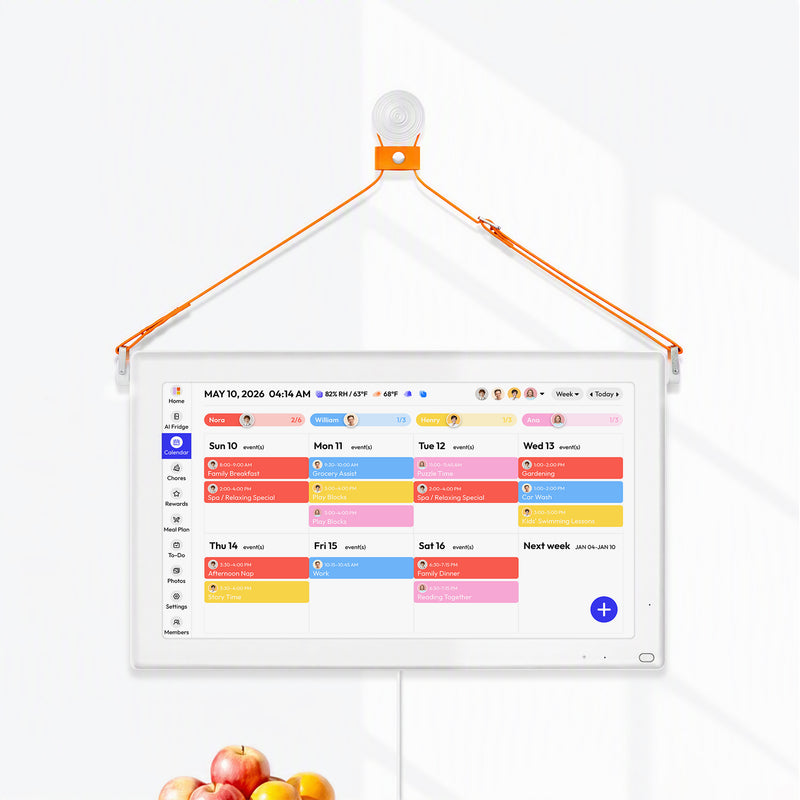
The Everblog 21.5" Digital Calendar provides you with the features you need: profile switching, which allows you to quickly switch and manage your privacy, auto brightness, which helps keep the display private from a distance, screensaver mode, which allows you to display photos when the calendar is idle, and color-coded LED lights, which remind you of upcoming events without showing you the details. With smart labeling, a dedicated account, vague labeling, placement, and cleanup, you get the organization you need without the oversharing.
Your family will stay coordinated, and your life will stay private.


