


If your family calendar lives inside one parent's phone, you already know the failure points. A text gets buried. A school email never makes it into the group chat. Someone says, “I thought that was tomorrow,” and suddenly dinner, pickup, and practice all collide.
A good google calendar display changes the job of the calendar. It stops being a private app and becomes shared household infrastructure. That's what most families need. Not more alerts, but one place everyone can glance at and understand.
Why a Shared Calendar Display Matters for Your Family
The hardest part of family scheduling usually isn't adding events. It's carrying the schedule in your head.
One parent knows the dentist appointment, the early release day, the birthday party RSVP deadline, and which kid needs to bring snacks. Everyone else is waiting for reminders. That setup works right up until it doesn't. Then the calendar becomes another source of friction instead of a tool that lowers it.
Google Calendar fits this use case better than many families realize. It launched in 2006, and its shared calendar feature had been adopted by 65% of multi-user households by 2023 for coordination and real-time visibility, according to this Google Calendar overview. That number tracks with what works at home. Shared visibility matters more than having the fanciest app.
What changes when the schedule is visible
A shared display does a few useful things at once:
- It reduces repeat questions. Kids can check what's happening after school. Adults can see who's booked and when.
- It spreads responsibility. The calendar stops belonging to one person.
- It creates rhythm. Morning starts are calmer when the day is visible before anyone asks.
Practical rule: If two or more people need to act on the same event, that event shouldn't live only on one phone.
There's also a subtle family benefit that generic tech guides miss. Visibility changes behavior. When the schedule is on a wall, TV, kitchen screen, or family site, people start checking it without being told. That's a very different habit from waiting for a push notification.
Some households only need a better desktop or phone setup. Others need a screen in the kitchen where everyone naturally passes by. Both approaches can work. The right one depends less on the technology and more on how your family already moves through the day.
Mastering the View on Your Personal Screens
Before you buy hardware or start mounting anything, get your everyday screens right. Most families can make Google Calendar easier to read in an afternoon just by changing the default view and removing clutter.

Pick a view that matches how your family plans
The display mode matters more than people think.
If you plan around school, work, pickups, and sports, Week view is usually the most practical on desktop. You can catch overlaps early. If you think in broader chunks like travel, birthdays, and school breaks, Month view gives better context. If one parent is managing a packed day with lots of small time blocks, Agenda can be calmer and easier to scan.
Try this simple split:
| Family situation | Better view |
|---|---|
| Multiple activities per day | Week |
| Big-picture monthly planning | Month |
| One person managing dense daily logistics | Agenda |
Color-coding helps when it's restrained. Use one color per person, or one color per category like school, work, and home. Don't try to create a rainbow taxonomy with a different shade for every club and errand. At a glance, fewer visual rules work better.
Make desktop planning sessions more useful
Desktop is still the easiest place to do real schedule cleanup. Use it for weekly review, recurring events, and permission checks.
A few practical tweaks help:
- Open calendar full-screen when you're planning the week. It reduces distraction and makes overlap obvious.
- Turn on only the calendars you need for that planning session. If you're working on family logistics, hide low-priority calendars.
- Check recurring events manually after school breaks or seasonal activity changes. Those are common failure points.
One current frustration is large-screen scaling. A March 2026 Google Calendar web update changed large-monitor scaling to a fixed 12 to 15 hour grid, and users with non-standard routines have found it harder to fit early mornings or later evenings into one clean view. Google also notes there are no admin controls to adjust those visible time ranges, as described in Google's screen scaling update.
That matters for families. If your day starts before sunrise with commuting or school prep, or runs late because of practices and activities, the default large-screen view may feel oddly cramped even on a big monitor.
On a personal screen, the goal isn't “show everything.” It's “make the next decision obvious.”
Don't ignore mobile widgets
Phones are still where quick checks happen. A widget is often more useful than the full app because it removes a step.
Use widgets for:
- Morning checks before anyone leaves the house
- Pickup verification in the car line
- Quiet handoffs between co-parents or caregivers
If your family isn't ready for a shared wall or TV setup yet, a well-configured desktop plus mobile widgets is the lowest-friction starting point. It won't solve visibility for everyone in the house, but it will make the schedule much easier to trust.
Embedding Your Calendar on a Family Website
A family website sounds more technical than it is. In practice, it can be a simple shared page for schedules, school links, sign-up forms, and weekly logistics. For some households, especially co-parenting setups or families coordinating with grandparents, a web-based calendar display feels cleaner than asking everyone to use the same app in the same way.

How to embed Google Calendar
The basic process is straightforward:
- Open Google Calendar on desktop.
- Choose the calendar you want to publish from the left sidebar.
- Open that calendar's settings.
- Find the embed or publish option.
- Copy the HTML embed code.
- Paste it into a custom HTML block in WordPress, Squarespace, or another site builder.
You can usually adjust the size, default view, and visible details before you publish it. For family use, a clutter-free week or agenda view tends to work better than a dense monthly block, especially if the page will be opened on phones.
If you want ideas for where this kind of embed fits inside a broader family dashboard, it helps to browse third party website connection examples. Seeing how other sites place external tools can help you avoid squeezing the calendar into a layout that looks nice but is hard to use.
The privacy decision matters more than the embed code
Many family setups go wrong at this stage.
A web embed is only useful if the right people can see it and the wrong people can't. Before you publish anything, decide which of these you need:
- A fully public calendar. Rarely a good fit for family schedules.
- A limited-purpose shared calendar. Better for broad household planning without sensitive details.
- A private page with a protected embed. Usually the safest option when the page includes kids' activities, addresses, or custody-related timing.
If you're sharing with multiple adults, test the page from another device before you assume it works. Embedded calendars can look fine when you're logged in, then appear blank or broken for everyone else.
Keep the public-facing version boring. Put names, locations, and sensitive details only where the right people already have access.
Accountability is a hidden advantage
Shared family calendars don't just need visibility. They need traceability when something changes.
For shared calendars in Google Admin contexts, logs can retain a historical display of event changes for up to 6 months and track 12 core event types, including creations, modifications, and deletions, which makes them useful for accountability, as described in Google Workspace Marketplace information for calendar change tracking. Most families won't use admin tooling directly, but the principle still applies: when several people can edit, someone eventually wants to know what changed.
That's one reason to keep your website display tied to a clearly managed source calendar instead of a messy mix of overlapping personal calendars. Fewer moving pieces means fewer mysteries later.
If you want a walkthrough for connecting a website or display flow back to your Google account, this guide on linking Google Calendar to a connected display is a useful reference point for how the authorization side typically works.
A family website isn't the simplest google calendar display option, but it can be a very clean one. It works best when your household already relies on a shared page or portal and wants the calendar to be one part of a larger coordination system.
Using Your TV and Smart Hub as a Calendar Display
The TV and the kitchen hub solve a different problem from phones and laptops. They put the schedule in a room people already pass through, which is often exactly what a busy household needs.
The trade-off is persistence. A TV is flexible but temporary. A smart hub is always there, but usually smaller and more constrained.

Casting to a TV works best for planning sessions
Casting Google Calendar from Chrome to a TV is ideal for a weekly reset. Open the calendar on a laptop, cast the browser tab, and review the week with everyone in the room. It's simple, and you're using gear you probably already own.
This setup works well for:
- Sunday planning
- Checking travel or appointment-heavy weeks
- Getting older kids to confirm what they've agreed to
It works less well as an always-on family command center. TVs turn off. Inputs get changed. Someone starts streaming a show. The calendar disappears.
If your home setup already includes streaming hardware, a practical explainer on Apple TV and Chromecast display options from Constructive-IT can help if you need a clearer sense of how casting devices fit into a larger AV setup.
A smart hub is better for passive visibility
A Nest Hub or similar smart display is less dramatic than a TV, but often more useful day to day. It sits in the kitchen or entry area and keeps the schedule visible. That's better for families who don't want a formal “calendar meeting” but do want constant low-friction visibility.
A hub tends to be strong at:
- quick glances during breakfast
- reminders near the door
- voice-based interactions when your hands are busy
Its weakness is limited screen space. If you're managing several people, lots of overlapping calendars can feel compressed. Smart hubs also tend to be less flexible than a full browser-based setup.
Here's the practical comparison:
| Display method | What it does well | Where it struggles |
|---|---|---|
| TV casting | Large shared review screen | Not persistent |
| Smart hub | Always visible in common spaces | Smaller display, less layout control |
A lot of families try TV casting first because it feels easy. That's sensible. Just don't expect it to behave like a dedicated wall calendar.
App-based TV displays are the middle path
If you want more persistence without buying a purpose-built family screen right away, third-party display apps are the most realistic middle option.
Mango Display reports a 98% success rate for setting up multi-calendar Google sync on existing TVs or tablets in under 5 minutes, with support for private calendars from Google, iCloud, and Outlook, according to Mango Display's sync guide. That's appealing for blended households or families juggling school and work calendars across providers.
Later in the setup, a walkthrough can help more than written steps alone:
The main thing to watch with TV and tablet apps is whether the device stays on reliably, reconnects after updates, and remains legible from across the room. A setup that works beautifully when you're testing it from the couch can become annoying fast if it sleeps too aggressively or requires frequent reauthentication.
Families don't need a clever display. They need one that's visible before school, after work, and during the rush in between.
For many homes, TVs and smart hubs are a good stepping stone. They prove the habit. If everyone starts relying on the shared screen, that's usually the sign you're ready for something more permanent.
Building a Dedicated Digital Wall Calendar
A dedicated wall display is where the idea really clicks for a lot of families. You stop borrowing a screen and start giving the household a permanent place for schedule visibility.
That can be done in two very different ways. One is a true DIY build. The other is a pre-built touchscreen that already knows how to behave like a wall calendar.

The DIY route gives control and creates chores
The classic DIY stack is a small computer, a monitor, wall mounting hardware, and dashboard software. For tech-comfortable parents, that can be a satisfying project. You choose the screen size, the layout, and where it lives.
The catch is that every choice becomes one more thing to maintain.
Typical DIY friction points include:
- Power management so the display wakes and sleeps how you expect
- Browser stability if the dashboard runs in kiosk mode
- Mounting and cable cleanup so it looks intentional instead of temporary
- Household tolerance when the “family calendar” needs troubleshooting on a weekday morning
A DIY setup can absolutely work. It just asks for a certain kind of patience. Families often underestimate the ongoing maintenance because the initial build is the fun part.
Pre-built Android touchscreens remove a lot of setup pain
Pre-built touchscreen displays exist because many people want the wall-calendar outcome without turning it into a hobby.
According to this guide to Google Calendar wall display hardware, pre-built Android touchscreen displays such as the MWEdisplay 21.5-inch report 95%+ setup success in under 15 minutes, using Google Calendar API v3 with OAuth 2.0 for real-time syncing. That combination matters. Fast setup is nice, but secure sync and stable authorization matter more when the display is meant to stay on the wall and just work.
That style of device is usually easier for families because it reduces three common pain points:
- No piecing together hardware
- Less kiosk-mode tinkering
- A cleaner handoff to other adults in the house
The downside is lower flexibility. DIY lets you tweak almost everything. Pre-built hardware asks you to accept the manufacturer's interface and feature priorities.
What matters most in a family wall setup
Once a screen goes on the wall, household concerns get very practical very fast.
Ask these questions before you commit:
- Can everyone read it from normal standing distance? A beautiful interface that only works up close won't change behavior.
- Can multiple calendars stay visible without clutter? Family usefulness drops when the screen looks crowded.
- What happens when Wi-Fi blips or logins expire? Reliability matters more than novelty.
- Who will maintain it? If the answer is one reluctant parent, keep the system simpler.
A dedicated wall display is also where family features beyond events start to matter. Chores, meal planning, grocery coordination, and kid-friendly visibility often end up being just as important as the calendar itself. That's why some families move away from pure DIY after the first version proves the concept.
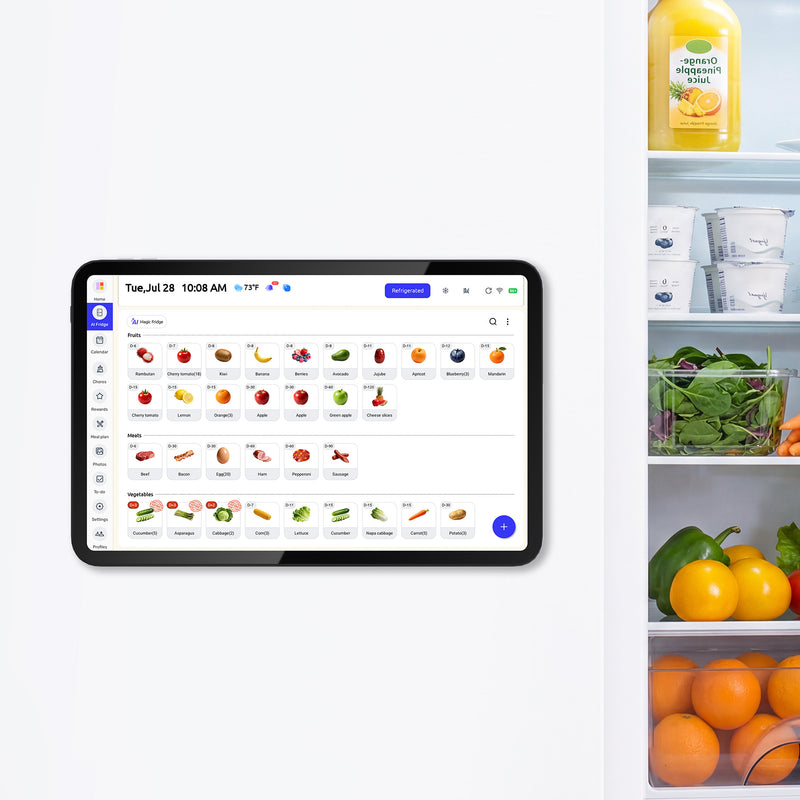
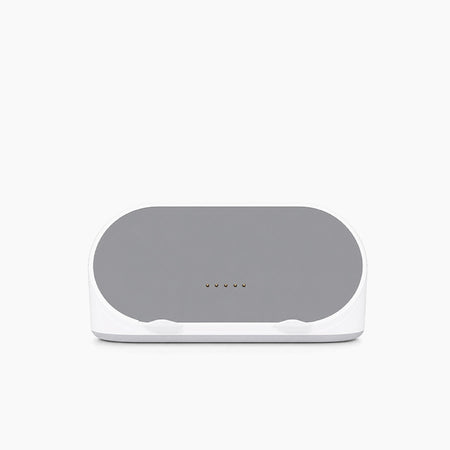
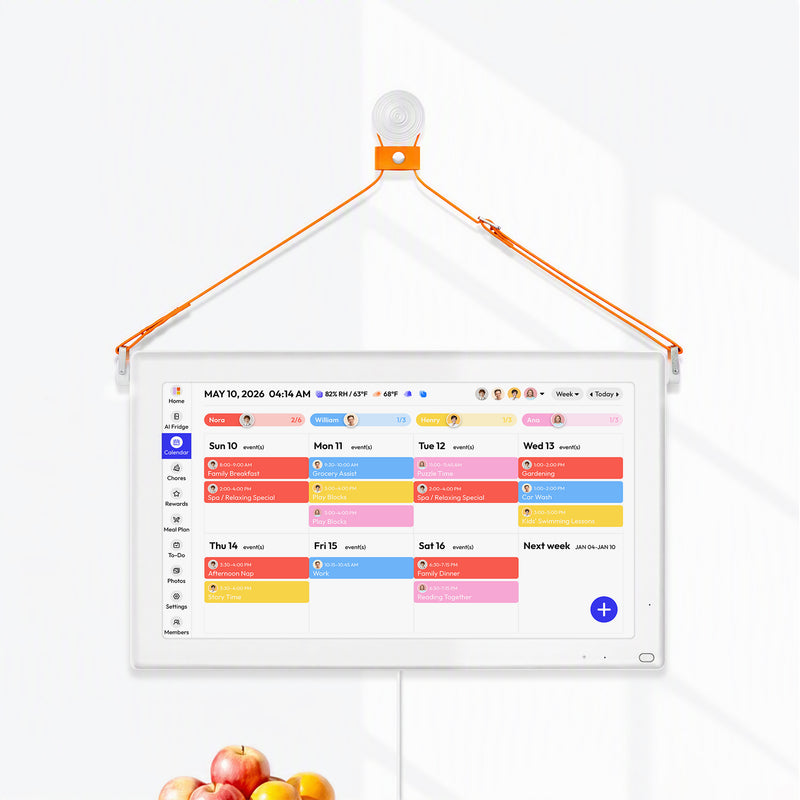
For example, some households compare browser-based displays with purpose-built family screens that combine schedule visibility with household tools. If you want to see what that category looks like in practice, this overview of a Google Calendar wall display for family use shows the kind of integrated setup that sits between generic DIY hardware and a simple shared app. Everblog is one example in that group. It uses a 21.5-inch wall display and brings together connected calendars, chores, meals, and shared visibility in one device.
The strongest wall calendar setups aren't the most customizable ones. They're the ones your family keeps using after the first month.
That's the primary dividing line. If you enjoy projects, DIY can be rewarding. If you want a kitchen or hallway display that behaves more like an appliance than a side project, a dedicated device is usually the cleaner path.
Troubleshooting Common Sync Issues and Final Advice
Most google calendar display problems aren't dramatic. They're small and annoying. A calendar looks empty on one screen. Events appear on a phone but not on the wall display. One person's schedule is missing because the wrong calendar was shared.
The fix is usually a short checklist, not a full reset.
Start with the boring checks first
Run through these in order:
- Confirm the right calendar is selected. Many people create or subscribe to multiple calendars and then display the wrong one.
- Check sharing permissions. If one parent can see an event and another can't, the problem is often access, not sync.
- Refresh the connection. Reauthenticating the Google account can solve stale tokens on TVs, hubs, and third-party displays.
- Look for filtering rules. Some displays hide declined events, all-day items, or certain calendar layers.
If the issue is persistent, a focused troubleshooting guide like this one on fixing Google Calendar sync problems can save time because it walks through the usual causes in a practical order.
Watch for display-specific blind spots
Not every problem is sync. Sometimes the events are there, but the display makes them hard to notice.
Accessibility is one overlooked example. Changes to Google Calendar's display updates can leave screen reader users with a worse experience, and the March 2026 scaling changes didn't include specific guidance on keyboard navigation or event visibility on high-resolution monitors, as noted in this accessibility-focused review of Google Calendar setup considerations. For families, that matters. A display that looks clean to one person can be frustrating or unusable to another.
That's also why physical placement matters as much as software. Mounting height, glare, and viewing distance can turn a good calendar into a bad one. If you're planning a more built-in screen near the kitchen or entryway, examples of smart home AV systems for local homeowners can help you think through placement and room fit before you commit.
Which option makes sense for your home
The easiest way to choose is to match the method to your tolerance for setup.
| If your family needs | Good fit |
|---|---|
| Better personal planning right away | Desktop views and phone widgets |
| A shared page for multiple adults | Website embed |
| A larger screen for weekly review | TV casting |
| Passive visibility in a common room | Smart hub |
| A permanent household command center | Dedicated wall display |
If you're testing the idea, start small. If your family already checks the shared display without being reminded, that's a sign the habit is working. At that point, simplicity starts to matter more than experimentation.
DIY is possible. It can even be fun. But for many busy households, the tipping point comes when they realize they don't want to maintain a calendar system. They just want the schedule where everyone can see it.
If you want a dedicated family screen instead of piecing together tablets, mounts, and casting routines, Everblog is a practical option to look at. It's a 21.5-inch digital family wall calendar that syncs with Google Calendar and combines schedule visibility with chores, meals, grocery planning, and media in one shared display, without requiring a subscription.


