



Some version of this probably happened in your house recently. One parent added soccer practice to their phone. The other parent never saw it. A school email mentioned early pickup, but it stayed buried in an inbox. Someone showed up for the dentist on the wrong day, or two adults both drove to the same pickup while nobody handled the grocery stop.
That kind of chaos usually isn’t a planning problem. It’s a linking problem. The information exists, but it lives in too many places.
If you want to know how to link to Google Calendar in a way that helps your family, the goal isn’t just “share a calendar.” The goal is to create one schedule that everyone can see, trust, and update without chasing each other by text.
From Calendar Chaos to Family Clarity
The families who feel organized usually aren’t doing anything magical. They just have a single source of truth.
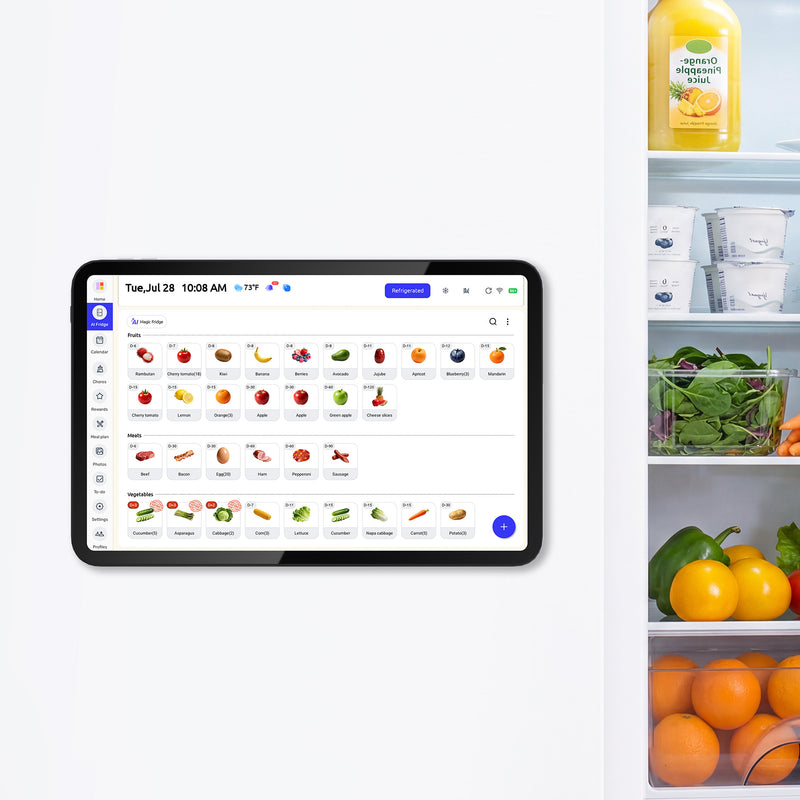
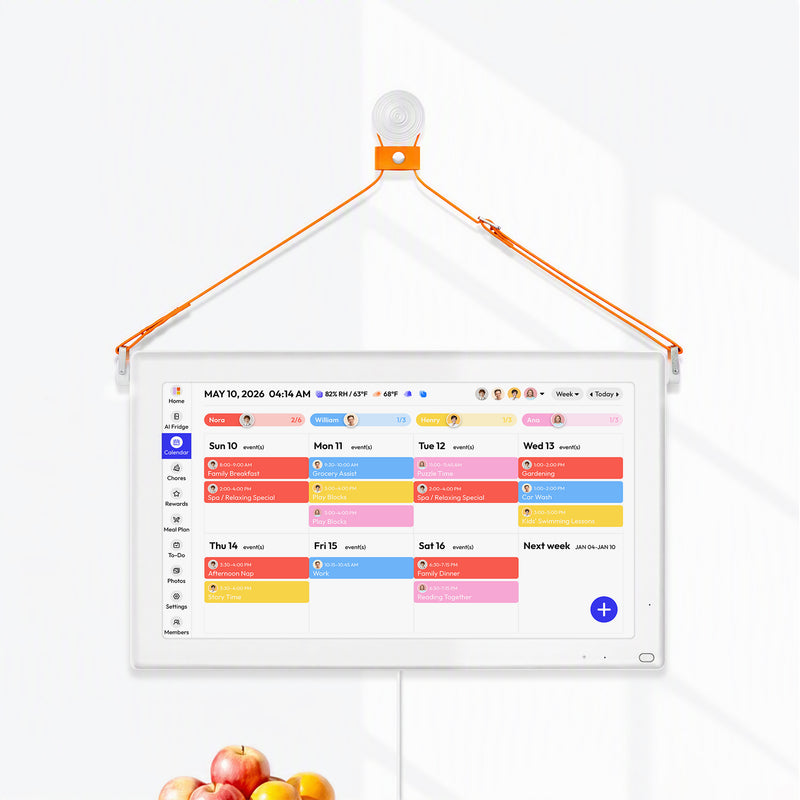
That might be one shared Google Calendar for school events, sports, work travel, meal plans, and recurring chores. It might also include a visible home display so the schedule isn’t trapped on one parent’s phone. Either way, the shift happens when everyone starts relying on one calendar instead of scattered reminders.

Google Calendar works well for this because it’s already the default calendar for a huge part of daily life. Google Calendar launched on April 13, 2006 and had grown to over 2.5 billion users worldwide as of 2023, representing about 32% of the global internet population, according to Google Calendar help documentation. In practical terms, that scale matters because most schools, sports organizers, workplaces, and family members already know how to interact with it.
What families actually need
A useful family calendar system does three things well:
- Handles one-off events quickly so you can send tonight’s practice change or tomorrow’s field trip details fast.
- Shares full calendars safely so parents, caregivers, and older kids can see the same ongoing schedule.
- Connects to a visible hub so the plan is easy to check at breakfast, not hidden in six different apps.
Practical rule: If a family event matters, it should live in one place that everybody can access without asking, “Can you send that to me again?”
A lot of calendar advice stops at basic sharing. Real family life needs more than that. You need methods for single events, whole calendars, website or wall display subscriptions, and support for relatives who don’t even use Google Calendar.
The mindset that makes this work
Treat your calendar like household infrastructure, not a personal productivity app.
That means creating a setup where the schedule still works when someone is tired, late, or not especially techy. Once you do that, linking Google Calendar becomes less about features and more about reducing mental load. You stop retyping. You stop forwarding screenshots. You stop keeping a backup plan in your head.
Quickly Share a Single Event with Anyone
Sometimes you don’t need to share your whole calendar. You just need to send one event, fast.
That’s common with birthday parties, school performances, appointment confirmations, schedule changes, and carpools. In those moments, the right method depends on one question: Do you want people to view the event, or add it to their own calendar?
Use the event’s built-in Google Calendar link
If everyone involved already uses Google Calendar, the simplest route is sharing the event directly from Google Calendar itself.
Open the event, make sure the title, time, location, and notes are correct, then copy the event details in whatever sharing option your device gives you. On mobile, this is often easiest when you’re already in the app and need to text details to another parent quickly.
This works well for:
- Practice changes
- Doctor appointments
- School meetings
- One-time family plans
If you’re doing this from an iPhone, a helpful companion guide is this walkthrough on how to share a calendar event on iPhone, especially if you’re trying to send an event without forcing everyone onto the same app.
The limitation is simple. A direct event share is convenient, but it’s not always universal. If the recipient isn’t in Google’s ecosystem, they may still need extra steps.
Share the event link when speed matters. Use an add-to-calendar link when attendance matters.
Build an Add to Google Calendar link
If you’re sending invitations by email, posting an event on a website, or adding a button to a family newsletter, this method is stronger. It opens a pre-filled event in Google Calendar so the recipient only needs to save it.
The template starts with Google Calendar’s event render format: https://calendar.google.com/calendar/render?action=TEMPLATE. Used in emails or on websites, this method has a ~95% success rate for signed-in users, because it pre-fills the event details for them.
The basic format
Use this structure:
-
Start with the template URL
https://calendar.google.com/calendar/render?action=TEMPLATE -
Add the event title
Use&text=followed by the event name. -
Add start and end time
Use&dates=followed by the start and end timestamps. -
Add details and location
Use&details=and&location=so parents don’t have to hunt through old texts for the address.
A complete link follows this pattern:
-
Template base:
https://calendar.google.com/calendar/render?action=TEMPLATE -
Title field:
&text=School%20Play -
Date field:
&dates=20260420T230000Z/20260421T000000Z -
Notes field:
&details=Arrive%20early%20for%20parking -
Location field:
&location=Lincoln%20Elementary
What usually goes wrong
The most common mistakes are boring, but they matter:
- Time zone mistakes cause the event to land at the wrong hour.
- Special characters not encoded can break the link.
- Incomplete details leave recipients guessing which entrance, field, or classroom to use.
For family logistics, I’ve found that a clean event title and one sentence of context in the details field do more than a long note. “Band concert. Students arrive 20 minutes early. Black shoes.” is better than a wall of copied school email text.
Choose the right one-event method
Here’s the practical split:
- Use direct event sharing when you’re messaging one or two people and speed is the priority.
- Use an Add to Google Calendar link when you’re inviting a group, posting online, or want recipients to save the event themselves.
That one decision saves a surprising amount of confusion.
Build Your Shared Family Calendar Hub
Sharing one event helps for the occasional scramble. A family hub solves the daily repeat problem.
The cleanest setup is a dedicated family calendar inside Google Calendar. Instead of mixing everything into one person’s work calendar, create a separate calendar with a name everyone recognizes, like “Johnson Family,” “Kids Activities,” or “Co-Parent Schedule.”
Create a dedicated calendar first
In Google Calendar on desktop, go to the left sidebar and create a new calendar. Give it a name that makes sense at a glance, then decide what belongs there.
Most families do better when they separate categories a little. One shared calendar for household logistics is easier to trust than a giant personal calendar where school pickup sits next to private work holds and random reminders.
A good family calendar often includes:
- Recurring commitments like practices, tutoring, custody exchanges, and trash day
- Operational details such as pickup notes, addresses, and what kids need to bring
- Visible routines like meal themes, chore windows, or early bedtime nights before busy mornings
If you want examples of how other families structure this, this guide to a Google family calendar is a useful reference point.
Public sharing versus specific people
This is the decision that matters most. Google Calendar gives you more than one way to link a full calendar, and they’re not interchangeable.
A public iCal address is convenient because other apps and people can subscribe with a link. But anyone with access to that link can subscribe, and sync timing can vary. For stronger privacy, sharing with specific email addresses and giving “See all” permission achieves a 92% view rate without public exposure, according to Lafayette’s guide to generating a Google Calendar URL.
For family use, default to sharing with specific people first. Public links are for publishing, not private household coordination.
Google Calendar Sharing Methods Compared
| Method | Best For | Privacy Level | Key Benefit |
|---|---|---|---|
| Share with specific people and “See all event details” | Parents, caregivers, co-parents, trusted relatives | Higher | Everyone sees the same full details without making the calendar public |
| Share with specific people and limited visibility | Older kids or helpers who only need partial context | Higher | Lets others track timing without exposing every note |
| Public iCal link | Website displays, digital hubs, broad subscription access | Lower | Easy to subscribe from other apps and services |
| Public calendar page or published event | Community-facing schedules or events meant for wider access | Lower | Simple distribution when privacy is not the main concern |
What the permission settings mean in real life
Google’s labels can sound technical, but the family trade-offs are straightforward.
- See only free/busy means someone knows you’re booked, but not why. That’s rarely enough for a household calendar.
- See all event details is usually the useful setting for adults coordinating rides, supplies, and timing.
- Make available to public is best reserved for calendars you’d be comfortable exposing more broadly.
Blended families often need a middle path. Share the actual household calendar with specific people, then use separate event links for teachers, grandparents, babysitters, or team parents.
A setup that holds up under stress
The strongest family systems are boring in the best way. They don’t rely on memory.
Use one household calendar for shared logistics. Give trusted adults full detail access. Keep personal calendars separate if needed, then overlay them in Google Calendar when you want one combined view. That protects privacy without forcing everyone to rebuild their routine from scratch.
Display Your Calendar on a Digital Hub or Website
A critical test of a family calendar happens at 7:12 a.m. One kid needs soccer cleats, another has early band, and someone remembers a dentist appointment while pouring cereal. If the schedule only lives inside one parent’s phone, the system breaks down fast. A visible calendar fixes that by putting the plan where the household can see it.

For families, there are usually two smart display options. One is a visual embed on a webpage. The other is a subscription link that feeds a separate display or app. They solve different coordination problems, so the better choice depends on where your family will look.
Embed the calendar on a website
Use Google Calendar’s embed code if you want a live calendar view on a family site, school page, or private dashboard. This works well when people will visit the page on purpose and need more than just the date and time.
An embedded calendar is useful for:
- Monthly or weekly visual planning
- Clickable event details
- A central page that also includes lists, notes, or links
This setup is often better for a household dashboard than for a wall display across the room. Embedded calendars are made to be viewed inside a browser, so they work best when someone is sitting down to check details.
If that same page includes addresses for games, lessons, or meetups, adding a map beside the schedule can save extra back-and-forth. For WordPress users, the Elementor Google Map widget is one practical option.
Subscribe to the iCal or public address
Use the calendar’s public iCal link or subscription URL when the goal is passive visibility. A kitchen tablet, wall display, or family hub can subscribe to the calendar and keep showing updates without anyone opening a webpage.
For most busy homes, this is the more durable setup.
A subscription link is usually the better fit when you want:
- A dedicated home display
- Cross-platform viewing in another calendar app
- A cleaner setup for non-Google users or shared devices
It also creates fewer daily friction points. People glance at it. They do not have to remember which tab to open.
How to get the right link from Google Calendar
Open Google Calendar, hover over the calendar name, then choose Settings and sharing. From there, look under the sharing and integration area.
You’ll typically see:
- Public visibility settings
- Embed code
- Public iCal address
- Calendar ID
The destination tells you which one to use. A webpage usually needs the embed code. A wall display, family hub, or another calendar service usually needs the subscription link.
A quick visual overview helps if you want to see the flow in action:
Build a central family hub that people will actually use
The biggest practical difference is behavior. Website embeds are good for reference. Subscription-based displays are better for visibility in the middle of family life.
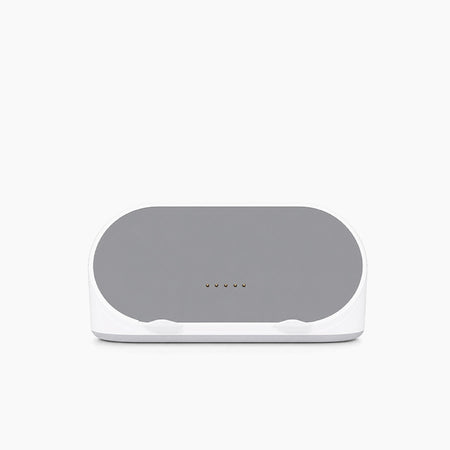
That matters if you’re building a central home dashboard instead of just sharing a calendar link. A tool like Everblog can pull calendar information into a broader family display, so events can sit alongside chores, meal plans, and reminders. If you want to see how that kind of setup works in a home environment, this guide to a Google Calendar wall display for families is a useful next step.
One trade-off is easy to miss. Many display setups are one-way. They show events from Google Calendar, but edits still need to happen back in Google. That is usually fine for a household hub, but it helps to decide that upfront so nobody expects the kitchen screen to behave like a full scheduling app.
What works best in practice
Use embed code for a page people intentionally visit.
Use a subscription link for a screen the family passes all day.
In my experience, the second option holds up better in real homes because it supports the habit families have. They look up while packing lunches, not down at a browser tab.
Troubleshooting and Pro Tips for Family Sync
The biggest myth about calendar linking is that once you connect it, you’re done.
In real homes, issues show up later. Someone adds a calendar on desktop but can’t see it on mobile. An Apple user says the link “didn’t work.” A public feed updates slowly, so one parent sees old information and the other sees the new version.

Not everyone uses Google Calendar
A lot of guides assume the whole household is on Gmail. That’s not real life.
An estimated 40% of US families use a mix of calendar ecosystems, including Google, Apple, and Outlook, according to a Google support discussion about helping non-Google users add Google events via link. That’s exactly why cross-platform instructions matter. You can read the original discussion on Google’s support forum about non-Google users adding events by link.
Help Apple and Outlook users the right way
If someone doesn’t use Google Calendar, don’t just text “here’s my calendar.”
Instead:
- For Apple Calendar users send the subscription or ICS-style link and tell them to add it through their Calendar app’s subscription flow.
- For Outlook users they may need to open the event or calendar link through Outlook’s import or subscribe tools rather than tapping it from a text and expecting magic.
- For relatives who aren’t technical send a short note with the link and one instruction, not five. The more words you add, the less likely they are to finish.
“Paste this into your calendar’s subscribe option” is often more helpful than a long explanation of what iCal means.
Why edits sometimes don’t show up
The next frustration is sync lag. This usually happens when families use a one-way subscription method and expect live editing on both sides.
A subscribed calendar feed is often good for viewing updates, but not always for pushing changes back. If one person edits inside their own app and expects that edit to update the source Google Calendar, that often won’t happen unless the setup uses a proper two-way integration.
Here’s the practical rule:
- One-way feed means “I can see your updates.”
- Two-way sync means “I can edit and you’ll see my changes too.”
Those are not the same thing.
Fixes that solve most family problems
Most recurring sync issues come from the setup, not from Google Calendar itself.
- Check which calendar was shared. Families often share the wrong calendar by accident, especially if one parent has several.
- Confirm the permission level. If someone can view but not edit, the link may be working exactly as configured.
- Make mobile visible after desktop setup. Sometimes a calendar is added on desktop but still hidden in the mobile app.
- Reduce notification clutter. Too many alerts train people to ignore all alerts. Keep only the reminders that affect action.
- Use the right troubleshooting flow. If a calendar appears connected but won’t refresh correctly, this guide on how to fix Google Calendar not syncing issues is a useful reference.
The desktop versus mobile difference
Desktop is still easier for setup. Mobile is easier for daily use.
That’s why I recommend doing the initial sharing, permissions, and subscription work on a computer if possible. Once the connections are correct, everyday event entry and updates on mobile become much smoother.
A family calendar system doesn’t fail because the technology is too complicated. It fails when people assume every link behaves the same way. They don’t. If you know whether you’re sharing a single event, a read-only feed, or a real two-way connection, most confusion disappears.
Your Blueprint for a Perfectly Synced Household
A good family calendar setup doesn’t need to be fancy. It needs to be reliable.
If you only need to send one event, use a direct event share or an Add to Google Calendar link. If your household needs ongoing coordination, create a dedicated family calendar and share it with the right people at the right permission level. If you want the schedule to stay visible, subscribe a digital hub or website to that calendar so updates show up where your family looks.
The deeper lesson is simple. Different linking methods solve different problems. One-off invitations, full family visibility, cross-platform sharing, and two-way syncing are separate jobs. Once you stop treating them as the same thing, Google Calendar becomes much easier to manage.
The payoff isn’t technical. It’s human.
A linked calendar reduces repeat questions, lowers the chance of missed pickups, and gives kids and adults a clearer picture of what the day holds. It also removes a lot of invisible labor from the parent who usually keeps the whole plan in their head.
When your household has one trusted schedule, people stop coordinating by panic.
If you want a single place to display schedules, chores, meals, and family routines together, Everblog is built for that kind of household coordination. It gives families a shared wall-calendar style hub so Google Calendar events can live alongside the rest of daily home life, without relying on paper notes or scattered apps.


