
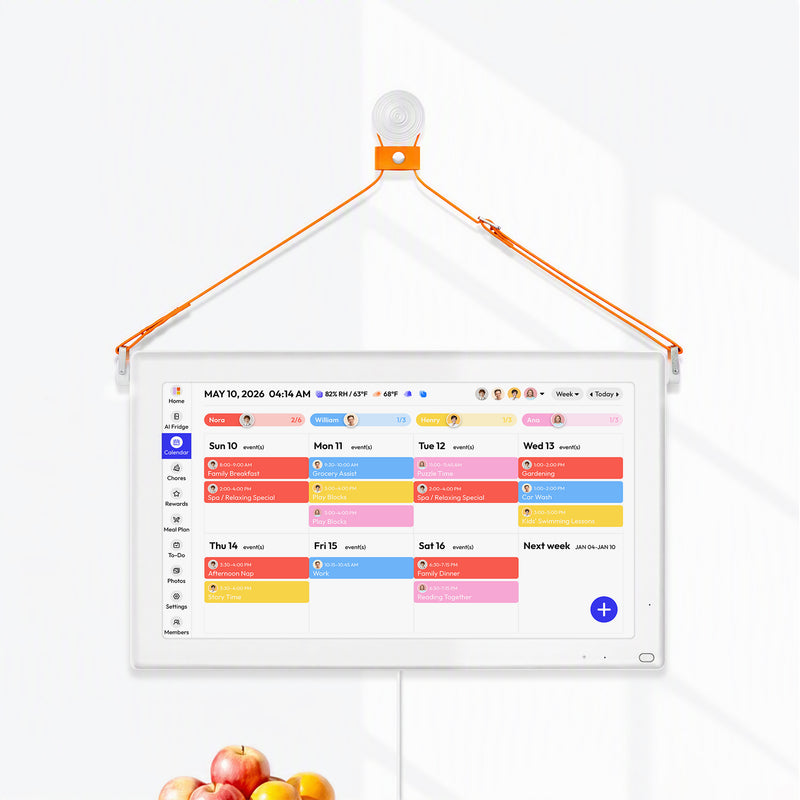

Putting a Google Calendar on a wall display is about solving one of the biggest problems in any busy household: keeping everyone on the same page without constantly checking a phone. An always-on screen becomes your family’s central hub, cutting through the daily chaos and making sure nothing gets missed.
Why a Wall Display Transforms Family Organization
Think beyond just another shared calendar app. A dedicated, always-on Google Calendar wall display acts as your family's dynamic headquarters. It’s the single source of truth everyone can see at a glance, turning a list of digital appointments into a tangible, shared plan.
What time is that dentist appointment? Who has soccer practice? Did anyone remember to take out the recycling? A wall display answers these questions before they’re even asked, reducing the mental load that so often falls on one person. It shifts the burden of remembering from an individual to a shared, visible system.
Fostering Independence and Reducing Chaos
A visible schedule empowers everyone in the house, especially kids. When they can see their own activities—like "Liam - Soccer @ 4 PM" or "Mia - Art Club"—they start taking ownership of their time. This builds independence and cuts down on the constant parental reminders. Those "I forgot about practice" moments that throw the whole evening off schedule suddenly become a lot less common.
This isn't just about appointments; it's about creating a calmer, more organized home. It solves a ton of common headaches:
- Coordinating Multiple Kids: Juggling different sports, music lessons, and school events for two or more children is instantly manageable when color-coded schedules are right there on the wall.
- Managing Co-Parenting Handoffs: A shared display ensures both parents are aware of doctor's appointments, school projects, and weekend plans, creating seamless transitions and clear communication.
- Tracking Household Tasks: Beyond events, you can schedule recurring chores, bill payment reminders, and even meal plans, keeping the entire home running smoothly.
The real magic of a wall display is its passive visibility. You don't have to unlock a phone and open an app just to check one detail—the information finds you. It’s always there, in the background of your life.
The Power of a Digital System
Paper calendars have their charm, but they’re static. Plans change, appointments get rescheduled, and all those scribbled-out entries just create a mess. A digital wall display, on the other hand, is fluid. It updates in real time across all your family’s devices, so the information on the wall is always the right information.
A quick look at the pros and cons makes the difference pretty clear.
Digital vs Traditional Wall Calendars
| Feature | Digital Wall Display (e.g., Everblog) | Traditional Paper Calendar |
|---|---|---|
| Updates | Syncs instantly across all devices | Manual only; requires writing by hand |
| Reminders | Yes, with pop-up or audible alerts | No |
| Accessibility | View and edit from anywhere via phone | In-person viewing only |
| Changes | Easy to edit or reschedule events | Messy; requires crossing things out |
| Shared Tasks | Yes, with chore charts and lists | No |
| Initial Cost | Higher upfront investment | Very low cost |
While a paper calendar is cheap and simple, its limitations become obvious the moment your schedule gets complicated. For most busy families, a digital system just makes more sense.
The market reflects this shift, too. The global smart wall calendar display market has exploded in recent years and is projected to hit USD 1.12 billion in 2026. That kind of growth shows just how many households are ditching paper for more integrated digital solutions. You can dig into the specifics of this trend in recent industry reports that track smart home devices.
Ultimately, a google calendar wall display brings your family's schedule out of individual phones and into a shared physical space. It’s the foundation for better organization, less stress, and a more connected family. This guide will walk you through exactly how to set one up in your home.
Choosing the Right Hardware for Your Display
The screen you choose is the single biggest decision you'll make for your Google Calendar wall display. It dictates the setup process, the final look, and how much tinkering you'll have to do.
You've got a few solid options, and the right one really comes down to what you value most: plug-and-play simplicity, DIY customizability, or smart home integration. Let's walk through what each one is really like to live with.
Dedicated Digital Calendars
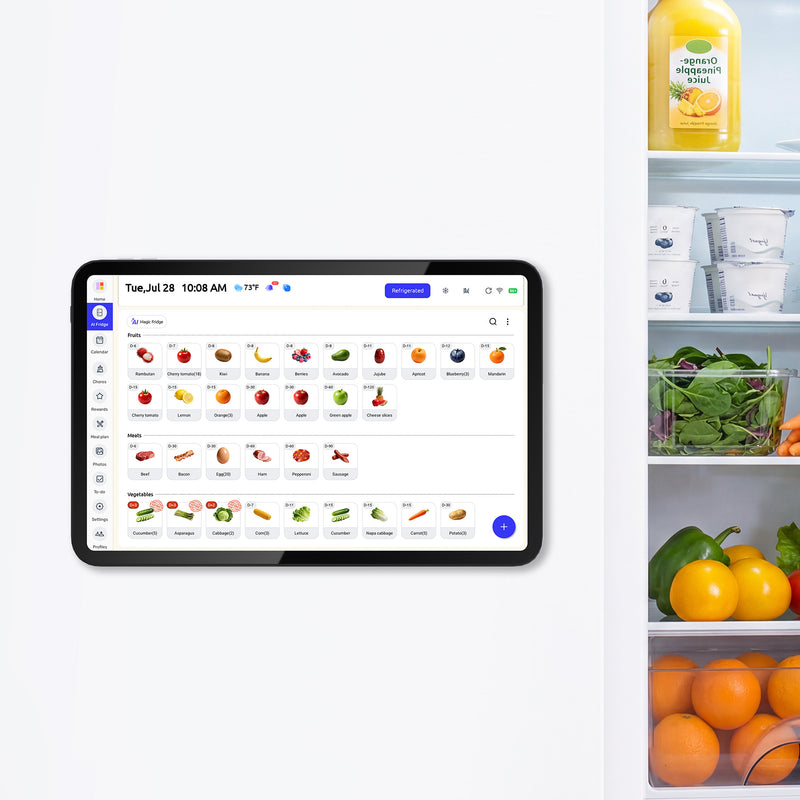
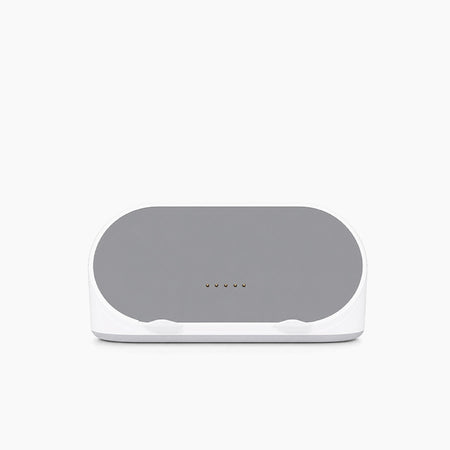
For a true "it just works" experience, nothing beats a dedicated digital calendar like Everblog. These aren't just repurposed tablets; they're built from the ground up for one job: organizing your family.
- Effortless Setup: You’re not hunting for apps or fighting with settings. A simple companion app walks you through connecting your Google Calendar, and that’s it.
- More Than a Calendar: Many, like Everblog, bake in other tools you actually need, like chore charts, meal planners, and photo sharing. It becomes a real family command center, not just a schedule.
- No Distractions: This is a big one. Unlike a tablet, there’s no YouTube or games to sidetrack the kids. It’s a dedicated tool, and it keeps everyone focused.
The biggest win with a dedicated device is that the hardware and software are made for each other. You skip all the technical guesswork and get a polished experience right out of the box.
Versatile Tablets and Wall Mounts
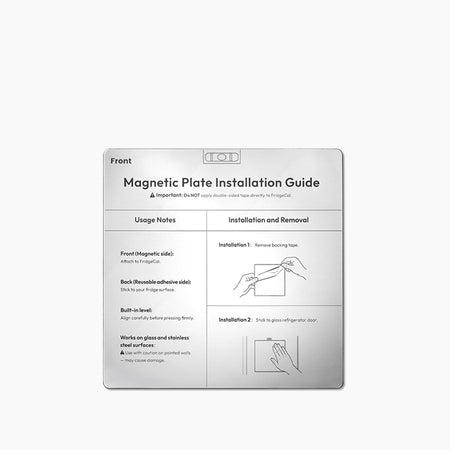
If you're a bit of a DIYer or have an old iPad or Android tablet collecting dust, this is a popular and budget-friendly route. Grab a good wall mount, and you can create a really clean, custom setup.
The main app you’ll run is either the standard Google Calendar app or a third-party dashboard app. The real puzzle to solve is power. You have to figure out how to get a charging cable to the tablet without it looking like a mess. This might mean some clever cable routing or, for the cleanest look, hiring an electrician to install a recessed outlet.
For a good overview of how to get your display securely on the wall, check out this guide on choosing the right https://everblog.com/blogs/life-with-everblog/whiteboard-mounting-hardware, as many of the principles apply to tablets, too.
This flowchart pretty much sums up why so many families land on a central, visible calendar in the first place.

It all comes back to a single source of truth to cut down on the chaos and give kids the independence to see what's coming up next.
Smart Displays Like Google Nest Hub
Smart displays like the Google Nest Hub or Amazon Echo Show are a solid middle-ground option. They display your Google Calendar nicely and give you the bonus of voice control through Google Assistant or Alexa. Adding an event hands-free while your hands are covered in flour is a genuinely useful feature.
But they aren’t single-purpose devices. The screen will cycle through photos, headlines, and weather updates, meaning your calendar isn't always visible at a glance. They’re a great fit if you want a multi-purpose gadget, but less so if your only goal is a persistent, always-on schedule.
Your TV with a Chromecast
For a massive display on a tiny budget, you can't beat using a Chromecast with your TV. You just "cast" your Google Calendar from a browser tab on your computer, and instantly your 55-inch TV becomes the family schedule.
It's a fantastic setup for a weekly Sunday night planning session with the whole family. But as an always-on display? Not so practical, since it ties up your TV. Once you've picked your screen, it's worth learning how to mount a TV on a wall properly for a safe, secure installation.
Google Calendar Wall Display Hardware Options
To make the choice a little easier, here’s a quick breakdown of how these four options stack up against each other.
| Device Type | Best For | Approximate Cost | Key Pros | Key Cons |
|---|---|---|---|---|
| Dedicated Calendar | Families wanting a simple, all-in-one solution. | $300 – $700 | Plug-and-play setup; distraction-free; integrated features. | Higher initial cost. |
| Tablet + Wall Mount | DIYers and those wanting a flexible, custom setup. | $50 – $400+ | Cost-effective if you own a tablet; customizable apps. | Requires more setup; power cable management can be tricky. |
| Smart Display | Homes already in a smart ecosystem (Google/Alexa). | $100 – $250 | Voice control; multi-functional; easy setup. | Calendar is not always on-screen; smaller display sizes. |
| TV + Chromecast | Those wanting a very large display for occasional viewing. | $50 (if you own TV) | Huge screen size; very low cost. | Not practical for an always-on display; ties up your TV. |
Ultimately, there’s no single "best" hardware—it's about finding the right balance of cost, convenience, and functionality for your own home.
A great-looking screen on your wall is just the beginning. The real magic of a Google Calendar wall display comes from the information it shows you at a glance. When you get this part right, it stops being a gadget and becomes your family's command center.
It’s not about getting tangled up in tech settings. It's about creating a simple, logical system in Google Calendar that actually mirrors your family's life. We'll start with the foundation: setting up dedicated calendars for each person and activity.

Create Separate, Color-Coded Calendars
First things first: stop dumping everything onto one calendar. The key to clarity is creating a separate Google Calendar for each person in your family. This gives you much better control over what gets shared and who sees what.
For instance, your setup might look something like this:
- Mia - School & Activities: For her class schedule, project deadlines, and ballet practice.
- Liam - Sports: To keep track of all his soccer games, team meetings, and away tournaments.
- Family Events: A shared calendar for holidays, birthdays, and vacations.
- Appointments & Errands: A catch-all for doctor visits, vet appointments, and other household to-dos.
Creating new calendars is easy. On your desktop, just open Google Calendar, find the plus sign (+) next to "Other calendars," and choose "Create new calendar." Give it a clear name, and you're good to go.
The best part? This lets you color-code everything. Mia's events can be pink, and Liam's can be blue. That simple visual trick makes the wall display readable from across the room—you’ll know who needs to be where without reading a single word.
Share Calendars with the Right Permissions
Once you have your calendars, it's time to share them so everyone can see what's going on. This is where sharing permissions become your best friend. You'll share each calendar with the Google accounts of your other family members.
Google gives you a few different permission levels, and knowing the difference is crucial for a system that works.
- See only free/busy (hide details): This is perfect for a work calendar. Your family can see you're booked from 2-3 PM but won't see the confidential details of your "Project Alpha Budget Review."
- See all event details: This is the setting you'll use most for family members. Everyone can see the what, where, and when for each event.
- Make changes to events: Give this permission to partners or responsible older kids who need to add or edit their own schedules. It lets your spouse add a last-minute appointment or a teenager input their work shifts.
- Make changes and manage sharing: This is full admin control. It’s best to limit this to just one or two people who manage the family's digital hub.
Pro-Tip: Create a central "Family Hub" Google account (like
TheSmithsHub@gmail.com). Share everyone's individual calendars with this one account, then log into your wall display using only the Hub account. This simplifies setup and keeps your personal Google accounts more secure.
Master Private Events on Shared Calendars
Even with a shared family calendar, some things just need to be private. Maybe you want to block out time for a personal appointment without announcing the details to the whole house.
That’s exactly what the 'Private' visibility setting is for. When you create an event, you can change its default visibility from 'Public' or 'Calendar default' to 'Private'.
On your google calendar wall display, that event will just show up as a "Busy" block. The time is reserved so nobody can schedule over it, but the title and details are hidden from everyone except the event owner (and anyone with "Make changes" permissions). It strikes the perfect balance between transparency and privacy.
Our guide on how to sync your Google Calendar with a dedicated device like Everblog shows exactly how these settings look on-screen. By thoughtfully setting up separate calendars and managing permissions, you build a system that's both incredibly useful and respectful of everyone's privacy.
Optimizing Your Display for At-a-Glance Clarity
Getting a screen on the wall is the easy part. Turning it into a Google Calendar wall display your family will actually use? That’s all about making it readable from across the kitchen.
You're aiming for effortless clarity—a quick glance should be all it takes to know what's happening. A cluttered, hard-to-read screen is just digital noise. It all comes down to a few smart choices in your calendar's settings.

Think of it like creating a visual language that everyone in the house can understand instantly.
Choosing the Right Calendar View
First, you need to pick a default view. Google Calendar gives you a few options, and the best one really depends on your family’s rhythm.
- Month View: This gives you the big picture. It’s great for spotting busy weekends, tracking school holidays, or planning vacations. The downside? On smaller screens, a packed month can quickly become an unreadable mess of tiny text.
- Week View: Perfect for families who run on a weekly cycle of school, sports, and recurring appointments. This view strikes a great balance, offering enough room for daily details without feeling overwhelming.
- Agenda View: This is my personal favorite for a wall display. It’s a clean, simple list of what’s coming up next. It's the most scannable option and works on any screen size, showing a continuous scroll of events. Many dedicated devices, like Everblog, default to an agenda-style layout for exactly this reason.
If you're not sure where to start, I'd recommend the Agenda or Week view. They focus on what's happening now and in the next few days, which is what you need most from an at-a-glance display. Save the Month view for when you sit down to do some serious planning.
Creating an Intuitive Color-Coding System
This is probably the single most important thing you can do. As we talked about during setup, assigning a unique color to each family member or event type (like 'Work' or 'Appointments') is non-negotiable.
When you see a blue block, you should immediately know it's one of Liam's soccer games. A green event is something the whole family needs to be at. This simple visual cue means you don't have to read every single event title—your brain processes the day's structure in a split second.
Maximizing Readability with Fonts and Contrast
Once your view and colors are set, the final piece is making sure the text itself is easy to read from a distance.
Google Calendar's native web interface doesn't offer much control over fonts, but this is where third-party apps and dedicated hardware like Everblog really shine. Look for settings that let you increase the font size or switch to a high-contrast mode (like white text on a black background). It makes a huge difference.
We also have a full guide on digital wall calendar placement and glare tips that walks through how to position your screen to avoid annoying reflections.
It's this focus on real-time, readable information that shows why digital is pulling so far ahead. While the traditional wall calendar market still exists, its growth is slow—valued at USD 176 million in 2026 and projected to hit just USD 225 million by 2034. It’s a clear sign that most families prefer the dynamic, synced features that paper just can't offer. You can read more about these divergence in calendar trends.
Thoughtfully Integrating Other Information
Your Google Calendar wall display can be more than just a calendar. Most dashboard apps and dedicated devices allow you to add other useful widgets.
- Weather Forecast: A simple 3-day or 5-day forecast is incredibly handy for planning outfits and outdoor activities.
- To-Do Lists: Syncing a shared grocery list or a running list of household tasks keeps everyone on the same page.
- Sticky Notes: Perfect for quick, temporary reminders like, "Don't forget to sign the permission slip!"
The trick is to add these extras without creating chaos. Keep the calendar as the main event and arrange widgets in the margins. A clean, organized display is one your family will keep coming back to.
Unlocking Advanced Automation and Pro Tips
Getting your calendar on the wall is a great first step. But the real magic begins when you stop just looking at it and start letting it work for you. With a few smart automations, your display can transform from a passive screen into an active command center for your family.
The goal here is simple: do less manual work. Instead of constantly pecking at your phone to add events, let your setup handle the heavy lifting. This is where your new wall display starts to feel less like a gadget and more like a genuine assistant.
Embrace Hands-Free Voice Entry
If you’re using a smart display like a Google Nest Hub or have a smart speaker in the room, voice commands are your new best friend. It’s a complete game-changer when your hands are full or you’re in the middle of something.
Imagine you're making dinner and a friend calls to lock in a playdate for next week. Instead of stopping, washing your hands, and fumbling for your phone, you just talk to the room:
- "Hey Google, add an event to my calendar."
- "Playdate with Sarah at the park, next Tuesday at 10 AM."
Just like that, the event pops up on your google calendar wall display for everyone to see. It’s a tiny convenience that makes a huge difference, closing the gap where appointments get forgotten. This works just as well with Alexa-enabled devices once you’ve linked your Google Calendar.
Automate Recurring Events and Reminders
Think about all the repetitive appointments that clutter your family’s schedule. Entering them by hand every single time is a total waste of time. This is exactly what recurring events were made for.
Take a few minutes and set these up once in your Google Calendar. You’ll thank yourself later.
- Weekly Chores: "Take out recycling" every Tuesday at 7 PM.
- Sports Practices: "Liam's Soccer Practice" every Monday and Wednesday at 5 PM.
- Bill Payments: "Pay credit card bill" on the 15th of every month.
- School Routines: "Library books due" every Friday morning.
When you create an event, just click the "Does not repeat" dropdown and set your custom schedule. Set it and forget it. Your wall display will take over, making sure everyone knows what’s coming up without you having to say a word.
A well-automated calendar acts like a silent project manager for your household. It handles the predictable so you can focus on the unexpected.
Connect Your Digital World with IFTTT
If you want to get into some next-level automation, it’s worth checking out a service like IFTTT (If This Then That). It’s a free tool that lets you create connections, or "applets," between the different apps and devices you already use. It sounds a bit technical, but the idea is dead simple.
You can create rules that automatically add events to your calendar based on triggers from other apps.
For example, you could set up a rule that scans your Gmail for any email containing "parent-teacher conference" and automatically creates a calendar event with the right date and time. No more manually copying details from your inbox.
Explore Integrated All-in-One Solutions
If tinkering with third-party services like IFTTT sounds like more trouble than it’s worth, this is where dedicated devices really shine. Products like our Everblog calendar often have these kinds of advanced features built right in, with zero extra setup.
Instead of just displaying a schedule, these all-in-one systems often include:
- Integrated Chore Managers: Assign tasks, track who’s done what, and even set up fun reward systems.
- Meal Planners: Map out your dinners for the week right on the screen, which can then generate a grocery list for you.
These tools are designed to work together seamlessly, giving you one central place to manage your entire household. For families who want to go even deeper, an ultimate guide to time tracking with Google Calendar offers great ideas for analyzing how your time is spent.
By mastering these tips, your wall display becomes more than just a schedule—it becomes an indispensable partner in running a smooth, organized, and connected home.
Answering Your Top Questions About Wall Calendar Displays
Even after you've picked the perfect device, a few questions always pop up during setup. It's totally normal. Here are the most common ones we hear, with straightforward answers to get your family command center running smoothly.
Can I Put Multiple Google Accounts on One Display?
Yes, and this is where a shared display really shines. The trick isn't to log into multiple accounts on the device itself, but to use Google Calendar's sharing features.
Here's how most families do it: designate one primary Google account for the display—let's call it TheSmithFamilyHub@gmail.com. Then, each family member shares their own work and personal calendars with that central Hub account. Everything shows up in a single, color-coded view on the wall, but everyone still manages their own schedules privately from their phones.
How Do I Hide Private Appointments on a Shared Calendar?
Google Calendar has a simple but powerful "Visibility" setting for this exact scenario. When you create an event on a calendar that's shared with the family, you can mark it as 'Private'.
When an event is set to private, others just see a 'Busy' block on the calendar. The actual event details—what it is, where it is, and who it's with—stay completely hidden. It's perfect for blocking out time for a sensitive work call or a doctor's visit without broadcasting the details.
This lets you keep the family schedule accurate so no one double-books you, while still maintaining your own privacy.
I'm Not Very Tech-Savvy. What's the Easiest Option?
If you want to skip the technical tinkering altogether, a dedicated digital calendar is absolutely the way to go. These devices are built for one purpose, and they're designed to be incredibly user-friendly right out of the box.
- All-in-One Solution: You don't have to worry about matching a tablet with the right wall mount or finding the perfect app.
- Designed for Families: The software is made to work seamlessly and often includes extras like chore charts or meal planners.
- Real Customer Support: If you get stuck, you have a company to call for help, which you don't get with a DIY setup.
A dedicated device takes all the guesswork out of the equation. It's a true plug-and-play approach.
How Much Wi-Fi Data Will a Wall Display Use?
Surprisingly little. Your calendar events are just tiny bits of text, so syncing them uses a minuscule amount of data. The display will check for updates on your Wi-Fi from time to time, but the data usage is negligible.
Unless you plan on streaming movies or running a constant high-res photo slideshow on the same device, you won't even notice it on your internet bill. It's one of the most data-efficient smart devices you can add to your home.
Ready to skip the DIY hassle and get a beautiful, all-in-one family command center? Everblog integrates your Google Calendar with chore charts, meal planners, and more in a stunning display designed for busy families. Discover how Everblog can bring calm and clarity to your home.


