

If your family’s schedule feels like a chaotic mess of text messages, sticky notes, and forgotten appointments, you are definitely not alone. The Google Family Calendar is a free and surprisingly powerful tool that can bring all those moving parts together into one central hub. It’s the digital command center that finally gets everyone on the same page.
Why a Shared Calendar Is a Lifeline for Modern Families
Trying to run a household today is about more than just remembering soccer practice and dentist appointments—it's managing a constant firehose of information. A shared digital calendar is the single source of truth that puts an end to the "But you never told me!" moments that cause so much family stress. This is where a well-managed Google Family Calendar truly shines.
It takes your family’s schedule from a jumbled system of verbal reminders and scraps of paper to a clear, unified platform. Everyone, from parents down to older kids, can see the day's, week's, and month's agenda with a quick glance, which naturally builds a sense of shared responsibility.
The Real-World Benefits You’ll Feel Immediately
Once you start using a shared calendar, you’ll feel the benefits right away. The biggest win is how seamlessly it syncs across all your family's devices. An appointment you add on your laptop in the morning is instantly live on your partner's iPhone and your teenager's Android phone. No more excuses.
But it gets even better:
- Events Create Themselves: Google is smart enough to pull event details—like flight times or concert tickets—right from your Gmail, saving you the hassle of typing everything in manually.
- Less Mental Clutter: Instead of trying to juggle every little detail in your head, you can offload it all to the calendar. This frees up so much mental energy and gets rid of that nagging background anxiety of "Did I forget something?"
- Better Communication: When the whole family sees the same schedule, it sparks conversations. You can spot conflicts ahead of time or figure out carpools, turning the calendar into a tool that helps you talk before things go wrong.
A well-organized digital calendar is more than just a scheduling tool; it’s a preventative measure against chaos. It creates a predictable rhythm for the home, which is calming for both parents and children.
Beyond just organizing schedules, creating a calm family environment also means managing the digital world safely. A fantastic complement to your new organizational system is implementing parental controls on family devices to ensure everyone has a healthy and secure online experience.
First launched around 2018, Google's Family Group feature allows up to six family members to share a calendar, making it a natural fit for households already using Google services. Its popularity speaks for itself, with over a million new installs on Android devices in a single year and consistently high ratings from millions of users. You can see more on these trends over at appstorespy.com. Now, let’s get that power working for your family.
Setting Up Your Google Family Calendar Correctly
Alright, let's get your family's digital schedule built the right way. The biggest mistake I see people make is simply sharing their personal Google Calendar with their partner and kids. The real secret to a clean, organized system is creating a dedicated 'Family' calendar through a Google Family Group.
This one distinction makes all the difference.
Your personal calendar is probably a chaotic mix of work meetings, private reminders, and appointment drafts you don't need to broadcast to everyone. A separate family calendar keeps the clutter out and ensures only the important stuff—like soccer practice, school plays, and parent-teacher conferences—is front and center for the whole crew.
Creating Your Family Group
Your first step is to set up a Google Family Group. You can do this from your phone or computer right in your Google account settings. Think of this group as the central hub for all your shared Google services.
As the creator, you'll be the 'Family manager,' and you can invite up to five other people to join, for a total of six members in the group.
- For your partner or older teens: Just send an invitation to their existing Google email address.
- For younger kids: You can create Google accounts for children under 13, which you’ll manage directly.
The magic happens the moment you create this group. A special calendar named "Family" automatically appears in everyone's Google Calendar app. No one has to subscribe or hunt for it—it’s just there, ready to go.
This simple move can take you from constant scheduling chaos to a state of calm. It's a journey from tangled routines to a household that just flows.

As you can see, a central calendar is the bridge from confusing, overlapping plans to a smooth, predictable rhythm for the whole family.
Assigning the Right Permissions
Once the group is set, take a moment to fine-tune who can do what. While you’re the manager by default, it’s a smart move to assign your partner or another trusted adult as a ‘parent.’ This gives them almost all the same management rights, which is a lifesaver if you're ever unavailable.
For your kids, leaving them as standard 'Family members' is usually the best bet. This lets them see all the events and add their own—like study group sessions or birthday parties—but stops them from accidentally deleting your anniversary dinner or removing a sibling from the group.
It’s all about empowerment with guardrails. Your teen can add their basketball tournament schedule, but they can’t wipe out a critical doctor's appointment. Setting these boundaries from day one prevents headaches down the road.
Customizing Events to Master Your Daily Schedule

Getting your family calendar set up is the easy part. The real magic happens when you start customizing it to fit how your family actually operates. A cluttered, confusing calendar is just as chaotic as having no calendar at all. Your goal should be a schedule that anyone can understand with just a quick glance.
The single most powerful trick in the book is color-coding. Seriously, this is a game-changer. Instead of letting every event default to the same color, give each family member their own. Maybe Mom’s events are purple, Dad’s are green, and the kids get blue and yellow. This simple visual system makes it instantly obvious who needs to be where and when.
Make Your Calendar Work for You
Beyond assigning colors to people, you can also use them for different types of events. You could make all school-related activities red, for example, and all medical appointments orange. This helps everyone see the day's priorities right away, cutting down on that constant "What are we doing today?" mental chatter.
From there, it’s all about the details. A generic "Doctor's Appointment" entry works, but a truly helpful one gives you everything you need.
- Use the Location Field: Don’t just type "the clinic." Plug in the full address. This makes it tappable for instant directions on anyone's phone—a lifesaver when you're running late and can't remember the cross-streets.
- Set Multiple Reminders: For those can't-miss appointments like a flight or a specialist visit, don't just rely on a single 10-minute warning. I like to set a reminder for the day before, another one two hours out, and a final nudge 30 minutes before it's time to leave.
- Attach Important Files: Did the school email a permission slip? Or maybe you have a confirmation number for a booking? Don't let it get buried in your inbox. Attach the file or add the details right to the calendar event. This puts everything you need right where you'll look for it.
A great family calendar doesn't just tell you what is happening; it gives you everything you need to make it happen smoothly. Think of each event as a mini-dossier for that moment in time.
Since its mobile app launched back in 2012, Google Calendar has become a powerhouse for family coordination. It's remained completely free while other apps have moved to paid plans. With its deep ties to Gmail for automatic event creation and built-in support for Google Meet, it’s pretty much essential for modern families. You can even see how it stacks up by checking out this family calendar app comparison.
Automate and Integrate
One of the best perks of using a Google Family Calendar is how it automatically pulls in events from Gmail, like flight confirmations and hotel reservations. This is incredibly helpful, but you'll want to peek at your settings to make sure it isn't adding things you don't want.
You can find this feature in your calendar settings under "Events from Gmail" and choose what gets added. And for total control over your schedule, learning how to add task to Google Calendar is a pro move. It lets you mix in important to-dos and chore reminders right alongside your appointments, turning your calendar from a simple schedule into a true action plan for the whole family.
Syncing Your Calendar Across Every Family Device

A family calendar is only as good as its reach. If it’s not on everyone’s phone, tablet, and computer, you’re still going to have scheduling mix-ups. The great thing about the Google Family Calendar is that it's designed to work everywhere, which is key to finally putting an end to the classic, “I didn’t see it on my calendar!” excuse.
For the Android users in your family, this part is a breeze. As long as they’re logged into the Google account tied to your family group, the “Family” calendar automatically shows up in their Google Calendar app. There’s really no setup needed on their end.
Getting the Calendar on iPhones and iPads
The real question I always get is from families using a mix of Apple and Android devices. It's totally possible to get the shared calendar on an iPhone or iPad, but it takes a few quick taps to get the accounts talking to each other.
Here’s the path to take:
- First, open up Settings on the iPhone or iPad.
- Scroll down and tap into Calendar, then choose Accounts.
- Select Add Account, and you’ll see a list—pick Google.
- This is where your family member will sign in with their own Google account info.
- On the final screen, just make sure the little toggle for Calendars is green and switched on, then hit Save.
Now, when they open the Apple Calendar app, they just need to tap "Calendars" at the bottom of the screen. They’ll see the "Family" calendar listed under their Gmail account—make sure it's checked, and you're all set. Events will now sync both ways.
Troubleshooting Common Sync Issues
So what happens when you add the parent-teacher conference on your laptop, but it never shows up on your partner’s phone? It’s a common headache, but the fix is usually pretty simple. Syncing isn't always instant and a few things can slow it down.
The most common culprits for sync delays are a spotty internet connection or device settings that block apps from updating in the background. A weak Wi-Fi signal is often the main offender.
First, try a manual refresh. In the Google Calendar app, you can tap the three-line menu icon and hit Refresh. On an iPhone, just pull down from the top of the screen inside the Calendar app to force it to sync.
If that doesn’t do the trick, dig into the device’s Background App Refresh settings and confirm the Calendar app has permission to update itself.
For those looking to sync more than just events, you might be interested in our guide on how to sync your Everblog calendar with Google Calendar for even deeper integration.
Tackling Those Annoying Calendar Glitches
Look, as much as we love the idea of a perfectly synced Google Family Calendar, it's not always a smooth ride. Even for those of us who live and breathe digital organization, some of its quirks can make you want to pull your hair out.
Knowing what you might run into ahead of time—and having a few tricks up your sleeve—can make all the difference.
One of the first brick walls many families hit is the hard six-member limit for a Google Family Group. If you have a blended family, more than four kids, or want to include a grandparent or nanny, you’re stuck. It's a real pain when you're just trying to get everyone on the same page.
Getting Around the Six-Person Limit
Don't worry, you don't have to give up on Google Calendar just yet. The best way to handle this is to skip the official "Family" calendar and create a standard shared calendar yourself.
Simply make a new calendar in your own Google account and then manually invite everyone you need, whether they're in your "Family Group" or not. This gives you the freedom to add anyone who needs to be in the loop.
Pro-tip: Name it something super clear, like "The Miller Family Hub," and tell everyone to treat it as the single source of truth for family stuff. It's a one-time setup that solves a major headache.
Another all-too-common scenario? You swear you set a reminder for picture day, but your partner insists they never got the notification. You're not going crazy. This usually happens because notification settings are unique to each person's account and device. If this is a constant battle in your house, we have a complete troubleshooting guide for when your Google Calendar is not syncing.
When It's Time for an Upgrade
Google Calendar is free and familiar, making it the natural starting point for most families. But after a while, you start to feel its limitations. The member cap, the lack of built-in chore tracking, and no easy way to handle meal planning are common reasons people start looking elsewhere. In fact, these gaps are pushing more and more households toward tools built specifically for family life, a trend you can read more about in this analysis of digital family calendars on morgen.so.
This is usually the moment families realize they need more than just a calendar—they need a command center.
You've probably hit that point if you find yourself needing to:
- Manage and track weekly chores without a separate app.
- Plan meals and have a grocery list automatically created.
- Keep important family info, photos, and messages in one central spot.
That's the perfect time to integrate your Google Calendar with a more powerful system like Everblog. It pulls all those scattered pieces of your family's life into one beautiful, easy-to-use hub.
Integrating Your Calendar with a Central Family Hub
Your Google Family Calendar is a fantastic tool, and it's completely free. But let’s be honest—it’s often just the starting line. Once you get the hang of it, you quickly realize you’re still juggling separate apps for chores, grocery lists, and meal plans. Before you know it, you’ve just created digital clutter that feels every bit as chaotic as the mess of papers on the fridge.
This is where your calendar can evolve from a simple scheduler into the brain of your entire household. The idea isn't to replace your Google Calendar, but to give its scheduling power a more visible, central home that everyone in the family can actually see and use.

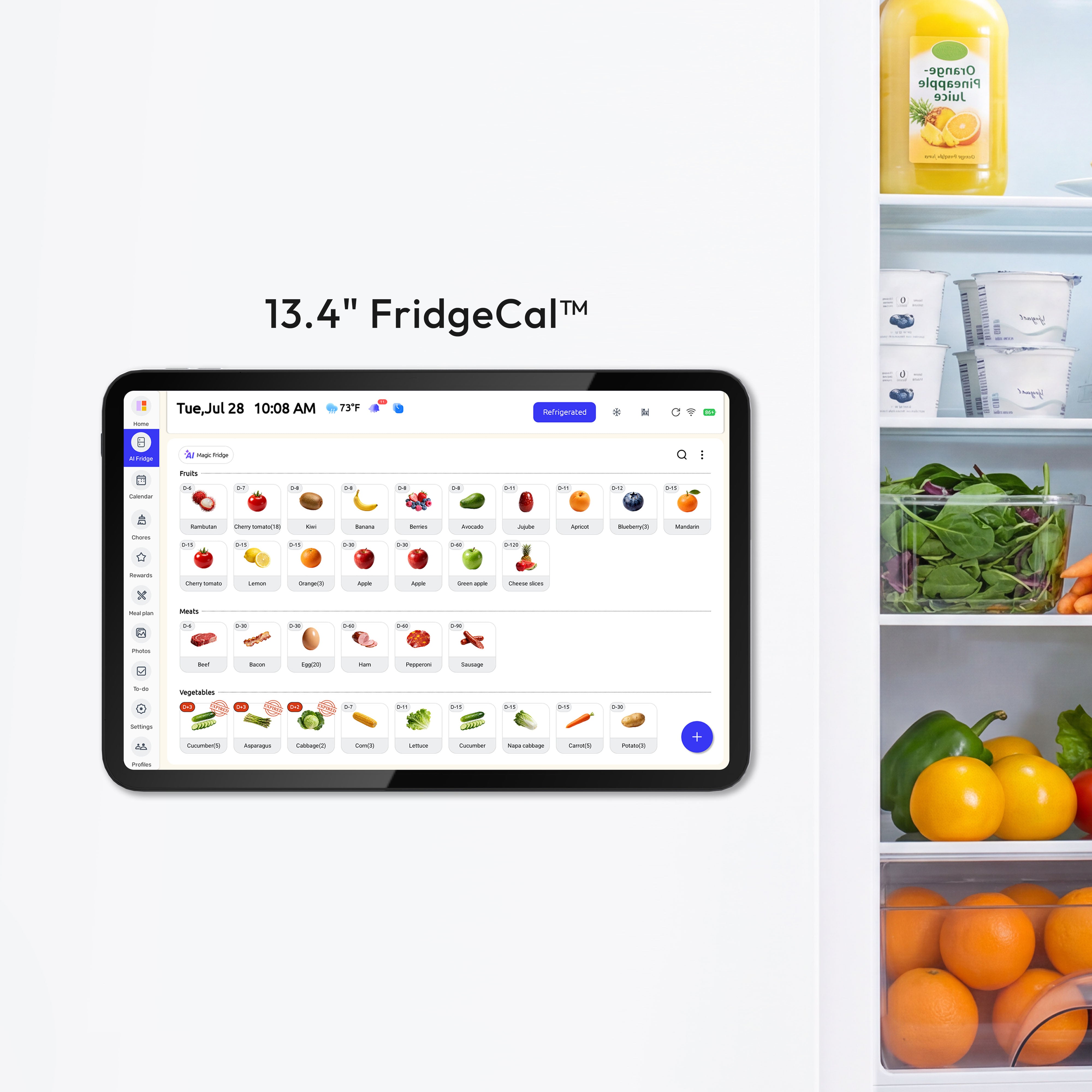
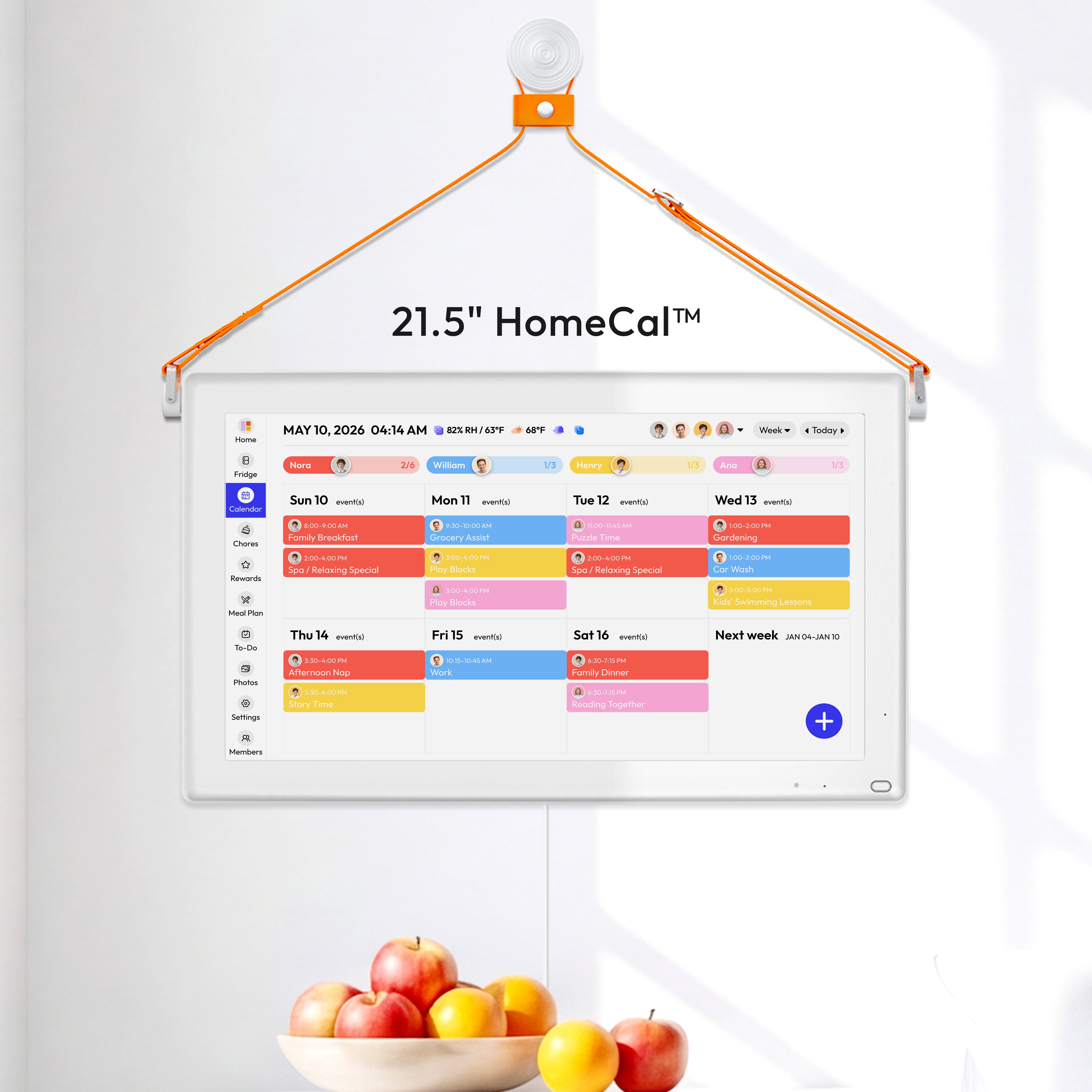
Picture a large screen on your kitchen or entryway wall. It doesn't just show that you have a dentist appointment at 2 PM. It gives a complete snapshot of the day: who’s supposed to walk the dog, what’s on the menu for dinner tonight, and what you need to grab from the store on the way home. No one even has to pull out a phone.
Bridging the Gaps in Your System
A dedicated family hub like Everblog connects the dots between your schedule and all those other household tasks. It pulls in all your Google Calendar events automatically and then layers on the exact features families need—the kind Google Calendar wasn't built for. This creates a single source of truth for your entire family.
Suddenly, you have tools designed specifically for running a home:
- Chore Manager with Rewards: Forget the sticker chart that gets ignored or yet another app. Chores now live right alongside the family schedule. With a built-in Rewards Tracker, kids are actually motivated to get things done because they can see their progress in real time.
- Meal Planner and Grocery List: Plan the week's meals right on the hub. As you add recipes, the ingredients instantly land on a shared grocery list that anyone can pull up on their phone while they're at the store.
A central hub isn’t about ditching your Google Family Calendar. It’s about giving it a permanent, visible home and surrounding it with the tools you need to run your household smoothly.
This approach brings your schedule, your family's responsibilities, and all your planning together in one place. We dive deeper into this concept in our guide to building a digital family command center. By uniting all these moving parts, you eliminate the constant back-and-forth and finally get your home on the same page.
Your Google Family Calendar Questions Answered
Once you get your Google Family Calendar up and running, a few questions always seem to pop up. It’s a great tool, but some of its quirks can be confusing at first.
Let’s clear up the most common points of confusion so you can get back to organizing your life.
Is the Google Family Calendar Free?
Yes, it's 100% free. Unlike many family organizer apps that gate their best features behind a paid subscription, the Google Family Calendar is just part of your standard Google account.
All you need is a Google Family Group, which is also completely free to set up and manage.
Can I Add Someone Who Isn't Family?
This is a huge one, and the official answer can be frustrating. What about a nanny, a grandparent who lives separately, or a co-parent who isn't in your immediate Google Family Group?
The "Family" calendar is strictly limited to the six members in your official Google Family Group. You can't add anyone else directly to it.
But there's a simple workaround we've been using for years: just create a second shared calendar. Make a new calendar in your own Google account, name it something intuitive like "The Whole Crew" or "Kids' Schedules," and then you can invite anyone with an email address. It offers total flexibility.
Can My Family See My Personal Calendar?
Nope, they can't. Think of the "Family" calendar as a separate, shared space.
Events you create on your personal calendar stay private to you. Your family will only see them if you specifically invite them to an individual event. This separation is fantastic for keeping your work appointments and personal reminders from cluttering up the family schedule.
What if My Child Doesn't Have a Google Account?
For kids under 13, Google has this covered with Family Link. It lets you create a supervised Google account for your child.
This gives them access to the family calendar and other shared services while you maintain full parental controls over their account and what they can do on their devices.
Ready to graduate from just scheduling to full-on household management? Everblog integrates your Google Calendar into a beautiful wall-mounted display that also manages chores, meals, and family photos—all without a subscription. Bring true calm to your home by visiting https://everblog.com.


