

Let's be honest—managing a family schedule feels like herding cats sometimes. Between soccer practice, dentist appointments, work meetings, and trying to remember who needs to be where and when, it's no wonder so many families feel overwhelmed. But here's the good news: a solid digital family calendar system can actually change everything.
In this guide, I'll walk you through exactly how to set up a calendar that your whole family will actually use. No tech degree required.
Why Does Your Family Calendar Keep Failing?
If you've tried family calendars before and they didn't stick, you're not alone. Most families make the same mistakes, and once you know what they are, they're pretty easy to fix.
Too Many Apps and Systems
Mom uses Google Calendar, Dad checks Outlook, the kids' school has a separate app, and there's a paper calendar on the fridge nobody updates. When information lives in four different places, nobody knows what's actually happening.
The "I'll Do It Later" Problem
Your daughter's dance teacher mentions the recital moved from May 15th to May 22nd. You think you'll remember to update the calendar later. Two weeks pass, and you've already requested the wrong day off work.
Forgetting to Plan Meals with Your Schedule
You plan slow-cooker chicken for Wednesday, forgetting Wednesday has piano at 4:00, soccer at 5:30, and parent-teacher conferences at 6:30. Now you're grabbing pizza on the way home—again.
The Mental Load That Never Stops
One parent becomes the family's human calendar, keeping track of dentist appointments, practice schedules, and who needs snacks this week. You're lying awake at 11 PM wondering if the field trip permission slip is due tomorrow. It's exhausting and completely unnecessary.
The Hidden Financial Costs
There's the $50 orthodontist no-show fee. The $120 in swimming lessons your daughter missed because of scheduling conflicts. The Saturday soccer clinic you paid for but can't attend because it's your nephew's birthday party.
The Food That Goes to Waste
You buy spinach, peppers, and chicken on Sunday with plans for healthy dinners. But the week gets hectic, and by Thursday you're ordering takeout while that produce sits forgotten in the fridge. That's $30-50 in wasted food every week.
What's the Best Digital Family Calendar for Large Households?
There are plenty of digital calendars out there, and honestly, the "best" one depends on what your family needs.
Comparing Your Calendar Options
Here's how the most popular family calendar platforms stack up:
| Calendar Platform | Best For | Cost | Key Features | Potential Drawbacks |
| Google Calendar | Most families | Free | Works on any device, color-coding, easy sharing, strong mobile app | No built-in chore charts or meal planning |
| Apple Calendar | All-Apple households | Free | Simple iCloud family sharing, clean interface | Clunky with Android devices, limited features |
| Cozi Family Organizer | Families wanting extras | Free (with ads) or $30/year | Shopping lists, meal planning, family-focused design | Ads in free version can be distracting |
| TimeTree | Extended families | Free | Event commenting, photo sharing, social features | Better for coordination than daily planning |
Free vs. Paid: What's the Difference?
Here's what you actually get at each price point:
| Feature Type | Free Apps (Google, Apple) | Paid Apps ($30-50/year) | Dedicated Displays |
| Multiple calendars | ✓ | ✓ | ✓ |
| Color-coding | ✓ | ✓ | ✓ |
| Mobile access | ✓ | ✓ | ✓ |
| Chore charts | ✗ | ✓ | Varies* |
| Meal planning | ✗ | ✓ | Varies* |
| Large visual display | ✗ | ✗ | ✓ |
| Fridge inventory tracking | ✗ | ✗ | ✓ (select models) |
| Initial hardware cost | $0 | $0 | $200-600 |
| Ongoing subscription fees | $0 | $30-50/year | $60-120/year |
| 3-year total cost | $0 | $90-150 | $380-960 |
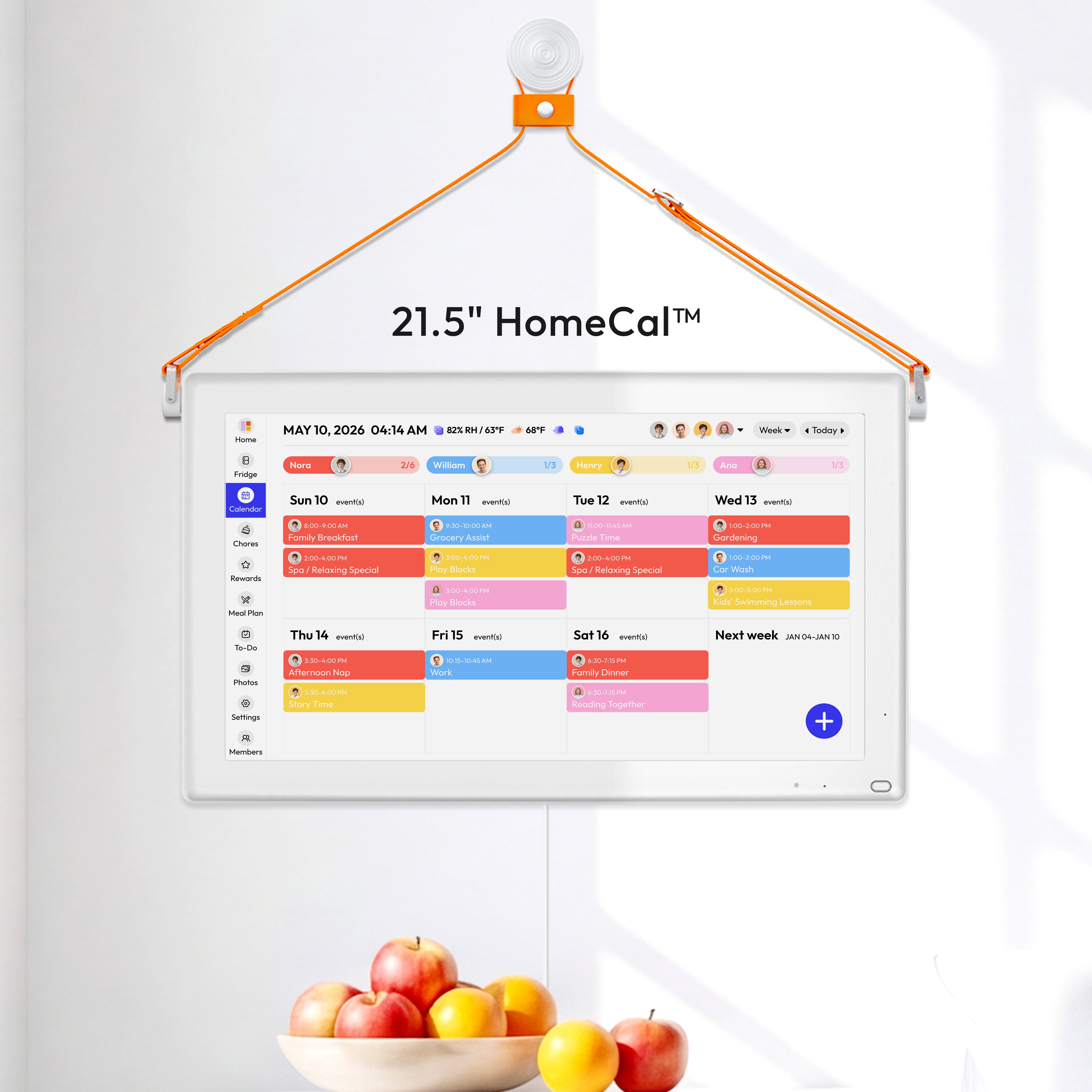
Most physical digital calendar brands charge ongoing subscription fees—typically $5-10/month ($60-120/year)—to access advanced features beyond basic calendar syncing. If you'd rather avoid ongoing subscription costs, the Everblog 21.5" Digital Calendar offers a refreshing alternative. Pay once and get full access to all features—meal planning, chore management, fridge tracking—without any monthly bills.
Wall Display vs. Phone App: Which Works Better?
This is a big decision. Here's an honest comparison:
| Factor | Phone App | Wall Display |
| Visibility | Easy to miss or ignore | Always visible in high-traffic area |
| Family access | Only when phone is available | Everyone can see it anytime |
| Kids can check | Not always (depends on phone access) | Yes, independently |
| Updates | Quick and portable | Requires being near the display |
| Cost | Free to $50/year | $200-500 upfront |
| Space needed | None | Wall space + power outlet |
| Best location | In your pocket | Kitchen or mudroom |
Phone apps work great when you're out, but at home they're easy to forget. You open your phone to check the calendar and get distracted by texts instead. A wall display in your kitchen fixes this—it's always visible, kids can check it themselves, and it becomes the family hub everyone actually uses. Expect to spend $200-500, and make sure you have kitchen wall space and a nearby power outlet.
How to Set Up Your Digital Family Calendar in 30 Minutes
Setting up your calendar system doesn't have to be an all-day project. Here's how to do it quickly.
Start with the Basics
Step 1: Pick your platform and create your main calendar
If you're using Google Calendar, create one main "Family" calendar that everyone shares. Then decide: do you want separate calendars for each person, or will you color-code events on the shared calendar?
Step 2: Set up categories that match your actual life
Here are some examples of how real families organize theirs:
- The Martinez Family (2 working parents, 3 kids): School, Mom's Work, Dad's Work, Sports & Activities, Medical, Family Events
- The Chen Family (blended family): Mom's House, Dad's House, School, Activities, Shared Events
- The Johnson Family (remote workers with young kids): Work Blocks, Daycare/Preschool, Appointments, Date Night, Household
Start simple—you can always add more categories later. Most families do fine with 5-7 categories.
Color-Coding That Makes Sense
Assign each family member their own color
Let kids pick their favorites—it gives them ownership. Here's how one family did it:
- Mom: Purple
- Dad: Blue
- Emma (age 12): Pink
- Lucas (age 9): Green
- Olivia (age 6): Yellow
Optional: Use a secondary system for event types
Some families add another layer:
- All medical appointments get a red dot, regardless of whose appointment
- All sports get a green background
- School events get an orange stripe
Pick whatever makes sense at a glance. The key is staying consistent so everyone knows what they're looking at.
Color-coded notification lights (available on some wall displays) take this further—each person gets visual alerts in their color when something's coming up. Kids love seeing their color light up.
Getting Notifications Right
This is where most families mess up. Too many notifications = everyone ignores them. Too few = people miss important stuff.
Start with these defaults:
| Event Type | Notification Timing | Example |
| All-day events | Night before at 8 PM | "Reminder: Emma has a field trip tomorrow" |
| Timed appointments | 15 minutes before | "Lucas has a dentist appointment at 3:00 PM" |
| Weekly recurring | Morning of, at 7 AM | "Soccer practice today at 5:30 PM" |
Adjust based on your family's needs:
- Early risers might want morning reminders at 6 AM instead of 7 AM
- Teens might need a 30-minute warning to actually get ready
- Work meetings might need a 5-minute heads-up
For wall displays: Gentle visual reminders (like a pulsing color or soft chime) work way better than loud beeping. Nobody wants the calendar screaming at them during breakfast.
How to Sync Multiple Google Calendars to One Wall Display
This is where everything comes together—getting all your different calendars to show up in one central place that the whole family can see.
Setting Up Calendar Sync on a Dedicated Display
With a family calendar display like the Everblog, the setup is straightforward:
1. Sign in with your Google account during initial setup
2. Select which calendars to display—your personal calendar, the kids' school calendars, your partner's work schedule, or any other Google calendars you have access to
3. Everything syncs automatically—the Everblog pulls all your selected calendars and displays them together in one view
The Everblog also syncs with Outlook if that's what your family uses. Once connected, any change made on your phone updates on the display within minutes.
Setting Up Calendar Sync on a Tablet
If you're using a tablet mounted on your wall:
1. Download the Google Calendar app and keep it open in always-on mode
2. Consider a calendar display app like DAKboard or Family Wall for a cleaner look that's easier to read from across the room
3. Make sure the tablet stays connected to WiFi for updates to sync properly
Real-time sync eliminates the constant back-and-forth texts about schedule changes.
Here's how it works in real life: You're at the grocery store and the soccer coach texts that practice moved from 5:00 to 6:00 PM. You open your phone and update the calendar right there in the cereal aisle.
By the time you get home 20 minutes later, your partner has already seen the change on the kitchen display and pushed back their work call. No "Did you see my text?" No miscommunication. Everyone's on the same page automatically.
That's what makes calendar auto-sync so valuable—information flows to everyone instantly without anyone having to remember to tell everyone else.
5 Simple Rules to Prevent Double-Bookings Forever

These rules will save you so much headache. Once you start following them, you'll wonder how you managed before.
Rule 1: Add Events Immediately, Not Later
The moment someone tells you about a schedule change or new commitment, add it to the calendar right then.
Example: Your son's basketball coach mentions at pickup that there's an extra practice Saturday morning at 9 AM. Don't think "I'll add that when I get home." Pull out your phone right there and add it. Use voice input if you're driving or your hands are full. "Later" never happens, and you'll forget by the time you're unloading groceries.
Information has a 5-minute shelf life in a busy parent's brain. Capture it immediately or lose it forever.
Rule 2: Use Tentative Status for Maybes
When something might happen but isn't confirmed yet, mark it as tentative. Once it's definite, change it to confirmed.
Example: Your friend invites you to her daughter's birthday party on the 20th, but you need to check if your husband can watch the kids. Add it as "tentative" to hold the date. When he confirms he's available, switch it to "confirmed." If he can't, delete it and text your friend you can't make it.
This reserves the time slot without over-committing. It also prevents the "I didn't know if it was really happening" excuse when someone makes other plans.
Rule 3: Set Up Recurring Events
The rule: Anything that happens on a regular schedule should be a recurring event. Set it once and forget it.
What to make recurring:
- Weekly piano lessons every Tuesday at 4:00 PM
- Basketball practice every Monday and Thursday at 6:00 PM
- Every-other-Friday custody exchange at 5:30 PM
- First-Friday family game night
Trash pickup every Wednesday morning (yes, really—you'll stop forgetting)
You set it up once and it automatically appears every week. No more forgetting to add it or wondering "Is practice this week or next week?"
Rule 4: Always Add Buffer Time
The rule: Build realistic transition time between events. Your calendar should reflect real life, not an ideal fantasy world.
Example:
| What's On the Calendar | Reality Check | What to Actually Schedule |
| Soccer practice ends 5:30, dinner at 6:00 | Need to drive home (15 min), kids need to change, wash hands | End practice 5:30, dinner at 6:15 |
| Dentist appointment at 2:00, work meeting at 3:00 | Appointment runs late, 20-min drive back to office, need bathroom break | Appointment at 2:00, meeting at 3:30 |
| School pickup at 3:15, grocery shopping right after | Kids need snacks, bathroom, might have meltdowns | Pickup at 3:15, groceries at 4:00 |
The "I can't find my shoe" delays are real. Traffic happens. Kids move slower than you think. Buffer time keeps you from constantly running late and stressed.
Rule 5: Hold a Weekly Family Calendar Review
Pick one time every week and spend 10-15 minutes looking at the week ahead together.
How the Miller family does it: Every Sunday at 7 PM, right after dinner cleanup, they pull up the calendar on their kitchen display. They look at Monday through Sunday together and talk through:
- Who has what activities each day
- Which nights are crazy and need easy meals
- Who's doing pickup/dropoff for what
- Any conflicts that need solving
- Upcoming deadlines or special events
Pro tip: Make it the same time every week so it becomes automatic. Sunday evening works for most families, but pick whatever fits your rhythm.
How to Review Your Family Calendar in 15 Minutes Each Week
Step 1: Walk Through Each Day Together (5 Minutes)
Pull up the calendar and go through Monday to Sunday out loud as a family. It might sound something like this:
"Okay, Monday—Emma has soccer at 4, Dad has a late meeting until 7. Tuesday—half day at school, Lucas has the dentist at 2. Wednesday—piano at 4, soccer at 5:30, parent-teacher conferences at 6:30. That's nuts. We need an easy dinner Wednesday. Thursday looks calm, just homework. Friday—Emma's birthday party at 6. Weekend—grocery shopping Saturday morning, nothing Sunday."
Step 2: Match Meals to Your Schedule (3-4 Minutes)
Before you plan a single meal, look at your calendar. Here's how to decide what to make:
| Schedule Type | What It Looks Like | Best Meal Options | Prep Time |
| Busy nights | 2+ activities, late commitments, home after 6 PM |
|
5-15 min active cooking |
| Moderately busy | Home by 5 PM, one evening activity |
|
30-45 min |
| Calm nights | Home by 4-5 PM, no evening activities |
|
45+ min |
There's zero shame in easy dinners on crazy days—that's smart parenting, not lazy parenting.
Step 3: Assign Who’s Doing What (2-3 Minutes)
Go through anything that needs coordinating:
- "Who's picking up Lucas from the dentist Tuesday? I have a 2:30 call."
- "Can you start the crockpot Wednesday morning before work?"
- "I'll grab the rotisserie chicken Wednesday on my way home from soccer."
- "You're picking up the birthday cake Friday, right?"
Write it down or assign it in the calendar so there's no confusion later.
Step 4: Spot Conflicts and Solve Them Now (2-3 Minutes)
This is when you catch problems:
- "Wait, we both have things at 6:30 Wednesday. Can you move your meeting or should I reschedule conferences?"
- "Soccer and piano overlap Thursday. Can Emma skip piano this week or do we need a carpool?"
Solving these on Sunday beats the panicked "How are we going to handle this?!" texts on Wednesday afternoon.
How to Get Kids Involved with Your Digital Family Calendar
When kids use the family calendar, they're not just looking at a screen—they're learning responsibility and becoming part of the family team.
| Age Group | Their Role | What They Can Do |
|
Ages 5-8 Checkers & Watchers |
Learning the family routine |
|
|
Ages 9-12 Junior Managers |
Helping keep things updated |
|
|
Ages 13+ Schedule Owners |
Running their own calendar |
|
When kids help manage the calendar, they learn time management and take ownership of their commitments. Plus, it actually takes work off your plate instead of adding to it.
Track What's in Your Fridge to Stop Wasting Food

Here's where meal planning gets really powerful: tracking what's actually in your fridge so you use it before it goes bad.
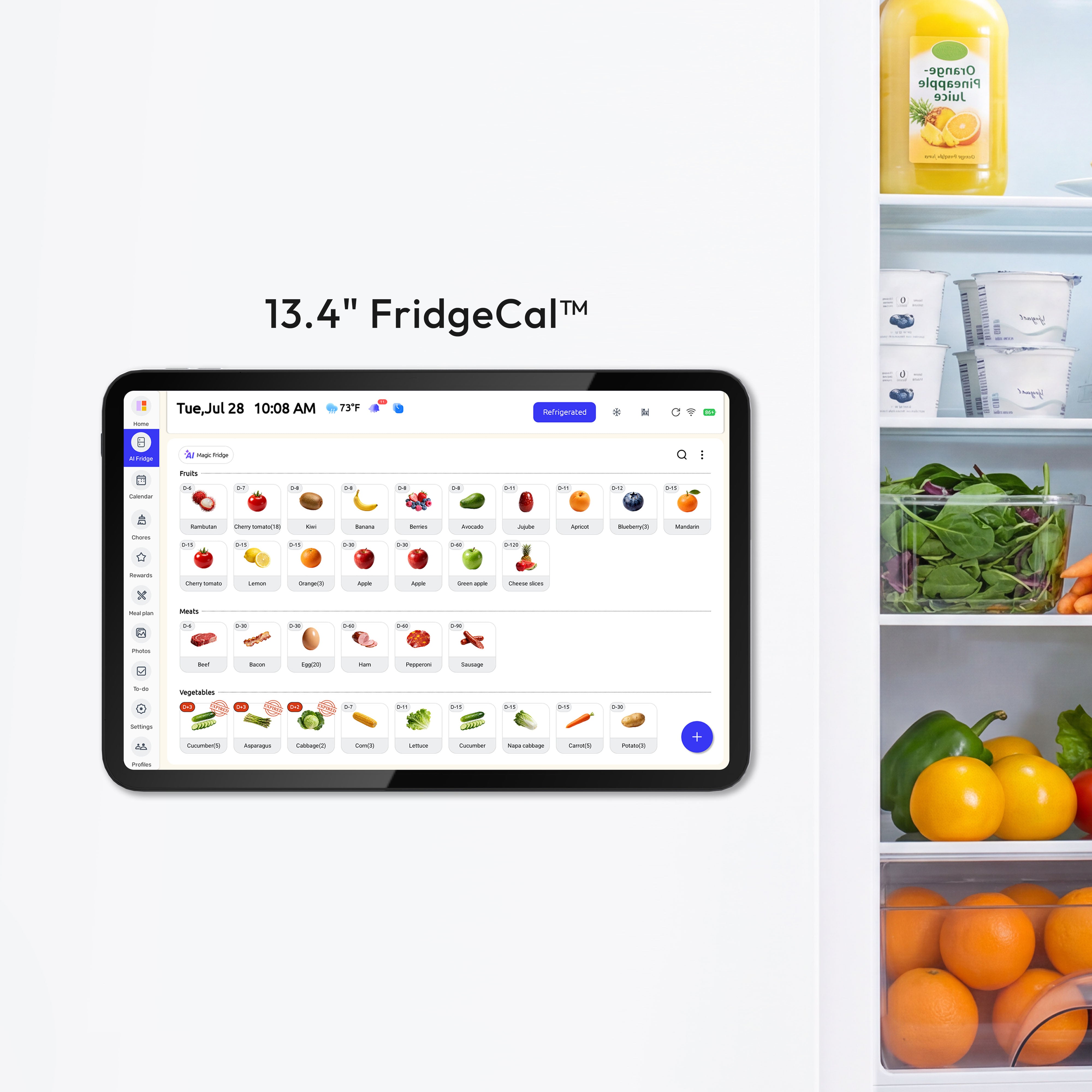
The Everblog calendar's Smart Fridge Manager does this automatically. Here's how it works in real life:
Sunday: Add Your Groceries
You come home from the store with spinach, chicken, bell peppers, and yogurt. Instead of just tossing them in the fridge and hoping you remember, you add them to your fridge tracker. Takes about 2 minutes.
The Everblog lets you:
- Choose from 15+ food categories (fruits, vegetables, proteins, dairy, etc.)
- Set exactly where items go (top shelf, bottom drawer, freezer)
- Add how many you have
- Set expiration dates
Tuesday Evening: Get a Gentle Reminder
Your calendar notifies you: "Spinach expires in 2 days." You glance at your meal plan, see you're making stir-fry Thursday, and decide to add a side salad to Tuesday's pasta dinner. The spinach gets used instead of forgotten.
Thursday: Use Before It's Too Late
Another reminder: "Chicken expires tomorrow." Perfect timing—that's tonight's stir-fry. You pull it from the fridge knowing exactly where it is (you marked it on the tracker). Nothing gets wasted.
Saturday: Check Before Shopping
You're at the grocery store and can't remember if you have bell peppers. Pull up the app on your phone and check. You do—still fresh until Monday. You skip buying more and save $4.
Families using fridge tracking cut food waste by 30-40%. That's $30-50 staying in your wallet every week instead of going in the trash.
Making It All Work Together
Here's what your Sunday routine looks like once you get this system running:
- Look at the week ahead on your calendar (5 min)
- Assign meals that match your schedule (4 min)
- Add meals to your calendar using the meal planner (1 min)
- Check what's already in your fridge on the tracker (1 min)
- Make your shopping list based on meals + what you need (2 min)
- Go grocery shopping with a clear list (no guessing, no duplicates)
- Add new items to the fridge tracker when you get home (2 min)
Total time investment: 15 minutes on Sunday + 2 minutes after shopping.
What you get back: No more 5 PM dinner panic. No more wasted food. No more "What are we eating tonight?" stress. Your evenings flow smoother because dinner is already figured out.
When your meals match your schedule instead of fighting against it, dinner stops being a daily crisis and becomes just another thing that's handled. And that peace of mind? Absolutely worth the 10 minutes of Sunday planning.
Set Up Your Shared Digital Calendar for Busy Parents Today
Take control of your family's schedule instead of letting it control you. Pick your calendar system today, set up that wall display this weekend, and give the Sunday planning routine a try. If you want more than basic scheduling—like meal planning, chore tracking, and even fridge management all in one place—the Everblog 21.5" Digital Calendar offers everything without monthly fees. The hardest part is getting started, but once you do and stick with it for a month, you'll wonder how you managed without it.
FAQ About Family Calendar
Q1: What's the best free digital family calendar?
Google Calendar is hard to beat for free options. It works on any device, everyone knows how to use it, and it has all the essential features. The only downside is it doesn't include extras like chore charts or meal planning—you'll need separate apps for those.
Q2: What size screen is best for a wall calendar display?
At minimum, go for 10 inches. But 21-22 inches is ideal for a family wall display. The larger screen lets you see the whole week without scrolling and allows multiple people to look at once. Think about viewing it from 5-10 feet away when deciding on size.
Q3: Can wall calendar displays track more than just schedules?
Yes! Modern wall displays include meal planning, chore charts, shopping lists, and even fridge inventory tracking. The Everblog, for example, combines all of these in one interface so you're not juggling multiple apps. This makes it more than just a calendar—it becomes your family command center.
Q4: How do I get my partner to actually use the wall calendar display?
Start by showing how it makes their life easier, not harder. Add their schedule for them at first. Make the calendar visible where they'll naturally see it. Once they experience how much easier it is when everyone uses the same system, they'll come around.
Q5: Do wall calendar displays work with young kids?
Absolutely. Visual calendars with color-coding help even preschoolers understand the daily routine. Interactive touchscreen features like chore charts make it engaging for elementary-age kids. Many parents report that once the calendar is set up, kids stop asking "what are we doing today?" because they can just check the display themselves.
Q6: Should I subscribe to a calendar app or buy a wall calendar display?
Most wall displays require both hardware ($200-600) AND ongoing subscriptions ($60-120/year). Over three years, that's $380-960. Free apps like Google Calendar cost nothing but lack the always-visible family hub. Paid apps run about $30/year but also don't provide that central display.
If you want a wall display without recurring fees, look for one-time purchase options that include all features upfront.
Q7: Can I control the wall calendar display from my phone when I'm not home?
Yes! Most wall calendar displays sync in real-time with your phone. When you're at the grocery store and practice gets cancelled, you can update it on your phone and the wall display updates automatically. Everyone at home sees the change instantly without you having to text or call.


