

Somewhere between the school reminder, the grocery run, the dentist call, and the “please remember shin guards” text, your iPhone usually becomes the place where family life either gets captured or gets lost. Most parents already use their phones as a backup brain. The problem is that a buried app isn’t much help when you’re moving fast.
That’s why the to do list widget iphone setup matters more than commonly perceived. A good widget doesn’t just hold tasks. It puts the right list in front of you before you forget it, which is what makes it useful on a busy Tuesday morning.
Your iPhone Is Your Best Assistant If You Let It Be
A lot of family stress comes from tiny misses, not giant failures. Nobody forgot the whole week. Someone forgot the library book, the permission slip, or that you were down to one yogurt and no milk. That constant mental tab-switching wears people out.
The best iPhone widget setups reduce that drag. Instead of opening an app, hunting for the right list, and getting distracted by a notification along the way, your tasks sit on the Home Screen where you already look. That shift matters. The introduction of widgets in iOS 14 changed how people use the iPhone Home Screen, and by 2023 surveys indicated that 67% of iPhone users rely on home screen widgets for daily tasks, while widgets reduced app-switching by 40% according to the source material tied to To Do List Widget - Simple on the App Store.

What a widget changes in real life
A widget works best when it replaces memory, not when it duplicates work. The sweet spot is using it for items that need quick visibility:
- Today-only tasks like school pickup, library returns, and refill reminders
- Shared household basics like groceries, chores, and meal prep notes
- Recurring responsibilities such as pet care, laundry, and sports gear
When parents struggle with task apps, it usually isn’t because the apps are bad. It’s because the system asks for too many taps. A Home Screen widget cuts that friction.
A good widget should answer one question fast. What needs attention right now?
There’s also a scheduling side to this. If your list keeps growing but your day doesn’t, pairing tasks with a real timing strategy helps. For that, I like practical resources on how to unlock peak efficiency with scheduling because a list by itself won’t fix an overloaded calendar.
The mistake most people make
A common practice is to set up one generic list and call it done. Then the widget becomes cluttered, half-useful, and easy to ignore. A better approach is to decide what your Home Screen should surface at a glance. For most families, that’s not every task. It’s the next few tasks that keep the day moving.
Set Up Your First To-Do List Widget in Minutes
If you want the fastest path to a useful setup, start with Apple Reminders. It’s already on the iPhone, it syncs across Apple devices, and it’s simple enough that you can get a working widget live in a few minutes.

Start with one list that solves one problem
Open Reminders and create a list you’ll use this week. Good starter options:
- School pickup
- Grocery list
- Weekly chores
- This evening
Keep it narrow. A widget tied to “Everything” gets messy fast. A widget tied to “After school” stays useful.
Add a few tasks right away. If your list is empty, the widget won’t feel helpful, and people often assume they set it up wrong.
Add the widget to the Home Screen
The setup itself is straightforward. The source guidance for the Reminders widget says to long-press the Home Screen, tap “+”, find “Reminders”, and choose a size, and that on iOS 17+ the medium and large widgets allow direct check-off of tasks according to this Reminders widget walkthrough on YouTube.
Use this order:
- Open Reminders and make a list.
- Long-press your Home Screen until the apps jiggle.
- Tap the plus icon in the top area of the screen.
- Search for Reminders.
- Swipe through the widget sizes and pick the one that fits your screen.
- Add the widget, then tap it or long-press and edit it to point to your chosen list.
Pick the right size for the job
The size matters more than people expect.
| Widget size | Best for | Trade-off |
|---|---|---|
| Small | One focused list like groceries or one urgent reminder bucket | You’ll see less at once |
| Medium | Daily family tasks or school-day planning | Takes more Home Screen space |
| Large | Busy households with several active items visible at once | Can crowd out calendar and weather widgets |
If you have iOS 17 or later, medium and large are usually the best picks because checking off tasks directly from the widget is what makes the whole setup feel frictionless.
Practical rule: Use a small widget if you want a visual nudge. Use medium or large if you want to complete tasks without opening the app.
Configure the correct list
This is the step many people miss. Adding the widget is not the same as pointing it at the right list. After placing it, tap and hold the widget, choose the edit option, and select the list you want it to display.
That’s also where multiple widgets become handy. You can keep one widget for groceries and another for daily routines if your Home Screen has room. If you’re also building a broader at-a-glance setup, this guide to a Google Calendar widget for iPhone helps pair tasks with appointments on the same screen.
A quick visual walkthrough helps if you prefer seeing the taps before trying them yourself:
What to do if it doesn’t update
If your widget looks blank or stale, the common issue is sync. The same Reminders setup source notes that iCloud sync failure is a common pitfall, and that toggling Reminders in iCloud settings often fixes it, with a 92% fix rate post-reboot in the referenced material. Check Settings > [your Apple ID] > iCloud > Reminders, toggle it on, then restart the phone.
Also make sure the widget is assigned to the list you think it is. That sounds obvious, but it’s one of the most common setup misses.
Explore Powerful Third-Party To-Do List Widgets
Reminders is a strong default. It’s free, built in, and good enough for a lot of households. But some families outgrow it quickly, especially when tasks need filters, projects, labels, faster entry, or better support across non-Apple devices.
That’s where third-party apps earn their place.

When Reminders stops being enough
The biggest reason to move beyond Apple’s built-in option is structure. Native lists work well when the job is simple. They get harder to manage when your tasks need context.
Examples:
- A parent managing personal, family, and work tasks may want labels or filters.
- A co-parenting setup may need cleaner views by category.
- A household using mixed devices may prefer a platform that isn’t tied to Apple alone.
When your lists need to do more than just list tasks.
Todoist is the clearest upgrade path
Among widget-based task apps, Todoist is one of the most practical upgrades because its iPhone widgets do more than surface a static list. The referenced Todoist material says third-party apps like Todoist show strong widget engagement, with an 87% user retention rate after 30 days and a 28% boost in task completion rates for interactive widgets compared with non-interactive ones, based on the source behind Todoist’s Apple widget help page.
The useful widget types include:
- Tasks widget for Today, Upcoming, or a specific project
- Add Task widget for quick capture
- Productivity widget if you like visible momentum
- Task Goal widget for streak-style accountability
That mix changes how the phone feels. Instead of one list sitting on the screen, you can build a small command panel with action buttons and filtered views.
Reminders versus Todoist
Here’s the simplest way to think about the trade-off:
| Tool | Best for | Limits |
|---|---|---|
| Apple Reminders | Fast setup, Apple-only homes, simple family lists | Fewer advanced filters and less structure for bigger systems |
| Todoist | Labels, projects, quick-add workflows, mixed-device homes | Some features sit behind paid tiers |
| Things 3 or TickTick | More tailored planning styles | Choice depends heavily on your ecosystem and preferences |
I usually tell parents to stay with Reminders until one of these statements becomes true: your lists are too mixed, your tasks need stronger categorization, or you need the same system to behave well across more than Apple devices.
If you’re comparing broader options, this overview of AI-driven platforms for task management is useful as a decision aid, especially if you’re sorting through modern task apps rather than just widget visuals. And if you want your task system to live alongside a broader planning flow, a digital planner that syncs with Google Calendar can help you think beyond the Home Screen alone.
What doesn’t work as well
Third-party widgets are better when they reduce taps. They’re worse when they add complexity you won’t maintain.
A few common misfires:
- Too many widget types on one screen make it harder to spot the important list.
- Advanced apps with no clear capture habit become digital clutter.
- Paid feature walls can frustrate families that only need one or two premium tools.
The best upgrade is the one that matches your actual behavior. If you’ll use quick add, labels, and filtered views, a third-party app is worth it. If not, Reminders may still be the cleaner choice.
Customize Widgets for a Smarter Home Screen
Once your first widget works, the next step is making the Home Screen feel intentional. Many users stop after adding one list. That’s functional, but it’s not yet a system.
A smarter setup uses the screen by priority. The top area should answer what matters now. The lower area can hold supporting tools like calendar, weather, or a quick-add action.

Build a simple widget stack
One of the easiest upgrades is stacking related widgets. On iPhone, you can drag one widget onto another to create a stack. That keeps the Home Screen cleaner while still giving you access to multiple views.
A practical family stack might include:
- To-do list for immediate tasks
- Calendar for timed commitments
- Weather for school run and sports decisions
If you use Smart Stack behavior, iOS can rotate the most relevant widget based on context. Some people love that. Others find it less predictable. If your family depends on consistency, a manual stack is often easier to trust.
Use the Lock Screen for must-not-miss tasks
Lock Screen widgets are best for reminders you want to see without getting past the lock screen. Think medication, pickup timing, or one urgent errand that can’t disappear under a page of apps.
Keep those widgets narrow in purpose. If you try to put a full life-management system on the Lock Screen, it becomes wallpaper. The best Lock Screen widget is brief and high-priority.
Put short-term urgency on the Lock Screen. Put full lists on the Home Screen.
Add tasks with your voice
Hands are often busy when the task occurs to you. That’s why voice capture matters. Siri works well for quick additions to Reminders when you’re cooking, driving, packing lunches, or walking into a store.
Try commands like:
- Remind me to buy glue sticks
- Add apples to my grocery list
- Add return library books to my school list
That habit matters more than perfect organization. Capturing the task in the right moment is better than planning a flawless system you won’t use.
A Home Screen layout that stays useful
If you want a setup that lasts, keep the first page focused. Don’t turn it into a dumping ground.
A strong layout usually follows this pattern:
| Screen area | Best content |
|---|---|
| Top | Today’s to-do widget or shared priority list |
| Middle | Calendar or stacked planning widgets |
| Bottom | Quick-add tools, notes, or utilities you use often |
What works least well is over-customizing for aesthetics and under-customizing for visibility. A neat layout is nice. A layout that helps you remember school pickup is better.
Syncing Widgets for a Connected Household
Most advice about the to do list widget iphone setup struggles with this challenge. Personal widgets are easy. Shared visibility is harder.
A single parent can get a lot done with one well-built Home Screen. A household with two parents, kids, after-school activities, rotating chores, and grocery updates needs something more coordinated. That’s where personal widgets start acting like digital islands. One person checks a task. Another person still sees old information, or doesn’t see the task at all until they open the app.
The gap is real. Existing widget guides mostly focus on personal setup, not family coordination, and the source material notes that searches for family task-sharing apps have risen 35% in the last year while guides still fail to explain how to bridge phone widgets to a central family hub for real-time visibility, according to the App Store related source for To Do List Widget.
Shared lists help, but they don’t solve everything
The obvious workaround is a shared iCloud Reminders list. It’s the first thing most Apple households should try because it’s simple and already available.
Shared lists help with:
- Groceries that both adults can add to
- Household chores that need clear ownership
- School logistics like forms, supplies, and pickup notes
That setup can work well, especially if everyone uses Apple devices consistently. But it still has limits in day-to-day family use.
The main issues are practical:
| What works | What gets frustrating |
|---|---|
| Everyone can access the same list | Not everyone looks at the same list the same way |
| Tasks can be updated collaboratively | Widgets can still feel tied to each person’s phone habits |
| It’s fast to set up | Visibility remains spread across separate screens |
In other words, shared lists are helpful, but they don’t automatically create one household view.
The real problem is scattered attention
Families don’t just need synced data. They need shared awareness.
That sounds small, but it changes the setup. A household system works better when the task list isn’t trapped inside whichever parent is currently checking their phone. If breakfast cleanup, dinner prep, and after-school pickup all live on separate personal screens, people still end up asking each other what’s left.
Shared tasks work best when the whole household can see the same truth without asking for an update.
That’s why many families eventually build in layers:
- Phone widgets for quick personal capture and on-the-go check-ins
- Shared lists for collaboration
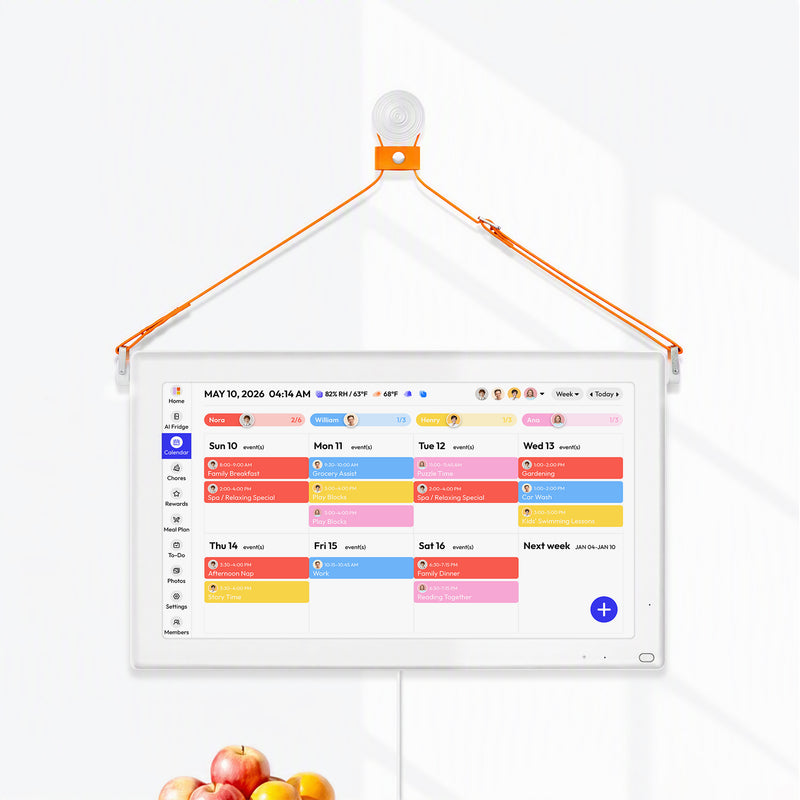
- A central home view for visible household coordination
The phone remains useful, but it stops carrying the whole burden.
A better sync strategy for families
If your household is constantly chasing updates, treat the iPhone widget as the capture layer, not the entire system. Use it to add tasks quickly, mark things complete, and stay on top of what belongs to you in the moment.
Then build from there:
- Use separate shared lists by purpose instead of one giant family list. Groceries, school, chores, and weekend errands should not compete in one feed.
- Name lists clearly so each widget has a job. “This week” is vague. “After school” is better.
- Agree on who checks what. One person may own groceries while both adults check school logistics.
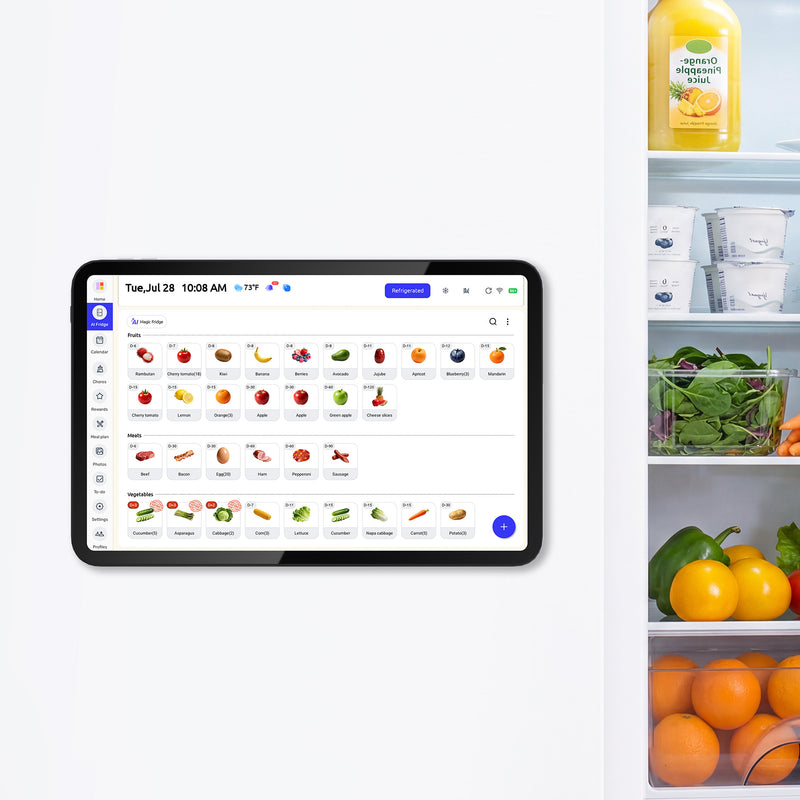
- Keep a household-level display elsewhere if your family repeatedly misses updates when they stay phone-only.
That last point is usually the turning point for busy homes. If your family wants one source of truth, not just synced apps, it helps to see how others connect list tools across platforms and family workflows. This guide on syncing Microsoft To Do and Apple Reminders for a family grocery list is a good example of the kind of thinking that moves beyond one person’s phone.
What actually holds up over time
The setups that last are not the fanciest. They’re the ones that remove ambiguity.
A durable family system usually looks like this:
- One widget for my next tasks
- One shared list for household responsibilities
- One clearly visible place outside the phone for family-wide awareness
That’s the missing bridge in most widget advice. A personal Home Screen can support a family, but it can’t replace a shared family system on its own.
Troubleshooting Common To-Do Widget Problems
Even a good widget setup can get flaky. The usual issues are easy to fix if you check them in the right order.
The widget isn’t updating
Start with sync. If you use Reminders, check that iCloud syncing for Reminders is enabled in Settings. If it’s already on, toggle it off and back on, then restart the phone. If you use a third-party app, open the app itself and make sure the task changed there first.
Also check Background App Refresh for apps that rely on it. If refresh is restricted, widgets can lag behind the actual list.
The widget is blank or shows the wrong list
This usually means the widget is pointed at the wrong source. Long-press the widget and open its edit settings. Confirm the selected list, project, or filter.
If the list was recently renamed, remove the widget and add it again. That often clears stale configuration issues.
You can’t check off tasks from the widget
Some widget actions depend on app support and your iOS version. Native Reminders direct check-off works on medium and large widgets on newer iPhone software, as noted earlier. If you don’t see that behavior, update iOS and make sure you’re not using a smaller widget that only shows a preview.
If a widget looks decorative instead of useful, the fix is often size or configuration, not a new app.
The Home Screen feels cluttered
This isn’t a bug, but it is a problem. Remove anything you don’t act on. If you haven’t tapped or used a widget in a week, it probably belongs on a later screen or in a stack.
Frequently Asked Questions About iPhone Widgets
Can I have widgets for different to-do lists on the same screen
Yes. This is one of the best ways to make a to do list widget iphone setup feel useful instead of crowded. Keep each widget tied to a specific list, such as groceries, school, or today.
Should I use one big list or several smaller lists
Several smaller lists usually work better for families. A giant list creates noise. Smaller lists make each widget more readable and easier to trust.
Do widgets drain battery
Widgets do use system resources, but the practical concern isn’t battery. It’s attention. Too many widgets make the screen harder to read and the system harder to maintain.
Can I mix work and family tasks in one widget
You can, but it often creates friction. Most parents do better with separate views so a work task doesn’t bury a school reminder.
What’s the best first widget to create
Start with the list you forget most often in real life. For many households, that’s groceries, after-school tasks, or a short daily reset list.
Are third-party widgets always better than Apple Reminders
No. They’re better when you need more structure, filtering, or cross-platform support. If your household just needs a clean shared list and quick Home Screen access, Reminders may be enough.
If your family has outgrown scattered phone widgets and needs one calm, visible place for schedules, chores, meals, and daily coordination, take a look at Everblog. It brings the household view out of individual phones and into a shared family hub, which is often the missing piece when personal productivity tools stop being enough.


