
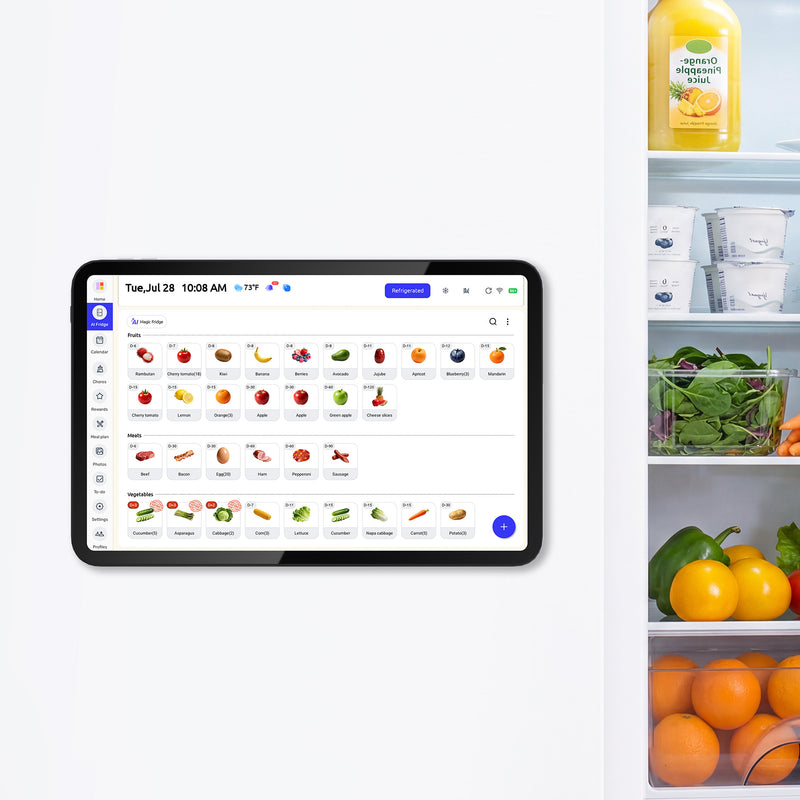

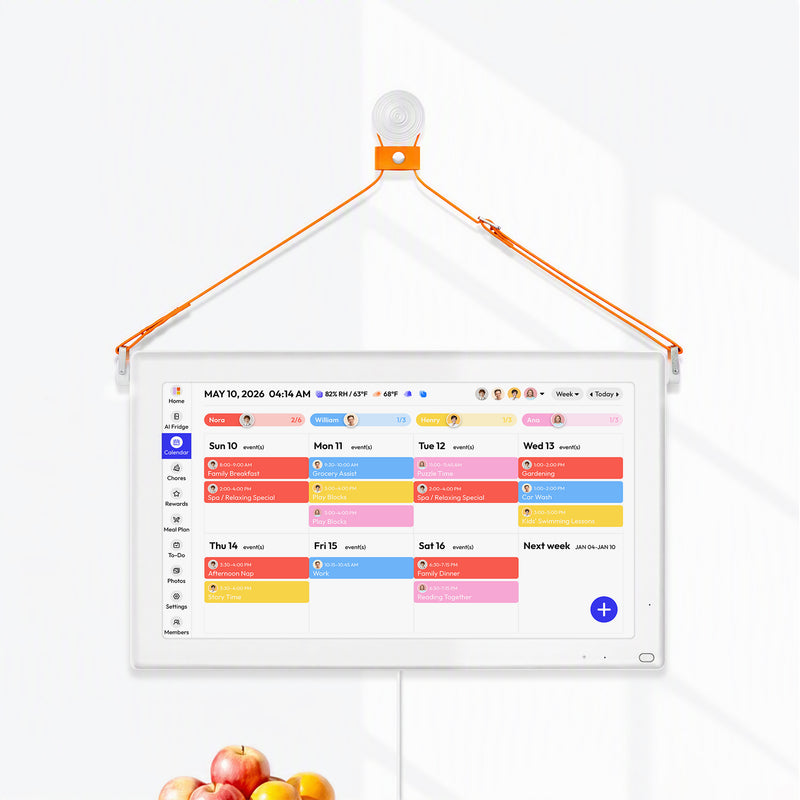



The cleanest setup is to choose one master grocery list for the whole household, then use sync only where it strengthens access instead of complicating the workflow.
If your family list lives partly in text messages, partly on the fridge, and partly in one person’s memory, small misses turn into repeat store runs and duplicate purchases. Families get the best results when the grocery list is tied to a weekly planning rhythm, clear ownership rules, and simple food-storage notes instead of acting like a random catch-all. The framework below will help you decide which app should lead, how to connect Apple Reminders and Microsoft To Do, and how to keep the system reliable week after week.

Choose One Master List
Apple-First Home
Apple Reminders is the stronger master list if most of your household uses iPhones, iPads, and Macs every day. Its grocery list format can automatically group items into sections like Produce, Dairy, and Baking, and Family Sharing makes it easy to keep one household list visible to everyone who stays inside the Apple ecosystem.
That option works especially well when your family already uses shared Apple tools for calendars, routines, and home organization. If your meal plan, family schedule, and shopping rhythm already happen on Apple devices, keeping the grocery list there reduces setup overhead and makes it easier for kids or partners to participate without learning another app.
Mixed-Device Home
Microsoft To Do is usually the better master list when one or more regular contributors depend on Windows, Android, or the web. It is built for shared lists, cross-platform access, and real-time collaboration, which matters more than Apple’s grocery-specific formatting if the real problem is making sure every family member can add and check off items from any device.
The decision rule is simple: pick the app that gives every active shopper full access with the fewest exceptions. A family can tolerate a missing category icon more easily than it can tolerate two competing grocery lists.
Set Up the Sync in 15 Minutes
To Do as Master
For most mixed-device households, the most practical setup is to make a shared Groceries list in Microsoft To Do first. Sign in on the Windows PC, create the list, invite the other adults, and add a few test items like milk, bananas, and taco shells so you have something visible to confirm later.
Then go to each Apple device, open Settings or System Settings, choose Internet Accounts, add a Microsoft Exchange account, and enable Reminders. After that, the Microsoft-backed task list should appear inside Apple Reminders, which gives iPhone users a native place to add items while keeping the shared list visible on Windows.

Apple’s Exchange setup instructions for iPhone and iPad show the current Microsoft Exchange flow and confirm that Reminders can sync through that account Apple Support. Apple’s Reminders guides also note that Microsoft Exchange accounts can sit alongside iCloud reminders on supported iPhone and iPad releases Apple Support. Microsoft documents the shared-list flow for Microsoft To Do Microsoft Support. Article update date: March 23, 2026. If your menus differ, follow the current vendor support page.
Test the Loop Before You Roll It Out
Do not assume the setup is done after sign-in. Add one item from Microsoft To Do, one item from an iPhone, then check both devices again before you involve the rest of the family. If your Microsoft account uses two-factor authentication and the standard sign-in flow fails, some older or organization-managed setups may still ask for an app password, and if automatic setup fails, manual Exchange fields are often the fallback.
Security and sign-in edge cases matter here. Microsoft says some work or school accounts that use two-step verification may still need an app password for older non-browser sign-in flows, and administrators can disable app passwords entirely Microsoft Support. Create or delete those passwords only through the official Microsoft security flow, and avoid saving long-lived credentials on shared household devices.
Managed work or school accounts add another limit. Microsoft To Do supports list sharing between personal Microsoft accounts or between accounts within the same workplace or school Microsoft Support, and Apple notes that Exchange integration and authentication support vary by platform and version Apple Support. If your account is managed by an employer or school, check its rules before deeper troubleshooting. If cross-platform sync stays blocked, keep one master list inside the approved ecosystem instead of forcing a split setup.
This is also where you need to be honest about tradeoffs. Apple’s most polished grocery-list features are tied to updated iCloud reminders, so a Microsoft-synced list may behave more like a shared task list than a fully categorized Apple grocery list. If grocery auto-grouping is non-negotiable, keep an iCloud family list as the Apple-side master and treat Microsoft To Do as a companion workspace rather than the source of truth.
Turn the List Into a Weekly Family Workflow
Tie It to Meal Planning
The grocery list works best when it is a downstream tool, not the starting point. Plan five or six dinners for the week, check what is already in the refrigerator, freezer, and pantry, then build the shopping list from those meals plus staples your family burns through every week.
A first-in, first-out rotation keeps older pantry and freezer items moving, which means your grocery list becomes part of inventory control instead of a system that quietly creates waste. That matters in busy homes where shopping, school calendars, and dinner planning all pull on the same limited attention.
Use a Two-List Model
Most families do better with two recurring lists instead of one long, messy list. Keep one shared Weekly Groceries list for the next shopping trip, and a separate Staples or Household Restock list for items like paper towels, dishwasher pods, peanut butter, and cereal that should be re-added regularly.
Keeping dry goods in cool, dry, dark storage supports that system because it makes pantry inventory easier to trust. When flour, pasta, canned beans, and snacks have a clear home and stable storage conditions, your weekly review takes minutes instead of turning into a full cabinet excavation.
A simple weekly rhythm is enough for most households: 10 minutes on Sunday evening to review the family calendar, confirm dinner plans, scan inventory, and clean up the grocery list. That one meeting does more for consistency than any advanced automation.

Add Food Safety Rules to the Grocery System
Capture Timing, Not Just Items
The 48 million illnesses each year tied to foodborne disease in the United States are a useful reminder that grocery planning is not just about buying the right food. A strong family grocery system should also track what needs to be cooked first, frozen immediately, or used up within a short window.
40°F or below is the key refrigerator threshold, while 0°F or below is the freezer line. In practice, that means raw ground meat and poultry should be treated as fast-turn items, steaks and chops need a shorter plan than pantry goods, and soups, stews, and other leftovers should be visible on the list or meal calendar so they do not disappear into the back of the fridge.
Cold foods that cannot get home within 30 minutes belong in an insulated container. Once you are home, the usual two-hour rule applies for perishables, and that drops to one hour if the weather is above 90°F. For families doing sports pickup, after-school errands, or long commutes, that small transport habit matters.
Treat Leftovers Like Scheduled Inventory
Most cooked leftovers fit a 3 to 4 day refrigerator window, so label them with a plain note such as Use by Thursday when they enter the fridge. This works well when the grocery list and family calendar connect: leftovers become planned lunches or one dinner slot, not an afterthought.
A practical rule is to add a short storage note only for high-risk or easy-to-forget items. For example: ground turkey - cook tonight, rotisserie chicken - use by Wednesday, or berries - lunch boxes first. That keeps the list readable while still giving your family enough guidance to reduce waste and avoid risky guesswork.
Teach the Household What Date Labels Mean
Most package dates are quality markers rather than hard safety deadlines, which is why households often throw away usable food too early. Sell by is mainly for store stock rotation, best if used by points to peak quality, and use by is the manufacturer’s recommended last use date, with infant formula as the major exception where the printed date should be treated strictly.
That distinction is worth teaching once during family onboarding. When everyone understands that date labels, storage temperature, and visible spoilage are different signals, the grocery list becomes more accurate and the pantry becomes less wasteful.
Protect the System From Duplicates and Sync Drift
Standardize How Items Enter the List
Most duplicate problems are not technology failures alone. They happen when one person types spaghetti, another adds pasta, and a third uses voice entry for Barilla noodles, all inside the same week. Pick a simple naming rule for staples and stick to it: whole milk, eggs, coffee filters, spaghetti, paper towels.
If your list is already producing duplicates, run a short reset. Disable voice entry and receipt scanning for 72 hours, re-log devices into the same household account structure, and track repeat items for one week by time and device. That usually shows whether the real issue is human inconsistency, offline edits, or too many input methods at once.
Keep Permissions and Roles Boring
Shared grocery systems stay healthy when permissions are boring and predictable. One adult should own the master list, everyone else should have edit access, and no one should casually rename or delete the list during a rushed shopping trip. Pin the list on each device so it stays easy to reach.
Give each family member one simple job. Anyone can add items the moment something runs low. One adult closes the loop during the weekly planning review by grouping duplicates, deleting stale items, and connecting the list to the calendar. That division of labor keeps the system from collapsing into passive clutter.
Expect a short settling-in period. Days 1 through 3 are for sync setup, Week 1 is for naming cleanup, and Week 2 is for fixing duplicate patterns and missed-item habits. Incremental progress is the right goal; reliability matters more than elegance.
Apple’s account setup pages and Microsoft’s shared-list documentation are the baseline for a repeatable launch check Apple Support. Microsoft’s sharing controls show the collaboration path you are validating before the full family rollout Microsoft Support.
- Add one test item in Microsoft To Do and confirm it appears in Apple Reminders.
- Add one test item in Apple Reminders and confirm it appears back in Microsoft To Do.
- Confirm notifications and account permissions are enabled on the devices that should alert shoppers.
- If sync fails, write down the exact error message before you change anything.
- Retry in a fixed order: sign out of the affected account, restart the affected device, then remove and add the account again using the current vendor steps.
- Keep one temporary master list in the platform that is already working until the shared sync path stays stable.
Practical Next Steps
A family grocery list works when it becomes part of the household operating system: meal planning upstream, one trusted list in the middle, and safe storage rules downstream. If you choose the right master app and keep the rules simple, the system gets easier every week instead of more fragile.
- Pick one master list today: Apple Reminders for Apple-first homes, Microsoft To Do for mixed-device homes.
- Create two shared lists: Weekly Groceries and Staples.
- Schedule a 10-minute Sunday planning block on the family calendar.
- Test sync with two items in both directions before inviting everyone else.
- Add short timing notes for perishables and leftovers, especially meats, dairy, and cooked meals.
- Standardize item names for your top 25 repeat purchases.
- Review duplicates and stale entries after the first two weeks.
The goal is not perfect automation. The goal is one list your family trusts enough to use without thinking twice.
Important Note
The planning templates and organizational systems provided here are intended as adaptable blueprints. Every family’s needs, dietary requirements, and physical capabilities are different. We recommend tailoring these schedules to your specific health needs and household dynamics. Results from productivity or meal-planning systems may vary, and consistency remains the responsibility of the individual user.
References


