



You add the school play to your iPhone. It shows up for you, so you move on with your day. Then your partner checks the family iPad that evening, and the event isn't there. Now one person thinks Friday is packed, the other thinks it's open, and the household schedule starts drifting fast.
That's usually what calendar not syncing with iCloud feels like in real life. It's not a dramatic total failure. It's one missing dentist appointment, one shared pickup change that never appears, one recurring event that updates on one device but not another.
The good news is that this problem is common and often fixable without doing anything extreme. Independent reporting suggests it affects roughly 8% to 12% of active users annually, and about 65% of cases are resolved within 24 hours with simple actions like a restart or account refresh, which points to configuration issues more than permanent failure, according to this iCloud calendar sync analysis. If your family relies on shared calendars, that's reassuring. Annoying problem. Usually solvable problem.
If your setup includes shared calendars across iPhone, iPad, and Mac, it also helps to understand how to share an iCloud calendar across devices and family members, because sometimes what looks like a sync failure is a sharing or visibility issue.
Why Your Shared Calendar Is Suddenly Unreliable
Shared family calendars usually fail in a lopsided way. The soccer practice update shows up on your iPhone, but the kitchen iPad still has the old time. Your partner edits a recurring pickup plan on the Mac, and your phone keeps showing last week's version. Everyone is looking at Calendar, but not everyone is looking at the same reality.
That mismatch is what makes this so disruptive for families. You can still open the app, create events, and see part of your schedule. The problem is trust. Once one parent is working from stale information, school runs, childcare handoffs, and dinner plans start slipping out of sync.
Shared calendars break in partial, confusing ways
In most households, the calendar itself has not disappeared. One device is behind. One shared calendar is hidden. One account is saving new events to the wrong place. Recurring events are especially messy because they can look updated on one device while another still caches the older version.
That pattern matters.
If some events appear and others do not, iCloud is often still connected. The issue is more likely a stale sync state, a visibility setting, or a device-specific account problem than a total outage. That is why deleting calendars or signing out everywhere is usually the wrong first move.
Family setups add more chances for confusion. Parents often juggle personal calendars, a shared household calendar, school subscriptions, sports schedules, and work accounts on the same device. It only takes one wrong default calendar or one unchecked calendar list for a new event to land somewhere nobody else will see it. If you need to confirm how sharing should be set up in the first place, this guide on sharing an iCloud calendar across devices and family members helps clarify what should be visible to whom.
Often, the problem is not the event itself
When a family says iCloud "lost" an appointment, I usually find that the event still exists. It is sitting under a different account, hidden from view, or waiting for one device to catch up after a connection or settings hiccup.
That is the frustrating part, but it is also good news. A calendar that is partly working can usually be repaired with a few targeted checks, starting broad and getting more specific only if the basics do not fix it.
The First Four Checks Before You Panic
When a calendar stops syncing, users often head straight into Settings and start toggling everything they can find. Resist that. The first fixes should be broad, calm, and boring, because the failure may not be inside the Calendar app at all.
Apple's own support guidance puts the focus on account-wide basics first, including service status, the same Apple Account on every device, and correct date and time, as explained in Apple's iCloud calendar troubleshooting support page.

Check Apple's system status
If iCloud Calendar is having a service problem, you can waste a lot of time “fixing” devices that are fine.
Open Apple's System Status page and look specifically for Calendar and iCloud-related services. If Apple is reporting trouble, stop there for the moment. You don't need to sign out of every device because the issue may be upstream.
Check whether the device is actually online
This sounds too basic, but it matters. A device can be on Wi-Fi and still have a flaky connection, or it can be on cellular with background sync restricted.
Look for a stable connection, then try something simple that requires live data, like loading a webpage or another cloud-synced app. If that lags or fails, your calendar problem may just be an internet problem wearing a different hat.
Check that every device uses the same Apple Account
This is the one that catches families all the time. A personal iPhone may be signed into one Apple Account, while the shared iPad is still logged into an older family account or a spouse's account from years ago.
Use this quick checklist:
- Compare the Apple Account on each device: Open the Apple ID or Apple Account settings and verify the same account is being used where you expect shared iCloud calendars to appear.
- Watch for old household devices: Family iPads and older Macs often keep legacy sign-ins longer than phones do.
- Don't confuse invitation sharing with account sync: A shared calendar can exist, but if the receiving device is signed into the wrong account, it may never show up correctly.
A shared calendar problem can look like a device bug when it's really an account mismatch.
Check date and time settings
Incorrect date and time settings can interfere with authentication and cloud syncing. It feels unrelated until you've fixed it once and seen everything start moving again.
On each Apple device, make sure Set Automatically is enabled for date and time. If one device has the wrong time zone or a manually set clock, it can struggle to validate and sync properly.
Here's the order I'd use in a busy household:
| Check | Why it matters | What to do |
|---|---|---|
| Service status | Rules out outages | Confirm Apple isn't reporting issues |
| Internet | Sync needs a live connection | Test Wi-Fi or cellular with another app |
| Apple Account | Wrong account blocks shared visibility | Compare sign-in on every device |
| Date and time | Bad time breaks authentication | Turn on automatic time settings |
If all four look good, then it's time to get more specific.
Drill Down into Device-Specific Settings
Once the account-wide checks are clean, the next likely cause is a device setting. I commonly encounter the problem in situations such as homes with multiple iPhones, a shared iPad, and one Mac that no one has checked in months.
The two settings that matter most are simple. First, Calendars must be enabled in iCloud. Second, the correct iCloud calendar needs to be the default calendar for new events. If that default points somewhere else, new events can seem to vanish when they're being saved locally or to another account, as noted in this Apple community troubleshooting guidance.

On iPhone and iPad
Start with the device that's missing events, not the one that looks correct.
- Open Settings.
- Tap your Apple Account at the top.
- Tap iCloud.
- Confirm Calendars is turned on.
That checks whether the device is allowed to sync calendar data with iCloud at all.
Then go one level deeper:
- Open Settings.
- Scroll to Calendar.
- Tap Default Calendar.
- Make sure the selected calendar is the iCloud calendar your family uses.
This small setting causes a lot of confusion. If your phone saves new events to a different account, such as Gmail, Exchange, or an old local calendar, your partner won't see them in the shared iCloud calendar no matter how many times they refresh.
A practical shortcut is to create a test event called “Sync Test” on the affected device and confirm which calendar it's being saved into before you tap Done. If you want a second walkthrough for iPhone behavior, this guide on how to sync your iPhone calendar more reliably covers the same problem from the phone side.
On Mac
Macs often hide the issue better because the Calendar app can show many calendars at once, including accounts you forgot were there.
Check these items:
- Enable iCloud Calendars: Go to System Settings, click your Apple Account, open iCloud, and confirm Calendars is enabled.
- Review visible calendar lists: Open Calendar and make sure the iCloud calendars you need are checked in the sidebar.
- Check the default calendar: In Calendar settings, confirm new events are being saved to the correct iCloud calendar, not an old “On My Mac” calendar or another account.
What works: verifying the default calendar before making test events.
What doesn't: assuming that because the Calendar app opens, it must be saving to iCloud.
Mac is also where old local calendars cause the most damage. A parent adds events from the laptop, sees them on that laptop, and assumes sync is fine. But those events may live only inside a local calendar that never leaves the machine.
If you want a visual walkthrough, this quick video shows the kind of settings review that helps catch hidden calendar routing problems.
One easy family test
After checking settings, do one controlled test:
- Add a brand-new event on one device.
- Save it to the exact shared iCloud calendar your household uses.
- Wait briefly, then check a second device.
- Edit the title on the second device and see whether the first device updates.
That tells you more than staring at old events. New events are the cleanest sync test because you know exactly where they were created and which calendar they should hit.
Force a Calendar Refresh and Resync
Sometimes the settings are right and the device still acts like it missed the memo. That usually means the sync connection is stale. The account is valid, but the Calendar app or iCloud service on that device needs a push.
Guidance from Microsoft's Outlook-related iCloud troubleshooting points to the same practical repair pattern many Apple users rely on: refresh the Calendar app, then toggle iCloud Calendars off and back on to force a reconnection, as summarized in this troubleshooting discussion about iCloud calendars and contacts syncing.

Start with a manual refresh
This is the least invasive move, and it often works when the problem is just a stuck display.
On iPhone or iPad, open the Calendar app and pull down in the calendar list or view to refresh. On Mac, open Calendar and use the app's refresh behavior or relaunch the app if needed.
Manual refresh is useful when one event is missing but the rest of the account looks healthy.
Toggle iCloud Calendars off and back on
If the refresh doesn't work, use the stronger reset.
On iPhone or iPad:
- Open Settings.
- Tap your Apple Account.
- Tap iCloud.
- Turn Calendars off.
- Wait a moment.
- Turn Calendars back on.
On Mac, the path is similar inside System Settings under your Apple Account and iCloud.
You may see warnings about keeping or removing calendar data from the device. Read carefully. The safe principle is simple: if the events are stored in iCloud and visible elsewhere, you are reconnecting to cloud data, not deleting the master copy.
If a calendar is healthy in iCloud and visible on another device, toggling sync on one problem device is usually a repair step, not a data-loss event.
Restart after the toggle
I like to restart the device after re-enabling Calendars. It's not glamorous, but it clears out a lot of temporary sync weirdness. In family setups, that simple restart often gets the kitchen iPad or older Mac back into line.
What usually does not help is toggling half a dozen unrelated settings in random order. One deliberate refresh, one clean off-on cycle, and one restart is far better than chaos.
Advanced Fixes for Stubborn Sync Problems
When the obvious fixes fail, the problem usually sits in one of two places. Either another app is involved, or the sync history on the device has become messy enough that normal refresh steps don't clear it.
Many people blame iCloud when the actual break happens in a different sync path. Support guidance for third-party calendar apps points out that some failures come from integration, authentication, or permissions, especially on Windows or in non-Apple apps where app-specific passwords or re-enabled permissions may be required, according to Readdle's iCloud calendar troubleshooting notes.
Check for third-party conflicts
If your family uses Outlook, a Windows PC, a wall display, or a non-Apple calendar app, ask a blunt question: where is the sync failing?
Use this decision table:
| Situation | Likely issue | Better move |
|---|---|---|
| iPhone and iPad sync, but Outlook does not | Separate Windows or Outlook sync path | Reconnect the account in that app or service |
| Calendar appears on Mac, not in a third-party app | Authentication or permission issue | Re-enable calendar access and sign in again |
| Shared calendar is visible in iCloud but missing on one external tool | Compatibility or default-calendar mismatch | Check import method, permissions, and destination calendar |
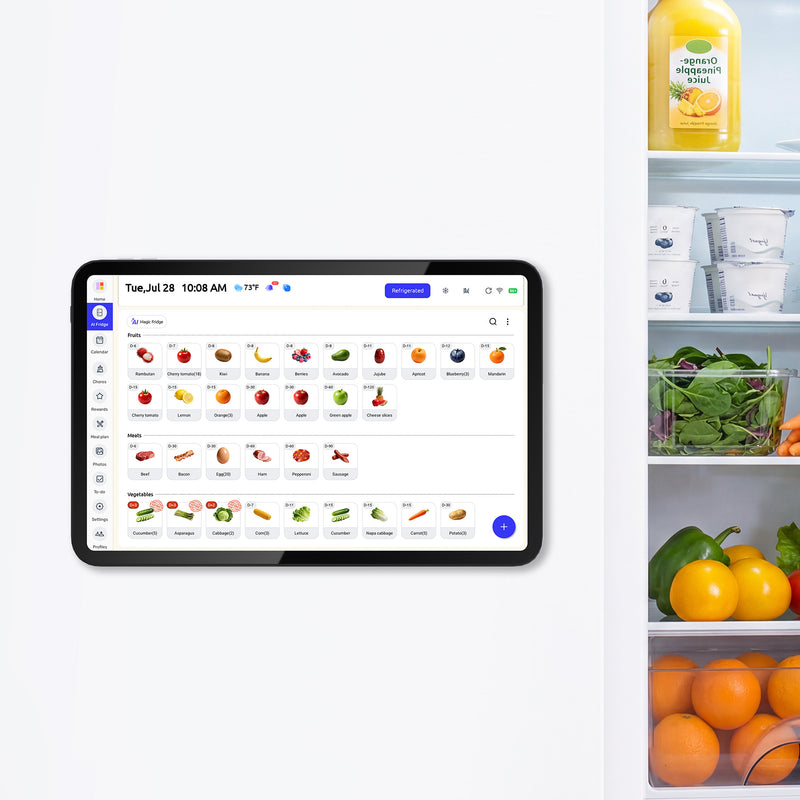
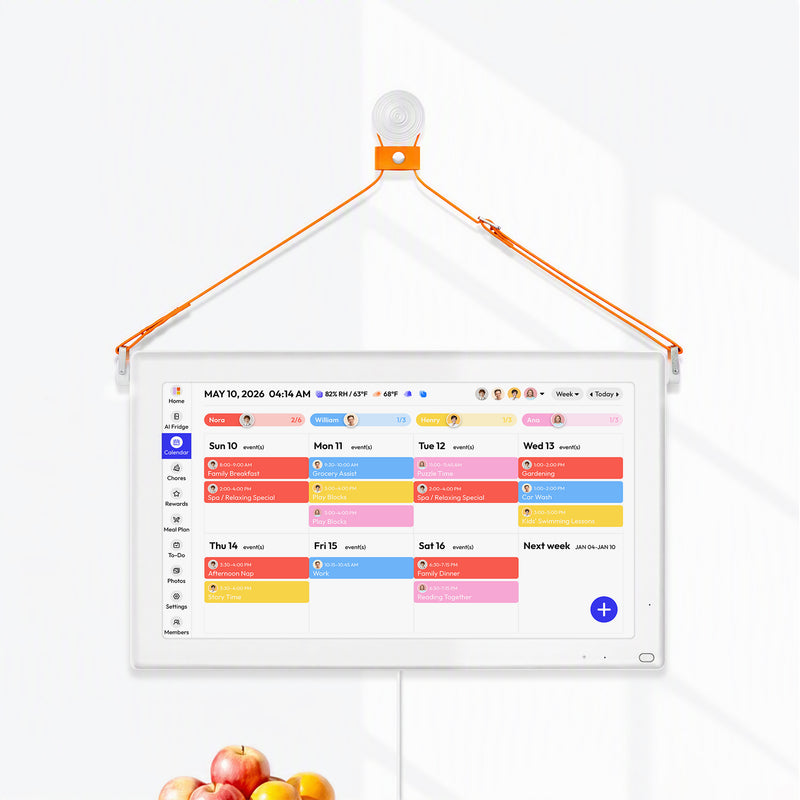
In mixed-device homes, one option is to centralize visibility in a shared family display or organizer that supports Apple calendars. Tools such as multi-calendar sync setups for family scheduling can reduce the “which app has the definitive version” problem, especially when one parent uses Apple devices and another mixes in desktop or third-party tools.
On Mac, try the deeper reset tools
Mac has a more advanced repair path than iPhone. If regular refresh and toggles haven't fixed things, look for sync reset options inside Calendar or related account settings. Apple support has long acknowledged reset-style repairs on Mac because stale sync metadata can hang around even after simpler fixes.
This is the point where software updates matter too. If your devices are behind on iOS, iPadOS, or macOS, install current updates before doing anything more disruptive.
Know when to stop troubleshooting
Contact Apple Support if you see any of these signs:
- Account-wide failure: no device can send or receive iCloud calendar changes.
- One calendar only: a specific shared calendar never updates, even after re-inviting or reconnecting.
- Persistent cross-platform mismatch: Apple devices work, but external sync paths repeatedly fail after reauthentication.
- Fear of data loss: you're no longer sure where the authoritative copy of the calendar lives.
At that point, you're probably past home troubleshooting and into account-level repair.
Frequently Asked Questions About iCloud Sync
Will turning iCloud Calendars off delete my events forever
Usually, no, if the events are stored in iCloud and visible on another device or in iCloud's web interface. The risky part is not the toggle itself. The risky part is not knowing whether an event lives in iCloud, another account, or only on one device.
Check that first, then proceed carefully.
Why does only one shared family calendar stop syncing
Because not all calendars fail the same way. Shared calendars and recurring events are often the first to show trouble. In practice, that usually points to stale sync state, invitation issues, visibility settings, or the wrong default calendar rather than a total iCloud outage.
Why do new events disappear but old ones still show up
That usually means new events are being saved to the wrong calendar. The Calendar app can show multiple accounts at once, so the screen looks normal while your event is going somewhere your family never checks.
How do I reduce the odds of this happening again
A few habits help:
- Keep one shared family calendar primary: Don't scatter household logistics across multiple barely used calendars.
- Check the default calendar after setup changes: New phones and re-added accounts can reset this.
- Use the same Apple Account strategy consistently: Especially on shared iPads and older Macs.
- Refresh before you rebuild: If one event is missing, start small before removing accounts.
The fastest families aren't the ones with perfect tech. They're the ones who know which calendar is the real one and check that first.
If your household runs on shared schedules, chores, meals, and school logistics, Everblog is one option for bringing those moving parts into a single family hub. It supports shared calendar visibility, including Apple calendar workflows, and can reduce the “which device has the correct version” problem that causes so much day-to-day friction.


