

It's incredibly frustrating when you're staring at your calendar, knowing something is missing. A missed appointment, a forgotten birthday... it can throw your whole week off track.
Most of the time, the fix is surprisingly simple. Just pop into your iCloud settings, find the Calendars toggle, and switch it off. Wait a few seconds, then switch it back on. This little reset forces a fresh connection with Apple's servers and solves minor sync hiccups in an instant.
Unraveling Common Calendar Sync Failures

When your iPhone calendar stops syncing, it feels like your digital life has hit a wall. Events you add on your Mac are nowhere to be found on your phone, or an invite from a family member never appears. And naturally, it almost always happens at the worst possible moment.
But don't panic. The problem usually boils down to a few common culprits that are pretty easy to check and fix. Before you start thinking about a trip to the Genius Bar, let's walk through the likely suspects.
Top Reasons for Sync Glitches
More often than not, a sync failure isn't some deep, dark software bug. It's usually a simple misconfiguration, a spotty network connection, or a temporary server-side hiccup.
Here are the issues I see most often:
- Incorrect Account Settings: Maybe you changed a password recently? Your iPhone might still be trying to use old credentials to fetch data.
- Poor Network Connection: A weak Wi-Fi or cellular signal is a classic sync-killer. If your phone can't talk to the server, it can't get new calendar events.
- Outdated iOS Version: Running an older version of iOS can sometimes cause compatibility issues with services like iCloud or Google Calendar.
- Server-Side Delays: Sometimes, the problem isn't you—it's them. iCloud, Google, or Outlook might be having a momentary nap.
iCloud Calendar sync failures are the number one complaint in Apple Support forums, accounting for over 40% of all calendar-related tickets as of early 2026. It’s a clear sign of just how common this headache is.
When you're faced with a stubborn calendar, it's easy to assume the worst. But before you get lost in complex troubleshooting, it’s best to start with the simplest, most effective fixes. The table below outlines the first things you should try for the most common symptoms.
Quick Fixes for Common iPhone Sync Problems
| Common Symptom | First Action to Take | Typical Success Rate |
|---|---|---|
| Events from Mac/PC not on iPhone | Toggle iCloud Calendars off and on in iPhone Settings. | High (around 78%) |
| New invites not showing up | Check if you have a stable Wi-Fi or cellular connection. | Medium-High |
| Calendar is completely blank | Ensure the correct calendar account is enabled in the Calendar app. | High |
| "Cannot Connect to Server" error | Check the Apple System Status page for outages. | Varies (depends on Apple) |
These quick checks resolve the vast majority of sync problems without needing to dig any deeper.
Fortunately, there’s one step that’s particularly effective. Apple's own diagnostic data shows that simply toggling iCloud Calendars off and on resolves 78% of these issues within minutes. Think of it as the digital equivalent of "unplug it and plug it back in." This single action forces your iPhone to re-establish its link to Apple's servers, clearing out any minor data jams that were holding things up. It’s the first thing you should try, and as these insights on common Apple sync issues show, it almost always works.
Syncing Your Calendar Across All Apple Devices
For families invested in the Apple ecosystem, iCloud is the invisible thread that ties your digital lives together. When it works, it’s absolute magic. An appointment added on your iPhone instantly pops up on your iPad, Mac, and even your Apple Watch.
Getting this set up correctly is the first, most crucial step to creating a family schedule that actually works without constant check-ins.
The entire system is built on one foundational element: a single Apple ID. You need to make sure every device—your iPhone, your partner's Mac, your kid's iPad—is signed into the same iCloud account where your main family calendars are stored. Think of this account as the central hub where all calendar data meets.
Flipping the Switch on iCloud Calendar Sync
First things first, you have to give your Calendar app permission to use iCloud. It’s just a simple toggle, but you'll need to check this on every single device you want to keep in the loop.
On your iPhone and iPad:
- Open the Settings app.
- Tap your name at the very top.
- Go into iCloud.
- Tap Show All under "Apps Using iCloud."
- Scroll down to find iCloud Calendar and make sure the switch is green.
On your Mac:
- Open System Settings (or System Preferences if you're on an older version of macOS).
- Click Apple ID, then select iCloud.
- Just make sure the checkbox next to Calendars is ticked.
That’s it. This one action tells each device to constantly phone home to iCloud for new events and to push its own updates back to the cloud for everyone else to see.
A Smarter Way to Handle Family Sharing
Just turning on sync is only half the battle. To truly organize a chaotic family schedule, you need to lean into shared calendars.
Instead of having everyone add "Soccer Practice at 5 PM" to their personal calendars, create one dedicated "Family Events" or "Kids' Activities" calendar. This simple change prevents so much confusion and clutter from duplicate entries.
When practice time inevitably changes, you only have to update it once in that shared calendar, and poof—everyone's device reflects the new time instantly. If you need a walkthrough, we have a complete guide on how to share an iCloud calendar that breaks it down step-by-step.
Pro Tip: One of the most common sync errors I see comes from mismatched device settings. Make sure every single Apple device is set to the same time zone under Settings > General > Date & Time. An incorrect time zone can make events show up hours off or, in some frustrating cases, not sync at all.
How to Know It’s Actually Working
After you get everything set up, it’s a good idea to run a quick test to make sure information is flowing freely between your devices.
Go ahead and create a test event on your iPhone. Call it something obvious like "Calendar Sync Test." Give it about 30 seconds, then grab your Mac or iPad and see if it's there.
If it appears, you're golden. If not, the first things to check are that iCloud Calendar is enabled everywhere and that you have a stable internet connection. This quick two-minute check can save you from the headache of discovering a sync problem right before a really important appointment.
Getting Google and Outlook Calendars on Your iPhone
Let’s be real: almost nobody lives exclusively in the Apple ecosystem. Your work life probably revolves around a Microsoft Outlook calendar, while your personal appointments and family events are all neatly organized in Google Calendar. This digital split can be a real headache, forcing you to jump between apps just to figure out what your day actually looks like.
The good news? Your iPhone is designed to fix this. You can pull both your Google and Outlook calendars directly into the native Calendar app, creating one unified view of your entire schedule. This isn't just about making life easier; it's about taking back control and cutting down on the mental gymnastics of juggling multiple calendars.
Think of iCloud as the central hub for all your Apple devices. It’s what keeps your iPhone, Mac, and Apple Watch perfectly in sync.

When you add an external account like Google or Outlook, you're essentially just adding another source to that central hub. Your iPhone becomes the single source of truth for everything on your schedule.
Adding Your Google or Outlook Account
Getting these accounts set up is surprisingly simple. You’re basically just giving your iPhone permission to talk to Google or Microsoft's servers to check for new events and updates.
Here’s the quick-and-dirty on how to do it:
- Head into Settings > Calendar > Accounts.
- Tap Add Account and choose either Google or Outlook.com.
- Just follow the steps on the screen to sign in with your username and password.
- Once you’re in, make sure the Calendars toggle is switched on.
Give it a minute or two, and you should see events from your newly added account pop up in the iPhone Calendar app, all neatly color-coded. Because this is a two-way sync, you can add an appointment on your iPhone and watch it appear in your Outlook or Google calendar almost instantly.
If you're focused on Google, our guide on how to share a Google Calendar on your iPhone breaks down the process even further.
A quick heads-up: True syncing is not the same as subscribing to a calendar. A subscription (usually an iCal link) is strictly view-only. You can see the events, but you can't change them from your iPhone. Adding the account directly gives you a full two-way sync, letting you edit from anywhere.
Comparing Sync Methods for Google and Outlook
While both Google and Outlook calendars can be synced to your iPhone's native app, they don't always behave the same way. The level of integration, from contacts to event invitations, can vary.
| Capability | Google Calendar on iPhone | Outlook Calendar on iPhone |
|---|---|---|
| Two-Way Event Sync | Yes, full create, edit, and delete functionality. | Yes, full create, edit, and delete functionality. |
| Invitation Handling | Natively handles invites (Accept/Decline/Maybe). | Natively handles invites (Accept/Decline/Maybe). |
| Shared Calendars | Fully supported, shows calendars shared with you. | Supported, but can sometimes be less reliable. |
| Contact Integration | Syncs with Google Contacts for inviting guests. | Syncs with Outlook/Exchange contacts. |
| Push vs. Fetch | Supports both Push (instant) and Fetch (timed). | Primarily uses Fetch, Push is less consistent. |
| Sync Speed | Generally very fast and reliable with Push. | Often slower, relies on Fetch intervals. |
The main takeaway here is that while both work well for basic event management, Google’s integration often feels a bit snappier thanks to better "Push" support, which delivers updates instantly.
Taming Those Cross-Platform Sync Headaches
Bringing different platforms together isn't always a smooth ride. The most common complaint I hear is sync delay—you accept a meeting invite on your desktop, but it takes 15 minutes to show up on your iPhone. This is almost always due to your "Fetch New Data" settings, which dictate how often your phone asks the server for new info.
To speed things up:
- Go to Settings > Calendar > Accounts > Fetch New Data.
- Tap on your Google or Outlook account.
- Choose Fetch and pick the shortest interval, like Every 15 Minutes.
This might use a tiny bit more battery, but if you're managing a packed schedule, it’s a trade-off worth making.
Even so, sync problems are a major frustration for busy families. With 72% of iPhone-using families now relying on shared calendars for kids' activities, a glitch can throw the whole week off. It's a huge issue—an astonishing 52% of parents who use Outlook for work and Apple for home report losing sync data every single week. This isn't just an inconvenience; it's lost time and added stress. These aren't isolated incidents, either; you can read up on common Outlook sync challenges to see just how widespread the problem is.
Advanced Tips Using New iOS 26 Features
With every new iOS update, Apple sneaks in some seriously powerful tools that can completely change how you manage your schedule. iOS 26 is no exception. It’s packed with AI-driven features that are designed to slash manual data entry and help you sync your calendar with the real world, not just your other devices. These aren't just small tweaks; they're genuine time-savers.
One of the coolest new tricks is creating calendar events directly from your photos. Think about it: you get a school flyer or a sports schedule as a picture in a text. Before, you’d have to painstakingly type out every single detail. Not anymore.
Now, you just open the image or take a screenshot. Your iPhone is smart enough to spot the dates, times, and locations, then asks if you want to add it to your calendar with a single tap. For busy parents trying to keep track of a million different schedules, this is an absolute game-changer.
The rollout of 'Add to Calendar' from screenshots in iOS 26 leverages Apple Intelligence on over 500 million compatible iPhones. This new capability slashes manual entry time from an average of two minutes per event to just ten seconds—a staggering 92% efficiency gain.
This massive leap forward means less time wasted on tedious admin and more time for what actually matters. You can discover more about this convenient new advantage and see how it’s reshaping how people get things done.
Using Natural Language for Faster Entry
Another huge win is the souped-up natural language processing in the Calendar app. You can finally stop tapping through a dozen different fields just to create a simple event.
Just hit the “+” icon and type a sentence like you'd actually say it:
- “Soccer practice at Elm Park Tuesday at 5pm”
- “Dentist appointment with Dr. Miller on Friday at 2:30 PM”
- “Lunch with Sarah at The Corner Cafe next Wednesday from 12 to 1”
The app intelligently figures out what you mean, automatically filling in the title, location, date, and time. It’s a small adjustment that makes adding events on the fly feel incredibly fast and natural.
Automate Your Schedule with Calendar Subscriptions
Beyond just adding your own stuff, you can also pull in external schedules that update all on their own. This is called subscribing to a calendar, and it’s perfect for keeping tabs on things that change without you having to do a thing.
To set it up, go to Settings > Calendar > Accounts > Add Account > Other, and then tap Add Subscribed Calendar. You'll just need the calendar's link, which is usually an .ics file.
Here are a few ways this comes in handy:
- School Holidays: Your school district probably has a public calendar with all the days off. Subscribe once and you’re set for the year.
- Sports Schedules: Follow your favorite team’s schedule and never miss a game.
- Workout Plans: A lot of fitness apps, like iFIT, let you subscribe to your training plan so it shows up right in your calendar.
Once you’re subscribed, any changes—like a game getting rescheduled or a new school event being added—will pop up on your iPhone automatically. It’s the best way to stay in the loop without lifting a finger.
Creating a Central Family Hub with a Digital Calendar
Let's be honest. Even after you master how to sync an iPhone calendar, the constant dance of apps, notifications, and permissions can feel like a full-time job. The real goal was never just about getting devices to talk to each other; it's about getting the family on the same page.
This is where a central, always-on display can completely change the game.

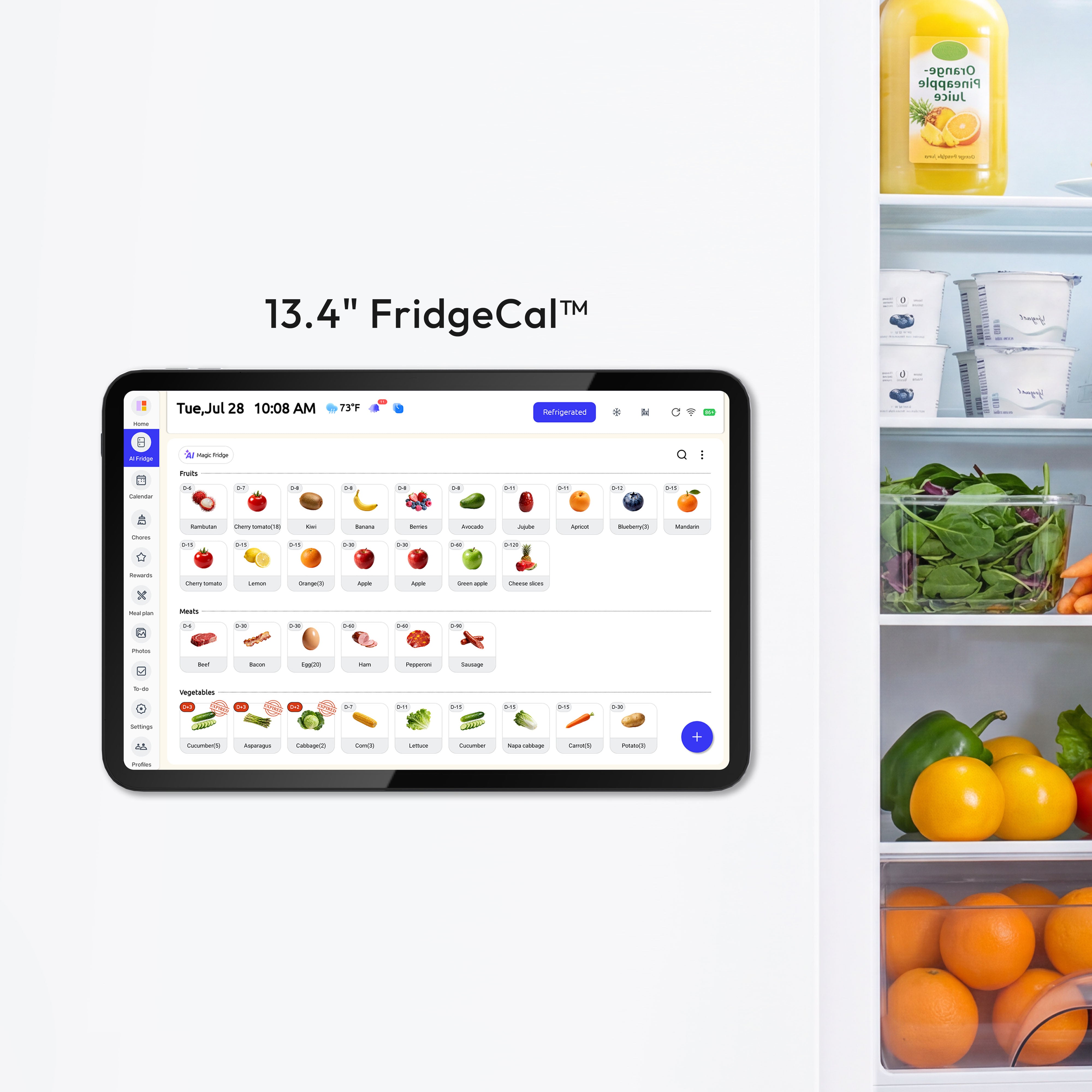
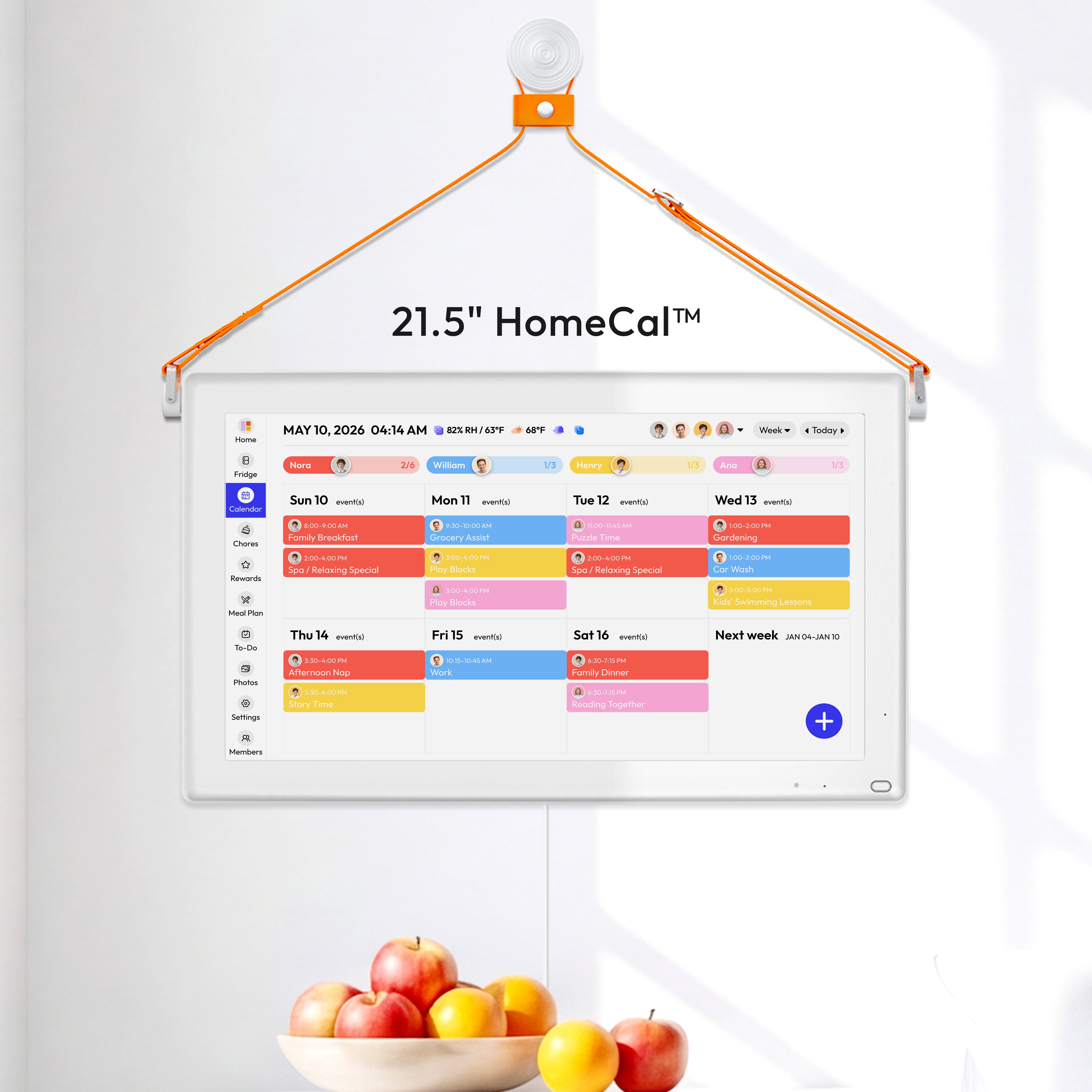
Picture a screen in your kitchen—a hub that pulls together everyone's schedules, chore charts, and meal plans into one shared space. This simple idea cuts right through the typical syncing headaches.
No more wondering if your partner saw the updated appointment. No more checking if the kids' phones actually updated the new chore list. It’s just there, visible to everyone, all the time.
Shifting from Personal Sync to Shared Visibility
The core idea is to create a single source of truth for your household. Instead of pushing information out to a dozen different devices and hoping it all connects, you pull everything into one central place.
For instance, with a device like the Everblog, you can add a dentist appointment with a quick voice command while making coffee. It instantly shows up on the main display, leaving zero room for doubt.
This solves so many of the little friction points that add up to big frustrations:
- Chore Accountability: Kids can see their tasks and check them off right on the hub. The classic "I didn't get the notification" excuse? Gone.
- Meal Planning: The weekly menu is front and center, ending the daily "what's for dinner?" interrogation.
- Schedule Coordination: Seeing the entire family schedule at a glance makes it incredibly easy to spot conflicts before they blow up your afternoon.
A dedicated family hub moves the focus from individual responsibility ("Did you sync your phone?") to collective awareness ("It's on the main calendar"). That subtle shift can dramatically reduce household friction and improve communication.
By centralizing your family's operating system, you simplify everything. You’re no longer just trying to sync an iPhone calendar; you're building a true command center for your home.
It’s a powerful, low-headache way to get everyone in sync. You can learn more about how to set up a digital family command center and see how it can truly transform your daily routines.
Frequently Asked Questions About Calendar Syncing
Even after you get everything set up, a few questions might pop up. Getting your calendar sync just right often means tweaking a few settings or understanding some common quirks. This is where we tackle the most frequent headaches people run into when they sync an iPhone calendar.
We’ll clear up the confusion around duplicate events, how to share your schedule with Android users, and why your updates sometimes feel a little slow. Think of this as your go-to guide for those final "what about..." moments.
Why Are My Synced Events Showing Up Twice?
Seeing double on your calendar is a classic sign of a sync loop, and it usually happens for one of two reasons. The most common culprit is syncing the same calendar account in two different ways—for instance, through iCloud and also directly from Google.
To fix this, head into Settings > Calendar > Accounts. Take a close look at your list of accounts and see if there are any duplicates. If you see your Gmail account listed under both "iCloud" and "Gmail," you'll want to remove one of them to break the loop.
The other common cause? Syncing your iPhone with a computer using both iCloud and a physical USB cable. That old-school wired sync creates a second data path, leading to duplicates. The easiest fix is to disable calendar syncing in your Mac's Finder or your PC's iTunes and just let iCloud handle the updates wirelessly.
Can I Share a Calendar with an Android User?
Absolutely, you just can't do it directly with an iCloud calendar. Apple’s iCloud sharing is really built to work best inside its own ecosystem. The simplest and most reliable workaround is to use a shared Google Calendar as the middleman for your family or team.
Here’s how it works:
- First, create a brand-new calendar directly within your Google account.
- Next, share that specific calendar with your family members' Google email addresses.
- Finally, add that same Google account to your iPhone by going to Settings > Calendar > Accounts.
That shared calendar will now pop up right inside your native iPhone Calendar app, and everyone can view and edit events no matter what kind of phone they have.
A common misconception is that all calendars sync instantly. While some do, others operate on a schedule. Understanding this difference is key to managing your expectations and avoiding frustration when an event doesn't appear immediately.
How Often Does My Calendar Actually Sync?
How often your calendar updates from third-party accounts like Google or Outlook is entirely up to your "Fetch New Data" settings. You have total control over how frequently your iPhone checks for new events.
Just navigate to Settings > Calendar > Accounts > Fetch New Data. From there, you can set a schedule for services that use the Fetch method, choosing intervals like every 15, 30, or 60 minutes.
For the fastest possible updates, you’ll want to rely on services that support Push data, like iCloud, which delivers changes almost instantly. If your Google or Outlook events feel slow to appear, shortening your fetch interval is the best solution—just know that more frequent checks can use a tiny bit more battery.
For a deeper dive into making your schedule work for you, check out these Top Tips for Calendar Success to help optimize your setup even further.
Ready to move your family's schedule from scattered apps to a central, always-on hub? The Everblog digital family calendar brings everyone's appointments, chores, and meal plans into one shared display, eliminating sync headaches for good. Discover how Everblog can bring clarity and connection to your home today.


