

Family calendars shouldn't be this hard. You write everything down, yet somehow soccer practice still conflicts with the dentist, notifications blow up your phone all day, and the kids still ask "what are we doing today?" every single morning. Most calendar systems just weren't designed for the reality of managing multiple people, schedules, and constant changes. They get cluttered fast and become impossible to read at a glance. The truth is, you don't need a fancy new system—just a few practical tweaks that actually make sense for how families operate. Here's what works.
Why Do Family Calendars Get So Messy?
1. One Person Ends Up Doing Everything
Usually Mom ends up being the family scheduler, which means she's the only one who knows where everyone needs to be and when. When one person maintains the calendar alone, everyone else stops checking it.
2. Double Bookings Happen All the Time
If Dad schedules a work dinner on the same night as the school concert, it's because he didn't see it on the calendar—or didn't know to look.
3. Too Many Notifications Get Ignored
When your phone buzzes twelve times a day about every single activity, you start ignoring all the alerts. Then you actually miss the important ones.
4. Tiny Text Makes Everything Unreadable
If your calendar is packed with tiny text that says "Jackson's Soccer Practice at Westfield Park with Coach Martinez - remember to bring orange slices," nobody's going to read it. You need to see what's happening at a glance, not read a novel.
These problems feed off each other. The calendar gets messier, so people stop using it, so it gets even more out of date, and the whole system breaks down.
What Should You Look for in a Family Calendar System?
When you're juggling multiple schedules, not just any calendar will do. Here's what actually makes your life easier.
Auto-Sync So You're Not Entering Everything Twice

Your calendar needs to connect with Google Calendar or Outlook. Why? Because when work meetings, school events, and sports schedules all sync automatically, you're not stuck manually typing everything in twice. That alone saves you hours every month.
A Screen Big Enough to Actually Read
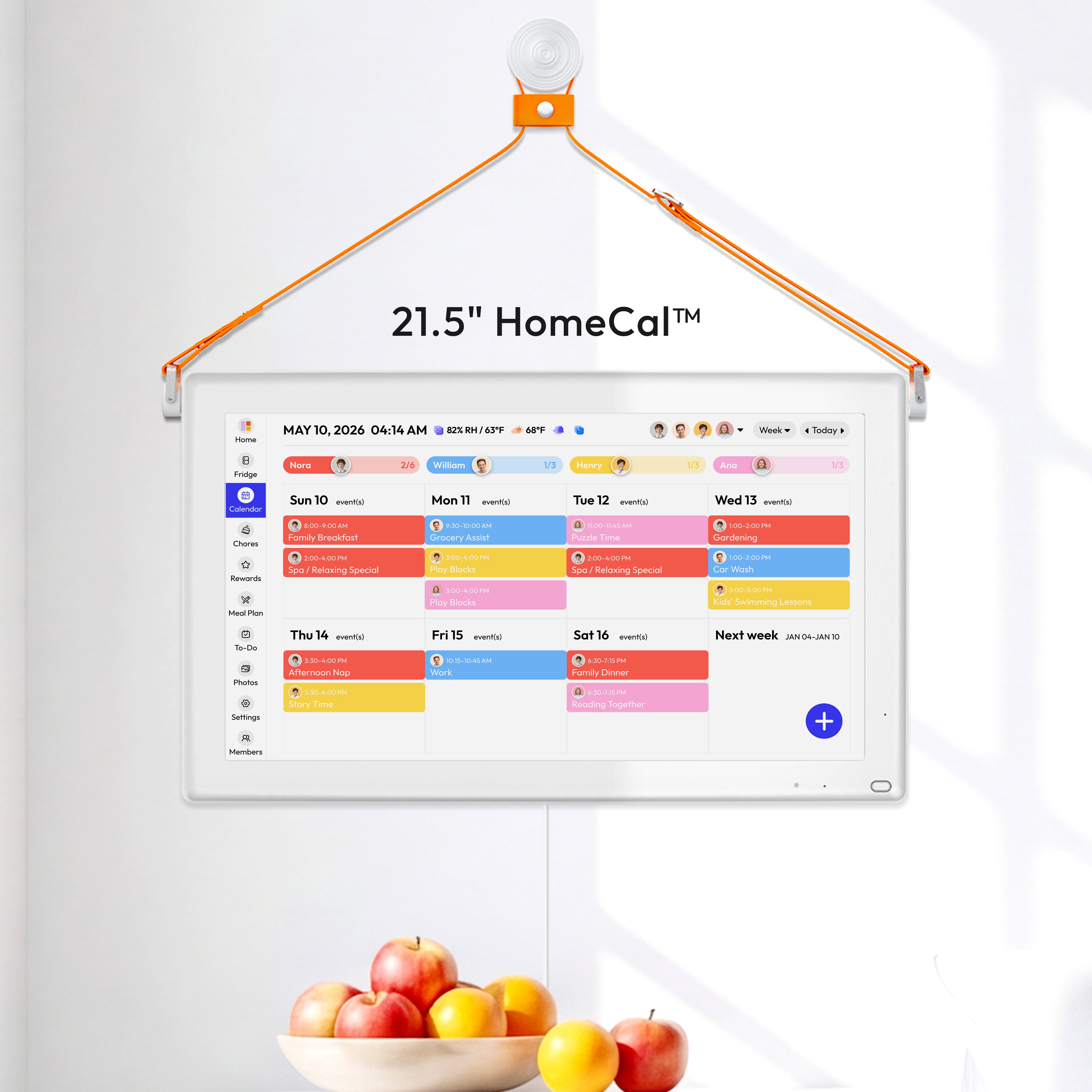
Here's the thing—if you can't see the calendar from across the kitchen, nobody's going to check it. Look for displays that are at least 15-21 inches. When everyone can glance at it while grabbing breakfast or making coffee, they actually know what's happening that day without pulling out their phones.
Different Views for Different Needs
Sometimes you need the big picture (hello, month view). Other times you need today's details (that's where day or week view comes in). Being able to switch between them quickly? That's what keeps you sane during busy weeks.
Alerts That Don't Drive You Crazy
Nobody needs their phone buzzing twelve times before noon. Multi-color LED lights are way better—each family member gets their own color, so you can see at a glance who has something coming up. No annoying pings required.
Simple Enough That Your Kids Can Use It
If your children can check their own schedule without asking you "Do I have practice today?" for the tenth time, that's a win. A touchscreen they can actually navigate themselves? Even better.
How Color Coding Makes Your Calendar Easier to Read
This is the single most effective visual trick for making your family calendar cleaner, and it takes about five minutes to set up.

Step 1: Assign Each Person Their Own Color
Pick one bright, distinct color for each family member. Here's an example:
- Mom: Blue
- Dad: Green
- Older child: Orange
- Younger child: Purple
Tag every activity, appointment, and task with that person's color. Now when you glance at your calendar, you instantly see whose soccer game is Tuesday and who has the dentist on Thursday—without reading anything. That's the whole point: less reading, faster understanding.
Step 2: Pick Colors That Actually Stand Out
- Skip these: Pale pastels and light colors that wash out on screens.
- Choose these: Bold, vibrant colors you can see clearly from across the room.
- Keep it accessible: Some people have trouble distinguishing certain color combinations, especially red and green side by side. Stick with combinations like blue, orange, purple, and yellow—they create better contrast and work for everyone in your family.
Step 3: Use the Same Colors Everywhere
Apply your family's color system to everything—calendar events, chore charts, task lists, and meal planning.
When your child sees their orange color on both Saturday's soccer game and their weekly chores, they instantly know "that's mine." No explaining needed. This visual consistency makes your whole system cleaner and easier to scan at a glance.
Bonus upgrade: Some digital calendars include color-coded LED lights that glow in each person's color when they have something coming up. It's a subtle visual reminder that doesn't require checking your phone or reading anything.
How This Works: Sample Week With Color Coding
| Family Member | Color | Monday | Tuesday | Wednesday | Thursday |
| Mom (Sarah) | Blue |
|
Dentist 10am | Book club 7pm | Grocery pickup 4pm |
| Dad (Mike) | Green | Client call 9am | Basketball 6pm | Work dinner 7pm | Parent-teacher 5pm |
| Emma (12) | Orange | Soccer practice 4pm | Piano lesson 3pm | Soccer practice 4pm | Sleepover at Mia's |
| Jake (8) | Purple | Art class 3:30pm | Dentist 10am | Swim team 5pm | Karate 4pm |
What you see at a glance: Tuesday at 10am shows both blue and purple—that's Mom taking Jake to the dentist. Thursday evening is packed with orange and purple activities, so you know it's a busy kid day. Wednesday has Mike's green work dinner, so that's a leftovers or takeout night.
What's the Right Way to Write Calendar Events?
Here's the golden rule: if you can't read an event title from five feet away, it's too long.
Step 1: Keep Event Titles Short and Scannable
Your calendar isn't a detailed itinerary. It's a quick reference tool. Compare these examples:
- Too cluttered: "Jackson's Soccer Practice at Westfield Park with Coach Martinez - remember to bring orange slices and pickup is at 6pm"
- Clean and readable: "Soccer - Jackson"
- Too cluttered: "Dentist appointment for Emma's 6-month cleaning at Dr. Smith's office on Main Street"
- Clean and readable: "Dentist - Emma 2pm"
See the difference? The shorter version tells you everything you need to know at a glance. Extra details like which dentist office or what to bring can go in the notes section if your calendar has one.
Step 2: Know When to Add Extra Details
Most events should be short, but these three situations need a bit more information:
- Medical appointments: Include the phone number so you can call ahead or reschedule quickly without hunting for it.
- Travel plans: Add flight times, confirmation numbers, and gate info all in one spot so nothing gets missed.
- Kids' activities with special requirements: Note things like "bring snack" or "wear red shirt" to prevent last-minute panic.
Step 3: Create Family Abbreviations
For recurring events, develop shorthand that your whole family recognizes:
- "HW" for homework time
- "MP" for meal prep
- "BB" for basketball practice
- "Prac" for any practice
Just make sure everyone knows what the abbreviations mean, or you'll create more confusion than clarity. Test them out during your weekly calendar review to see if they stick.
How to Stop Notification Overload
Too many calendar notifications create alert fatigue. When your phone buzzes constantly, you start ignoring everything—including the actually important reminders.
1. Set Up One Daily Summary Instead of Constant Pings
Replace a dozen individual alerts with one morning overview notification. Set it for 7am so everyone can check what's happening that day over breakfast. That's it—you're done for the day.
This single change cuts notification chaos dramatically while keeping everyone informed.
2. Create Custom Alerts for Urgent Events Only
Save individual notifications for things that have real consequences if you miss them:
- Doctor appointments
- Flight departures
- School pickup times
- Important deadlines
Everything else? It can wait for the daily summary or the visual calendar display.
3. Use Visual Notifications Instead of Phone Buzzes
If your calendar has a display screen that everyone walks past during the day, use that for reminders instead of blowing up five different phones. Some digital calendars show on-screen alerts or use color-coded LED lights that glow when someone has an event coming up—no sound needed.
This keeps everyone aware without constant buzzing.
4. Skip Notifications for Routine Activities
Don't set reminders for things your family does automatically every day:
- Breakfast, lunch, or dinner times
- Bedtime routines
- Morning wake-ups
Your family doesn't need a notification to tell them it's time to eat. Save alerts for non-routine events only.
5. Customize Alert Timing for Each Person
Not everyone needs the same heads-up time. Dad might need two hours before leaving for the airport, while the kids only need fifteen minutes before soccer practice starts.
Also, don't send the same notification to multiple devices. If both parents get an alert on their phone, watch, and tablet about the same event, that's three times the annoyance for zero additional value. Pick one device per person and stick with it.
How to Keep Your Calendar from Getting Messy Again
This is the missing piece that most families skip—and it's the main reason their calendars fail.
1. Pick a Consistent Time for Weekly Planning
Choose your time: Sunday evening at 7pm or Monday morning at breakfast work well for most families.
How long it takes: 10-15 minutes, no more.
What you do: Pull up your calendar's week or month view and go through the upcoming days together. Ask these questions out loud:
- What activities are happening this week?
- Who needs to be where?
- Are there any conflicts?
- What's missing?
Example: You notice Tuesday shows Emma's piano lesson at 3pm but nothing for Jake. You ask, "Jake, do you have swim practice Tuesday?" He says yes, so you add it right then—4:30pm swim practice. Done.
2. Get Everyone in the Room
Who needs to be there: Everyone old enough to have their own activities—kids and both parents.
Why it matters: When kids participate in calendar planning, they actually check the calendar later instead of asking "What am I doing today?" twenty times. They develop time awareness and take ownership.
Parents who aren't the primary calendar manager need to be present too. This distributes the mental load and eliminates the "I didn't know about that" excuse.
Example: During the review, your partner remembers he scheduled a client dinner Thursday night—the same night as parent-teacher conferences. You catch the conflict now instead of Thursday afternoon when it's too late to fix.
3. Plan Meals While You're Looking at the Week
What to do: While the calendar is open, talk about dinner for each night.
Look for these patterns:
- Busy nights with back-to-back activities = slow cooker or takeout
- Open evenings = time to try new recipes or batch cook
- Late pickups = prep-ahead meals you can reheat
Example: You see Tuesday has soccer practice ending at 6pm and Jake's swim team until 6:30pm. You mark that as "Crockpot chili" so it's ready when everyone gets home hungry. Saturday is wide open, so you plan to make Sunday meal prep together as a family.
This prevents the daily 5pm panic of "what's for dinner?" and keeps you from scheduling activities during critical meal prep time.
What Mistakes Make Family Calendars Hard to Read?
Even with the best system, certain habits will mess up your calendar's clarity. Watch out for these.
Mistake #1: Treating Your Calendar Like an Island
What it looks like: You have one app for calendars, another for chores, a third for meal planning, and a paper grocery list on the fridge.
Why it's a problem: You're constantly switching between systems and re-entering the same information multiple places.
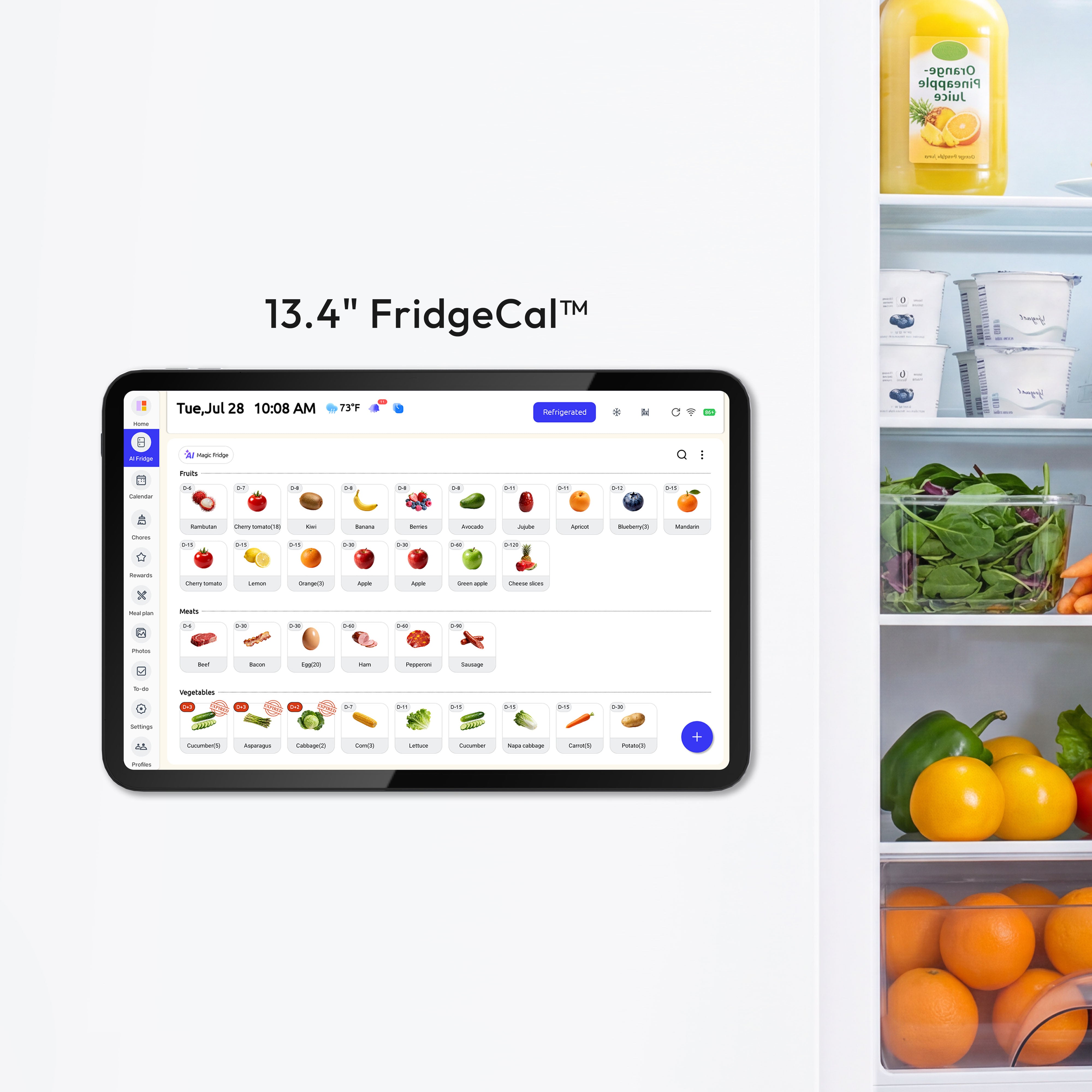
The fix: Look for calendar systems that integrate chore tracking, meal planning, task lists, and fridge inventory all in one place. When you plan Tuesday's schedule and see it's packed with activities, you can check what's in your fridge, see that the chicken expires Thursday, mark Tuesday as a crockpot dinner night, and add any missing ingredients to your shopping list—all without switching apps.
Mistake #2: Using "I'll Add It Later" as Your Strategy
What happens: You're at the pediatrician and they schedule a follow-up for three weeks out. You think "I'll add it when I get home." Then you forget, and miss the appointment.
The fix: Update your calendar immediately while you're still there. If you use Google Calendar or Outlook, enable auto-sync so work meetings and synced events add themselves automatically. For everything else, make it a habit to enter events right away—it takes 30 seconds now versus 30 minutes of stress later.
Mistake #3: Letting Old Events Pile Up
What it looks like: Your calendar still shows September's activities even though it's November.
Why it's a problem: Past events create visual clutter that makes it harder to see what's actually coming up this week.
The fix: During your weekly planning session, spend two minutes clearing out past events to keep your view clean. Most calendar systems let you filter to show only upcoming events, which helps reduce visual clutter.
Mistake #4: Making One Person Do All the Work
What happens: If Mom is the only one who updates the calendar, everyone else stops checking it. They just ask Mom instead because that's easier.
Why it's a problem: The mental load stays on one person, and the calendar becomes useless as a shared tool.
The fix: Make calendar updates a shared family responsibility. Choose a system easy enough that even kids can add their own events. During weekly reviews, have each person update their own activities.
Turn Your Family Calendar Chaos Into Clarity
Your family calendar will only work if everyone can actually see it and use it easily. Start by setting up color coding today, then schedule your first Sunday night planning session this weekend. Need a calendar that syncs everything automatically and displays it on a screen everyone can read? Check out the Everblog 21.5" Smart Calendar—it's built specifically to reduce Mom's mental load and keep the whole family on track. Tell us in the comments: what's the one thing that drives you crazy about your current calendar system?


