





Juggling all the appointments, practices, and school events for a family can feel like a full-time job. Thankfully, the fastest way to create a family share calendar on your iPhone is already built right in, using the native Calendar app and iCloud's Family Sharing. It's an elegant way to create a central hub for your family's schedule on the devices you're already glued to.
Why a Shared Family Calendar Is Your Secret Weapon
Remember the last time you double-booked a doctor's appointment with a soccer game? Or when "dress like a pirate day" at school completely flew under your radar? These little scheduling disasters are more than just annoying—they're the classic symptoms of the organizational chaos that plagues so many busy families.
A digital family calendar is your single source of truth, wiping out the confusion and getting everyone on the same page.
When your family's entire schedule lives in one central, accessible spot, the mental load of remembering everything just melts away. Instead of firing off constant texts—"Don't forget Timmy has karate at 6!"—the schedule is simply there, for everyone to see.
The Power of a Centralized System
The real magic happens when you build a predictable system around it. In fact, research shows that 85% of iPhone-using parents in markets like the US and UK rely on shared calendars to manage their kids' activities. It’s a simple habit that has been shown to cut down on missed appointments by as much as 40%. You can see how other families are using these tools to get more ideas.
A well-run family calendar on your iPhone brings a new level of order to your life by:
- Preventing Double Bookings: You can see everyone's commitments at a glance and stop conflicts before they even start.
- Improving Communication: The calendar becomes the go-to place for "what's happening today," which means fewer repetitive questions and last-minute scrambles.
- Empowering Everyone: When kids and partners can see their own schedules, they start to take more ownership and responsibility for them.
A shared calendar isn't just about plugging in events; it's about creating a shared reality for your family. When everyone sees the same plan, you start operating as a more cohesive team, turning daily chaos into calm, predictable routines.
Comparing Family Calendar Solutions
While the native iPhone calendar is a fantastic starting point, it's worth seeing how it stacks up against other methods people use.
| Method | Best For | Key Limitation |
|---|---|---|
| iPhone Shared Calendar | Apple-centric families who want seamless integration across devices. | Can feel limited on its own without a larger, central display. |
| Third-Party Apps (e.g., Cozi) | Families needing cross-platform (iOS & Android) support and extra features. | Often requires a paid subscription for the best features. |
| Physical Wall Calendar | Visual, at-a-glance planning in a central location like the kitchen. | Cannot be updated remotely and lacks automatic reminders or alerts. |
Ultimately, the right system is the one that fits your family's unique rhythm. But for most households, the native family share calendar on an iPhone provides a robust, free, and deeply integrated foundation to build on.
Setting Up Your Family Share Calendar on iPhone
Getting your family's schedule organized on your iPhones might feel like a huge task, but it’s easier than you think. The whole system is built on Apple Family Share, a feature that lets up to six family members connect their accounts and share everything from calendars to purchases.
Before you even touch the Calendar app, you need to have Family Sharing turned on. One person, the "Family Organizer," is in charge of sending out the invitations. Once everyone accepts, you all get access to a bunch of shared services—including that all-important family calendar.
Enabling Family Sharing and Inviting Members
First things first, the organizer needs to jump into their iPhone's Settings. Tap your name (your Apple ID) right at the top.
This is your main hub for managing the family group. From here, you’ll tap "Family Sharing" and see the option to invite everyone else. You can send invites through Messages, AirDrop, or even a simple email. It's incredibly straightforward.
Apple's Family Sharing feature has been around since 2014 (it launched with iOS 8), and it’s a lifesaver. It lets up to six people see and manage a shared schedule, with color-coded events for soccer practice, dentist appointments, and everything in between.
Key Takeaway: As soon as you set up Family Sharing, a calendar named "Family" is automatically created and shared with everyone in your group. It just shows up in everyone's Calendar app, no extra steps needed.
Creating and Customizing Your Shared Calendar
The default "Family" calendar is awesome, but most families I know end up creating a few more calendars to keep things from getting too messy. It's a great way to separate different parts of your life.
For instance, you could create dedicated calendars for:
- Kids' Activities: Keep all the school events, sports schedules, and playdates in one place.
- Meal Planning: Map out the week's dinners so you’re not scrambling at 5 PM.
- Household Chores: Set up a schedule for recurring tasks like taking out the trash or weekend cleaning.
Making a new calendar is a breeze. Just open the Calendar app, tap Calendars at the bottom, and then hit Add Calendar. Give it a name like "Meal Plan" and pick a color that stands out.
This little bit of customization is what turns a cluttered schedule into an organized, color-coded system that actually makes sense.

Going from total chaos to a clean, organized grid really shows how powerful a few minutes of setup can be.
Once you’ve made a new calendar, the final step is to share it. Tap the little "i" info button next to the calendar's name and add the family members you want to include. If you need a more detailed guide on the sharing part, check out our guide on how to share a calendar in iCloud. Just like that, your personal iPhone becomes the central command for your family's entire schedule.
Pro Tips for Mastering Your Shared Calendar

Alright, you’ve got your shared calendar up and running. That’s the first big step. Now, let’s go beyond just plugging in appointments and turn this thing into a true family command center. The real magic happens when you start using its smarter features to automate the chaos and make sure everyone’s on the same page.
Think about all those repeating tasks that clutter up your week. Trash day. Piano lessons every other Tuesday. That monthly book club. Instead of tapping them in again and again, get familiar with the recurring event feature. You set it up once, and it’s on the calendar forever. It's a simple trick that saves a surprising amount of time and mental energy.
Automate and Simplify Your Workflow
Let’s be honest, a calendar should work for you, not create more work. One of the best, and most overlooked, features is location-based alerts. Forget setting a reminder for a specific time; set it for a specific place.
For instance, add "Pick Up Dry Cleaning" to your calendar, but set the alert to trigger "When I leave work." Your iPhone uses your location to ping you the second you’re on the move, making it almost impossible to forget those little errands.
Attachments are another game-changer. You can link files directly to a calendar event so everything you need is right there.
- School Events: Snap a photo of the field trip permission slip and attach it. No more frantic searches through your kid’s backpack.
- Birthday Parties: Add a screenshot of the invitation. The address, time, and RSVP info are now locked to the event.
- Team Sports: Attach the game schedule PDF or the team roster to the first practice.
This simple habit stops you from digging through emails and text messages five minutes before you need to leave. It’s this deep integration that explains why Apple's native apps command 70% of the user base worldwide—they fit seamlessly into the lives of busy parents.
Establish a Family Calendar Etiquette
A shared calendar is a team sport. It only works if everyone plays by the same rules. To keep your beautifully organized calendar from turning into a confusing mess, you need to agree on a little "calendar etiquette."
Start with a clear naming convention. An entry that just says "Soccer" is not helpful. Instead, try something like "Leo - Soccer Practice @ North Park." Instantly, everyone knows who, what, and where without having to click for more details.
The secret to a successful family share calendar isn't the technology—it's communication. The calendar is a tool to support your family's conversation, not replace it. Consistently using it and agreeing on a few ground rules makes all the difference.
For more deep dives into advanced strategies for managing family life, the team over at gleetime's blog has some excellent advice. Once you combine these pro tips with your basic setup, your iPhone calendar will become one of the most valuable tools you have for keeping your family running smoothly.
Troubleshooting Common Calendar Syncing Problems
Sooner or later, it happens to everyone. You swear you added the soccer game to the family share calendar on an iPhone, but your partner has no idea it's happening. Or an alert for that can't-miss dentist appointment just never appears. It’s frustrating, but don’t panic—these syncing hiccups are almost always small and surprisingly easy to fix.
Before you start digging through settings, check the most common culprit: the event was accidentally added to a personal calendar instead of the shared one. It's an easy mistake to make when you're adding things in a hurry. Just have the person who created the event tap on it and see which calendar it's assigned to. More often than not, that’s the entire problem.
A Quick Syncing Checklist
If the event is in the right calendar but still not showing up for everyone, it’s time for a quick troubleshooting run. These few steps fix the vast majority of syncing issues between iPhones.
- Force a Refresh: Open the Calendar app and tap the "Calendars" button at the bottom. Once you see the list of your calendars, just pull down from the top of the screen to manually refresh everything. This basically tells your iPhone to check back in with iCloud for any new updates.
- Check iCloud Settings: Hop over to Settings > [Your Name] > iCloud. Tap "Show All," then make sure the toggle next to "Calendars" is green. Every once in a while, an iOS update can mysteriously switch this off.
- Confirm Your Default Calendar: Go to Settings > Calendar > Default Calendar and make sure your shared family calendar is the one with the checkmark. This ensures any new event you add goes to the right place automatically, without you having to select it every single time.
Honestly, the simplest fix is usually the right one. A quick manual refresh or double-checking that everyone is actually looking at the shared calendar can solve what feels like a massive tech headache. It’s often just a matter of pointing the app in the right direction.
Solving Time Zone Troubles
Traveling as a family is chaotic enough without your calendar getting confused. If you've ever noticed event times shifting around as you cross time zones, it's probably because your iPhone is trying to be a little too helpful.
To stop this from happening, head to Settings > Calendar > Time Zone Override. Flip this switch on. This simple change locks all your events to the time zone they were created in, no matter where you are in the world. That 3 PM doctor's appointment will stay at 3 PM, preventing any mix-ups while you’re on the road.
If you’ve tried all these steps and things are still out of whack, you can learn more about what to do when your iCloud calendar isn't syncing for a deeper dive. These tips should get your family’s schedule back on track in no time.
Syncing Your iPhone Calendar to a Central Family Hub

A shared family calendar on your iPhone is a game-changer for coordinating on the go. But let’s be honest, relying only on personal phones can create its own brand of chaos. Everyone is buried in their own screen, and the constant pings and notifications can start to feel more stressful than helpful.
When the schedule lives exclusively on individual phones, there’s no single, visible "source of truth." You still find yourself asking, "What time is practice again?" because checking the calendar means grabbing a phone, unlocking it, and finding the right app. A dedicated hub flips that script, turning your digital schedule into a physical, at-a-glance command center right in your home.
Beyond the Small Screen
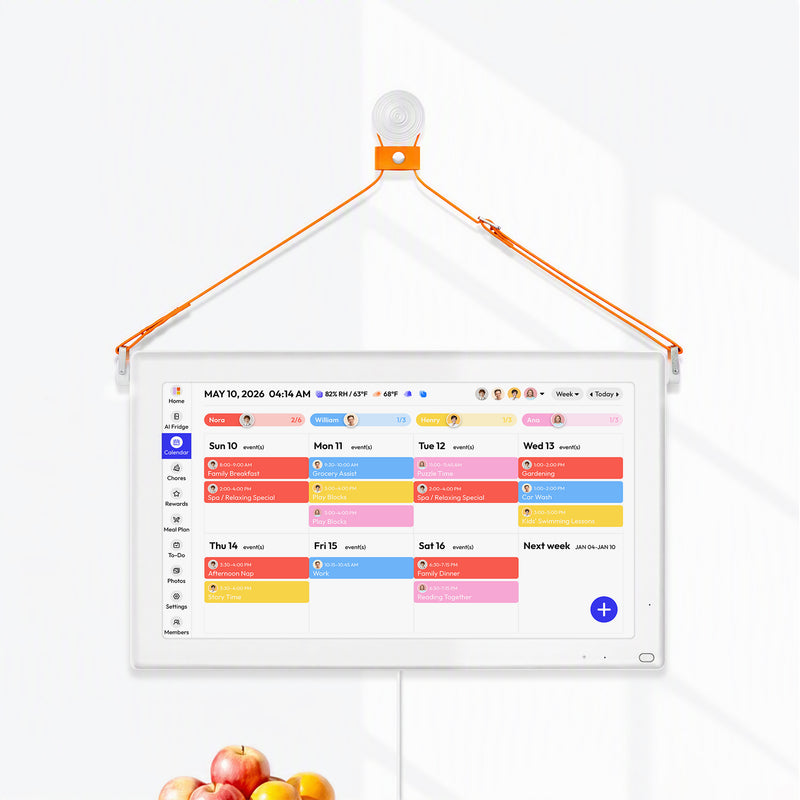
Imagine walking into the kitchen for your morning coffee and seeing the entire day’s schedule—soccer practice, doctor’s appointments, and dinner plans—laid out on a large, clear display. This kind of visual clarity sparks conversations and cuts down on that frantic morning scramble.
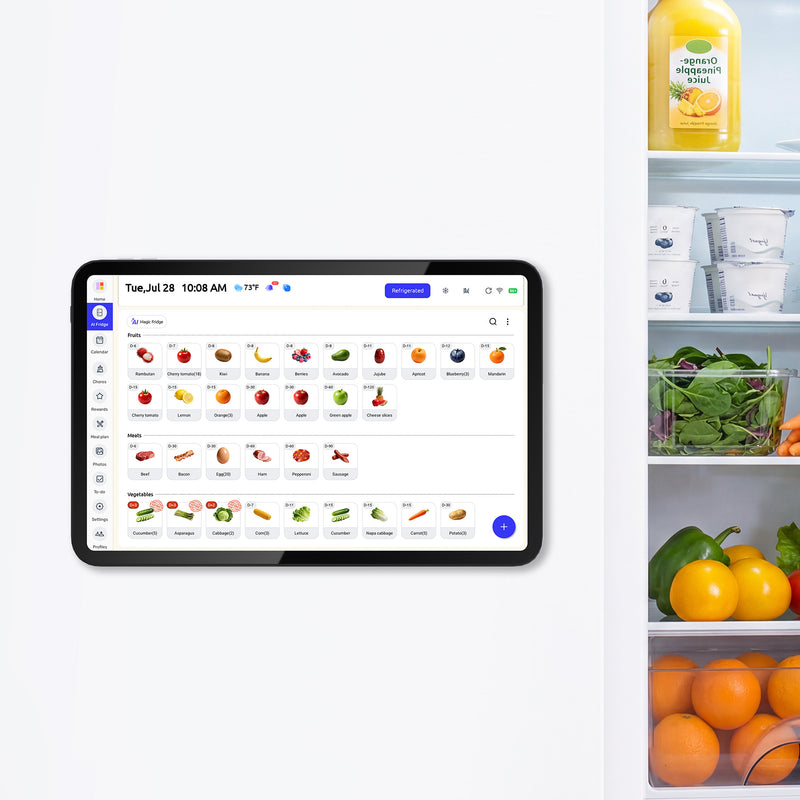
The constant app-switching and notification overload is draining; some studies even show it can lead to 25% more stress. This is where a centralized display, like Everblog's 21.5-inch wall hub, really shines. It mirrors your iPhone Family Sharing calendar perfectly but presents it with a sense of calm. You can discover more insights about family calendar apps at usecalendara.com.
A physical hub also becomes the home for everything else that makes your household run. It's not just for appointments anymore; it’s for your family's entire operational ecosystem.
- Chore Charts: Assign and track responsibilities visually, so kids see what needs to be done without you having to send a reminder.
- Meal Plans: Display the week’s menu, finally putting an end to the daily "What's for dinner?" interrogation.
- Family Photos: Use it as a beautiful digital photo frame when idle, adding a warm, personal touch to your kitchen or entryway.
A dedicated hub turns your calendar from a simple scheduling tool into a holistic family management system. It’s the difference between having information available and having it truly visible and accessible to everyone, all the time.
iPhone Calendar vs. Integrated Hub (Everblog)
While your iPhone is absolutely essential for adding events when you're out and about, a dedicated hub serves a different, more communal purpose. It creates a focal point for family coordination that doesn't demand everyone be glued to a personal device.
Here’s a quick look at how the two work together to create a complete system.
| Feature | iPhone Shared Calendar | Everblog Family Hub |
|---|---|---|
| Visibility | Personal and private; requires unlocking a device. | Public and always on; visible to everyone at a glance. |
| Functionality | Excellent for remote entry and personal reminders. | Adds layers like chore charts, meal plans, and grocery lists. |
| Family Focus | Individual-centric; can lead to screen isolation. | Promotes shared awareness and reduces phone dependency. |
| Updates | Syncs instantly via iCloud across all Apple devices. | Seamlessly syncs with your iPhone calendar to stay current. |
By syncing your family share calendar from an iPhone to a central hub like Everblog, you get the best of both worlds. You keep the convenience of mobile updates while creating a powerful, visual command center that keeps the entire family connected and on the same page.
A Few Common Calendar Questions
Alright, so you've got your shared calendar up and running. But as with any new system, a few little quirks are bound to pop up. Let's walk through some of the most common questions I hear from families and get them sorted out.
Can I Share Our iPhone Calendar With an Android User?
This is the classic iPhone vs. Android household dilemma. The short answer is yes, but with a catch. You can’t add them to an iCloud calendar through Family Sharing directly, but there's a pretty good workaround.
You’ll need to make the calendar public. In the Calendar app, tap Calendars, then the little Info (i) icon next to the calendar you want to share. From there, just toggle on Public Calendar. This creates a special web link that you can text or email to your family member on Android. They can then subscribe to it in their calendar app, like Google Calendar.
The big thing to remember is this is a view-only share. They'll see everything, but they won’t be able to add or change events.
How Do I Stop Drowning in Notifications?
A bustling family calendar can mean your phone is buzzing non-stop. When you get pinged for everything, it's easy to just start tuning it all out. Luckily, you have a lot of control here.
You can simply turn off the alert for any specific event. For a more permanent fix, head into Settings > Notifications > Calendar. Here you can fine-tune what you get alerted for, like "Upcoming Events" or "Invitations." This lets you silence the noise while still getting a heads-up for the truly important stuff.
The real goal is to make notifications meaningful again. A good rule of thumb is to only set alerts for things that require you to do something, like leave the house on time or get ready for a visitor.
While Apple’s world is fantastic when you're all in it, many of us live with a mix of devices. In North America, around 60 million users rely on third-party apps for that reason, but the deep integration of Apple's tools keeps nearly 30% of families happily in the ecosystem. You can see how different family calendar apps stack up at usecalendara.com.
Can We Have More Than One Shared Calendar?
Yes, you absolutely can! In fact, this is my top tip for really mastering your family share calendar on an iPhone. The default “Family” calendar is a great starting point, but creating multiple, dedicated calendars is where the magic really happens.
Think about breaking things down like this:
- Meals: A weekly dinner plan at a glance.
- Chores: Recurring events for daily or weekly tasks (no more arguments!).
- School & Sports: Keep practices, games, and school holidays in one color-coded view.
- Vacations: Plan the big trips without cluttering up the day-to-day schedule.
Splitting your calendars this way makes everything much easier to scan and helps everyone find exactly what they’re looking for without getting overwhelmed.
Ready to turn your family's scattered schedule into a beautiful, central hub? Everblog syncs with your iPhone calendar to create an at-a-glance command center for schedules, chores, and meal plans. It’s designed to cut through the chaos and bring everyone together, effortlessly. Learn more and get your Everblog today.


