

Sharing your iCloud calendar is refreshingly simple. In the Calendar app, just tap ‘Calendars,’ hit the little ‘i’ icon next to the one you want to share, and select ‘Add Person’ to invite people using their Apple ID. The whole thing takes less than a minute and instantly gets everyone’s schedules in sync.
Syncing Your Family Seamlessly with iCloud Calendar
Keeping a busy family organized can feel like trying to herd cats. Between school runs, soccer practice, dentist appointments, and work deadlines, schedules get messy fast. This is exactly where an iCloud shared calendar steps in to become your family's command center, turning chaotic plans into a single, synchronized schedule that everyone can see.
The idea is simple but powerful: create one shared space where anyone in the family can add, edit, or just check what's going on. It’s the digital version of that old kitchen wall calendar, except it updates in real-time on everyone’s iPhone, iPad, and Mac. No more last-minute scrambles or missed appointments—this shared visibility is the secret to smoother family life.
The Power of a Central Hub
When you share an iCloud calendar, you're creating a single source of truth for your family's schedule. This simple move has some seriously powerful benefits that cut down on daily stress and open up communication.
- No More Double Bookings: Anyone can see what’s already planned before adding something new.
- Boosts Accountability: Kids can check their own schedules for chores, homework deadlines, or practice times.
- Lightens the Mental Load: One person no longer has to be the keeper of everyone's appointments.
- Makes Planning a Team Sport: Figuring out vacations or family outings becomes a truly collaborative effort.
A shared calendar isn't just about plugging in dates—it’s about building a transparent system that helps everyone feel connected and informed. It really fosters a sense of teamwork in running the household.
Apple rolled this feature out way back with iOS 5 in 2011, and it's still a cornerstone of family organization today. You can share a private calendar with up to 100 people, which is perfect for co-parenting situations or even looping in grandparents. In fact, a 2023 survey found that 68% of parents in Apple-centric households rely on shared calendars for things like weekly chore rotations.
For more ideas on putting this into practice, check out our guide on creating a digital family calendar. You can also find more specifics on Apple’s calendar features and limits on their support page.
How to Share iCloud Calendars on iPhone, iPad, and Mac
Alright, now that we’ve covered the why behind a shared family schedule, let’s get into the how. The great news is that sharing an iCloud calendar is incredibly simple, and you can do it right from whichever Apple device you have handy.
Whether you're on your iPhone running errands, your iPad on the couch, or your Mac at your desk, the steps are nearly identical. You’ll be up and running in just a few minutes.
The one crucial detail? You need to invite people using the email address tied to their Apple ID. This is how Apple creates that secure, private link between your calendar and theirs. Once you send the invite, they just have to accept the notification, and poof—your schedules are connected.
Sharing From Your iPhone or iPad
Let’s be honest, most of us run our lives from our phones. Sharing a calendar directly from your iPhone or iPad is the most convenient way to get it done on the fly.
Here’s how it works:
- Pop open the Calendar app.
- Tap Calendars at the bottom of the screen to pull up your list.
- Find the calendar you want to share (like "Family Events") and tap the little info icon (ⓘ) next to its name.
- Look for the "Shared With" section and tap Add Person.
- Type in the person's name or Apple ID email and hit Add.
Once the invitation is sent, you'll see their name listed as "pending" until they accept. After that, you’re good to go.
My Two Cents: Before you start sharing, get organized. I create separate calendars for different things—one for "Kids' Sports," another for "Date Nights," and one for "Grandparent Visits." This way, you're only sharing what's relevant with the right people, keeping everyone’s calendar clutter-free.
Sharing From Your Mac
If you're more of a desktop person or you're setting up a bunch of shared calendars at once, doing it on a Mac is just as easy. The bigger screen can definitely make it feel a bit more manageable.
- First, open the Calendar app on your Mac.
- In the list of calendars on the left, hover your mouse over the one you want to share.
- A little sharing icon will pop up (it looks like a person's silhouette). Click it.
- A "Share With" field will appear. Type in the names or email addresses of your invitees.
- Hit Return on your keyboard, and then click Done.
Just like on the iPhone, an invitation gets sent out via email. This is also where you’ll manage who can edit the calendar versus who can only view it, but we’ll get into that in a bit.
When you're getting a new device, it's a good time to make sure all your shared calendars come along for the ride. If you need a refresher, check out a guide to transfer data from iPhone to iPhone.
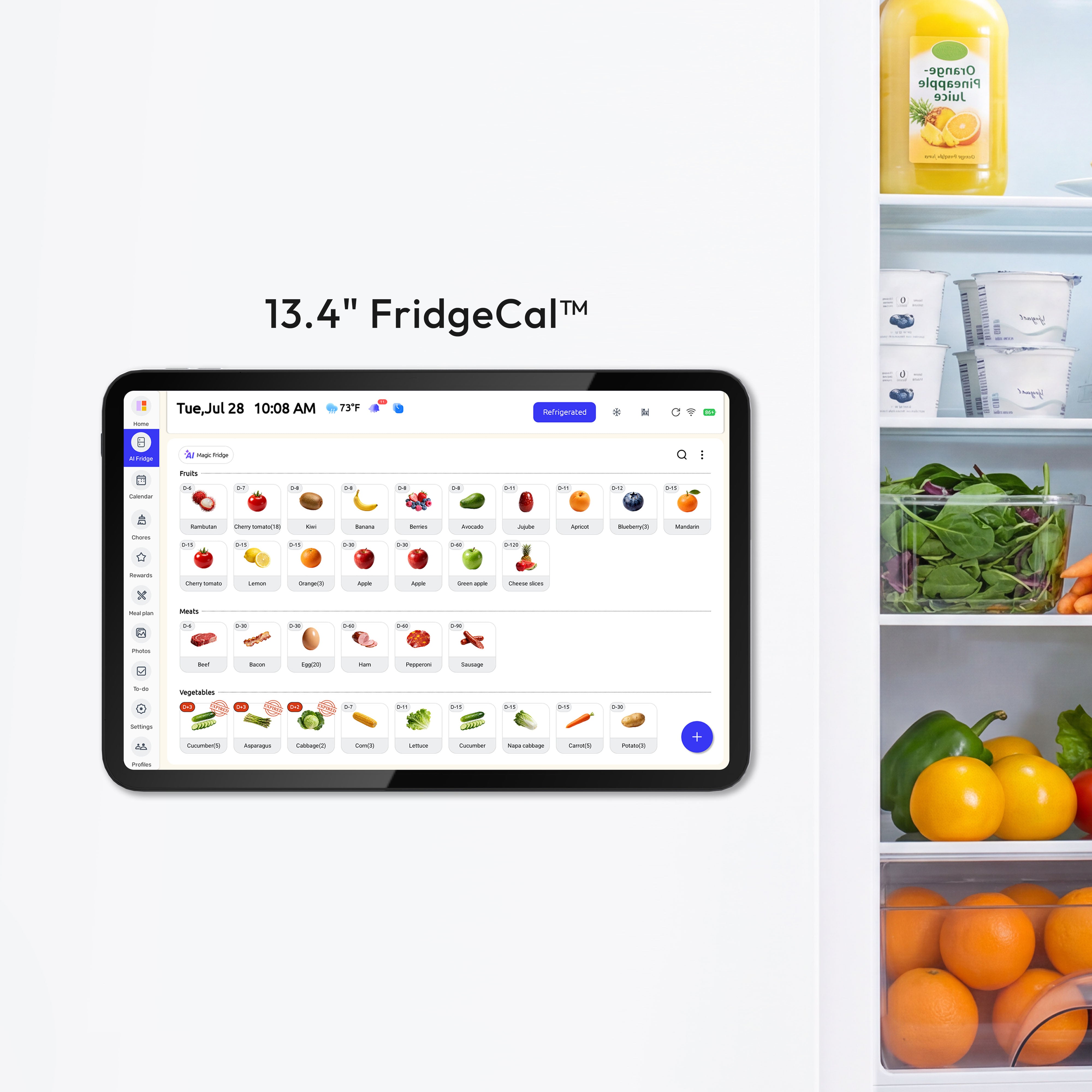
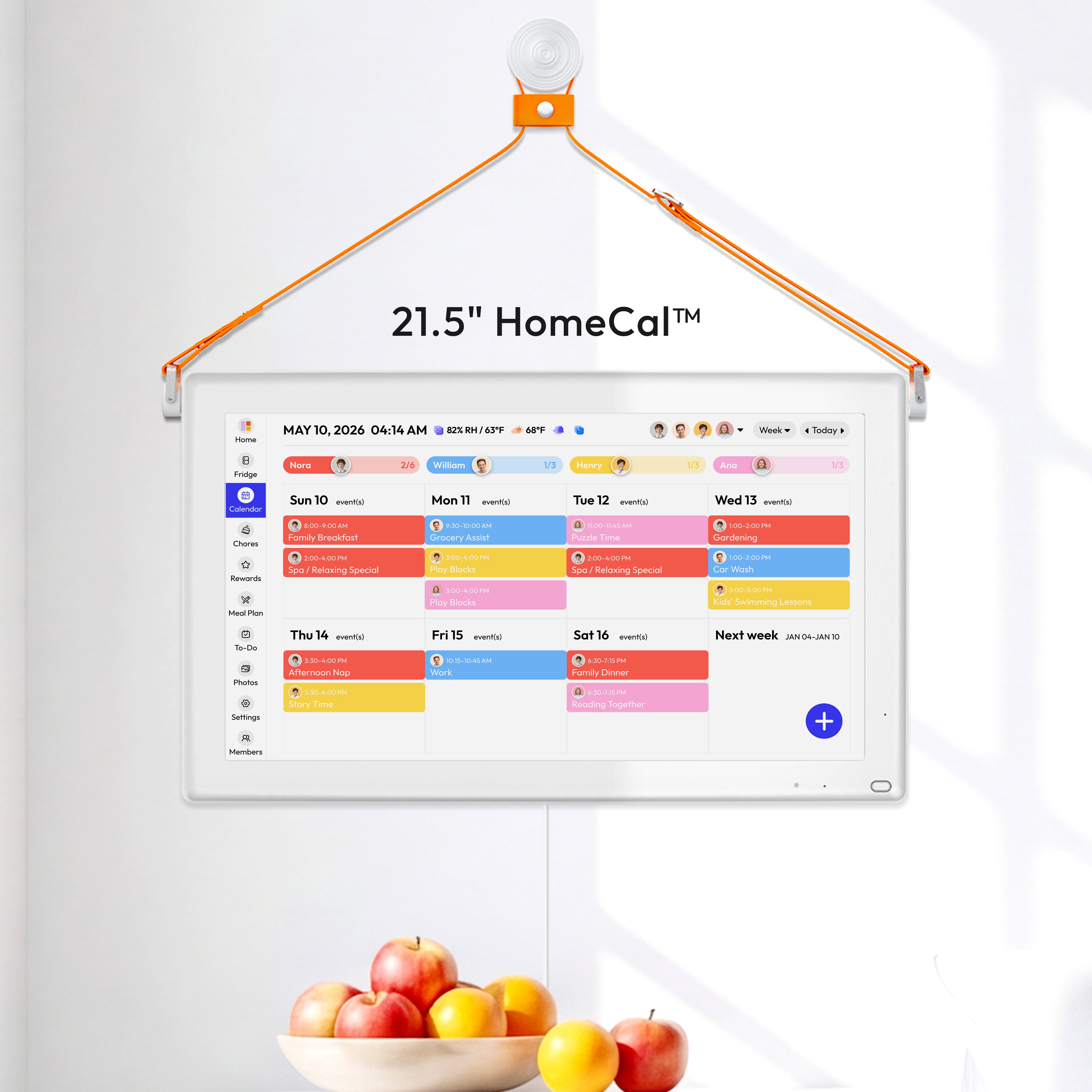
A shared iCloud calendar can also be the brain behind a central family hub. If you really want to level up your family's organization, you might love having an electronic wall calendar that syncs with iPhone. It takes your digital schedule and puts it right on the wall for everyone to see, no phone required. It’s perfect for getting the kids in the loop without handing them a device.
Managing Permissions for Family and Non-Apple Users
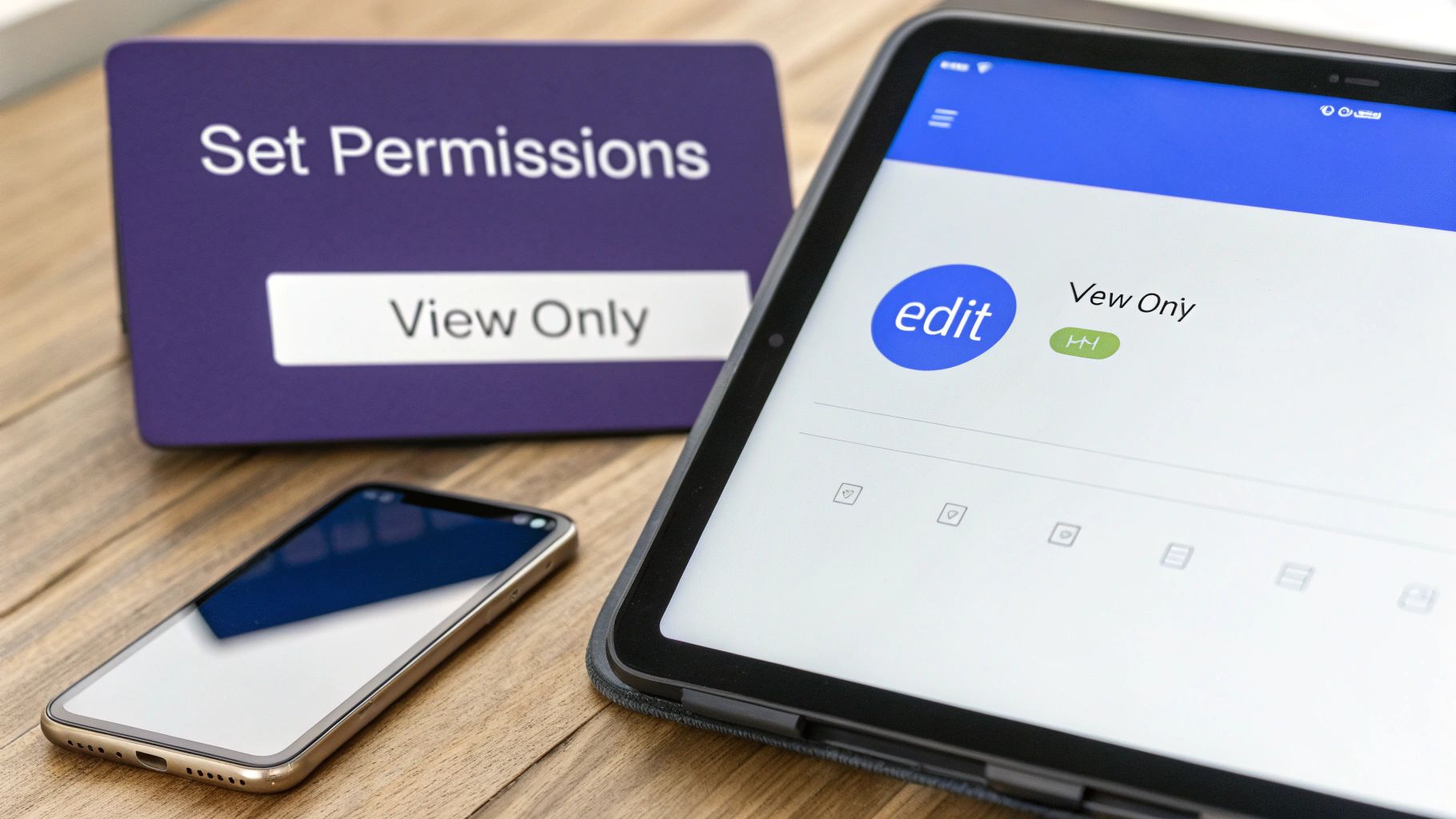
Sharing your calendar is just the start—the real magic is in controlling who can do what with your family's schedule. Once you've invited someone to a private iCloud calendar, you get two simple but powerful choices: View & Edit or View Only. Getting this right is the key to keeping everyone in the loop without causing chaos.
Think of View & Edit as handing over a spare set of keys. It’s perfect for a spouse or co-parent who needs to add soccer practice, schedule a dentist appointment, or shift things around on the main family calendar. They get full control to add, change, and delete events, making it a truly collaborative space.
View Only, on the other hand, is like giving someone a window to peek through. This permission is tailor-made for grandparents, the babysitter, or a family friend who needs to see the schedule but has no reason to change it. They can see every event but can't add or alter a thing, which prevents those "oops, I deleted the flight info" moments.
Granting the Right Level of Access
Deciding who gets what level of access boils down to trust and necessity. You definitely don’t want a well-meaning relative accidentally wiping out a critical appointment, but you absolutely need your partner to be able to add a last-minute meeting.
Here’s how I usually break it down for my own family:
- Spouse or Co-parent: They almost always get View & Edit for our main shared calendar. It's essential for us to be on the same page.
- Older Kids: I've given them View & Edit for specific calendars like "Chores" or "Homework Deadlines" so they can check off tasks as they finish them.
- Babysitter: She gets View Only access. This way, she sees pickup times and appointments without any risk of changing them.
- Extended Family: A "Family Events" calendar with View Only access lets them see upcoming birthdays and holidays without cluttering up their own calendars.
A good rule of thumb is to grant the least amount of privilege needed. Start everyone with 'View Only' and only upgrade them to 'View & Edit' if they truly need to make changes. This one habit prevents a world of headaches.
Sharing with Android and Google Calendar Users
One of the biggest hurdles families face is sharing an iCloud calendar with someone using an Android phone or who lives and breathes Google Calendar. Since you can't send them a private Apple ID invite, the best workaround is to create a Public Calendar.
This feature generates a unique, read-only web link (it ends in .ics) that anyone can use to subscribe. The Android user in your life can just plug this link into their Google Calendar, and poof—your events show up on their schedule.
But the word "public" is there for a reason. Anyone with that link can see your calendar. To protect your family’s privacy, never, ever make your main family calendar public.
Instead, create a separate, "public-safe" calendar. For example, I have a "Public Family Events" calendar that only includes vague info like "David's Soccer Game," without adding sensitive details like the field address or my phone number. If you're looking for more integrated solutions, you can also learn how to sync with Google Calendar.
While iCalendar has been the standard for this kind of cross-platform sharing since 1998, it’s not without its flaws. Privacy concerns are real, with family data complaints rising 28% in recent years, especially around these public links. It's no wonder a recent study found that 45% of users in mixed Apple/Android households find these workarounds frustrating. You can dive deeper into the numbers in this report on calendar statistics.
Using Family Sharing for Automated Calendar Sync
If your whole family is on board with Apple devices, you absolutely need to be using Family Sharing. It's a total game-changer for organizing your crew's schedule, moving beyond clunky manual invites into a smooth, automated system.
When you set up a Family Sharing group—which works for up to six people—Apple instantly creates a shared calendar for you called “Family.” It just appears, automatically, on everyone’s iPhone, iPad, and Mac. No invites, no links, no fuss. It just works.
The Power of Automation
This automatic setup is brilliant for all the big-ticket items that everyone in the family needs to know about. Think of it as your digital command center on the fridge door.
It's perfect for things like:
- Major Appointments: Doctor visits, parent-teacher conferences, and those dreaded dentist cleanings.
- Family Gatherings: Holidays, birthday parties, and anniversaries you can't afford to forget.
- Vacation Plans: Flight times, hotel check-in details, and key travel dates.
The “Family” calendar becomes the one place everyone can check for what's happening, making sure no one gets left out of the loop. Because it’s automatic, there's literally zero setup needed from individual family members, which is a huge win.
Understanding the Trade-Offs
While the convenience is top-notch, you have to know about the one major catch: everyone gets View & Edit access by default. You can't change this. There’s no option to set someone to “View Only” on this specific calendar.
This all-or-nothing access means your seven-year-old has the same power to delete an event as you do. For crucial appointments, this can be a bit of a nail-biter. It’s a classic case of convenience versus control.
This might not be the best setup for every family. A younger kid could easily (and accidentally) move a critical doctor's appointment or delete the Thanksgiving dinner details. It’s great for getting everyone involved, but it definitely requires a bit of trust and maybe a quick family meeting on calendar etiquette.
A Hybrid Strategy for Total Control
So, how do you get the best of both worlds? The answer is a hybrid approach.
Let the automated “Family” calendar handle what it does best—sharing the big, essential stuff that everyone needs to see and contribute to.
For everything else, create separate, manually shared calendars. This is where you get to control who can do what. You can tailor access to fit the situation, preventing any "oops" moments while still keeping the right people in the know.
Here’s what a hybrid system looks like in the real world:
| Calendar Name | Purpose | Shared With & Permissions |
|---|---|---|
| Family (Auto) | Critical events, holidays, vacations. | Everyone (View & Edit by default) |
| Kids Sports | Practice times, game schedules. | Partner (View & Edit), Grandparents (View Only) |
| Meal Plan | Weekly dinner schedule. | Partner (View & Edit), Older Kids (View Only) |
| Babysitter Info | Sitter's schedule, key contacts. | Babysitter (View Only) |
By combining the simple, automated “Family” calendar with a few specific, manually-shared ones, you build a system that's both powerful and flexible. You get the effortless setup of Family Sharing for the major events and the granular control you need for all the day-to-day details. It’s the ultimate way to get your family schedule organized without all the stress.
Troubleshooting Common Calendar Sharing Problems
Even the most organized plans can hit a wall when technology decides not to play along. You share the family calendar, but your partner swears they never got the invite. You add a last-minute soccer practice change, and it never shows up on your spouse's phone.
These little hiccups are frustrating, but most are surprisingly easy to fix.
When your shared iCloud calendar starts acting up, don't panic. The fix is usually a quick check of the basics. Before you start digging through settings, run through a quick mental checklist. Is everyone online? Did you use the exact email address they use for their Apple ID? These small details are almost always the culprit.
A common headache is an invitation that just seems to disappear. If someone insists they never received your request, the first thing to do is have them check their junk or spam folder. It’s an old trick, but invitation emails get filtered out all the time. If it’s not there, just resend it.
Invitation and Syncing Fixes
When events aren’t updating for everyone or invites go missing, a few targeted actions can usually force everything to reconnect and get back on track. These steps solve the vast majority of calendar glitches without much fuss.
- Verify Apple IDs: This is the big one. Make sure you sent the invitation to the email address your family member uses for their Apple ID. A tiny typo or using their work email instead of their personal one will stop the whole process cold.
- Check iCloud Settings: On every device involved, pop into Settings > [Your Name] > iCloud and double-check that the Calendars toggle is switched on. If it's off, that device isn't even talking to Apple's servers.
- Force a Refresh: Sometimes the app just needs a nudge. Open the Calendar app, tap Calendars at the bottom of the screen, and simply pull down to refresh. This forces an immediate sync with iCloud.
Trying to figure out how to share calendar in iCloud when it just won’t cooperate? Remember, a solid connection to Apple’s servers is everything. A spotty Wi-Fi signal or weak cell service can delay updates and cause all sorts of confusion.
If those initial steps don't cut it, the problem might be a deeper connection issue with your account. For stubborn syncing problems, a great reset is learning how to sign out of your Apple ID on all devices and then signing back in. It sounds simple, but this often clears up any lingering authentication bugs.
Handling Accidental Deletions
It happens. Someone with edit access accidentally deletes a key event, or worse, the entire shared calendar. If a single event gets wiped, it’s gone for everyone, and unfortunately, there’s no "undo" button for that.
If someone accidentally removes themselves from a calendar, they can’t just rejoin on their own. The original owner of the calendar has to send them a brand new invitation to get them back in. It’s a quick fix, but it's the only way to restore their access.
Still Have Questions? We've Got Answers
Even with the best instructions, a few tricky questions always pop up. It's totally normal. Here are some of the most common head-scratchers I hear about iCloud Calendar sharing, along with some quick, real-world answers to get you sorted out.
Can I Share My iCloud Calendar with Someone Who Uses Google Calendar?
Yes, you can, but there's a big string attached. To share with anyone outside the Apple ecosystem, like a Google or Android user, you have to make the calendar public.
This creates a shareable web link that they can plug into their calendar app. The catch? Public calendars are always View Only. They can see your events, but they can't change a thing—no adding, editing, or deleting.
For that reason, I always recommend creating a completely separate calendar for this. Think "Smith Family Public Events" and only put things on it you're okay with anyone seeing, like a T-ball game schedule. Never, ever make your main family calendar public.
Why Isn't My Shared Calendar Updating for Everyone?
Ah, the classic sync issue. Nine times out of ten, it’s a simple fix. If your partner isn't seeing the new dental appointment you just added, walk through these steps.
First, check the obvious: make sure every device has a solid internet connection. A spotty Wi-Fi or weak cell signal is the usual suspect.
If that's not it, dive into the settings on the device that isn't updating:
- Go to Settings > [Your Name] > iCloud.
- Make sure the little toggle next to Calendars is green. If it’s off, that’s your problem right there.
- Last, open the Calendar app itself and just pull down on the screen to manually refresh it. That little tug often forces everything to sync up instantly.
How Do I Stop Sharing a Calendar with Someone?
Cutting off access is thankfully quick and painless. Whether you're removing a babysitter who no longer works for you or just cleaning up old shares, the change takes effect immediately.
On your iPhone or iPad, pop open the Calendar app, tap Calendars at the very bottom, then hit the little "i" icon next to the calendar in question. Just tap on the person's name and select Stop Sharing.
On a Mac, it's just as easy. Right-click the calendar in the sidebar, choose Sharing Settings, click the person's name, and hit the delete key. They're gone.
A Quick Tip from Experience: I make it a habit to audit my shared calendars every six months or so. It's amazing who you forget you've given access to over the years. A quick check-in keeps your family's schedule private.
What Happens If I Accidentally Delete a Calendar Someone Shared with Me?
Deep breath—you haven't destroyed the family schedule. If you delete a calendar that someone else shared with you, it only disappears from your own devices. The owner and everyone else on the share list won't even notice.
The only downside is you can't get it back on your own. You'll have to do the walk of shame back to the calendar's owner and ask them to send you a fresh invitation.
A shared calendar is the brain of an organized home, but seeing it all in one place is where the magic happens. Everblog takes your perfectly synced iCloud schedules and displays them on a beautiful 21.5-inch screen for the whole family to see. Manage chores, plan meals, and keep everyone on the same page—no phone required. Learn more about how Everblog can simplify your family's life.


