
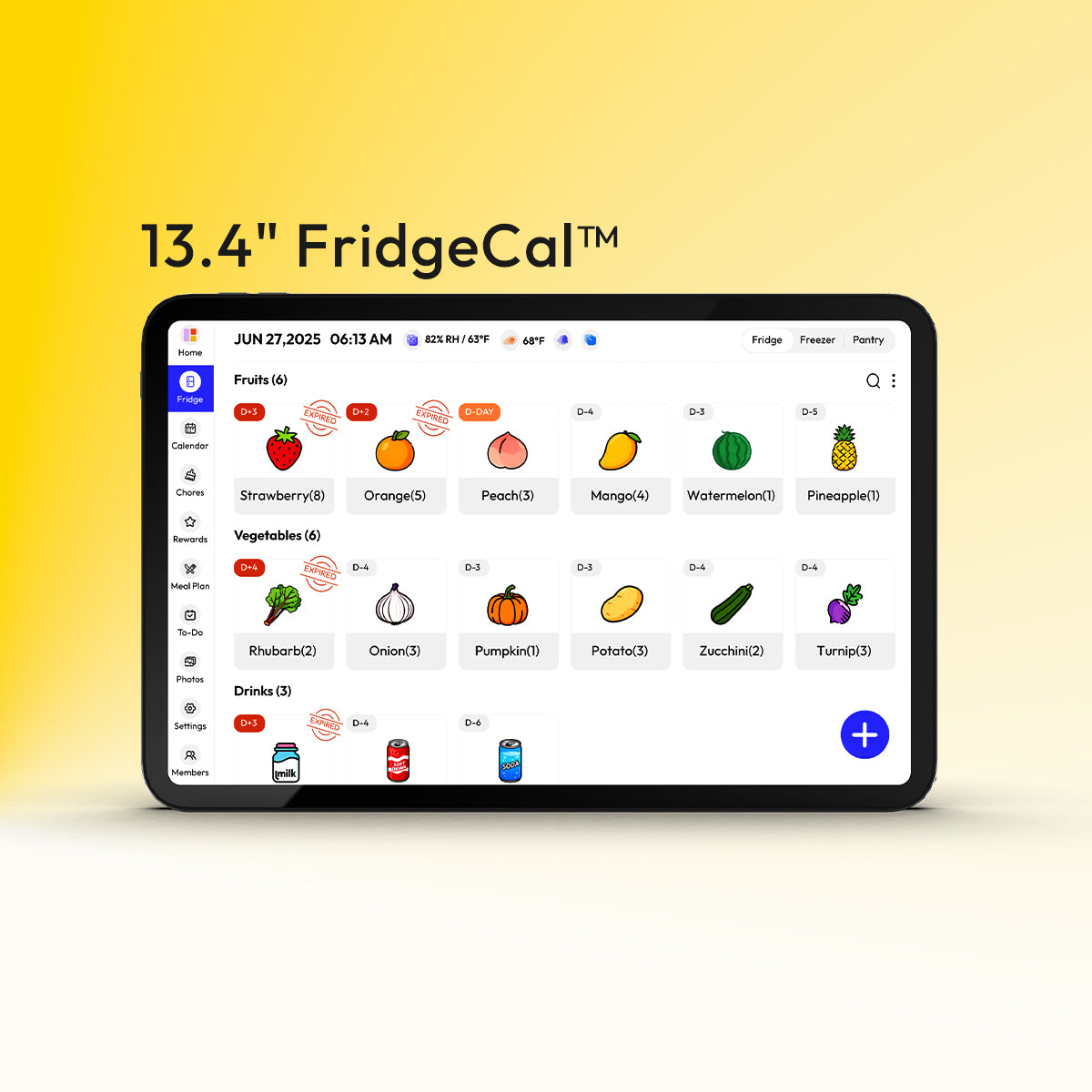

The family calendar problem rarely starts with one big mistake. It starts with tiny misses.
A dentist appointment lives in one phone. Soccer practice changed times in an email thread. A school early dismissal made it onto the paper calendar by the fridge, but not into anyone's work schedule. By Thursday, someone's double-booked, someone's late, and one parent is carrying the whole mental load.
That's why a good Google Calendar integration matters so much for family life. It takes the calendars people already use and turns them into one visible, shared system. That shift is bigger than convenience. It creates a single place everyone can trust.
From Calendar Chaos to Family Clarity
Most families aren't dealing with one calendar. They're juggling several at once. There's a work calendar, a school calendar, one for birthdays, one for sports, and usually a handful of text messages acting like unofficial scheduling tools.

In practice, that means the problem isn't just “we need a calendar.” It's “we need one place where all the right events show up, in a way everyone in the house can understand.” That's the difference between individual productivity and household visibility.
I've found that families don't need more reminders as much as they need shared context. If one child has practice across town, another has a school event, and a parent has a meeting that can't move, the useful question isn't what's on one person's calendar. It's what the whole day looks like when you combine them.
Why Google Calendar ends up at the center
Google Calendar became the default for many households for the same reason it became foundational in work settings. It's already connected to phones, email, shared invites, and everyday scheduling habits. Cronofy notes that Google is the leader in the cloud calendar market, which helps explain why Google Calendar integrations are treated as foundational for centralizing meetings and reducing manual scheduling across modern life (Cronofy on cloud calendar adoption and interoperability).
That matters at home too. When one platform already touches school notices, doctor invites, birthday reminders, and work meetings, integrating with it isn't a nice extra. It's the practical route to a household source of truth.
A family calendar works when nobody has to ask, “Wait, whose event is that?” five times a day.
What a central display changes
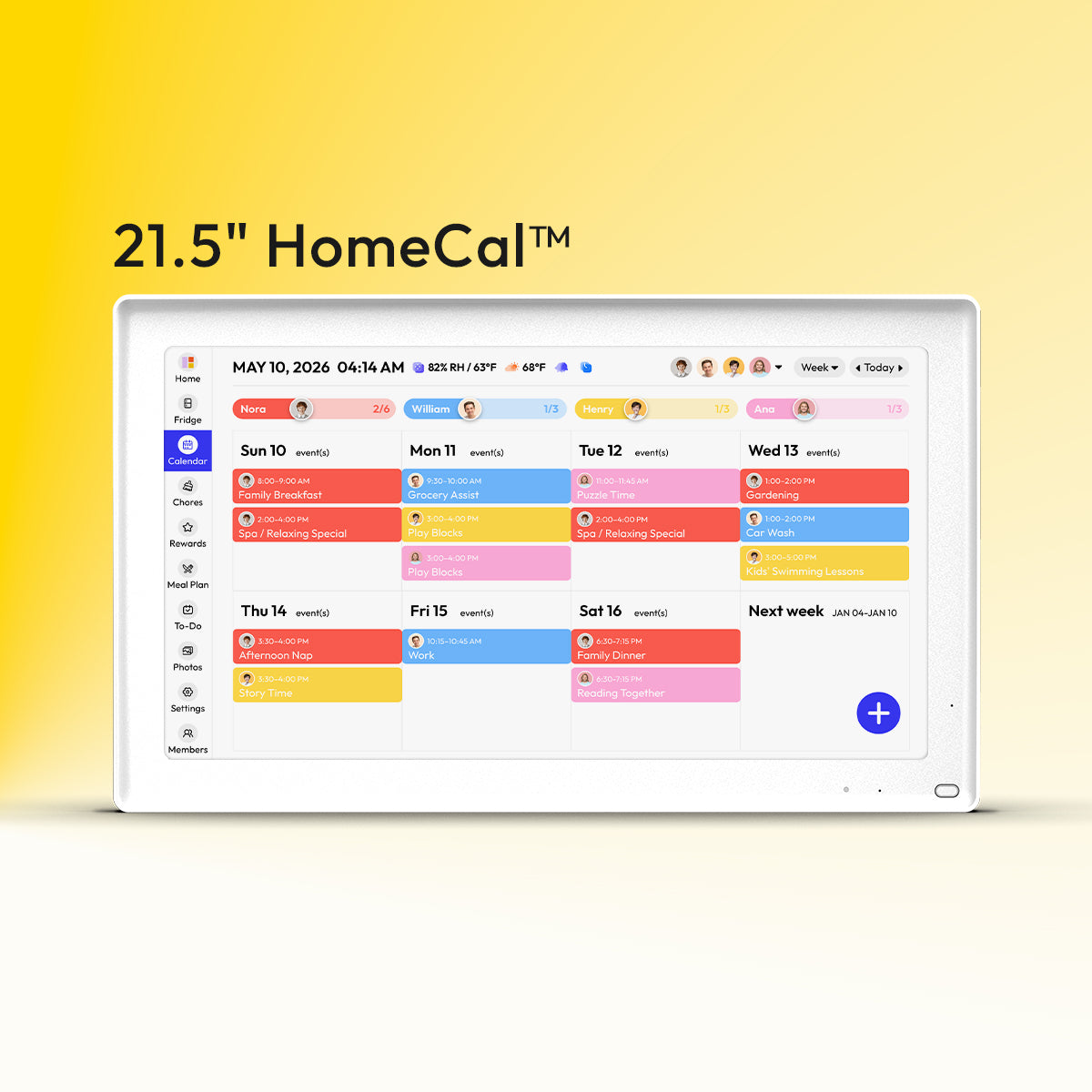
A shared display changes behavior fast. Kids start glancing at the day before asking for screens or snacks. Parents stop doing the constant verbal sync at breakfast. Co-parents get a cleaner handoff because the information is already visible.
A connected family hub earns its place. Instead of leaving schedules trapped inside individual apps, a Google Calendar integration brings them into daily view, where plans become visible enough to act on. That's how chaos starts turning into clarity.
Connecting Your Google Account The Right Way
The first connection is the part people tend to rush. That's understandable, but it's also where a lot of sync problems begin. If you connect the wrong Google account or approve permissions without understanding them, the calendar may appear to work while subtly missing the events you care about.
A better approach is to connect with intention.

Start with the account that owns the right calendars
Before you tap anything, decide which Google account should serve as the anchor. For some families, that's the parent who manages the shared family calendar. For others, it's the account that already has the kids' school and activity calendars attached.
If you're using a family display or companion app, the safest move is to connect the account that already has the best visibility. If you need a walkthrough for that process, this guide to linking Google Calendar shows the typical flow.
Here's the sequence that usually works cleanly:
- Open the calendar integration setting in the device app or dashboard.
- Choose Google Calendar as the provider.
- Sign into the intended Google account, especially if your phone is already logged into more than one.
- Review the permission screen carefully before approving.
- Pick the calendars you want displayed or synced after connection.
That last step matters more than people expect. A successful login doesn't automatically mean you've chosen the right calendars.
What the permissions actually mean
When Google asks for access, the wording can sound broader than it feels in daily use. The practical meaning is simpler.
- View your calendars means the integration can read calendar data so it can show events, dates, and availability.
- Manage your calendars means the integration can do more than display. It can support actions like creating events, updating them, or reflecting changes back into Google Calendar.
Google's Calendar developer documentation makes clear that the current API supports core actions such as reading and updating calendars, inserting events, querying availability with free/busy logic, and handling change notifications through watch channels (Google Calendar API capabilities).
Privacy check: If you only want a family screen to show what's coming up, you may prefer a limited setup. If you want to add or edit events from that system, broader permissions are necessary.
A lot of anxiety comes from assuming every permission means “full exposure of my private life.” In reality, you still control which calendars are included. A confidential work calendar can stay unselected even if the account itself is connected.
Why sign-in is only half the job
The visible login step is just the front door. A real integration also has to keep working after today. Under the hood, production-grade setups rely on OAuth authorization, token storage and refresh, read and write operations, free/busy queries, watch channels, and incremental sync handling. Unified's developer guide describes that full pipeline and notes that long-term correctness usually breaks around token refresh, recurring events, and sync state management, not the initial API call (production-grade Google Calendar integration workflow).
For a family using a finished product, you don't need to build any of that yourself. But it helps to know why a trustworthy connection feels different from a basic import.
If you want to see what the setup looks like in motion, this walkthrough helps:
One-Way vs Two-Way Sync What to Choose
This is the fork in the road that decides whether your setup becomes a household dashboard or a true scheduling tool.
One-way sync means your family display pulls events from Google Calendar and shows them. It's useful, stable, and low risk. Two-way sync means changes can move in both directions, so adding or editing an event in one place can update the other.
The simple difference
One-way works well when the screen is mainly for visibility. You want everyone to see the week, but you still want editing to happen on phones or laptops.
Two-way works better when the display is part of daily operations. If someone adds “pickup grandma at 5” from the shared hub, that event should also show up in Google Calendar on everyone's devices.
Google's API supports that broader model. A true Google Calendar integration can insert new events, update existing ones, and handle changes in real time, which turns a display into an active part of the scheduling workflow, not just a passive mirror.
Choosing Your Sync Type
| Feature | One-Way Sync (View Only) | Two-Way Sync (View & Edit) |
|---|---|---|
| Best for | Families that want a shared view of existing schedules | Families that want to manage the calendar from multiple places |
| How it feels | Like a live bulletin board | Like a shared control panel |
| Editing events | Done in Google Calendar only | Can happen on the connected system and sync back |
| Risk level | Lower, because fewer things can overwrite data | Higher, because changes can move both directions |
| Good example | Showing work, school, and sports calendars in one place | Adding chores, pickups, appointments, or family events from the hub |
What works best in real households
I usually recommend one-way sync for families in the first week. It gives everyone visibility without changing how events are managed. Once that feels normal, two-way sync starts making sense if the family wants to interact with the calendar from the shared screen.
If your household still debates where edits should happen, start with one-way. Clarity first. Convenience second.
Two-way sync is powerful, but it needs rules. Someone should decide which calendars are editable, who can create events, and whether the family hub is allowed to write into personal calendars or only into a shared family one. Without those guardrails, convenience turns into confusion fast.
A good Google Calendar integration isn't the one with the most features on paper. It's the one that matches how your family already makes decisions.
Wrangling Multiple Family Calendars
Monday falls apart fast when one parent is looking at work travel, another is checking the school app, and the family screen shows a different version of the day. The fix is not stuffing every event into one calendar. The fix is giving each calendar a job, then deciding what the whole household needs to see.

Build a calendar system, not a pile of feeds
A family setup works better when calendars serve different roles. That usually means one shared family calendar, a visible version of each parent's availability, separate calendars for kids' activities, and a few private calendars that never appear on the household display.
That structure protects attention.
A detailed work calendar packed with internal meetings rarely helps the rest of the family. A simple busy block, travel window, or “out after 3” entry often does. School events and sports schedules are different. Those affect pickups, dinner, and who needs to be where, so they belong in the shared view.
If your current setup feels noisy, this guide to managing multiple calendars for family life is a useful reference point before you add more feeds.
Decide what each calendar is allowed to do
Families usually lose clarity at this point. They connect everything, then treat every calendar the same.
A better approach is to assign one of three behaviors to each calendar:
- Mirror calendars that need to stay aligned across systems, usually the shared family calendar
- Display calendars that should be visible on the family hub but edited somewhere else, often work calendars
- Hide calendars that contain private, noisy, or low-value information for the rest of the household
That one decision cuts down a surprising amount of friction. It also helps with privacy. Kids do not need to see every work meeting title, and a family display does not need your entire personal task list to be useful.
I have found that the simplest test is this: if an event changes somebody else's plan, show it. If it only adds context for one person, keep it out of the shared layer.
Use colors to signal meaning, not personality
Color-coding only helps when everyone reads the colors the same way from across the room. Random colors look lively in the app and become useless on a kitchen display.
Group colors by function instead:
- Blue for work and professional commitments
- Green for school and kids' activities
- Orange or red for appointments and time-sensitive events
- Purple for full-family plans
- Gray for reminders that matter less in the moment
This works well in real homes because it answers the question people ask. What affects us today? Not who owns this event.
Keep the shared view readable from ten feet away
A family hub succeeds or fails on glanceability. If someone has to tap into three calendars and decode cryptic event titles, the setup is technically connected but operationally weak.
For households pulling in events from several Google accounts, I recommend reviewing the display from a distance. The family should be able to spot school pickups, late work nights, practices, and whole-family events in seconds. If they cannot, trim the feeds or simplify what gets shown.
Everblog fits this use case because it syncs family calendars from phones and presents them as a household display, which is different from a personal planning app. The goal is shared visibility. Families who want to get better at mastering your time usually benefit more from a clean shared view than from adding another private productivity system.
Best Practices for a Harmonious Schedule
A solid integration gets your calendars connected. The calm comes from the habits you build on top of it.
Most family calendar stress doesn't come from missing technology. It comes from messy event hygiene. Vague titles, missing locations, inconsistent recurring events, and last-minute edits make a shared calendar harder to trust.
Name events so other people can act on them
“Appointment” isn't helpful. “Emma dentist” is better. “Emma dentist, leave school at 2:15” is better still.
That extra detail matters because a family calendar isn't just a record. It's an instruction surface. Someone else may need to do the pickup, pack the gear, or cover dinner.
Add the next action to the event title or note. If someone else had to step in, they should know what to do without texting for context.
Useful event details often include:
- Addresses so anyone can find their way quickly
- Notes for gate codes, what to bring, or who's attending
- Meeting links for virtual school calls or telehealth appointments
- Buffer reminders when travel time matters more than the event time itself
Treat recurring events with respect
Recurring events save time, but they can also create silent confusion if nobody reviews them. Weekly trash day is fine as a repeating event. School pickup isn't, if dismissal changes on certain days or holidays interrupt the pattern.
Make recurring events earn their place:
- Use recurrence for stable routines like birthdays, weekly practices, and medication reminders.
- Avoid lazy repeats for schedules that change often.
- Check exceptions when one occurrence differs from the series.
Recurring events often behave differently than one-off events in sync systems. If one instance gets changed, make sure the family understands whether that change applies once or forever.
Create a short household calendar policy
The families who get the most value from a Google Calendar integration usually agree on a few simple rules.
Practical rhythm: Update the calendar when the plan changes, not when you remember later that night.
A lightweight policy might be:
- Work blocks that affect family logistics go on the shared view
- Kid activities get entered as soon as they're confirmed
- Medical and school events include location and prep notes
- If an event affects dinner, pickup, or bedtime, it belongs on the family calendar
These habits pair well with broader thinking about mastering your time, especially if your household calendar is carrying both logistics and routines.
A harmonious schedule isn't one where every minute is controlled. It's one where the information is clear enough that nobody has to play dispatcher all day.
Troubleshooting Common Sync Issues
The family calendar usually breaks at the worst moment. One parent is heading to pickup, another is looking at a different version of the day, and a practice that was added this morning still is not showing on the shared view. In my experience, the problem is rarely mysterious. It is usually one of four things: delay, wrong account, wrong calendar selection, or a recurring event edited the wrong way.
An event isn't showing up yet
Start with the boring checks first. They solve more problems than people expect.
If an event was added on a phone and has not appeared elsewhere, work through these in order:
- Refresh the calendar view in the app or device settings.
- Confirm the event was saved to the intended Google calendar, not a local device calendar or a different Google account.
- Check that the specific calendar is turned on inside the integration.
- Give the first sync a little time after a new connection or after adding a secondary family calendar.
For households, this matters because one missed setting can make it look like the whole family system is unreliable, when the underlying issue is that soccer lives on one calendar and school lives on another. If the problem keeps happening, this Google Calendar not syncing troubleshooting guide walks through the usual fixes in a clear order.
The wrong Google account got connected
This is one of the easiest mistakes to make, especially on shared tablets and phones loaded with work, school, and personal accounts. The login succeeds. The calendar still looks wrong.
Disconnect the integration, then reconnect with the account that owns the calendars or has permission to view them. If needed, sign out of the extra Google account during the connection flow so the right one is not hidden behind a one-tap login choice.
An oddly empty calendar often means the wrong account was authenticated, not that syncing failed.
Some calendars appear, others don't
This usually points to calendar visibility, not a broken connection.
Check three things:
- The missing calendar is enabled in the integration's calendar selection settings
- The connected account has permission to view or edit that calendar
- The calendar type matches your setup, such as shared family calendar, subscribed school calendar, or a personal calendar that should stay private
Family setups tend to be more complicated than solo productivity. A parent may have access to the school calendar but not the grandparent pickup calendar. One child's activity feed may be subscribed read-only, while another family calendar is fully editable. The integration can only show what the connected account is allowed to see.
Heavy usage can expose sync limits
Most families will never hit technical throughput limits. Still, they do exist. Google Cloud Integration Connectors documents a maximum of 2 transactions per second per node (Google Cloud connector throughput and authentication details), and requests above that can be throttled.
At home, that does not usually show up as a dramatic failure. It looks more like lag, out-of-order updates, or one device catching up later than another after a burst of changes. If you just updated three calendars before dinner, the sync layer may be the bottleneck rather than Google Calendar itself.
Recurring events look strange after edits
Recurring events cause a lot of family confusion because one small edit can change a single Tuesday or rewrite the next three months.
Open the original event and check which option was used:
- Only this event
- This and following events
- All events in the series
That choice matters more than it seems. If piano moves once for a recital week, you probably want a one-time change. If the lesson permanently shifts from 4:00 to 4:30, update the series so everyone sees the new pattern.
A shared calendar works best when it lives where the whole household can see and use it. If you want one place to pull together schedules, chores, meals, and day-to-day family logistics, Everblog is one option built around that kind of central visibility.


