
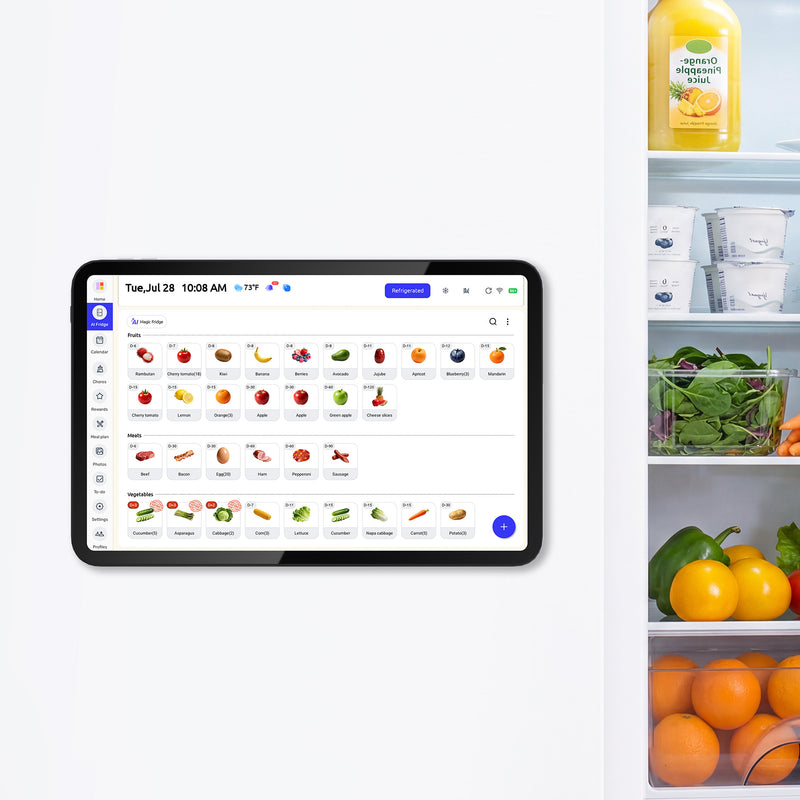
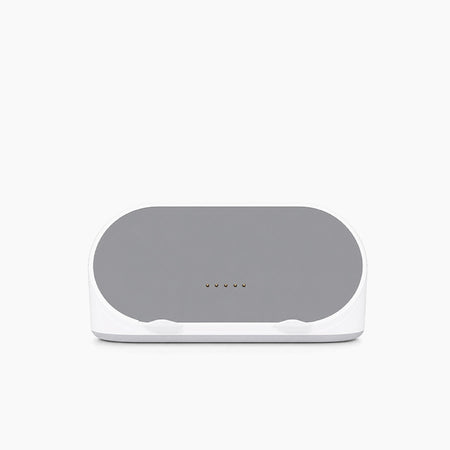
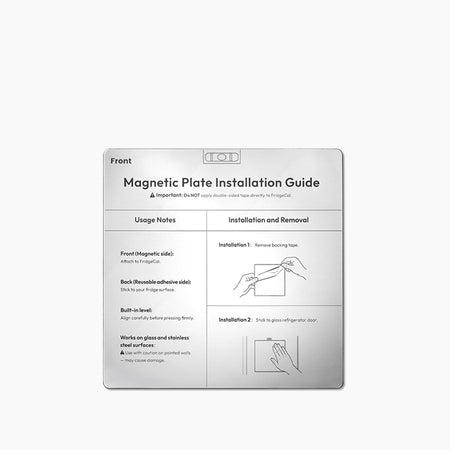
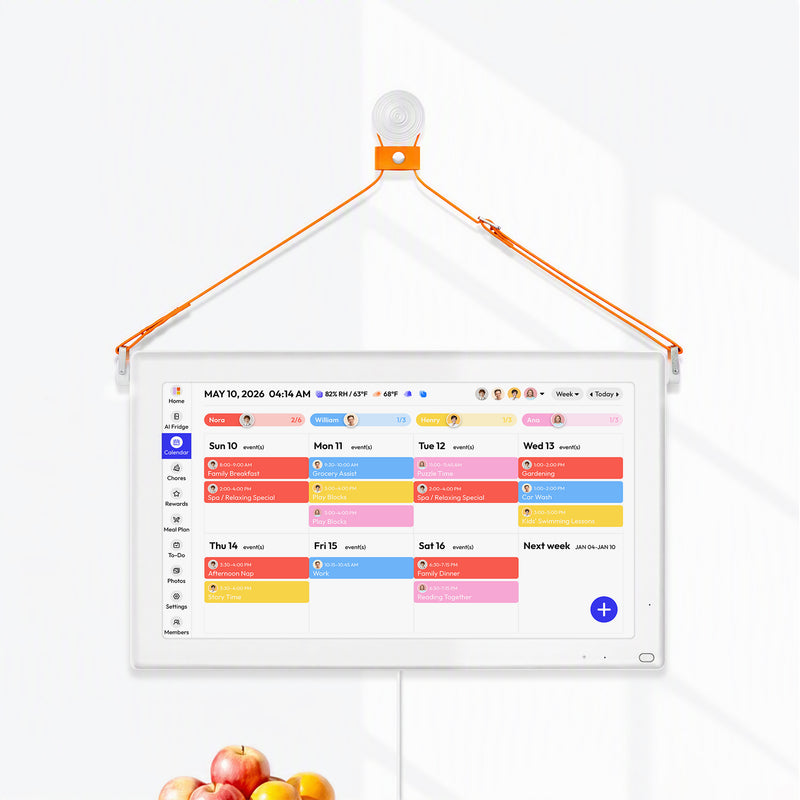

Picture this: your family’s entire schedule—from soccer practice to project deadlines and dentist appointments—all displayed in one central spot. That’s the magic of a Google Calendar wall mount, a simple setup that turns a smart display or tablet into the true organizational heart of your home.
This guide will show you exactly how to create the ultimate family command center, one that finally ends the calendar chaos.
Why a Wall Calendar Is Your Family's New Command Center

Are you tired of the constant "what are we doing this weekend?" or "who's picking up the kids?" questions? A centralized digital calendar pulls everything out of scattered phone apps and off messy paper notes. It creates a single source of truth that’s always visible, making daily planning feel more connected and way less stressful.
For busy families, a digital wall display synced with Google Calendar is a game-changer. In fact, some studies show that households using a central digital calendar can cut down on scheduling conflicts by as much as 65%. It just works.
More Than Just a Schedule
A Google Calendar wall mount quickly becomes more than just a schedule—it turns into a dynamic family hub. When you place it in a high-traffic spot like the kitchen, checking the day's events becomes a natural, effortless part of everyone's routine.
Here’s where you’ll see the biggest wins:
- Fewer Missed Appointments: Everyone sees what’s coming up, from doctor visits to parent-teacher conferences. Nothing slips through the cracks.
- Clearer Chore Assignments: You can integrate to-do lists and chore charts right on the screen, giving kids a visual reminder of their responsibilities. Our guide on building a https://everblog.com/blogs/life-with-everblog/digital-family-command-center shows exactly how to set this up.
- Better Daily Coordination: End the last-minute scramble. A quick glance tells you who's on dinner duty or what time practice ends.
A dedicated display removes the friction. Instead of having to find a phone, unlock it, and open an app, the family’s agenda becomes ambient and accessible—a seamless part of the home.
The Smart Home Foundation
For your wall calendar to work flawlessly, a solid internet connection is non-negotiable. It's the invisible backbone that keeps your calendar syncing instantly and supports all the other cool features you might add, like weather widgets or photo streams.
A slow or spotty connection just leads to frustration. This is where investing in a better home network really pays off, and it's why fiber internet for smart home upgrades is becoming so popular. At the end of the day, this simple tech upgrade is all about bringing more calm and clarity to your family's busy life.
Choosing the Right Screen for Your Wall Calendar
Alright, let's talk about the screen. This is probably the biggest decision you'll make for your wall calendar project, since it dictates the look, the features, and a big chunk of the final cost.
You’re looking at three main options: a dedicated digital calendar like an Everblog, a smart display like the Google Nest Hub, or just repurposing an old tablet. There’s no single "best" choice here—what works for a tech-savvy couple might not be right for a busy family with young kids. It all comes down to your budget and what you really need this hub to do.
Dedicated Digital Calendars: The All-in-One Solution
Dedicated devices are built from the ground up to be a family command center. Think of them as the "plug-and-play" route. Brands like Everblog build these with huge, easy-to-read screens (often 21.5 inches or more) and software designed specifically for organizing a household. Calendars, chore charts, meal plans—it’s all baked right in.
The biggest win here is simplicity. You unbox it, hang it on the wall, and connect your Google Calendar. You don't have to mess around with special apps or figure out a "kiosk mode." This makes them a fantastic choice for anyone who just wants a solution that works, right out of the box. The trade-off? A higher price tag and, for some brands, a subscription fee to unlock all the features.
Smart Displays: The Versatile Hub
A smart display like a Google Nest Hub or Amazon Echo Show 15 is a great middle-of-the-road option. They’re fantastic for showing your Google Calendar, and the built-in voice assistant is a game-changer when your hands are full. "Hey Google, add a dentist appointment for Tuesday at 3 PM" is something you'll get used to fast.
These devices are also incredibly versatile. They can be a digital photo frame, a control panel for your smart lights, and a kitchen helper for recipes or music. The only real downside is that the calendar is just one of many apps, so the display might not feel as focused or be as customizable as a dedicated device.
Repurposed Tablets: The DIY Custom Project
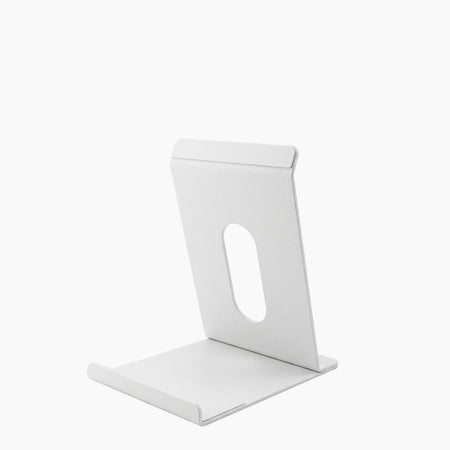
Got an old iPad or Fire Tablet gathering dust in a drawer? This is your most budget-friendly and customizable path. With the right app, like Dakboard or Mango Display, and a solid wall mount, you can turn that old tech into a surprisingly powerful calendar screen.
This is the perfect route for anyone who loves to tinker. You get total control over the layout, the widgets, and exactly how everything looks. But it definitely requires more elbow grease. You’ll have to find the right software, configure it to stay on 24/7, and come up with a clean way to manage the charging cable.
The market for these DIY setups has exploded in recent years, especially as more people work from home. Back in 2020, a Consumer Reports review noted that global shipments for smart displays used as calendars were projected to hit 4.2 million units by 2025—a 210% jump. We’ve definitely seen that trend play out. You can read more about the digital calendar trend on ConsumerReports.org.
Pro Tip: If you go the tablet route, use a smart plug to schedule charging. Cycling the battery between 20% and 80% each day can dramatically extend its lifespan compared to just leaving it plugged in all the time.
To help you sort through it all, I've put together a quick comparison of the three main options.
Device Comparison for Your Google Calendar Wall Mount
Deciding between a dedicated device, a smart display, or a tablet you already own can feel tricky. Each has its own strengths and weaknesses depending on your budget, how much setup you're willing to do, and what you want your family hub to accomplish.
This table breaks down the key differences to help you find the perfect fit.
| Device Type | Best For | Pros | Cons | Average Cost |
|---|---|---|---|---|
| Dedicated Calendar | Families wanting a simple, all-in-one solution. | Large screen, family-focused software, easy setup. | Higher cost, may require a subscription. | $300 - $700 |
| Smart Display | Households wanting a multi-purpose device. | Voice control, smart home integration, versatile. | Smaller screen, less calendar customization. | $100 - $300 |
| Repurposed Tablet | DIY-ers on a budget who want full control. | Low cost (if you own one), highly customizable. | Requires more setup, smaller screen, cable management. | $0 - $150 + mount |
Ultimately, a dedicated calendar offers the most streamlined experience, a smart display gives you the most versatility, and a repurposed tablet provides the most customization for the lowest cost. There's no wrong answer—just the one that's right for your home.
A slick, built-in family hub looks a whole lot different than a tablet dangling from a cord. The secret to getting that professional, truly integrated feel for your Google Calendar display all comes down to the installation. It’s not just about hiding wires—it's about smart placement and the right hardware.
First things first, where is this thing going to live? The best spots are high-traffic areas where the family naturally congregates, like the kitchen command center or a main entryway. You’ll want to aim for eye level, which is generally around 57 to 60 inches from the floor to the screen's center. This hits the sweet spot where it’s comfortable for most adults to see at a glance and still low enough for kids to interact with.
Choosing Your Mounting Method
Once you’ve scouted the perfect location, you need to decide how you’re going to hang the display. This really depends on your wall type, your device, and whether you're cool with drilling holes.
- Fixed Wall Mounts: For that permanent, picture-frame look, a fixed mount is your best bet. They keep the display snug against the wall for a super sleek finish. You’d be surprised how slim the mounts designed for tablets and smart displays can be.
- No-Drill Solutions: If you’re renting or just can't bring yourself to drill into your walls, don’t worry. Heavy-duty adhesive strips (like the Command Strips made for hanging pictures) can absolutely work for lighter tablets. Just be sure to check the weight capacity, and then add a safety buffer. I always recommend using strips rated for at least twice your device's weight. It's worth it for the peace of mind.
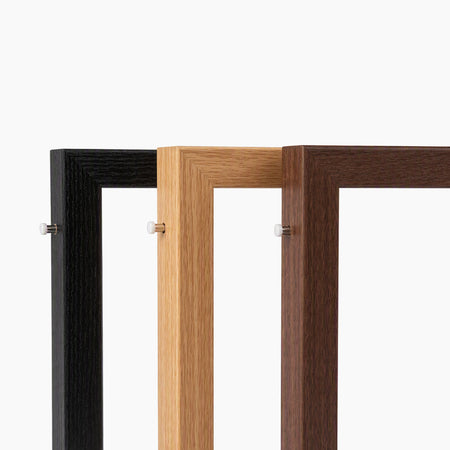
- Standoff Mounts: Want something with a more modern, floating vibe? You might want to look into specialized standoff wall mount systems, which can give your display a really polished, high-end appearance.
My Personal Tip: Before you touch a drill, grab some painter's tape and mark out the screen’s dimensions on the wall. Leave it there for a day or two. This simple little test is a lifesaver for spotting things you wouldn't notice otherwise, like annoying glare from a window or an awkward viewing angle when you're sitting at the kitchen table.
Vanishing Wires Cable Management
Nothing screams "DIY project" like a stray power cord snaking down the wall. Hiding that cable is non-negotiable if you want a clean, built-in result.

This decision tree helps you think through the right screen for your needs, from a dedicated calendar to a repurposed tablet. If you're going for a large, easy-to-read display, screens around 21.5 inches are fantastic for at-a-glance visibility from about 10 feet away.
Here are the two best ways to make those pesky cables disappear:
- Paintable Cord Covers (Raceways): This is the easiest route. These are basically plastic channels with an adhesive back that you stick right on your wall. Tuck the cable inside, snap the cover on, and paint it to match your wall color. The cord becomes practically invisible.
- In-Wall Power Kits: If you’re after a truly seamless look with zero visible cords, this is the way to go. An in-wall kit lets you install a recessed outlet right behind your display. It’s definitely more involved and requires some comfort with basic electrical work, but the final look is completely cordless and professional. We cover some similar concepts in our guide to whiteboard mounting hardware if you want to get a better sense of what's involved.
Getting the Software Right for a Flawless Calendar Display
With your screen mounted securely on the wall, it’s time to make it smart. The software is what turns a piece of hardware into a living, breathing family organization hub. How you tackle this depends entirely on whether you went with a purpose-built smart display or a DIY tablet setup.
For something like a Google Nest Hub, the process is refreshingly simple. These devices are literally made to work with your Google account. You just link your calendar in the Google Home app and set it to show up as part of the ambient display, sometimes called Photo Frame mode.
That means whenever the screen is idle, it will cycle between your favorite family photos and a clean, at-a-glance view of your day. It’s a clean, baked-in feature that gets you 80% of the way there with almost zero effort.
Unlocking a Tablet's True Potential
If you're using a tablet, you’re starting with a blank canvas—and that’s where the real power lies. Sure, you could just run the stock calendar app, but it’s not designed for a 24/7 wall display and tends to look pretty basic. For that polished, professional look, you'll want to use a dedicated dashboard app.
These apps are built specifically to pull your Google Calendar events into beautiful, highly customizable layouts that look incredible on a wall.
- Dakboard: A long-time favorite in the DIY community, Dakboard gives you a ton of control. You can layer multiple calendars, add weather forecasts, pull in news headlines, and even show data from your other smart home gadgets.
- Mango Display: Similar to Dakboard, Mango Display is another fantastic choice for turning any screen into a slick, custom information hub. It’s known for its modern templates and easy setup.
These are the tools that will make your repurposed tablet look every bit as good—if not better—than a dedicated digital calendar that costs hundreds more.
Essential Settings for an Always-On Display
Just getting the app running is step one. To make it behave like a true wall-mounted calendar, you need to tweak a few critical settings.
First, look for a feature often called kiosk mode. This is a non-negotiable. It locks the tablet into your chosen calendar app, so nobody (especially kids) can accidentally close it or start browsing YouTube. It also ensures the app automatically relaunches if the tablet ever reboots from a power flicker.
Next, you absolutely need to set up an automatic brightness schedule. You don't want a screen glowing like the sun at 3 AM. A good dashboard app will let you set a schedule—for example, 100% brightness from 7 AM to 10 PM, dropping to 20% brightness overnight. It saves a little power, but more importantly, it keeps the screen from becoming a nuisance. You can also dive deeper into how to sync with Google Calendar for even more advanced scheduling tricks.
By layering multiple calendars, you create a single source of truth. Color-code your work schedule in blue, your partner’s in green, the kids’ activities in orange, and shared family events in red. This visual separation makes a complex week instantly understandable with just a quick glance.
The demand for these setups has exploded. Recent sales data shows that Google Calendar-compatible wall mounts now make up 28% of all smart home calendar sales. That’s a huge leap from just 12% a few years back. It’s clear that families are looking for central, always-visible ways to manage their chaotic schedules. You can read more about why this trend is taking off and how it helps families over at HearthDisplay.com.
Turning Your Calendar Into the Family Command Center

Getting your Google Calendar up on the wall is a great start. But making it the true command center of your home? That’s where the magic really happens. This is the point where the display stops being just a schedule and becomes so woven into your family's daily rhythm that you can't imagine life without it.
One of the biggest leaps forward is voice entry. If your device has it, this feature is a total game-changer for busy parents. You’re in the middle of making dinner and suddenly remember the parent-teacher conference. Instead of stopping, drying your hands, and fumbling for your phone, you just call out, "Hey Google, add a parent-teacher conference for next Tuesday at 4 PM." Done.
This hands-free convenience is incredibly powerful. By mid-2025, its adoption in homeschooling households across Australia and Canada had already hit 44%. Why? Because voice entry slashed the time it took to add events by a massive 70% compared to typing on a phone. You can find more insights on digital calendar trends at ConsumerReports.org.
Go Beyond Just the Schedule
To really cement the wall mount as your family's hub, you need to add widgets that bring more than just appointments to the screen. These small additions provide context for the day and pull together information that's usually scattered across half a dozen different apps.
- Live Weather Forecasts: A quick glance tells you whether to grab an umbrella or remind the kids they need a jacket. No more surprises.
- Shared Grocery Lists: Anyone in the house can add an item the moment they notice it's running low. The list is always live and collaborative.
- Weekly Meal Plans: Putting the meal plan on display finally ends the daily "what's for dinner?" chorus and makes evenings run a whole lot smoother.
When you integrate these extra functions, you’re no longer just displaying a schedule. You’re building a central information point the whole family will naturally turn to all day long. It stops being "mom's calendar" and becomes "our family's hub."
Get the Kids Onboard
For families with children, a wall-mounted calendar can also be an amazing tool for teaching responsibility and providing motivation. Many dedicated calendar devices and third-party apps let you build digital chore charts and reward systems right onto the main screen.
Imagine a system where your kids can see their tasks for the day, like "make bed" or "feed the dog." As they finish each one, they get to check it off and see their progress toward a weekly reward or allowance. That visual feedback is so much more effective than just nagging them. It gives them a real sense of ownership and turns helping out around the house into something positive and interactive.
Common Questions (and Answers) About Your Wall-Mounted Calendar
As you start planning your new family command center, a few practical questions are bound to pop up. From power costs to battery safety, let's walk through the common concerns that come with setting up a Google Calendar wall display.
How Much Electricity Will This Thing Use?
This is a great question, and the answer is surprisingly little. A modern tablet or smart display running 24/7 typically adds just $1 to $3 per month to your electricity bill. It’s a pretty small price for a lot of organization.
To keep that cost even lower, a smart brightness schedule is your best friend. Most displays and third-party apps let you automatically dim the screen overnight. This cuts down on energy use while you sleep and stops a bright light from waking up the house.
Can I See Both My Work and Family Calendars?
Absolutely. This is one of the biggest wins of using Google Calendar as the brain of your display. You can easily share calendars from different Google accounts and layer them all onto a single screen.
The key to keeping it all straight is color-coding. For example:
- Red: Shared family appointments (school plays, dentist visits)
- Blue: Your work schedule
- Green: Your partner's work schedule
- Orange: The kids' soccer practice
This visual system makes it instantly clear who needs to be where, turning a potentially chaotic schedule into something you can read at a glance.
Is It Safe to Leave a Tablet Plugged in 24/7?
This is a common and totally valid concern, especially if you’re repurposing an older tablet. While modern devices have built-in protections against overcharging, keeping a lithium-ion battery at 100% all the time can degrade its health over the long run.
An easy and effective fix is to use an inexpensive smart plug. You can schedule it to cut the power for a few hours each night, letting the battery discharge a bit before charging back up in the morning. This simple cycle helps preserve the battery's lifespan and adds an extra layer of safety.
What Happens if the WiFi Goes Out?
Don't worry—your schedule won't just vanish. Most devices and calendar apps are designed to handle temporary internet outages without a fuss.
The display will simply show the last synced version of your calendar, so you can still see all your appointments. Once your WiFi comes back online, the device will automatically reconnect and pull in any new events that were added. You won’t miss a beat.
Ready to create a central hub that finally gets your family in sync? The Everblog digital calendar combines a beautiful 21.5-inch display with powerful, family-focused software to manage schedules, chores, and meal plans all in one place. Discover how Everblog can bring calm and clarity to your home.


