

You don’t notice calendar fragmentation when everyone’s week is calm. You notice it when one parent adds a dentist appointment in Apple Calendar, the other checks Google Calendar, and nobody realizes the same afternoon already has piano, pickup, and a work call. That’s usually when people ask the practical question behind the technical one: how do you sync iCal with Google Calendar without making the family schedule even messier?
The short answer is that you have two real options. You can subscribe to an iCloud calendar inside Google Calendar for simple, view-only access, or you can connect a Google account directly on Apple devices for ongoing two-way editing. Which one works depends less on the app and more on how your household coordinates. If one person mainly needs visibility, the lighter method is often enough. If multiple adults need to add and change events all week, a read-only setup usually becomes frustrating fast.
Why Syncing Your Apple and Google Calendars Is Essential
A lot of families aren’t choosing between Apple and Google. They’re living with both.
One parent uses an iPhone and the built-in Apple Calendar app because it’s already there. The other lives in Gmail, Google Calendar, and Android. Kids’ school reminders might land in one system, sports schedules in another, and work travel in a third. The result isn’t just inconvenience. It’s a household where everyone thinks they’re looking at the calendar, but nobody is looking at the same one.

Apple’s native integration has been around since iOS 5 in 2011, and one verified summary notes that it allows over 2.5 billion active Google accounts to merge schedules through built-in support. That same verified data also states that synced calendars can cut scheduling errors by 40% in households with two or more children (Apple Communities discussion). Those numbers line up with what organized families already know from experience. Shared visibility lowers avoidable mistakes.
What syncing actually solves
Calendar sync doesn’t make a family less busy. It makes the busyness visible.
That matters because family logistics usually fail in ordinary moments:
- One parent reschedules pickup but the other never sees the update
- A school event gets added twice because each person enters it separately
- A grandparent needs the schedule but shouldn’t be editing it
- A blended household shares kid logistics across different phones and accounts
Practical rule: If two adults are making decisions from two different calendar views, the problem isn’t memory. It’s system design.
A synced setup also reduces app switching. That sounds small until you’re checking three apps in a parking lot trying to figure out whether practice starts at 5:00 or 5:30. If your broader workflow includes task and scheduling systems at work too, this roundup of productivity tools for teams is useful because the same principle applies at home. Shared context beats scattered updates.
One schedule, different levels of access
Not every family needs the same kind of sync. Some need a view-only mirror. Others need full collaboration where edits made on one side show up on the other.
That distinction matters more than most setup guides admit. If you choose the wrong method, the sync technically works, but the household still feels disorganized.
One-Way vs Two-Way Sync Which Method Is Right for You
The easiest mistake is treating all calendar syncing like it does the same job. It doesn’t.
A one-way sync is a subscription. Google Calendar can display events from an iCloud calendar, but the Apple side remains the source of truth. A two-way sync is an account integration. Events can be created, edited, and managed across the connected systems without constantly bouncing between apps.

Think in family scenarios, not app features
A one-way setup works well when someone mostly needs awareness.
For example, if grandparents want to see the kids’ activities, or if one parent wants the family calendar visible inside Google Calendar alongside work meetings, a subscription can be perfectly adequate. The key is accepting that they’re seeing the calendar, not managing it.
Two-way sync is for active coordination. Co-parents, blended households, and families with constant schedule changes usually need this. If both adults add dentist appointments, move practices, and update school events from their own devices, view-only access becomes a bottleneck.
One-way sync is like pinning a copy of the family calendar on the fridge. Two-way sync is like giving everyone access to write on it.
Choosing Your Sync Method One-Way vs. Two-Way
| Feature | One-Way Sync (Subscribe) | Two-Way Sync (Integrate) |
|---|---|---|
| Can you view events in Google Calendar | Yes | Yes |
| Can you edit from both sides | No. Source calendar controls changes | Yes. Edits can flow across connected accounts |
| Best for | Grandparents, read-only family visibility, low-risk sharing | Co-parents, shared planning, ongoing household coordination |
| Setup style | Generate an iCloud public link and subscribe in Google | Add Google account on iPhone, iPad, or Mac |
| Risk of accidental edits | Lower, because the subscribed copy is view-only | Higher if too many calendars are enabled without a plan |
| How it feels in daily life | Good for reference | Good for collaboration |
What usually works best
Use one-way sync when your goal is visibility without editing.
Choose two-way sync when your goal is shared ownership of the schedule.
A practical rule helps here:
- Pick one-way if one person says, “I just need to see it.”
- Pick two-way if two people say, “I need to update it.”
If you’re still unsure, look at who changes events most often. Families don’t need maximum technical sophistication. They need the least complicated setup that still matches real life.
How to Set Up a One-Way Sync from iCloud to Google
If your main goal is to see Apple Calendar events inside Google Calendar, this is the cleanest path. It’s not collaborative, but it’s straightforward and often enough for families who want one person’s iCloud schedule visible in a shared Google view.

Verified guidance for this method says the public subscription option has existed since iCloud launched in 2011, gives view-only access, and often updates with delays ranging from 10 to 15 minutes to several hours. The same verified data also notes that blended Apple-Android households have risen by 35% since 2020 (YouTube walkthrough reference). That explains why this setup keeps coming up in real households. Mixed-device families need something simple.
Step-by-step setup
- Go to iCloud.com and open Calendar.
- Find the specific calendar you want to share in the sidebar.
- Click the share icon next to that calendar.
- Turn on Public Calendar.
- Copy the generated webcal:// link.
- Open Google Calendar in your browser.
- In the left sidebar, find Other calendars and click the +.
- Choose From URL.
- Paste the iCloud calendar link and add it.
Important: This creates a subscribed calendar in Google Calendar. You’ll see events there, but you won’t be able to reliably edit those iCloud events from the Google side.
What read-only means in daily use
This part matters because people often assume “synced” means “fully shared.”
With this setup, the original iCloud calendar still controls the data. If you add or move an event in Apple Calendar, Google Calendar will eventually reflect that change. If you try to manage that same event from Google, you’ll hit the limits of the subscription model.
That makes one-way sync a good fit for situations like these:
- Family oversight: One parent wants the Apple-based school calendar visible next to work events in Google.
- Low-risk sharing: You want relatives to see the schedule without changing anything.
- Single owner calendar: One person manages the calendar and others only reference it.
If you’re also trying to manage how that Apple calendar gets shared more broadly, this guide on sharing an iCloud calendar with family members fills in the Apple-side setup details.
What to expect after setup
Don’t expect instant updates every time.
A one-way subscription is convenient because it avoids extra tools, but it’s slower than a true account integration. If a new event doesn’t appear immediately, that doesn’t always mean the setup failed. In practice, patience is part of this method.
Treat one-way sync as a reliable display method, not a live collaboration system.
That expectation alone prevents a lot of unnecessary troubleshooting.
Creating a Two-Way Sync for Full Calendar Integration
For busy families, this is usually the setup that feels closest to “finally, everything is in one place.” Instead of publishing a calendar link and hoping updates show up later, you connect your Google account directly on Apple devices so the Apple Calendar app can work with Google calendars natively.

The verified data here is strong. Native Google account integration on iOS and macOS has a success rate above 95% when set up correctly, changes can propagate in under 5 minutes, duplicate events show up in about 15% of cases when too many calendars are over-synced, and app-specific passwords can resolve up to 30% of initial setup failures for accounts using 2-Step Verification (Google Calendar help reference for iOS).
Why this method works better for co-parents
This isn’t really about Apple versus Google. It’s about whether both adults can trust what they’re seeing and editing.
In a practical family setup, two-way sync means one parent can add a pediatrician appointment on an iPhone, the other can see it in Google Calendar, and future changes don’t depend on somebody remembering to re-enter the same event somewhere else. That’s what makes this the stronger method for households with frequent schedule changes.
On iPhone and iPad
On iPhone or iPad, the path is built right into Settings.
- Open Settings
- Tap Calendar
- Tap Accounts
- Choose Add Account
- Select Google
- Sign in with your Google account
- Turn Calendars on
After that, open the Apple Calendar app and make sure the Google calendars you want are visible.
A few practical notes help:
- Use the right Google account: Families often have a personal Gmail, a school account, and sometimes a shared household account. Add the one that holds the schedule you need.
- Be selective: Don’t enable every calendar automatically if you don’t need all of them. That’s one of the easiest ways to create clutter and duplicates.
- Check 2-Step Verification: If sign-in keeps failing, an app-specific password may solve it for Google accounts with extra security enabled.
On Mac
Mac setup follows the same idea, but the menus live in a different place.
- Open System Settings
- Go to Internet Accounts
- Click Add Account
- Choose Google
- Sign in
- Enable Calendars
Once connected, Apple Calendar on macOS can display and edit the synced Google calendars. If you want a device-focused walkthrough for the Apple side, this guide to syncing iPhone calendar settings is a useful companion.
A short visual walkthrough can make the account-add flow easier to spot on screen:
What to do right after setup
The setup isn’t finished when the account appears. It’s finished when you confirm the calendars behave the way your family needs.
Use this quick check:
- Create one test event on your iPhone in the Google calendar you intend to use.
- Open Google Calendar on the web and confirm it appears.
- Edit that same event from the Google side.
- Return to Apple Calendar and make sure the change shows there too.
Household rule: Pick one or two calendars that actually matter. “Family,” “School,” and maybe “Sports” are enough for most homes. Too many active calendars create more noise than clarity.
Where families run into trouble
Most problems aren’t technical failures. They’re setup sprawl.
People connect a Google account, leave every calendar enabled, subscribe to the same calendar another way, and then wonder why they see duplicates or conflicting entries. Others sign into the wrong Google account entirely and think sync is broken when they’re only looking at a different calendar list.
If your goal is full collaboration, keep the structure simple. Decide which calendars are shared, who edits them, and which app each person prefers to use. Once that’s settled, the tech usually behaves.
Common Sync Issues and How to Fix Them
Calendar sync problems are annoying because they rarely fail in dramatic ways. More often, they fail subtly. An event doesn’t appear. A change takes too long. A duplicate shows up and nobody knows which one to trust.
Verified setup guidance notes that 40% of users mistake ordinary one-way sync delay for failure, and that 20% to 30% of initial failures come from URL formatting mistakes or trying to subscribe to a private calendar link (Contactzilla sync guide). Those are fixable problems.
Events aren’t showing up
Start with the simplest checks first.
- Confirm the correct calendar is visible: In Google Calendar, make sure the subscribed or connected calendar is checked in the sidebar.
- Verify the source calendar: If you used the one-way URL method, confirm the Apple calendar was set to public before you copied the link.
- Check the account: For two-way sync, look at which Google account is signed in on the Apple device. Families often use the wrong one by accident.
If nothing appears after setup, wait a bit before rebuilding everything. Delay is normal with subscriptions.
The sync feels slow
This is the most common frustration with one-way setups.
A public iCloud subscription isn’t meant to behave like instant messaging. If speed matters because both adults are actively changing plans, that’s usually the sign you chose the wrong sync model for the job. A connected Google account is better for active family scheduling.
If you’re troubleshooting broader lag or missing updates across Google Calendar itself, this guide on fixing Google Calendar sync problems covers the usual checks.
Slow updates don’t always mean broken sync. They often mean the calendar is subscribed, not integrated.
Duplicate events keep appearing
Duplicates usually come from overlap, not corruption.
Common causes include:
- You subscribed to a calendar and also connected the same Google account
- Multiple family members imported or shared the same schedule in different ways
- Too many mirrored calendars are turned on at once
The fix is usually to remove the extra path. Decide which calendar is the source of truth, then turn off duplicate views one by one until only the intended version remains.
Google sign-in or security errors
When Google authentication fails on Apple devices, 2-Step Verification is often involved.
If your Google account uses extra security, create and use an app-specific password when required. That step resolves a lot of setup friction. It’s especially common in households where the account owner tightened security long ago and forgot that normal sign-in may not work the same way in device settings.
From Phone Screens to a Central Family Hub
Syncing Apple and Google calendars solves a real problem. It gets everyone onto the same schedule.
But even a well-synced schedule can still be trapped on personal devices. One parent sees it on a phone. The other sees it on a laptop. Kids don’t see it unless someone tells them. A shared family system still depends on somebody opening an app, checking details, and repeating the plan out loud.
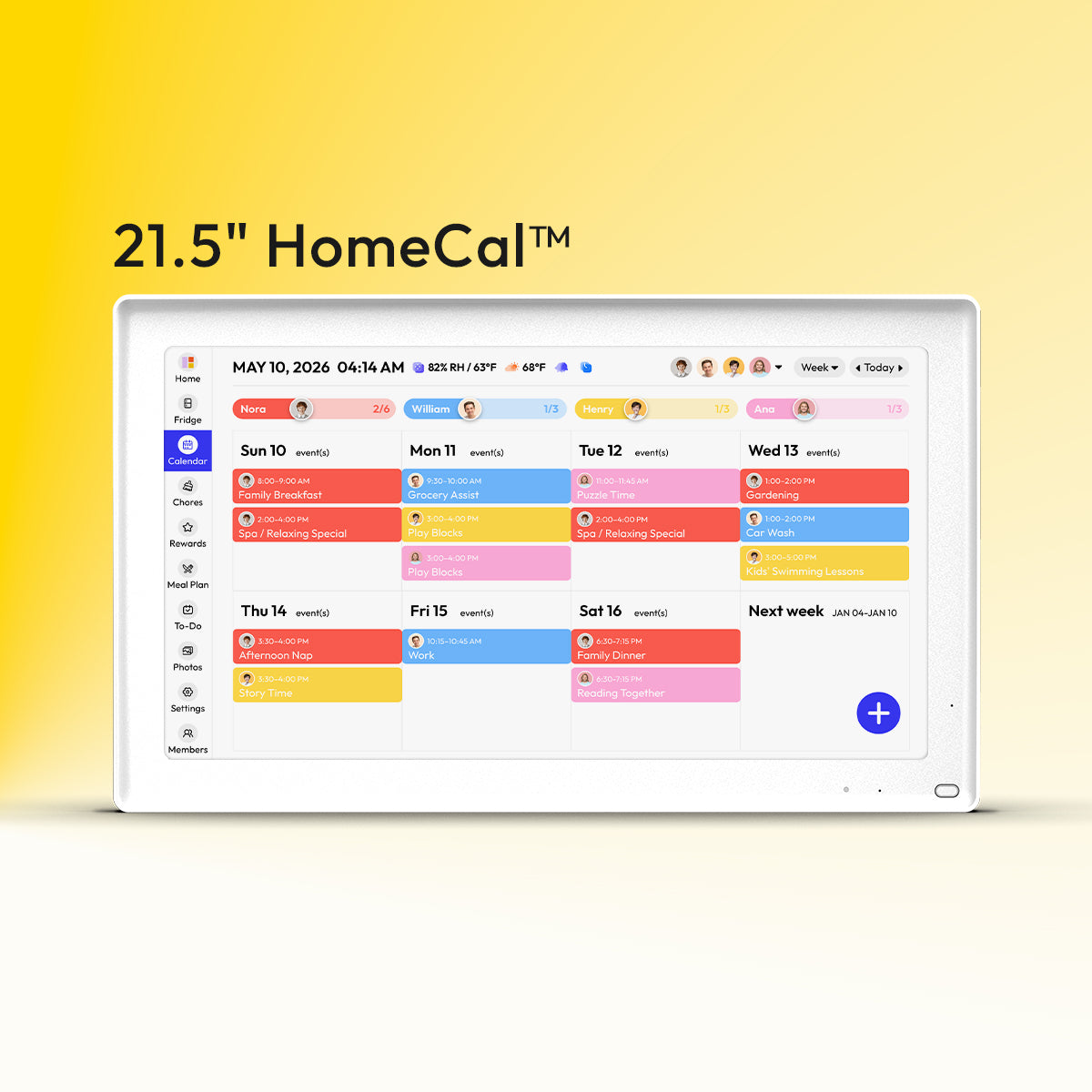
That’s where a central display changes the experience. Instead of the calendar living inside separate pockets and tabs, it becomes part of the home itself. The value isn’t just technical integration. It’s everyday visibility. School pickup, sports, meals, chores, and appointments stop feeling like private information and start functioning like a shared household rhythm.
A synced calendar also becomes more useful when it supports the other moving parts around it. Families rarely manage time in isolation. They’re also tracking dinner plans, shopping needs, responsibilities, and routines. When all of that sits near the calendar, fewer details slip through the cracks.
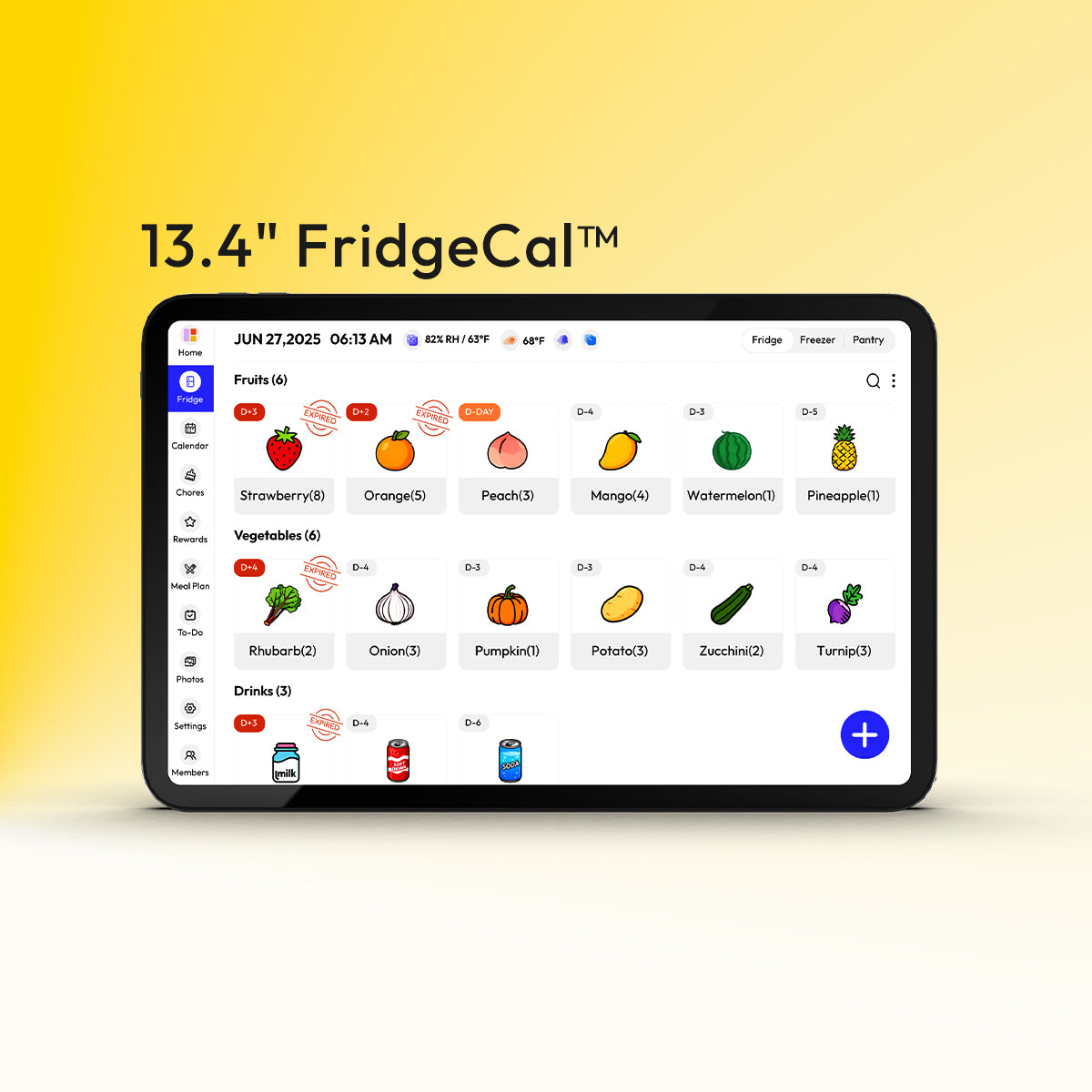
One practical option in that category is Everblog, a 21.5-inch digital family wall calendar designed to bring schedules, chores, meals, and media into a single shared hub. In a home that already has Apple and Google calendars cooperating, a central display makes that unified schedule visible to everyone instead of leaving it buried in personal apps.
The bigger point is simple. Syncing answers the question, “How do you get iCal and Google Calendar to work together?” A household hub answers the next one, which is, “How do you make that shared schedule usable for the whole family every day?”
If you want your newly synced calendar somewhere the whole household can see and use, take a look at Everblog. It gives families a shared display for calendars, chores, meal plans, grocery lists, and photos, so the schedule doesn’t stay trapped on individual phones.


