


The kids are on the couch. One wants to watch a movie. Another wants to show a school video. You've got everything on the tablet, but everyone is squinting at a screen that feels too small for the moment.
That's usually when individuals seeking guidance on how to hook tablet to TV get buried in messy advice. One guide says to mirror. Another says to cast. A third tells you to buy a cable without first helping you figure out whether your tablet can even use it.
Most families don't need more tech jargon. They need the fastest route to the big screen, with the least chance of buying the wrong adapter or wasting twenty minutes in TV menus while everyone gets impatient.
Some situations call for wireless because it's quick and tidy. Others call for a cable because movie night is less fun when the Wi‑Fi stutters. If you're also building a more flexible family media setup, a smart portable TV option for shared spaces can make those casual tablet-to-TV moments easier in bedrooms, kitchens, or playrooms.
From Small Screen to Family Movie Night
A tablet is great for solo watching. It's not great when three people are leaning over it, someone keeps blocking the subtitles, and the room keeps asking, “Can you make it bigger?”
That's where connecting the tablet to the TV changes the feel of the whole evening. Home videos become something grandparents can enjoy. A child's class presentation looks more like a real event. A movie stops feeling improvised and starts feeling like movie night.
There isn't one best method for every family moment. Wireless works well when speed and convenience matter most. If you want to throw vacation photos onto the TV after dinner, casting is often the easiest path. Wired works best when you want stability. If the Wi‑Fi has been moody all week, a cable is usually the calmer choice.
Practical rule: Pick the method based on the moment, not the device alone.
That's the part many guides miss. They focus on what's possible in theory. At home, the better question is simpler. Do you need quick sharing, or do you need dependable playback?
A lot of frustration disappears once you make that decision first. Then you only need to check whether your tablet supports the method you want.
First Check Your Gear What You Have and Need
Before you buy anything, spend two minutes looking at the actual tablet and TV. This is the step that saves the most frustration.
Most failed setups come down to compatibility, not effort. Mainstream consumer guidance has pointed out that real-world success depends on whether the tablet has USB-C video output, a mini-HDMI port, or only wireless casting support, so it's smart to check the port size, adapter type, and feature support before buying hardware, as noted in Coolblue's compatibility-focused tablet-to-screen guide.

Look at the tablet first
Turn the tablet so you can see the charging port.
Here's the simple version:
- USB-C: Small oval port. Many newer tablets use this.
- Lightning: Found on older iPads and some iPad models from earlier generations.
- Micro-USB: Smaller, older Android-style port that isn't as common on current tablets.
- Mini-HDMI: Less common, but some older tablets may have it.
If you know the tablet brand and model, that helps. If you don't, the port shape still gives you a strong starting point.
Then check the TV
Most TVs still use full-size HDMI inputs. These are the familiar wide ports on the back or side of the TV, usually labeled HDMI 1, HDMI 2, and so on.
A TV's USB port usually isn't the answer for video from a tablet. Parents often see “USB” and assume it will work like a computer monitor. In most living rooms, the useful port for this job is HDMI.
Use this quick check:
| Device | What to find | Why it matters |
|---|---|---|
| Tablet | Port type or casting support | Tells you whether wired or wireless is possible |
| TV | HDMI port or smart casting feature | Tells you where the picture will appear |
| Home Wi‑Fi | Same network for both devices | Needed for most wireless methods |
Ask one question before buying anything
Do you want to mirror the whole tablet, or just play a video on the TV?
That answer changes what you need. If you only want to show YouTube or a streaming app, app-based casting may be enough. If you want to display a drawing app, game, slideshow, or school project exactly as it appears on the tablet, full mirroring makes more sense.
Buying the right adapter starts with knowing whether the tablet can send video out at all.
If you skip this gear check, you can still get lucky. But if you want the setup to work the first time, this is the part that matters most.
The Wireless Way Screen Mirroring and Casting
Wireless works best when the goal is quick and casual. A parent wants to show vacation photos after dinner, a child needs to put a class slide on the TV, or someone wants to start a show without hunting for the right cable. In those moments, wireless is usually the fastest way to get the tablet onto the big screen.
It also has a catch. “Wireless” can mean two different things, and picking the wrong one causes a lot of frustration.
HONOR's overview of tablet-to-TV connection methods explains that smart TVs, streaming sticks, and built-in casting tools can all handle tablet-to-TV playback over the home network. The part many families miss is compatibility. Some Android tablets support casting but not full-screen mirroring. Some TVs accept AirPlay but not Google Cast. Some apps cast beautifully while full mirroring feels laggy and cluttered.
Here's the visual version of the process:

For Android tablets
Android is the least predictable setup because names and features change by brand.
Start with the tablet's quick settings or display menu and look for Cast, Smart View, Screen Share, or Screen Mirroring. Then check whether the TV itself supports casting, or whether you're really connecting to a Chromecast or similar streaming device plugged into the TV.
The usual process is:
- Put the tablet and TV on the same Wi‑Fi
- Open the cast or screen-sharing tool on the tablet
- Select the TV or streaming device
- Approve the connection on the TV if asked
If the TV never appears on the list, the issue is often compatibility, not user error. I see this a lot with older Android tablets and budget TVs. They may both be “smart,” but they do not always speak the same wireless standard.
For iPads
iPads are simpler if the TV supports AirPlay or you have an Apple TV.
Open Control Center, tap Screen Mirroring, choose the TV, and enter the code shown on the screen if needed. For family use, this is handy for photos, schoolwork, recipe steps, or showing grandparents a drawing app over video chat.
This short walkthrough can help if you want to see the general process in action:
Mirroring the whole screen versus casting just the video
This choice matters more than the wireless setup itself.
Screen mirroring copies everything on the tablet to the TV. That includes notifications, wrong taps, and every app switch. It is the right choice for school presentations, art apps, web browsing, video calls, and anything where the TV needs to show the exact tablet screen.
App-level casting sends only the video or music from a supported app to the TV. The tablet stays free for other tasks, and playback is usually cleaner. If the goal is movie night, app-level casting is usually the better pick because the show keeps playing even if the tablet screen locks or someone opens another app.
For many families, the overlooked rule is simple. Don't use full screen mirroring for streaming apps unless you have to. Use the app's cast button first. It is usually more private, more stable, and easier for kids to live with.
When wireless makes sense, and when it does not
Choose wireless for moments like these:
- Sharing photos in the living room: Fast and easy for a few minutes of browsing.
- Showing a school project: Good when the tablet screen itself is the presentation.
- Streaming YouTube or Netflix: Best through the app's own casting feature, not full mirroring.
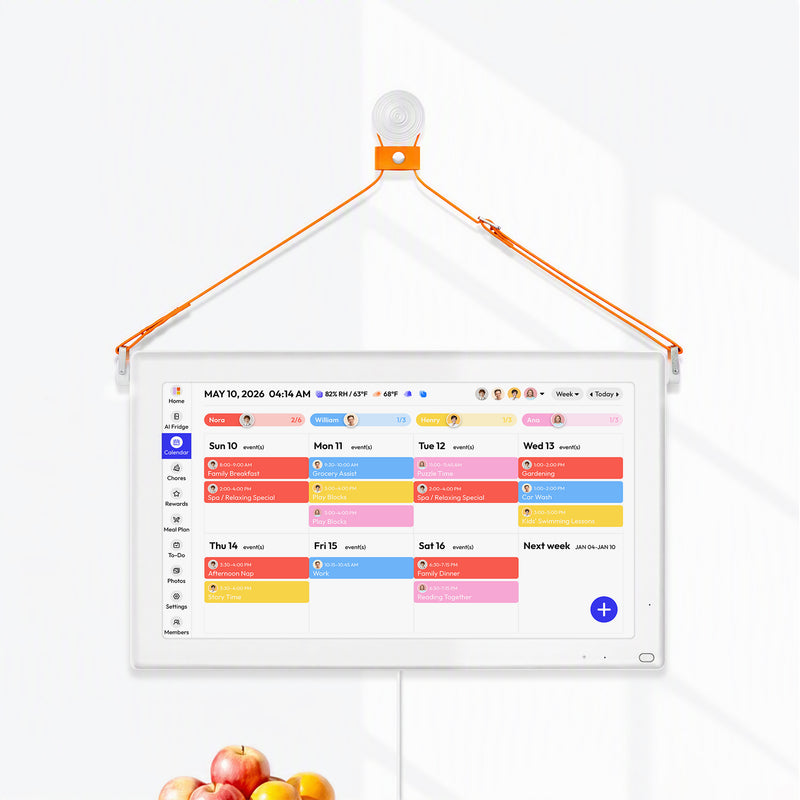
- Running a shared family display: A TV can also serve as a household hub for schedules and reminders, similar to these Google Calendar display ideas for a family command center.
If Netflix is the main goal, this guide to efficient Netflix casting for shared access is useful because it focuses on getting the stream onto the TV cleanly without making the setup harder than it needs to be.
Skip wireless when timing matters, the Wi‑Fi is unreliable, or someone wants to play a game where lag is obvious. It is also a poor fit when a tablet and TV technically connect but keep dropping the session. In that case, the “easy” option usually stops being easy very quickly.
The Wired Way For a Stable Lag-Free Connection
When the Wi‑Fi is flaky, wireless stops feeling convenient very quickly. That's when a cable becomes the best backup in the house.
Modern tablets often use a USB-C port for video-out adapters, while TVs still rely on full-size HDMI, so the connection usually depends on a simple USB-C-to-HDMI cable or adapter. Consumer guidance also continues to describe HDMI as the most reliable wired method because it avoids Wi‑Fi lag and works as long as the tablet, cable, and TV input are compatible, according to Verizon's tablet-to-TV connection guide.

The most common wired setup
For most current homes, the wired path is:
- Tablet USB-C port
- USB-C-to-HDMI adapter or cable
- TV HDMI input
If you have an older iPad, the setup may involve a Lightning-to-HDMI adapter instead. If you have an older Android tablet, things get less predictable. Some older models used mini-HDMI. Some relied on brand-specific adapters. Some never supported video-out at all.
That's why the gear check matters so much before you shop.
How to connect it without guesswork
This process is straightforward:
- Plug the adapter or cable into the tablet
- Connect the HDMI end to the TV
- Turn on the TV and switch to that HDMI input
- Wait a moment for the tablet screen to appear
If nothing happens right away, the TV is often on the wrong input. That's still the most common issue I see in everyday home setups.
If the family is settled in for a full movie, wired usually wins because it removes the home network from the equation.
When wired is worth the effort
Wired is the better choice when the connection needs to behave.
A few examples:
- Movie night: Less chance of stutter or delay.
- A presentation or school project: Fewer moving parts while a child is trying to talk and tap through slides.
- Spotty Wi‑Fi rooms: Bedrooms, basements, or corners of the house where casting tends to fail.
The trade-off is obvious. A cable is less elegant. The tablet stays physically tied to the TV. But if your family is already tired, hungry, or short on patience, reliability beats elegance almost every time.
If you're cleaning up a permanent viewing area, cable management and placement matter too. A simple wall mount setup for a 24-inch TV can make a wired viewing spot look far less cluttered.
Solving Common Connection Problems
A lot of connection problems come from picking the wrong fix first.
If the family is waiting and the TV stays blank, slow down and check one thing at a time. That usually gets you to the answer faster than jumping between settings, apps, cables, and adapters.
The TV says no signal or shows a black screen
Start with the TV.
Make sure it is set to the exact HDMI input your cable or streaming device is using. Then check the physical connection at both ends. A cable that looks plugged in can still be loose enough to fail.
If the screen is still black, the issue may be compatibility rather than setup. Some tablets charge through a port that looks right for video, but they do not send video through that port. That is a common snag with older Android tablets and lower-cost models.
For wireless setups, confirm the TV or streaming device is waiting for a cast or mirror connection. If the receiver is not open or ready, the tablet may act like nothing is available.
The tablet can't find the TV
This usually comes down to the home network.
Check that the tablet and TV are on the same Wi-Fi network. Guest networks often block devices from seeing each other, which is fine for visitors but frustrating for casting at home. If your router has both 2.4 GHz and 5 GHz networks with different names, it also helps to make sure both devices are on the same one.
A quick restart still solves more of these cases than people expect. Restart the tablet, restart the TV or streaming device, and try again before changing deeper settings.
The video is choppy or delayed
This is often a method problem, not a broken setup.
If you are trying to show vacation photos for five minutes, a little delay may not matter. If you are starting movie night or handing a child the floor for a school presentation, mirroring can be the wrong tool. Full-screen mirroring sends everything from the tablet in real time, so weak Wi-Fi, background app activity, and tablet performance all matter.
Casting from an app is usually the better choice for video services. The TV plays the stream more directly, and the tablet can stay in your hands for pause, skip, or volume. A video on when to cast instead of mirror explains that casting often works better than mirroring when the goal is to play media on the TV.
Use mirroring when people need to see the tablet itself. Use casting when the app can send the video to the TV on its own.
If playback still stutters, try these fixes:
- Move closer to the router: Wireless strength still matters.
- Pause other heavy internet use: Downloads, game updates, and multiple streams can crowd the network.
- Close extra apps on the tablet: Older tablets can struggle when too much is running.
- Switch to wired for the important moments: Best choice for lag-sensitive viewing.
The adapter doesn't fit
Do not force it.
USB-C, Lightning, and Micro-USB are easy to mix up, especially when shopping fast before a trip or a weekend movie night. A connector that is almost right is still the wrong one, and pushing it can damage the port.
If the adapter looks correct but still does not work, check the exact tablet model, not just the brand. Two tablets from the same company can use the same port and still support different video options. That small compatibility detail causes a lot of avoidable returns.
Wired vs Wireless Which Is Best for Your Family
The better question isn't “Which method is best?” It's “Which method fits this moment?”
If you're sharing a few photos after dinner, wireless is usually the easy answer. If you want a calm, uninterrupted movie, wired is usually the smarter call.
Here's the big-picture comparison:

Pick wireless for convenience
Wireless fits best when you want freedom and speed.
- Quick family sharing: Great for photos, short clips, and casual viewing.
- Tablet stays in your hands: Useful when you want to browse, queue content, or sit anywhere in the room.
- Less cable clutter: Better for everyday convenience.
Pick wired for confidence
Wired is the safer choice when you don't want surprises.
| Family moment | Better method | Why |
|---|---|---|
| Vacation photos in the living room | Wireless | Fast and easy |
| YouTube on the couch | App casting | TV plays the media, tablet stays useful |
| School presentation | Wired | Fewer things can go wrong |
| Movie night | Wired | More stable when quality matters |
| Weak Wi‑Fi room | Wired | Doesn't depend on network strength |
A lot of families end up using both. Wireless for the easy moments. Wired for the important ones. That's usually the most practical answer to how to hook tablet to TV without turning a normal evening into a tech project.
Everblog helps busy families keep everyday life visible in one place. If you're juggling school schedules, chores, meal plans, and shared media across multiple devices, Everblog gives you a single family hub that's easier to manage than a pile of separate apps and sticky notes.


