

Tired of the constant "Are you free on Tuesday?" texts and missed calls? Sharing an iCloud calendar is one of the simplest ways to get your family schedule out of your head and into a central hub. You can either send a private invitation to your partner for collaborative planning or create a public, view-only link for the whole soccer team.
Why a Shared iCloud Calendar Is a Family Game Changer
A shared calendar transforms your family’s schedule from a chaotic mess of sticky notes and fragmented texts into a single, organized space everyone can see. At its heart, knowing how to share an iCloud calendar is a massive upgrade for family sharing and collaborative organizing, making daily life feel a whole lot smoother. It creates one source of truth for the entire household.
This isn't just about preventing double-bookings. It’s a powerful communication tool that brings clarity and cuts down on the mental load of running a family.
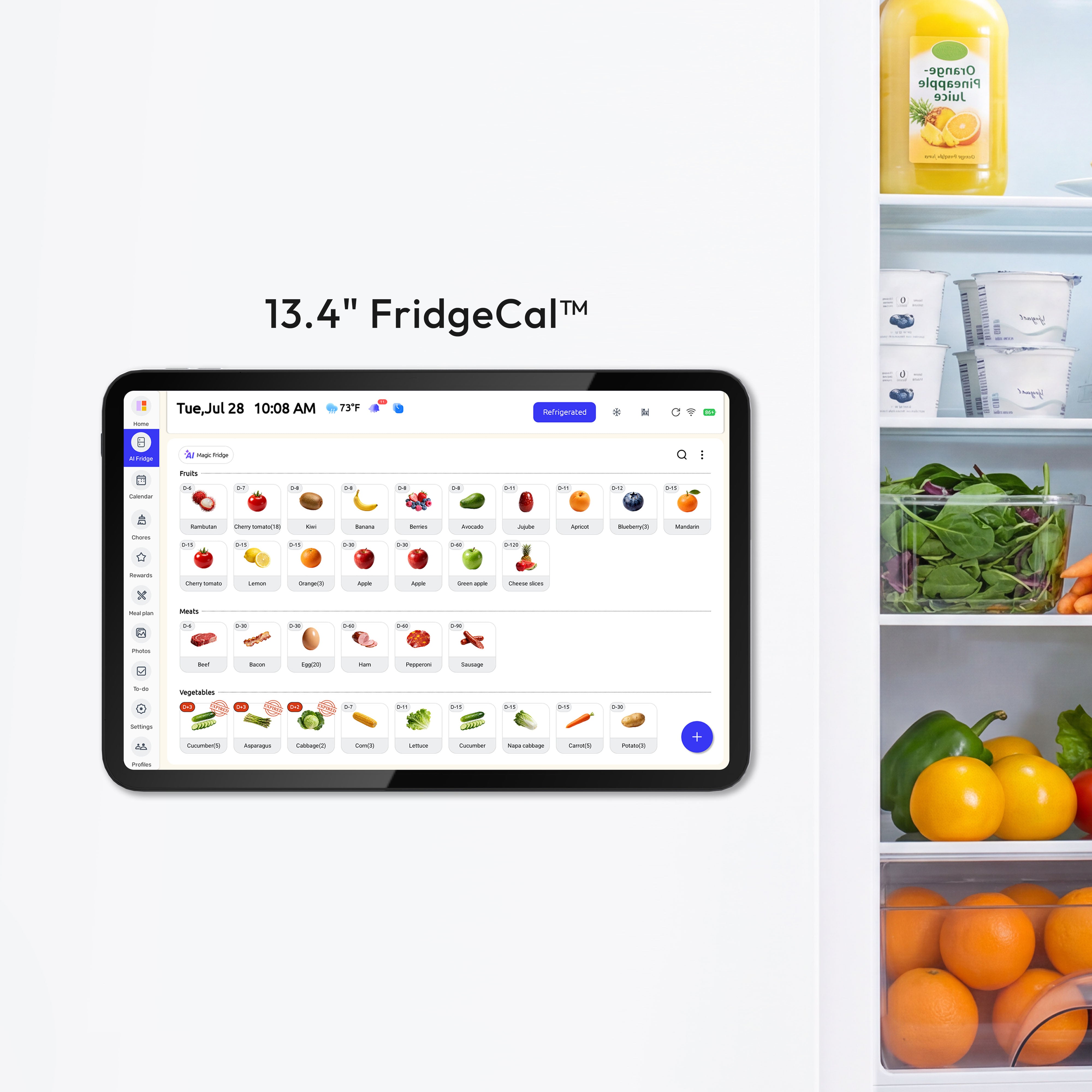
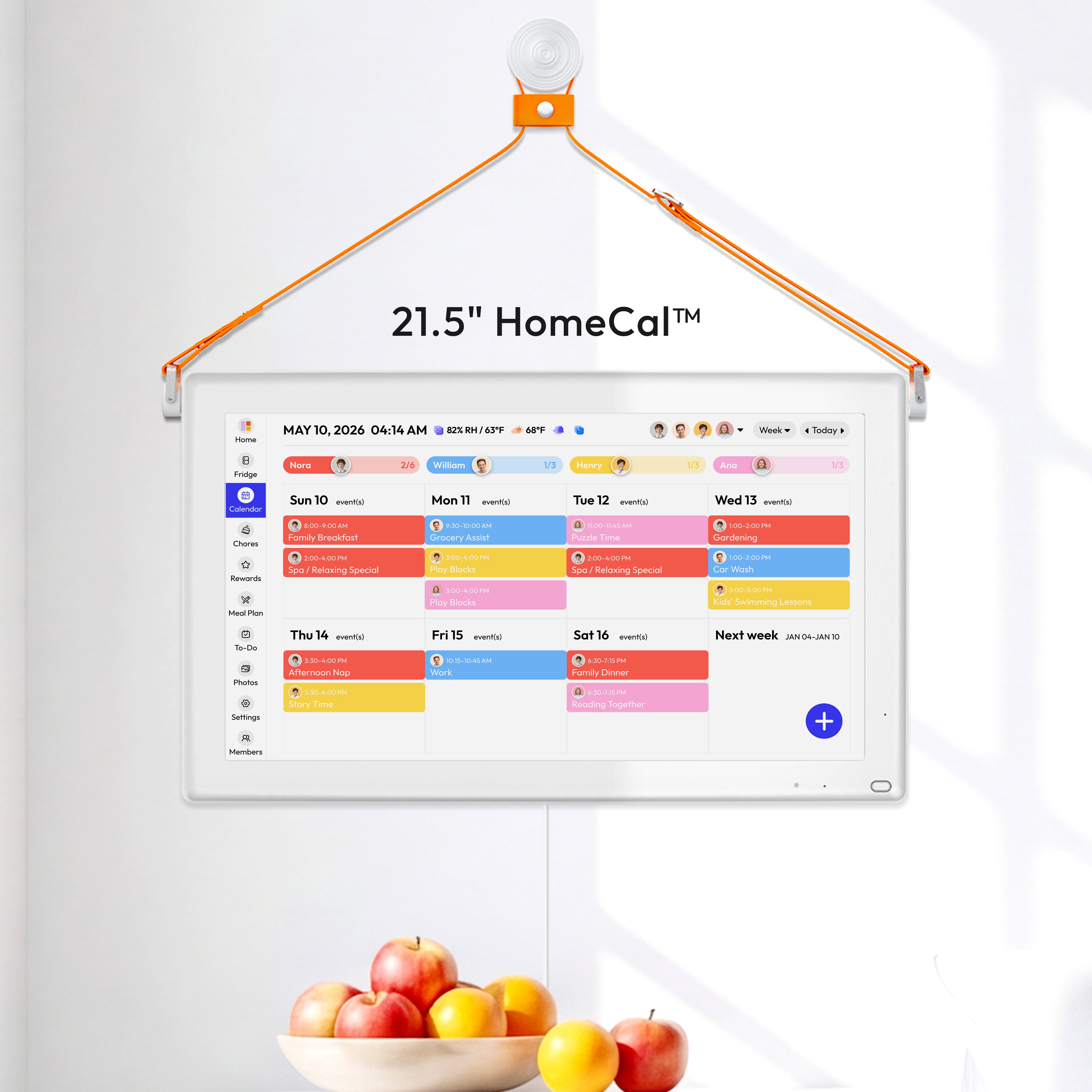
Imagine your partner adds a dentist appointment, and it instantly pops up on your iPhone, Mac, and even your wall-mounted digital family planner. No more "Did you remember to tell me about that?" conversations at 10 PM.
Key Benefits of a Shared Calendar
For busy parents, the advantages are immediate and go way beyond basic scheduling.
- Smarter Household Coordination: Everyone knows who needs to be where and when, from school pickups to parent-teacher conferences.
- Less Mental Clutter: You can finally offload all those dates and times from your brain and into a reliable system that everyone shares.
- Empowered Collaboration: Give your partner or older kids the ability to add and manage their own events, which helps build responsibility.
- All The Details in One Place: You can attach notes, addresses, and even confirmation numbers directly to events, so you're not scrambling for info at the last minute.
Despite the obvious wins, it’s not as common as you'd think. As of 2026, only about 42% of Apple device users are actively sharing their calendars via iCloud. People get so used to it for their personal schedules that they completely overlook its powerful sharing features. This is especially true in homes with a mix of Android and Apple devices, where compatibility can be a roadblock.
A shared calendar’s real power is proactive communication. Instead of reacting to scheduling conflicts, you can see them coming and prevent them in the first place. It just brings a sense of calm to the weekly routine.
Ultimately, mastering this one simple skill is a huge step toward building a truly connected household. As you’ll see in this guide, this small digital shift can have a surprisingly big impact on your family's daily life. You can also dive deeper with our essential guide to a digital family calendar.
Ready to get your shared family calendar up and running? The good news is that Apple has made the process practically identical whether you’re on an iPhone, iPad, or Mac. Learn it once, and you can do it anywhere. This is where the magic happens—moving from a good idea to a connected family hub in just a few taps.
When you share an iCloud calendar, you'll be sending a private invitation directly to someone's Apple ID. This is the best way to do it for close family members like your partner, older kids, or a co-parent. It's secure and allows them to not just see events, but also add and edit them. Think of it as handing them a key to the family’s command center.

As the diagram shows, deciding between a private invite and a public link really comes down to how much control and collaboration you want to give someone else.
Sending an Invite from Your iPhone or iPad
Let’s be honest, your iPhone is probably always with you, which makes it the quickest way to manage your calendars. Need to add the babysitter to the kids' schedule while you're picking up dinner? You can get it done in seconds.
Here's how to do it:
- First, open the Calendar app.
- Tap Calendars at the bottom to pull up your list of calendars.
- Find the one you want to share (like "Family Schedule") and tap the little "i" info icon next to it.
- Look for the Shared With section and tap Add Person.
- Just type in the email address they use for their Apple ID, and hit Add.
That’s it! Their name will show up in the list with a "pending" status until they accept. Once they do, they’re in.
Sharing Your Calendar from a Mac
If you prefer a bigger screen, sharing from your Mac is just as easy. It's great for when you're managing several calendars or adding a bunch of people at once.
Pull up the Calendar app on your Mac. In the list of calendars on the left, just hover your mouse over the one you want to share. A small icon that looks like a Wi-Fi signal will pop up—click it.
A little window will appear. In the Share With field, start typing the name or email of the person you want to add. Your contacts will automatically show up. Pick the right person, choose their permissions, and click Done. Simple and fast.
Managing Who Can See and Edit Your Calendar
Sharing is one thing, but managing access is just as crucial. You’ll want to know how to see who’s accepted your invite, tweak their permissions, or remove someone if things change.
Luckily, you can do all of this from the same screen where you sent the invite.
- See Who's In: Check the status next to each person's name. It will say "Invited" if they haven't accepted yet or "Joined" if they have.
- Change Permissions: Just tap on a person's name to change their access level. You can easily switch them between View & Edit and View Only anytime.
- Remove Someone: If you need to revoke access, tap their name and then select Stop Sharing. The calendar will instantly disappear from their devices.
This is a quick guide to help you decide which permission level is right for different people in your life.
iCloud Calendar Sharing Permissions Explained
| Permission Level | What It Means | Best For |
|---|---|---|
| View Only | They can see all events and their details, but they can't create, edit, or delete anything. | A grandparent who wants to keep up with the kids' soccer games, a tutor who needs to see your child's schedule, or an assistant who just needs to know your availability. |
| View & Edit | They have full control. They can see, add, edit, and delete events, just like you can. | Your partner, co-parent, or older kids who actively contribute to the family schedule. This is for the people who need to add their own appointments and make changes. |
Mastering these settings gives you complete control over who sees what.
The ability to set these permissions is what makes iCloud Calendar such a powerful and trustworthy tool for family coordination. If your family uses a mix of devices, it might also be helpful to learn how to share Google Calendar to keep everyone in sync across different platforms.
Choosing Between Private Invites and Public Links
When it comes to sharing an iCloud calendar, the first thing you need to figure out is who needs to see it and what you want them to do with it. The answer will point you toward one of two paths: sending a secure private invitation or creating a more flexible public link.
They serve completely different purposes, and picking the right one from the get-go is key to keeping your family’s schedule both functional and secure.
When to Use a Private Invite
A private invitation is your go-to for sharing with your inner circle. Think of it as handing over a key to your family's command center. This method is built for the people who are actively involved in building the schedule, not just peeking at it.

You’ll want to send a private invite anytime a calendar contains sensitive details or requires actual collaboration. The person you invite needs an Apple ID, which links the share directly and securely to their account. No one else can get in.
This method is perfect for:
- Your partner or co-parent: They need full View & Edit access to add their work meetings, schedule kids’ appointments, and move things around when life happens.
- Older kids and teens: Giving them editing rights helps them take ownership of their own schedules—adding sports practices or study sessions—which is a great way to foster responsibility.
- A trusted nanny or caregiver: They need to see the family schedule and might need to add their hours or notes about appointments.
The big win here is true collaboration. It's funny, though—while the power is there, most people play it safe. Data suggests only about 28% of shared iCloud calendars are actually set up with editing permissions. People tend to default to read-only access to prevent accidents, but for a core family calendar, that collaborative power is exactly what makes it so useful. You can dig into more user insights on platforms like TrustRadius.com.
When a Public Link Makes More Sense
On the flip side, a public link is designed for broadcasting information, not collaborating on it. It generates a URL that anyone can use to subscribe to a read-only version of your calendar. They can’t see who else is subscribed, and they definitely can't make any changes.
Think of it like posting a schedule on a community bulletin board. Anyone with the link can see it, but they can't draw on it.
Use a public link when you need to share a schedule with a larger group of people who only need to consume the information, not contribute to it. It’s all about visibility.
A public link is the perfect fit for these scenarios:
- A youth sports team: Share the practice and game schedule with all the parents at once.
- A school club or classroom: Post assignment due dates and event reminders for students and families to follow.
- A volunteer group: Keep everyone in the loop about upcoming meetings without cluttering their personal calendars with another editable schedule.
The bottom line is that a public link offers broad, simple access with zero risk of someone accidentally deleting that all-important championship game. It’s the perfect tool for one-way communication. And if you're trying to coordinate with people on other platforms, our guide on how to share a Google Calendar on an iPhone might also be a lifesaver.
Solving Common iCloud Calendar Sharing Issues
Even the most polished tech has its off days. When you’ve gone to the trouble of setting up a shared iCloud calendar and it just doesn’t work, it can throw your whole family’s rhythm out of whack. It’s frustrating, for sure, but most of the time, the fix is surprisingly simple.
Nine times out of ten, the culprit is a simple Apple ID mismatch. If you send an invitation to your partner's work email but their iCloud account is linked to their personal one, that invite is just floating in the digital ether. Always, always confirm the exact email address they use for their Apple ID before you hit send.
Invitation Not Received or Not Working
This is probably the most common headache: you send the invitation, but it never arrives. Or, if it does, the person gets a weird error when they try to accept it. This is especially maddening when you're trying to sync up schedules on the fly.
First, go back and triple-check that you typed their Apple ID email correctly. A single typo is all it takes to break the chain. If the address is right, ask them to take a peek in their junk or spam folder. Overzealous email filters can sometimes flag these automated invites by mistake.
Still no luck? Here are a few things to try:
- Wipe the Slate Clean: The classic "turn it off and on again" approach works here, too. Go into your calendar's sharing settings, remove their name from the list, and then re-invite them. This often clears up any temporary server glitch.
- Check Apple's Pulse: Every once in a while, the problem isn't you—it's them. Pop over to Apple's System Status page to see if there are any known outages with iCloud services.
- Make Sure Everyone's Updated: Outdated software can cause all sorts of bizarre compatibility issues. Check that all devices involved—yours and theirs—are running the latest version of iOS, iPadOS, or macOS.
Calendar Not Syncing Across Devices
Here's another classic scenario: your partner adds soccer practice to the calendar on their iPhone, but it never shows up on your Mac or the family’s digital wall display. When events don't sync, it completely defeats the purpose of sharing a calendar in the first place.
This usually points to a spotty connection. The first thing to check is that all devices have a stable internet connection. If that's not it, you can force a manual refresh. In the Calendar app on an iPhone or iPad, just tap "Calendars" at the bottom and pull down on the list until the little spinner appears. This tells iCloud to pull in the latest data.
A shared calendar is only as reliable as its last sync. If events aren't updating, the first place to check is always the iCloud sync settings on each individual device.
This problem gets even more common when you’re trying to share calendars with non-Apple users. Research on calendar synchronization backs this up—one study found that 45% of users run into issues when sharing across different platforms, like with a non-iCloud email. You can read more about these multi-platform sync findings on SyncPenguin.com.
It just goes to show how important it is to have a dedicated system that works for everyone. If you’re looking for ideas, check out our guide on setting up a digital family calendar.
Pro Tips for Advanced Family Calendar Management
Once your shared calendar is up and running, it's time to start treating it less like a simple schedule and more like your family’s command center. Moving beyond basic event entries is where the real organizational magic happens. This is all about adding layers of context that make life easier for everyone.

A great first step is to ditch the single, catch-all "Family" calendar. Instead, create multiple, color-coded calendars right in your iCloud account, each dedicated to a specific part of your life. This simple change brings immediate visual clarity to a busy week.
For instance, a common family setup might look something like this:
- Kids' Activities (Blue): The home for soccer practice, piano lessons, and school events.
- Family Meals (Green): Perfect for planning dinners and tracking whose turn it is to cook.
- Appointments (Red): This is for the can't-miss stuff—doctor, dentist, and vet visits.
- Bill Reminders (Yellow): A dedicated, recurring calendar just for payment due dates.
With a system like this, you can see at a glance what kind of day is ahead. It also lets you toggle calendars on or off to focus on only what matters in that moment.
Adding Rich Details to Events
Now for the real power move: start using the often-overlooked fields within each calendar event. Most people just plug in the title and time, but the location, notes, and URL fields are your secret weapons for cutting down on mental clutter and last-minute scrambles.
Think of each event as a complete information packet. Instead of just "Soccer Practice," supercharge that entry with details that are actually actionable.
Treat every calendar event like a mini-checklist for your future self. What information will you be looking for right before you walk out the door? Add it now.
Here’s how to put that idea into practice:
- Location Field: Don't just type "Community Field." Put in the full, searchable address. This turns getting directions from your phone into a one-tap action when you're inevitably running late.
- Notes Field: This is your command center. Drop in the coach’s phone number, the field number, or a reminder to bring snacks. For a birthday party, you could paste the gift registry link or add a note about the dress code.
- URL Field: Perfect for linking directly to things you'll need later. Link to a school permission slip PDF, a team website with the season’s schedule, or the online portal for paying a bill.
These small habits might feel minor at first, but they add up to a huge reduction in day-to-day stress. No more digging through old emails for an address or texting your partner for a confirmation number. The information is exactly where you expect it to be, right when you need it. By optimizing how you share an iCloud calendar, you build a reliable system that truly supports your family's flow.
Your iCloud Calendar Sharing Questions Answered
Even after walking through the steps, a few lingering questions always seem to pop up. Let's tackle some of the most common ones I hear, so you can handle those tricky little situations without a headache.
Can I Share My iCloud Calendar with an Android User?
The short answer is yes, but with a big catch. You can share a public, view-only version of your calendar with someone on an Android device using Google Calendar. They’ll be able to see your schedule and any updates you make, but they can’t add or change anything. It's a one-way street.
This is perfect for sharing a team schedule or family event calendar where you just need others to see what's happening.
Here’s how you set that up:
- First, you have to log into iCloud.com from a computer.
- Jump into the Calendar app and click the little share icon next to the calendar you want to make public.
- Tick the box for Public Calendar.
- A
webcal://link will appear. Copy that whole thing.
Just send that link to your Android-using friend. They can add it to their Google Calendar by URL, and your events will pop right up on their schedule. For true back-and-forth editing, though, everyone really needs to be in the Apple ecosystem.
What Happens If I Stop Sharing a Calendar?
When you pull the plug on a shared calendar, the access is cut off instantly. Poof. The calendar and all its events will vanish from their devices without any warning or delay.
It's a clean break. The connection is severed completely, and there's no grace period. I always recommend giving the person a heads-up before you remove them to avoid any confusion or a "Hey, what happened to the project calendar?" message later.
To get them back on, you can't just undo it. You’ll have to go through the sharing process from scratch and send a fresh invitation. It's easy, but it's a full do-over.
How Do I See Who Accepted My Shared Calendar Invitation?
Wondering if everyone actually got the memo and joined your new calendar? You can check the status of your invitations right inside the Calendar app. It’s a great way to make sure the whole team is on board before a big launch or that the family is connected for the new school year.
On an iPhone or iPad:
- Open up the Calendar app and tap Calendars down at the bottom.
- Find the shared calendar and tap the little info icon (i) next to its name.
- You’ll see a list of everyone you invited. It’ll clearly say "Invited" if they're still pending or "Joined" if they're all set.
The process is almost identical on a Mac. Just right-click the calendar, head to "Sharing Settings," and you'll see the same list of names and their status. No more guessing who’s in the loop.
Bringing all your family's moving parts together is exactly why Everblog was created. It syncs with your shared iCloud calendars and displays everything on a beautiful, easy-to-read wall hub, so everyone knows the plan at a glance. Learn how Everblog can become your family’s command center.


