

Trying to get your family’s schedules in sync on your iPhones? If it feels way more complicated than it should be, you're definitely not alone. The biggest headache is that the Google Calendar app for iPhone doesn't have a direct "share" button. It's a frustrating oversight, but don't worry—we have some simple and effective ways to get around it.
Why Sharing Your Calendar Is a Game-Changer
When everyone’s schedule is on the same page, the entire household runs smoother. A shared family calendar becomes the central hub for everything—doctor’s appointments, soccer practice, birthday parties, you name it. No more frantic texts asking who’s on pickup duty or if you’re free for dinner on Friday.
The problem is that Google built its best sharing tools for the desktop version, leaving iPhone users to figure out the rest. But once you know the right moves, you can easily manage everything from your phone. A properly shared calendar means fewer crossed wires and a lot more peace of mind.
A shared family calendar is your single source of truth. It puts all the important dates in one place where everyone can see them, taking the mental load off of one person to remember everything.
The Real Benefits of a Synced Family Schedule
A shared calendar isn't just a list of events; it's a tool that fosters better communication and organization for the whole family. Here’s what you stand to gain:
- Better Coordination: Everyone knows the plan for the day. This cuts down on last-minute scrambles for school pickups, after-school activities, and appointments.
- Total Transparency: You and your partner can see each other's availability at a glance, making it so much easier to carve out family time or schedule date nights.
- Less Stress: When there’s no guesswork about who needs to be where and when, you’ll have fewer arguments about missed events or double-bookings.
First things first, we need to get your Google account properly synced with your iPhone. This is the foundation for everything else. It ensures that any calendar you share or get invited to actually shows up, whether you prefer using Apple's built-in Calendar app or Google's.
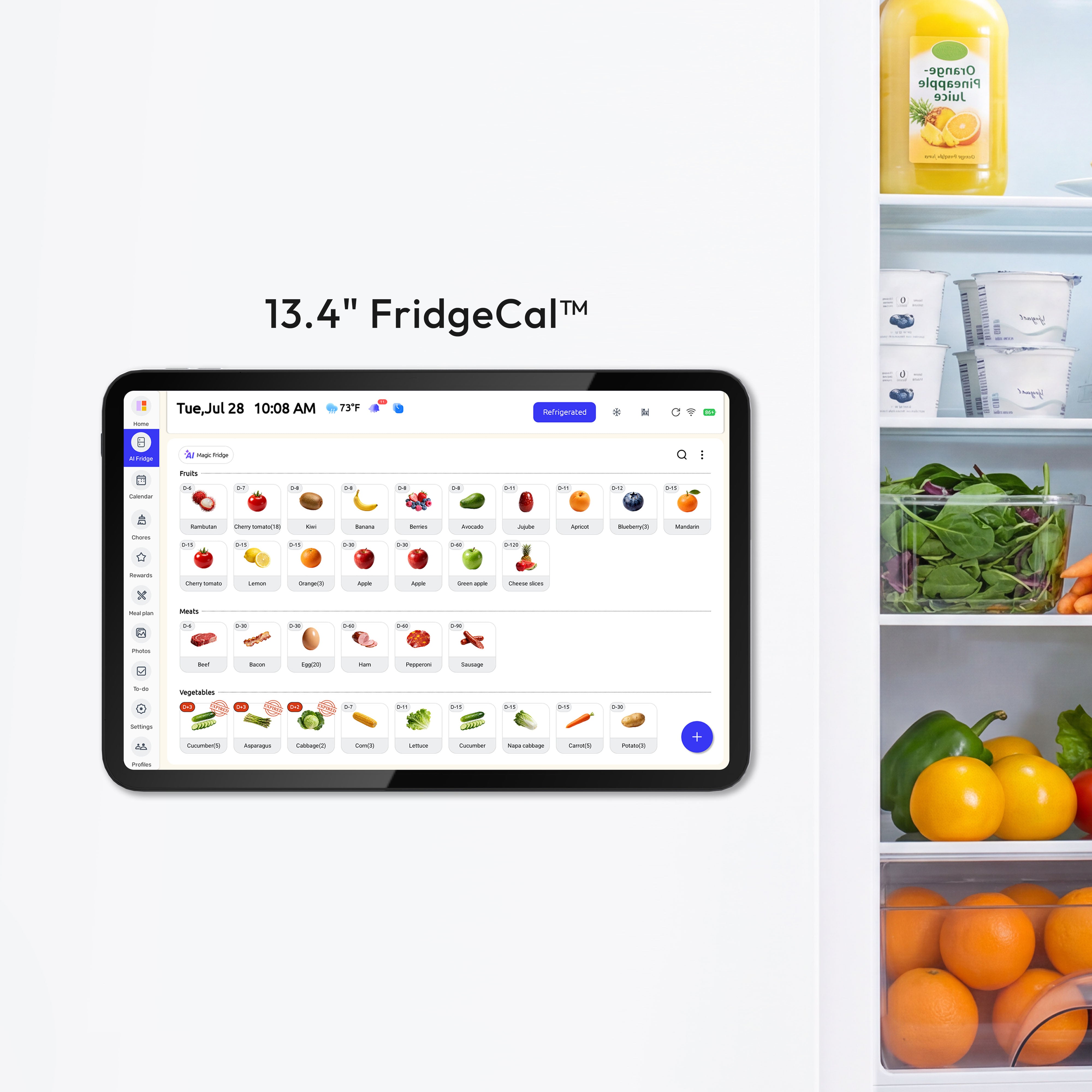
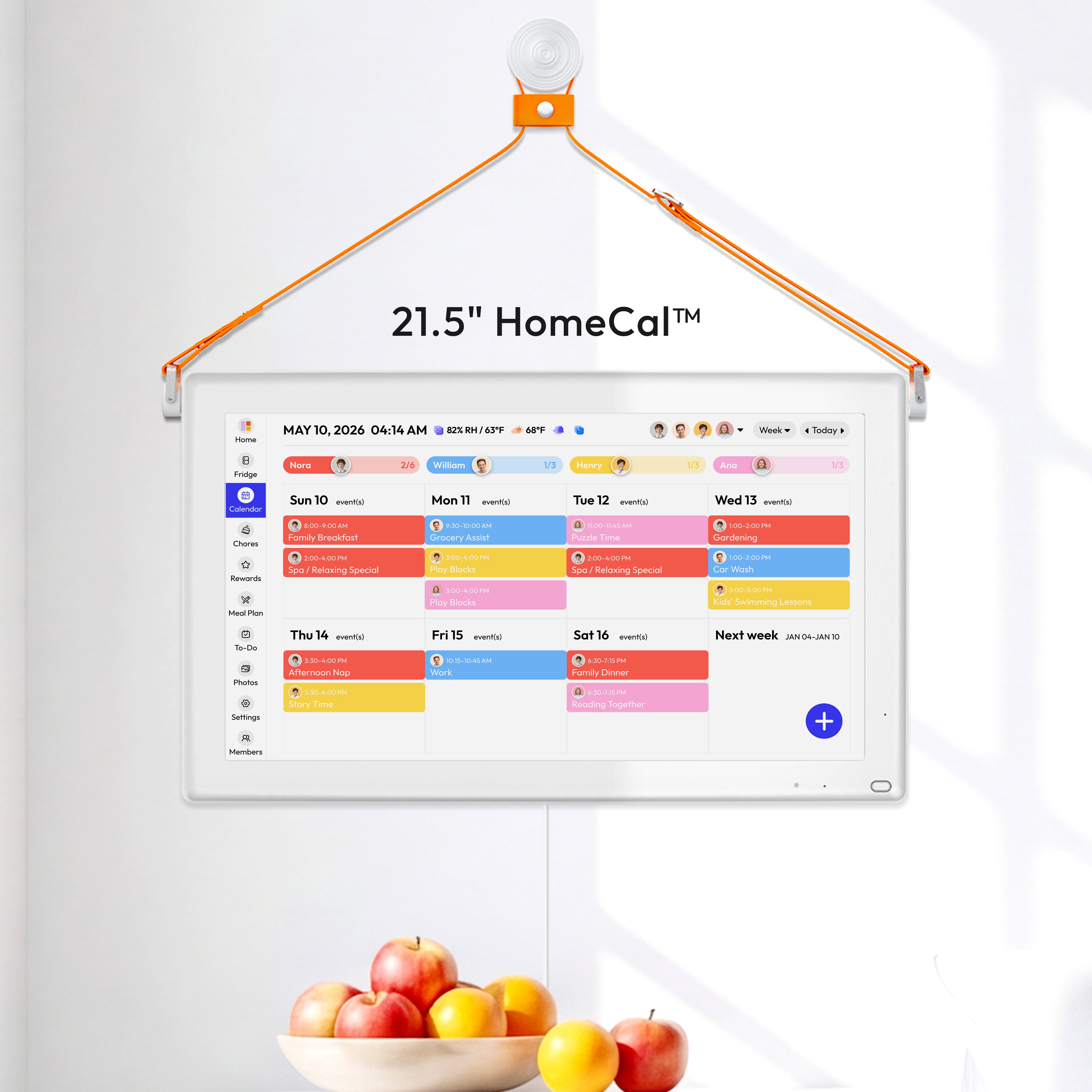
And if you're looking to create a true command center for your home, you might want to check out an electronic wall calendar that syncs with your iPhone. It can take your family's organization to a whole new level.
First Things First: Syncing Google Calendar with Your iPhone
Before you can start sharing calendars with your partner or family, you need a solid foundation. That means getting your Google Calendar properly connected to your iPhone. Trust me, getting this right from the start prevents a ton of sync-related headaches down the road.
By adding your Google account directly into your iPhone's settings, you create a stable, device-level connection. This allows the native iOS Calendar app to reliably pull in all your events, ensuring any changes made on your computer—or by a family member on their device—show up on your iPhone without a frustrating delay.
Adding Your Google Account to iOS
Ready to get it set up? You just need to dive into your iPhone's main settings to grant permission.
It’s a pretty straightforward path:
- Open the Settings app.
- Scroll down a bit and tap on Calendar.
- From there, select Accounts, then tap Add Account.
- You’ll see a list—just choose Google.
You'll be prompted to sign in with your Google email and password on a secure Google sign-in page, so your info stays safe.
Once you’re in, you'll see a screen with toggles for Mail, Contacts, Calendars, and Notes. The one you care about is Calendars—make sure it's switched on and green. This simple flip of a switch tells your iPhone to sync every calendar associated with that Google account.
This whole shift to managing schedules on our phones isn't just a trend; it's how modern life works. Smartphones are now responsible for about 89% of daily calendar interactions, especially for busy parents and professionals. It just goes to show how critical a solid mobile setup is for coordinating everything from household chores to school pickups. You can see more on this mobile-first approach on the App Store's Google Calendar page.
Tips for Managing Multiple Accounts
Many of us are juggling more than one Google account—one for work, another for personal life or family stuff. The good news is the iOS Calendar app handles this really well, but a little organization makes all the difference.
My pro tip? Color-code your calendars the second you add them. Assign a distinct color to your work calendar, another to the "Family" calendar, and a third to your personal one. This visual cue makes it instantly obvious what each event is about with just a quick glance.
To set this up, just open the Calendar app, tap Calendars at the bottom, and then tap the little "i" icon next to any calendar to change its color. It’s a simple habit that brings so much clarity and helps you avoid mixing up a parent-teacher conference with a quarterly business meeting. For a deeper dive into keeping your calendars organized, check out our guide on how to seamlessly sync with Google Calendar.
Sharing Your Calendar from Your iPhone
Alright, let's get to the main event: actually sharing your calendar. This is a common sticking point for a lot of iPhone users because, oddly enough, you can't do it directly from the Google Calendar app. But don't worry, there's a simple workaround that takes less than a minute using your phone's web browser.
It’s a strange limitation, right? For an app so central to coordinating family life, the lack of a native sharing feature on iOS is a real headache. You can see everything, but you can't manage permissions on the fly. This forces you to use the web version, which is something desktop users do without a second thought. You can find more details on Google Calendar's mobile quirks on reclaim.ai.
The "Desktop Site" Trick
To kick things off, you'll need to open a web browser like Safari or Chrome on your iPhone. The whole idea is to trick Google Calendar's website into thinking you're on a computer, which unlocks all the features hidden in the mobile view.
Here’s the game plan:
- First, open your browser and head over to calendar.google.com.
- Go ahead and sign in with the Google account that owns the calendar you want to share.
- Once the mobile version loads, look for the "AA" icon (in Safari) or the three dots (in Chrome) up in the address bar. Tap it.
- From the menu that pops up, choose "Request Desktop Website."
The page will refresh, and voilà! You'll see the full desktop version of your Google Calendar, just on your iPhone screen. You'll probably need to pinch and zoom to get around, but all the sharing options are now available to you.

Before you can share, you have to sync. This quick diagram shows that initial, crucial step of connecting your Google account in your iPhone’s settings.
Finding and Sharing the Right Calendar
Now that you have the desktop site loaded, you can get down to business. It’s just a matter of finding the right menu.
Look over to the left side of the screen where your calendars are listed under the "My calendars" section. You may need to zoom in to see it clearly.
Find the calendar you want to share (like "Family Schedule") and hover your finger over its name. You’ll see three little vertical dots appear right next to it. Tap those dots to open the options menu.
From that menu, select Settings and sharing. This is the command center for this specific calendar.
This is the most important part of the entire workaround. Requesting the desktop site is the key that unlocks the sharing features hidden from the mobile app. It’s a game-changer for managing calendar access when you’re not near a computer.
Scroll down the page until you find the section called Share with specific people. See the button that says Add people? Tap it.
A new window will pop up. In the field provided, just type in the email addresses of the family members or colleagues you want to share with. You'll assign them permissions right after adding them (we'll get to that in the next section).
Once you're done, just tap Send, and they’ll get an email invitation to join the calendar. Easy as that.
Managing Sharing Permissions for Your Family
Sending a calendar invite is easy. The real key to making family coordination work, though, is getting the permissions right. This is where you decide who can just see what's happening and who can actually add or change things on the calendar.
Think about it: you probably want your partner to be able to add a last-minute parent-teacher conference, but you might not want your teenager to have the power to accidentally delete your work appointments. Google Calendar is built for this kind of specific control, which is a huge reason so many families rely on it.

Decoding the Permission Levels
When you go to share a calendar, you’ll see a dropdown menu with a few options. Each one serves a totally different purpose, so let’s break down what they mean in a real-world family setup.
Google’s sharing features are a step ahead of many other calendar apps, which often have a more all-or-nothing approach. This flexibility is what makes it so powerful once you get the hang of it. If you're curious how it stacks up against others, you can find some great calendar comparisons on appypieautomate.ai.
-
See only free/busy (hide details): This is the most private setting. It lets someone see that you're busy, but not what you're doing. They just see a solid block of time on your calendar. Perfect for sharing a work calendar with your partner so they know when you can’t do school pickup, without them needing to see the details of your "Q3 Budget Review" meeting.
-
See all event details: This is view-only access. The person can click on an event and see the time, location, and any notes, but they can't change a thing. This is a great option for grandparents who want to know when the kids' soccer games are without any risk of them accidentally moving an appointment.
Choosing the right permission level isn't about being controlling—it's about creating clarity. It sets expectations and prevents those "oops, I deleted the wrong thing" moments.
To give you a quick reference, here’s a breakdown of how each permission level works in a family setting.
Google Calendar Sharing Permissions Explained
| Permission Level | What They Can Do | Best For (Family Scenario) |
|---|---|---|
| See only free/busy | View time blocks as "busy" with no details. | Sharing your work calendar with a partner. |
| See all event details | View all event info, but cannot make any changes. | Grandparents or other relatives who need to stay in the loop. |
| Make changes to events | Add new events and edit existing ones. | Co-parents who both manage appointments and activities. |
| Make changes AND manage sharing | Full control: edit events and add/remove other people. | Your trusted partner who helps manage the family's digital hub. |
This little table can be a lifesaver when you're trying to decide who needs what level of access.
Granting Editing and Management Access
For the people you plan schedules with every day, you’ll want to give them a bit more power.
-
Make changes to events: Just like it sounds, this lets someone add new events and edit existing ones. They become a true co-manager of the calendar. This is the go-to setting for co-parents. Both of you can add dentist appointments or update practice times, keeping the calendar accurate for everyone.
-
Make changes AND manage sharing: This is the highest level of access you can give. It's like handing over a spare set of keys. They can do everything above, plus they can invite other people to the calendar or change their permissions. Reserve this for a trusted partner who helps manage everything—super useful if you both need to be able to grant access to a new babysitter or relative.
Accepting and Viewing a Shared Calendar
Okay, you've hit "Send" on the calendar invite. But your job is only half done.
The real magic happens when your family member, friend, or coworker actually accepts the invitation and the calendar pops up on their iPhone. This is where things can get a little stuck, sparking that all-too-common frustration: "I swear I shared it with you, why can't you see it?!"
Let's walk through what needs to happen on their end.
The person you invited will get an email straight from Google Calendar. This email is the key. Inside, they'll find a big, clear link or button that says something like "Add this calendar." All they have to do is tap that link.

Tapping the link officially adds your shared calendar to their list of calendars in their Google account. But—and this is a big but—it doesn't mean it will instantly appear on their iPhone. There's one more critical step to get everything synced up.
Making the New Calendar Visible on an iPhone
This is the most common hurdle, but it's usually just a simple sync setting that needs to be flipped on. The exact steps change a bit depending on whether they use the Google Calendar app or Apple's built-in Calendar app.
For Google Calendar App Users:
If they're using the official Google Calendar app, the fix is usually right inside the app itself.
- Pop open the app and tap the three horizontal lines (the "hamburger" menu) in the top-left corner.
- Scroll down and tap on Settings.
- Find the name of the new calendar you just shared and tap on it.
- Make sure the Sync toggle is switched on (it should be green). If it's off, their phone isn't even trying to pull in the event data.
For Apple's Native Calendar App Users:
If they prefer Apple's own Calendar app, the fix is a bit more hidden. They'll need to visit a special Google page to tell it which calendars to send over to their iPhone.
- On their iPhone's web browser, have them go to this specific URL:
calendar.google.com/calendar/u/0/syncselect - They’ll need to sign into their Google account if they aren't already.
- They should see a list of all their calendars. All they need to do is check the box next to the new shared calendar and hit Save.
That syncselect page is the secret sauce for iOS Calendar users. Without checking that box, Google has no idea it's supposed to push that specific calendar's events to their iPhone.
The most common reason a shared calendar doesn't show up on an iPhone isn't a failed share—it's that the sync setting for that one calendar is turned off. This quick fix solves the problem 99% of the time.
Quick Troubleshooting When It Doesn't Appear
Still no luck? If the calendar is playing hide-and-seek after checking the sync settings, here are a couple of other things to try.
Sometimes, just closing and reopening the Calendar app is enough to kickstart a new sync. It’s the classic "turn it off and on again" trick, and it often works.
If that doesn't do it, have them dive into their iPhone's main account settings. They should navigate to Settings > Calendar > Accounts, tap their Google account, and double-check that the "Calendars" toggle is green. Toggling it off and on again can force their iPhone to re-check with Google for any new calendars.
Common Google Calendar Sharing Questions
Even the clearest instructions can hit a snag. When you're trying to share a Google Calendar on your iPhone, a few common hurdles tend to pop up. Let's tackle them head-on with some quick fixes so you can get back on track.
Why Can't I See the Shared Calendar on My iPhone?
This is, hands down, the number one question I hear. More often than not, it's a simple sync issue that’s easy to fix.
First things first, did you actually accept the sharing invitation in your email? It's a surprisingly easy step to miss in a crowded inbox.
If you've definitely accepted the invite, the next step depends on which app you're using.
- In the Google Calendar App: Pop open the app, tap the three-line menu icon, and navigate to Settings. Find the calendar that's playing hide-and-seek and tap on it. Just make sure the Sync toggle is switched on (it should be green).
- In Apple's iOS Calendar App: Head over to your iPhone’s Settings > Calendar > Accounts. Tap on your Google account and check that the main Calendars switch is enabled. Sometimes, just closing and reopening the app is enough to give it the nudge it needs.
A common mistake is assuming the calendar will just show up automatically after you accept the invite. You often have to tell your phone to sync each new calendar manually, and that's what trips most people up.
Can I Share a Google Calendar with an iCloud User?
Yes, you absolutely can, but there's a slight catch. Instead of adding them by email for full, collaborative access, you'll give them a special read-only link. This means they can see all the events on your calendar, but they can't add or edit anything themselves.
To get this link, you’ll need to pull up the desktop version of Google Calendar in your iPhone's browser. Go into the calendar's Settings and sharing, then scroll down to the Integrate calendar section. Look for the Secret address in iCal format. Copy that long, jumbled link and send it over to your friend. They can then add it to their Apple Calendar as a new subscription.
If you want a deeper dive into Apple's calendar system, check out our guide on how to share a calendar in iCloud.
How Do I Stop Sharing My Google Calendar?
Knowing how to revoke access is just as important as granting it. To remove someone from a shared calendar, you'll need that desktop view of Google Calendar on your phone's browser again.
Go back to Settings and sharing for the calendar in question and scroll down to the Share with specific people list. You'll see everyone who has access. To remove someone, just tap the little X next to their name. Their access is revoked instantly. Simple as that.
Sharing a Calendar vs. Inviting to an Event
It’s really helpful to know the difference between these two actions, as it saves a lot of time.
- Inviting someone to an event is for a single occasion. Think of a birthday party, a one-off meeting, or a doctor's appointment. It puts just that one item on their calendar.
- Sharing an entire calendar gives someone ongoing access to a whole schedule. This is perfect for a family calendar, a team project schedule, or the kids' soccer season. It’s way more efficient than sending dozens of individual invites.
At Everblog, we believe a truly organized home starts with a central hub everyone can see. While phone calendars are great for on-the-go updates, our 21.5-inch digital wall calendar brings your family's entire schedule into clear view. It syncs seamlessly with your Google Calendar, displaying appointments, chores, and meal plans so everyone stays aligned without having to check their phone. Learn more about how you can reduce digital clutter and bring calm to your command center at https://everblog.com.


