





The usual breaking point looks small when it happens.
One parent leaves early for work thinking the other has school pickup covered. A dentist appointment lives in one phone, soccer practice lives in a text thread, and the birthday party invite is still stuck to the fridge under a magnet. By dinner, everyone feels like they worked a second shift just trying to remember where everybody was supposed to be.
A lot of families don't have a time-management problem. They have a visibility problem. One person carries the schedule in their head, everyone else asks for updates, and the whole system falls apart the minute a plan changes.
That's why a shared calendar matters. Not as one more app to maintain, but as the place where the family stops guessing. If you're trying to setup a shared calendar for your household, the goal isn't just to enter appointments. The goal is to reduce handoffs, cut down on repeated questions, and make changes visible fast enough that they still help.
From Family Chaos to Coordinated Calm
The most common family scheduling mistake isn't choosing the wrong app. It's trying to coordinate a busy household through scattered tools that were never meant to act like a system.
One note sits on the counter. Another reminder is buried in a group text. A spouse adds something to their personal calendar and assumes everybody knows. Then the week turns into avoidable confusion. Two adults show up for pickup, nobody remembers picture day, and a child ends up asking, “Wait, who's taking me?”

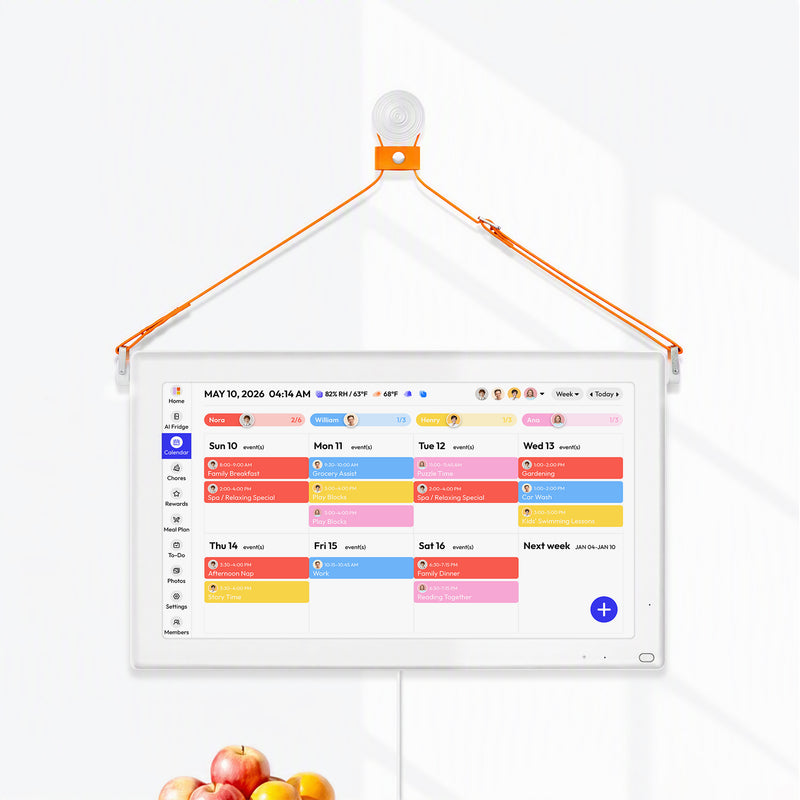
A shared calendar fixes the part that paper lists and text messages never handle well. It gives the whole household one place to check before saying yes, one place to update when plans change, and one place to see the week at a glance. Families who want a more visible version of that idea often start with a digital family calendar setup so the schedule isn't trapped inside one parent's phone.
What changes when the calendar becomes shared
The shift is practical, not magical. Morning routines get easier because people can see what's coming. Last-minute changes become less disruptive because they're posted where everyone already looks. You stop repeating yourself as much.
A family calendar works best when it stops being “Mom's calendar” or “Dad's reminders” and becomes the household's default source of truth.
That doesn't mean every family member needs equal control. It means everyone needs reliable access. Once that happens, the calendar stops being a backup reference and starts acting like the command center for school, work, appointments, rides, practices, meals, and those random weekday surprises that somehow keep appearing.
Choosing the Right Shared Calendar Platform
Families often overthink features and underthink friction. The right calendar platform is usually the one your household will open, update, and trust without a fight.
If your family is already deep in one ecosystem, start there. Don't pick a tool that requires three people to change devices, remember new passwords, or learn a completely different routine. Convenience wins. Consistency matters more than novelty.
How to decide without overcomplicating it
Ask a few practical questions:
- What devices does your family already use most? If everyone has iPhones and already uses Apple Calendar, forcing a switch may create more resistance than benefit.
- Does one parent already live in Google or Outlook for work? That can make sharing and daily use much easier.
- Will kids, grandparents, or caregivers need access? Cross-platform access matters if not everyone uses the same brand of phone.
- Do you need simple family scheduling or tighter coordination? Some households only need visibility. Others need broader workflows around tasks and routines.
Here's the quick comparison most families need.
Google vs. Apple vs. Outlook for Family Calendars
| Platform | Best For | Cross-Platform Access | Key Advantage |
|---|---|---|---|
| Google Calendar | Mixed-device families, Android households, families already using Gmail | Strong | Easy to share across different devices and accounts |
| Apple Calendar | Households mostly using iPhone, iPad, and Mac | More limited outside Apple | Feels native and simple inside the Apple ecosystem |
| Outlook | Families where work schedules already run through Microsoft | Good, especially in Microsoft environments | Familiar for parents already using Outlook daily |
What works in real family life
Google Calendar is often the easiest choice for mixed-device families. If one parent uses Android, another uses iPhone, and a teen checks everything on a Chromebook, Google usually creates the fewest obstacles.
Apple Calendar works nicely when the whole house is already on Apple devices. The interface is familiar, sharing is built in, and you won't spend much time teaching anyone where things are. The downside is that it can feel less convenient if family members regularly cross into non-Apple tools.
Outlook makes sense when a parent already manages much of life through Microsoft. That's especially true if school, work, or volunteer commitments already flow through Outlook and you don't want to juggle two scheduling systems.
Decision shortcut: Pick the platform that matches your family's existing habits, not the one with the longest feature list.
If you're still deciding, this roundup of the best shared calendar for families is useful because it evaluates tools through the family lens instead of the office lens.
What not to do
Don't share one parent's personal calendar and call it a family system. That usually creates privacy issues and clutter. A work meeting, private appointment, or personal reminder doesn't always belong in the household feed.
Also, don't create multiple overlapping family calendars right away. More calendars don't create more clarity. They usually create confusion about which one is current.
Start simple. One dedicated family calendar is almost always enough to begin. If your household later needs separate layers for school, sports, or co-parenting logistics, you can add structure once people are consistently using the basics.
Your Step-by-Step Calendar Setup Guide
Most calendar problems start before the first invite goes out. Families share the wrong calendar, hand out the wrong permissions, or skip setup choices that matter later.
The cleanest way to setup a shared calendar is to create a dedicated family calendar first, then decide who can see or edit it. That order matters. A practical setup in Outlook or Google starts with creating the calendar and only then assigning permissions, because access settings determine whether someone can only view free/busy time, see details, or edit the calendar, as outlined in this shared calendar guide from Imperial College.

Before you start
Use a calendar name that everyone will recognize instantly. “Family Calendar” works. “Smith Family Schedule” is even better. Avoid vague names like “Shared” or “Home” because they get lost fast once someone has several calendars.
Keep the first version boring and clear. You can make it prettier later.
Google Calendar setup
- Open Google Calendar on desktop Google's desktop view makes the initial setup easier than doing it on a phone.
- Create a new calendar Under “Other calendars,” choose the option to create a new one.
- Name it clearly Use something obvious, like “Garcia Family Calendar.” Add a short description if that helps define what belongs there.
- Save the calendar before inviting anyone At this stage, many people rush. Create the container first, then move to sharing.
- Share it with specific people Add the family members or caregivers who need access.
- Choose permission levels carefully Give editing access only to the people who should manage scheduling. Everyone else can usually function with view access.
Apple Calendar setup
Apple Calendar is easiest when everyone uses iCloud.
- Open the Calendar app
- Create a new iCloud calendar
- Give it a recognizable family name
- Open the sharing option for that calendar
- Invite family members using their Apple ID email addresses
- Review whether each person should only view or also edit
Apple's setup feels straightforward, but the same rule applies. Don't share your personal default calendar if your goal is household coordination. Create a separate one for family logistics.
Outlook setup
Outlook is a strong option when one or both parents already rely on Microsoft tools during the day.
A simple flow looks like this:
- Create a blank calendar
- Name it for the family
- Open sharing or permission settings
- Add the people who need access
- Set the right detail level or editing rights
For some families, Outlook becomes especially practical when home and work systems already overlap. If you're already organizing devices and accounts through Microsoft or Google in a broader way, a technical local guide like this one on setting up Google Workspace in Indiana can help you think more clearly about account structure and access before the calendar gets messy.
Naming and organizing rules that prevent trouble later
A few setup choices save a lot of cleanup:
- Use plain event titles: “Emma dentist” is better than “Appointment.”
- Add locations when travel matters: School pickup and sports fields need addresses.
- Create recurring events early: Weekly practice, library day, and trash night should not be retyped every week.
- Decide what belongs on the family calendar: Kid events, school deadlines, shared appointments, and transportation plans usually belong. Personal reminders often don't.
Practical rule: If an event affects another person's time, transportation, meal planning, or expectations, it probably belongs on the shared calendar.
That single rule keeps calendars useful without turning them into a dumping ground.
Managing Permissions and Syncing Across Devices
A shared calendar only helps if the right people can change the right things, and everyone can see updates on their own device.

Families usually run into two headaches here. First, too many people get full editing access. Second, somebody says, “I never saw that event,” when the underlying issue is that the calendar wasn't enabled, accepted, or synced properly on their phone.
Who should get which permissions
Not everybody needs the same level of control. In most households, parents or primary coordinators should manage the calendar, while kids and occasional helpers mainly need visibility.
A simple family model works well:
- Parents or household leads: Edit access
- Teens: View access, or limited editing if they reliably manage their own activities
- Grandparents, babysitters, or caregivers: View access
- Anyone prone to accidental deletions: Definitely view access
The goal isn't control for its own sake. It's preventing avoidable damage. One mistaken drag-and-drop or deleted recurring event can create a week of confusion.
Why sync speed matters
Shared calendars are useful only if updates appear fast enough to change behavior. Microsoft notes that shared calendars within the same Microsoft 365 tenant or from Outlook.com now sync with changes that appear right away, while cross-tenant shared calendars typically sync approximately every three hours in many cases, according to Microsoft's calendar sharing documentation.
That difference matters in real life. If one parent moves an appointment, the other parent needs to see it before leaving the house, not hours later.
Fast sync isn't a technical luxury. It's what keeps a shared calendar from becoming a historical record of mistakes.
If your family uses Apple devices and you need a platform-specific walkthrough, this guide on how to share a calendar in iCloud is a useful companion when invites or visibility get confusing.
A quick device checklist
When someone says they can't see the family calendar, check these in order:
- Did they accept the invitation?
- Is the shared calendar toggled on in their calendar app?
- Are they signed into the correct account?
- Did the device sync after the invite was accepted?
- Are notifications enabled for that calendar if reminders matter?
A lot of “sync issues” are really account issues. People often have more than one Google, Apple, or Microsoft account on a device and add the calendar to the wrong one.
Here's a visual walkthrough if you want to see what that cleanup process looks like in practice.
The test that tells you whether setup is finished
Don't trust setup until you run one live test. Add a new event, edit its title, and confirm that every key family device shows the change. If one person can't see it, the system isn't ready yet.
That last test is worth the minute it takes. It catches the exact problem families usually discover at the worst possible time.
Supercharge Your Calendar with Smart Workflows
Sunday night goes fine. Then Tuesday hits. One child has practice moved up, another needs a poster board by morning, dinner is running late, and somebody still assumes you remembered the school email from three days ago. That is the point where a shared calendar either becomes the family command center or turns into another app people ignore.
The calendar starts pulling its weight when it carries decisions, not just dates. Families stay on track when each event answers the practical questions people ask in the moment: who is going, who is driving, what needs to leave the house, and what changes the rest of the evening.
Habits that make the calendar easier to trust
A few rules clean up a family calendar fast:
- Use recurring events for fixed routines: School pickups, practices, lessons, trash day, and medication reminders should repeat automatically.
- Color-code with a purpose: Assign colors by person or by category, but pick one system and keep it consistent.
- Add all-day events for prep, not just appointments: "Pack library books," "class snack due," and "picture day tomorrow" prevent the last-minute scramble.
- Write titles that reduce follow-up questions: "Noah soccer at North Field, Dad drives" saves more texts than "Soccer."
Small details matter here.
If an event forces someone to open three apps or send two texts to figure out what is happening, the calendar is still incomplete. I learned that the hard way. The families who keep using a shared calendar are the ones who treat it like a living instruction board for the week.
Build a command-center routine that sticks
The fundamental shift is simple. Stop checking the calendar only when something feels urgent. Build short routines around it so the schedule gets updated before the day falls apart.
Use this rhythm:
- Check tomorrow each evening
- Review the full week once on Sunday
- Add schedule changes as soon as they happen
- Turn school emails into calendar entries the same day
That last habit fixes a lot of family friction. School information sitting in an inbox is not a plan. Once it is on the calendar, the whole household can see it and adjust around it.
The shared calendar should answer the daily question, “What does everyone need from me today?”

Where standard calendars start to break down
A regular shared calendar handles time well. It does not handle the work attached to time nearly as well.
You can schedule soccer for 6:00. The calendar still will not tell anyone to switch dinner earlier, pack shin guards, bring snack duty, or swap a chore because pickup runs long. Families usually patch those gaps with texts, sticky notes, and one overburdened parent keeping the whole system in their head.
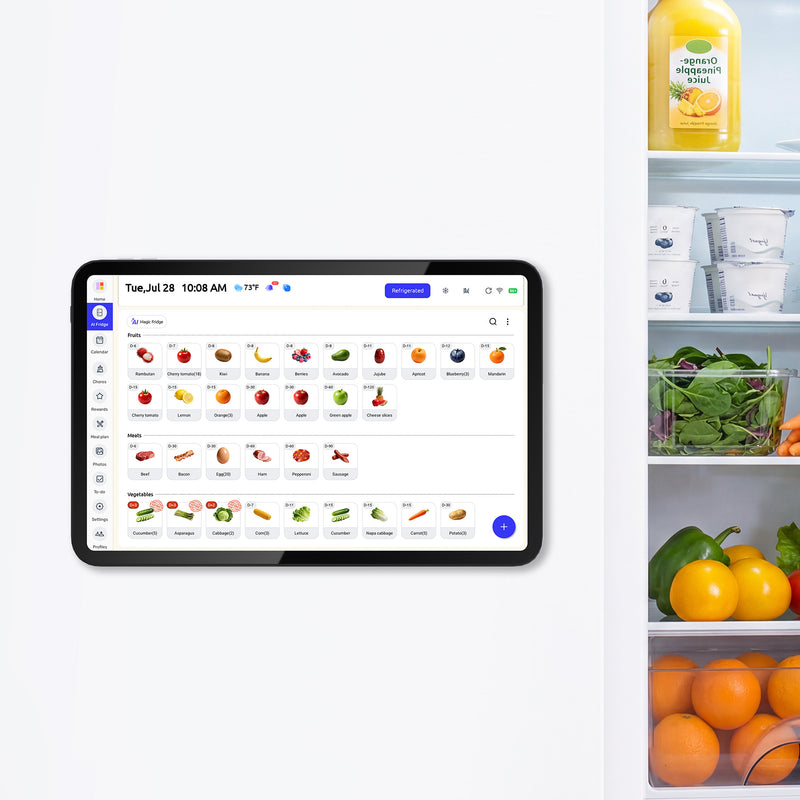
That is why many households eventually need more than a shared calendar app. They need one visible place where schedule, tasks, meals, lists, and responsibilities live together. Everblog fits that role as a digital family wall calendar. The practical benefit is not that it replaces every tool. It gives your schedule a home the whole family can see and act on without asking one person to translate the plan all day.
A smarter way to judge whether your setup is working
Phone calendars are personal by default. Family systems need shared visibility by default.
Once everyone can see the same week, the calendar starts doing what busy parents need. It reduces memory work, cuts down on repeat questions, and makes responsibilities easier to hand off. That is when a shared calendar stops being a list of events and starts functioning like household infrastructure.
Privacy Best Practices and Troubleshooting Common Issues
A shared calendar should improve communication, not expose every detail of your life. Families work best when the calendar includes what others need to know and leaves out what they don't.
If extended family, sitters, or co-parents can view the calendar, keep sensitive notes off shared events. Use clear titles, locations, and timing, but skip private financial details, confidential medical notes, or anything that belongs in a direct conversation instead.
Keep control tight and naming clear
Operational guidance often lands on the same practical advice. Limit edit or manage rights to 1–2 owners and give non-owners view access to reduce permission confusion and accidental overwrites, while also using clear titles and consistent color-coding so the calendar stays readable, as discussed in monday.com's shared calendar guidance.
That simple structure prevents a surprising number of problems.
Use these house rules:
- Only key adults edit core events: Too many editors create accidental changes.
- Keep titles descriptive: “Pediatrician follow-up” helps. “Appointment” doesn't.
- Use one shared standard: If one person adds locations and another doesn't, the calendar gets harder to trust.
- Review recurring events monthly: Old sports seasons and expired reminders create clutter fast.
Fix the most common problems quickly
If the calendar starts feeling messy or unreliable, don't rebuild everything. Target the problem.
- An event isn't showing up: Confirm the right account is logged in, the calendar is turned on, and the event was added to the shared family calendar instead of a personal one.
- Someone deleted or changed an appointment: Narrow editing rights and agree that major recurring events should only be adjusted by the main calendar owners.
- The calendar feels overcrowded: Move personal reminders back to private calendars and keep the shared one focused on household-impact events.
- People still ask what's happening: The issue often isn't setup. It's adoption. Put the calendar where people will see it and review it regularly.
A good family calendar doesn't need to be perfect. It needs to be clear, current, and trusted. Once that happens, you spend less energy chasing details and more energy being present for the things you scheduled.
A shared calendar is a strong start, but many families need one place to see schedules, chores, meals, and daily responsibilities together. Everblog gives households a single shared hub that supports that kind of day-to-day coordination without scattering it across multiple apps.


