





Trying to keep a family's schedule straight can feel like a losing battle. The good news? The tool you need to tame the chaos is probably already in your pocket. When you need to share a calendar event from your iPhone, you have two main options: invite specific people to a single event or create a shared iCloud calendar that syncs for everyone.
The first method is perfect for one-off events, while the second creates a central hub for the whole family to see and use.
Deciding How to Share Your iPhone Calendar Events
Coordinating schedules is a massive part of modern family life, but your iPhone’s Calendar app has some powerful, built-in solutions. The trick is knowing which tool to use for which job. You have two main ways to share a calendar event on your iPhone, and each one is built for a different reason.
Think of it this way: inviting someone to a single event is like sending a digital invitation for a party. It’s quick, direct, and ideal for one-time things. On the flip side, creating a shared calendar is like giving your family members a key to a shared digital space—everyone can see what's on the schedule and add their own events anytime.
This quick flowchart helps break down which option is right for you.

As you can see, it really comes down to whether you need a temporary share or a long-term solution for constant coordination.
Here’s a quick table to help you decide at a glance.
Sharing Method At-a-Glance When to Use Each
| Sharing Method | Best For | Visibility | Setup Effort |
|---|---|---|---|
| Invite to an Event | One-time events like parties, appointments, or parent-teacher conferences. | Only the details of that single event are visible. | Low - just add their email or phone number. |
| Shared Calendar | Ongoing, recurring events like sports schedules, school holidays, or family commitments. | Everyone with access can see and add all events on that calendar. | Medium - a one-time setup to invite members. |
Ultimately, single-event invites are for specific, targeted sharing, while shared calendars are for creating a single source of truth for the whole family.
Why Apple Calendar Is a Family Go-To
For families already in the Apple ecosystem, the native Calendar app is surprisingly powerful. With around 1.52 billion active iPhones out there, the deep integration across iPhones, iPads, and Macs is a huge advantage. It all just works.
This seamless flow is a lifesaver for parents. For example, with the latest updates, you can just take a screenshot of a school flyer and instantly create a calendar entry with Apple Intelligence—a feature that’s already hit 75.98% adoption. What used to be a manual chore is now just a quick tap, which is a massive win for any busy parent. If you're curious how Apple's scheduling features stack up, you can see how it compares to other platforms.
Key Takeaway: How you share an iPhone calendar event really depends on what you’re trying to do. Use invites for specific one-offs like a birthday party, and create a shared calendar for the constant stuff like soccer practice or school holidays.
How to Invite People to a Single Calendar Event
 Sometimes you just need to get everyone on the same page for a one-off thing. Think parent-teacher conferences, a birthday party, or that planning meeting for the school bake sale. This is where inviting people directly to a single event is your best friend.
It's the cleanest way to share a calendar event on your iPhone without sharing your entire calendar. No one needs to see your whole week's schedule just to know when and where the team pizza party is.
All you have to do is open your Calendar app, then either tap the + to create a new event or select an existing one you want to share.
Inside the event details, you'll spot the Invitees field. Tapping it lets you add people from your contacts or just type in their email or phone number. It’s the digital equivalent of sending out a good old-fashioned invitation, but way faster.
Adding Invitees and Key Event Details
Let’s walk through a real-world example. Say you're trying to coordinate a quick planning call with three other parents for the upcoming school fundraiser.
Here's how you'd do it:
- First, create a new event and give it a clear title, like "Fundraiser Planning Call."
- Set the date and time. In the Location field, you can drop in a physical address or even a Zoom link for a virtual meeting.
- Tap Invitees and start adding the other parents. Your iPhone will pull them right from your contacts as you type.
Once you’ve added everyone and tapped Done, your iPhone does the rest, sending an official calendar invitation to each person. They'll get a notification and can instantly accept, decline, or mark themselves as "Maybe."
Pro Tip: Go beyond the basics. I always use the Notes section to add a quick agenda, any links to relevant documents, or even just a "Hey, looking forward to this!" message. For in-person meetups, setting a Travel Time alert is a game-changer for getting everyone there on time.
Managing Responses and Cross-Platform Invites
One of the most satisfying parts is seeing the RSVPs roll in. Just open the event again, and you’ll see each person’s status right next to their name: Accepted, Declined, or No Reply. It gives you an instant headcount without chasing people down with follow-up texts.
What if you invite someone who uses an Android phone or Google Calendar? It almost always just works. They'll receive an email with the invitation and can easily add it to whatever calendar app they use. The experience isn't quite as slick as it is between iPhones, but they'll get all the essential info without a hitch.
This method gives you total control. You’re not oversharing your family’s busy schedule; you're just sending the necessary details for one specific moment. That makes it the perfect tool for those focused, one-time appointments.
Creating a Shared Family Calendar for Ongoing Sync

While inviting people to individual events works for one-offs, it's not a real solution for a busy family's schedule. For the day-in, day-out coordination of sports practices, school events, and appointments, a dedicated shared calendar is the way to go. It becomes the single source of truth everyone can count on.
Think of it as the digital version of the old kitchen wall calendar, but way smarter. Instead of juggling notes and texts, you get one central hub. Any event added there instantly syncs to everyone's iPhone, which dramatically reduces the mental load of tracking who needs to be where and when.
Setting Up Your Family's Central Hub
Creating a new shared calendar is actually pretty straightforward. The idea is to make a separate calendar just for family stuff, keeping it distinct from your personal or work schedules.
To get started, open the Calendar app and tap Calendars at the bottom of your screen. From there, tap Add Calendar in the bottom-left corner. You’ll need to give it a name—pick something clear and obvious, like "Family Hub," "Kids' Schedule," or just "Smith Family."
Next, you can give the calendar a unique color. This is more helpful than it sounds; a bright, distinct color makes family events pop so you can spot them instantly when scanning a packed week. Once you’ve created it, you'll see the new calendar in your list.
Now it's time to invite the family. Tap the little 'i' info icon next to your new calendar to open its settings.
Under the Shared With section, tap Add Person. This is where you'll invite your family members by entering the email address tied to their Apple ID. Once you send the invite, they'll get a notification to join.
A shared calendar is more than just a schedule; it’s a communication tool. When everyone can see the week's plan—from soccer practice to dentist appointments—it fosters teamwork and cuts down on last-minute scrambles and misunderstandings.
Managing Permissions for Different Family Members
Not everyone needs the ability to change the family schedule. Your iPhone gives you full control, letting you set specific permissions for each person you invite.
For example, you’ll probably want to give your partner full editing access so they can add or change events, too. To do that, just make sure the Allow Editing toggle is switched on for them after they've been invited.
But for others, like a grandparent or a babysitter, you might just want them to see the schedule without being able to change it. You have two great options for this:
- View-Only Access: Invite them with their Apple ID but simply turn the Allow Editing toggle off. They’ll see all the events in real-time on their Apple devices but won't be able to add, delete, or alter anything.
- Public Calendar Link: For family members without an iPhone or anyone who just needs a quick glance at the schedule, you can enable the Public Calendar option. This creates a view-only web link that you can text or email.
This level of control keeps the calendar organized and accurate. To dive deeper into organizing your family's digital life, check out our guide on how to set up and use a family share calendar on your iPhone. Taking a few minutes to set this up is a one-time effort that pays off every single day.
Solving Calendar Sharing with Android and Other Devices

While a shared iCloud calendar is a dream for an all-Apple household, let’s be real—most families are a mix of different devices. This is where things get messy. That seamless sync that makes Apple Calendar so great suddenly hits a brick wall when your partner has an Android or your teen uses a Windows PC for school.
The problem is that iCloud’s sharing features are built exclusively for the Apple ecosystem. When you try to share an iCloud calendar with a non-Apple user, they just get a public, view-only link. They can see what's happening but can't add or edit anything, which completely defeats the purpose of a collaborative family calendar.
This is a huge limitation, especially for co-parenting or blended families where clear, two-way communication is non-negotiable. What good is a shared calendar if only half the family can actually use it?
When a Universal Platform Makes More Sense
If your household is a classic iPhone-and-Android mix, the best move is often to switch your family’s main calendar to a universal platform like Google Calendar. Even if you’re a die-hard iPhone fan, making this one change can save you from a ton of scheduling headaches.
Google Calendar is platform-agnostic, meaning it works just as well on iPhones, Androids, and web browsers. Everyone can add, edit, and see events in real-time, no matter what device they’re on. With US iPhone users spending an average of 5.8 hours a day on their phones, eliminating calendar friction is a must.
The best calendar isn’t the one that’s native to your device—it’s the one that keeps everyone in the loop. For mixed-device families, that often means looking beyond Apple’s built-in options.
Sure, it means setting up a new central hub, but the payoff is a single, reliable calendar that everyone can actually contribute to. If you need help getting started, we have a complete guide on how to share a Google Calendar on your iPhone.
Understanding the different philosophies behind Android app development considerations helps explain why these cross-platform gaps exist in the first place. At the end of the day, the best system is the one your family will actually use.
Choosing the Right Calendar System
Deciding between Apple and Google Calendar really comes down to a clear trade-off. One offers perfect integration in a closed garden, while the other offers universal access for everyone. To help you decide, here’s a quick breakdown of how they stack up for family use.
Apple Calendar vs Google Calendar for Family Sharing
| Feature | Apple Calendar | Google Calendar |
|---|---|---|
| iPhone Integration | Excellent. Native to iOS and deeply integrated. | Good. The app works great but isn't native. |
| Android/Web Access | Poor. View-only public links for non-Apple users. | Excellent. Full editing access on all platforms. |
| Ease of Sharing | Simple for Apple-to-Apple, difficult otherwise. | Simple for everyone, using just an email address. |
| Third-Party App Sync | Good, syncs with many calendar apps. | Excellent, the industry standard for sync. |
| Best For... | Families who all use Apple devices exclusively. | Blended families with a mix of devices. |
For most families juggling different devices, Google Calendar is just the more practical choice for sharing schedules.
While third-party apps like Fantastical can also bridge this gap, they usually come with a subscription fee starting around $4.75 per month. For most people, Google’s free and powerful platform is the best place to start creating a truly unified family calendar.
Pro Tips and Security Best Practices for Your Calendar
Alright, so you’ve got the basics down for inviting people and setting up shared calendars. Now, let’s get into the good stuff—the little-known tricks and security habits that can make a huge difference in how you share a calendar event on your iPhone. These are the things that help you stay efficient while keeping your schedule secure.
Ever tried to share an event with someone who uses a completely different calendar, like a colleague on a corporate Outlook account? Standard invites don't always play nice. Instead of giving up, you can export the event as an .ics file. It's a universal format that nearly every calendar app can understand.
Advanced Sharing and Security Tactics
The easiest way to do this is on a Mac that’s synced with your iCloud account. Just open your Calendar app, find the event, and literally drag it onto your desktop. That action instantly creates a tidy .ics file. Attach it to an email, and your recipient can add it to their calendar with a single click.
Here’s another useful trick for when you don't need a formal RSVP. If you just want to text someone the "what and where," tap the event, then press and hold the title and date. A "Copy" option will pop up, letting you paste the plain text details right into Messages or an email. It’s perfect for a quick, informal heads-up.
On the security front, the single most important thing you can do is lock down your Apple ID. Make sure you have two-factor authentication enabled. It's a critical layer of protection that safeguards your calendar—and everything else in your iCloud account—from unwanted access.
Dealing With Calendar Spam and Phishing
We've all seen them: random, unsolicited calendar invites for "Ray-Ban Sales" or shady links. This calendar spam is more than just an annoyance; it's often a phishing attempt designed to trick you.
The golden rule here is to never, ever decline a spam invitation.
Declining a spam invite confirms to the sender that your email is active. Think of it like a "Yes, a real person is here!" signal, which only invites more junk to your inbox and calendar.
Instead, you need to delete the event without sending any response back to the spammer. Here’s how you do it safely:
- First, create a new, temporary calendar. Just call it something obvious like "Spam" or "Junk."
- Next, move the spam event from your main calendar over to this new "Spam" calendar.
- Finally, go back to your list of calendars, tap the 'i' icon next to your temporary "Spam" calendar, and hit Delete Calendar.
This removes the unwanted event entirely without ever tipping off the spammer. Problem solved.
Managing App Permissions and Subscriptions
Calendar spam has a sneaky cousin: malicious calendar subscriptions. Scammers sometimes trick people into subscribing to a calendar that then pushes a constant stream of junk events and alerts directly to their devices. As of 2026, this has become a surprisingly common headache for iPhone users.
To stay on top of this, you need to be mindful of what apps and subscriptions have access to your calendar. With the tighter controls in iOS 26, it's easy to check.
- Just go to Settings > Privacy & Security > Calendars.
This screen shows you every single app that can see or add events to your calendar. If you spot an app you don't recognize or no longer trust, just toggle its access off. Getting a handle on these permissions is a must for keeping a secure digital family calendar. For a deeper look at keeping your family's schedule safe, our guide on securing your digital family calendar and protecting your privacy is a great resource.
Of course. Here is the rewritten section, designed to sound completely human-written and match the expert, natural tone of your examples.
Common Questions About Sharing Calendar Events
Even when you think you've done everything right, sharing a calendar event from your iPhone can sometimes feel like a mystery. You send an invite, but it disappears into the void. Or worse, you get a bizarre, spammy event you can't seem to delete.
These little hiccups are incredibly common, but the good news is they usually have simple fixes. Let's walk through the most frequent questions and get your schedule-sharing back on track without the frustration.
Why Can't The Person I Invited See My Event?
This is easily the number one issue, and it almost always boils down to one of two things. First, take a second look at the Invitees field and make sure you entered their contact info correctly. A tiny typo in an email address or phone number is the most frequent culprit.
Second, think about what kind of calendar and device they're using. If your friend is on an Android phone or uses a non-Apple calendar like Google Calendar or Microsoft Outlook, the invitation works a little differently. They won't get a direct pop-up notification in their calendar app.
Instead, the invite arrives as an email with the event details and an .ics file attached. Tell them to check their inbox—and their spam folder, just in case! They'll need to open that email and click to accept the event for it to show up on their schedule.
How Can I Share An Event Without Sending An Official Invite?
Sometimes you don't need a formal RSVP; you just want to pass along the details. For those casual, "just an FYI" moments, you have a couple of great options.
- Copy and Paste: This is my go-to for a quick share. Just open the event in your Calendar app, then tap and hold on the event's title and time. A menu will pop up with a Copy option. You can then paste that clean block of text right into a Message or email.
- Take a Screenshot: When all someone needs is a visual reference, a quick screenshot is perfect. It's the fastest way to send the "what, where, and when" to someone who just needs the info and doesn't need to be an official attendee.
These methods are perfect for giving someone a heads-up without cluttering their calendar with a formal invitation.
Pro Tip: If you invite someone who uses a non-Apple calendar, their RSVP status might not sync back to your iPhone. For important events where you really need to know who's coming, it’s always a good idea to ask for a direct confirmation via text or email if you don't see their status update.
What Should I Do About Spam Calendar Invitations?
Waking up to a calendar filled with junk invites for "Discount Sunglasses" or suspicious-looking links is more than just annoying—it can be a security risk. Research shows that spammers exploit calendar features to send malicious links, tricking users into subscribing to junk calendars.
Whatever you do, never, ever tap 'Decline' on a spam invite.
Responding in any way—even declining—sends a signal back to the spammer that your account is active. This just invites more junk. Instead, you can get rid of the event without ever letting them know you saw it. Here's how:
- First, create a new, temporary calendar. Just name it "Junk" or "Spam."
- Open the spam event and move it to this new "Junk" calendar.
- Finally, go to your main calendar list, tap the "i" next to your "Junk" calendar, and select Delete Calendar at the bottom.
This removes the spam event right along with the temporary calendar, and the spammer never gets a notification. Your schedule stays clean, and your account stays off their "active" list.
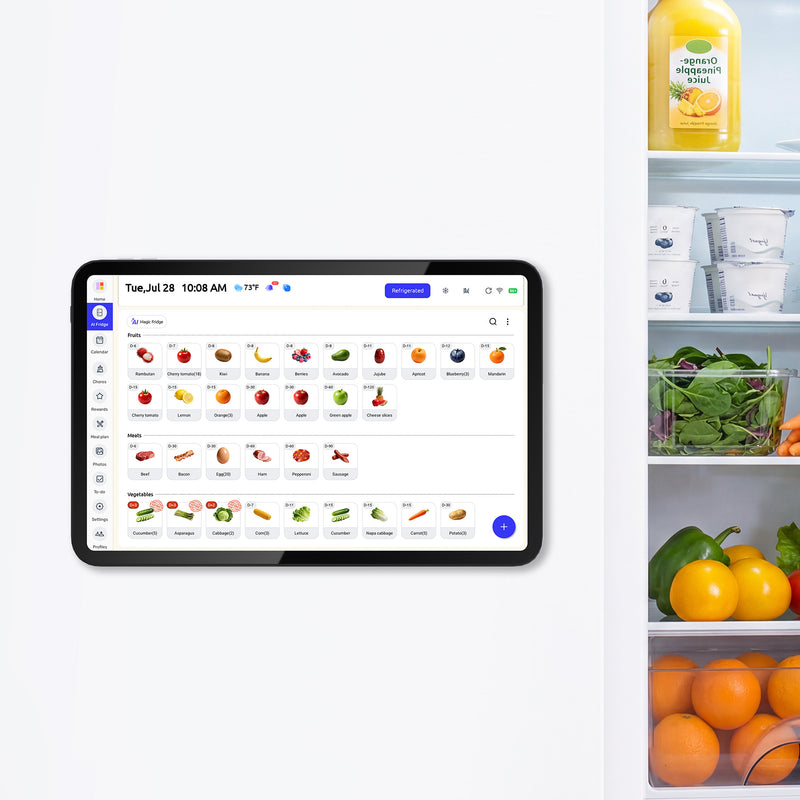
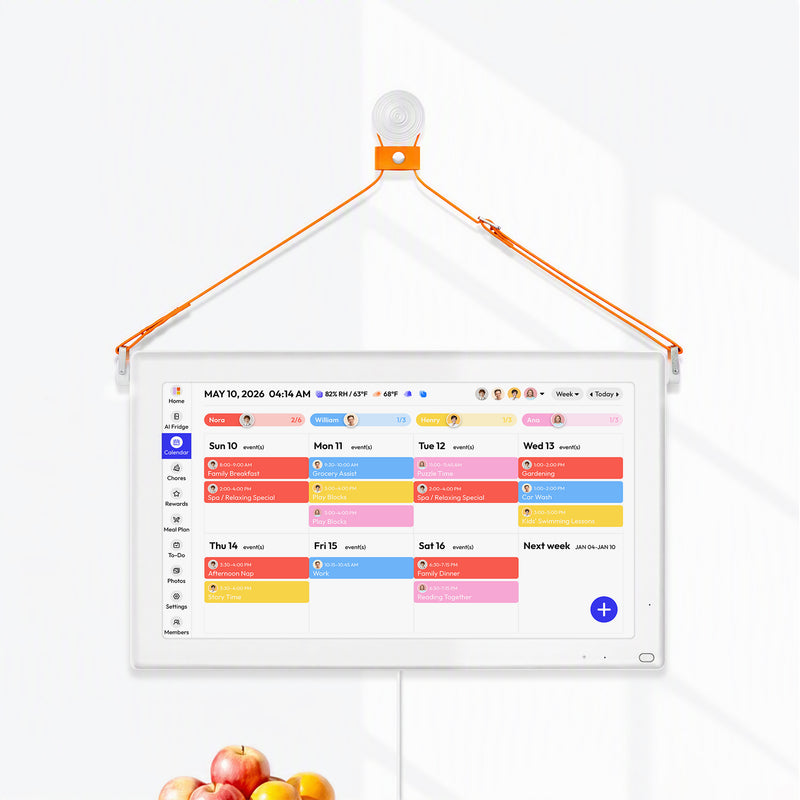
Managing schedules shouldn't be a source of stress. Everblog transforms your family's scattered plans into a single, beautiful hub. With its large display, you can see everyone's activities, chores, and meal plans at a glance, replacing calendar chaos with calm coordination. Move beyond the small screen and bring true clarity to your family's day with a digital wall calendar designed for your home. Learn more about Everblog and how it can simplify your family's life.


