

Knowing how to share an iPhone calendar event is one of the easiest ways to coordinate plans, whether it's for a single dentist appointment or the entire family vacation. You can quickly invite people to a specific event or share a whole calendar for ongoing planning, making sure everyone stays on the same page.
Why Sharing Your iPhone Calendar Is a Modern Necessity

Let's be real—managing a family's schedule often feels like a full-time job. Juggling school pickups, soccer practice, doctor’s appointments, and holiday plans creates a huge mental load. Learning to share an iPhone calendar event has gone from a neat tech trick to an essential survival skill for any modern household.
This simple feature goes way beyond the technical steps; it directly tackles the real-world chaos we all face. Just think about the last-minute scramble to find a forgotten pickup time or the endless chain of texts trying to figure out, "Are we free on Saturday?" Sharing events gives you immediate clarity.
Reclaim Your Time and Mental Energy
When you turn your calendar into a shared hub, you create a single source of truth for the entire family. It’s a small change that leads to better communication and a lot less stress at home.
- Eliminate Confusion: Everyone sees the same schedule in real-time. No more double-bookings or missed appointments.
- Empower Collaboration: Co-parents can sync their schedules seamlessly, and you can even keep grandparents in the loop for family get-togethers.
- Reduce Digital Noise: It puts a stop to the constant stream of confirmation texts and emails, freeing up your attention for what really matters.
The goal isn't just to get organized. It's to reclaim your time and mental energy. A shared calendar works silently in the background, helping your family run like a well-oiled machine.
This reliance on digital scheduling is more than just a feeling. Apple first introduced seamless iCloud sharing back in 2011, and its use has exploded since. It's estimated that by 2026, 78% of U.S. households with kids under 18 will depend on digital calendars for everything.
And it works. A 2025 Statista report found that among Apple users, 62% share calendars weekly, which has helped cut down missed appointments by a staggering 45% compared to using old-school paper planners. You can even watch a video about the evolution of these family tech habits to see how far we've come.
Quickly Sharing a Single iPhone Calendar Event

When you just need to get one thing on someone else's radar—like a parent-teacher conference or a doctor's appointment—sharing your entire calendar is way too much. The quickest fix is to share just that single iPhone calendar event.
This is my go-to for one-off plans. It sends all the key details to the right people without giving them a front-row seat to your entire life's schedule.
Think about organizing a Saturday playdate at the park. Instead of starting a messy group text that will inevitably get derailed, just create the event on your calendar and invite the other parents. Everything stays in one place: the time, the park's address, and a running list of who can make it. Simple.
Sending an Event Invitation
To do this, just open your Calendar app and tap the event you want to share. You’re looking for the “Invitees” field. If you don't see it right away, tap “Edit” in the corner, and it should pop up.
From there, you can add people from your contacts or just type in their email or phone number.
Once you send it off, they'll get a notification to accept, decline, or mark themselves as "Maybe." Their status updates right inside the event on your phone, so you can see who's coming at a glance. No more chasing people for an answer.
Pro Tip: Don't worry if the other person has an Android. When you share an iPhone calendar event using their email address (like a Gmail account), they’ll get an invitation they can add directly to their own calendar, no matter what device they use.
This little feature is a lifesaver. It cuts through the noise for everything from casual get-togethers to can't-miss appointments, making sure everyone has the right details where they need them most.
The Future of Event Creation
Honestly, manually typing in event details is already feeling a little old-school. Here in 2026, iOS 26 has completely changed the game for how families capture and share events.
There's a new feature powered by Apple Intelligence that's been a massive hit—it’s already used by 52% of iPhone 16 users. You can just take a screenshot of a school flyer or a party invitation, and an 'Add to Calendar' button appears, pulling all the details automatically. It’s brilliant.
Late 2025 research found that this AI-assisted method boosts family schedule accuracy by an incredible 37%. It makes getting plans off a piece of paper and into your digital world almost effortless. You can read more about iOS 26's new calendar advantage and see how it works. This is the new standard.
Creating a Shared Calendar for Your Whole Family
Sharing a single event is perfect for a one-off plan, but the real magic happens when you upgrade to a fully synchronized family calendar. Think of it as your family's central command center—a single source of truth that puts an end to the constant "Are we free on Saturday?" texts.
Getting started is simple. Just open the Calendar app on your iPhone, tap “Calendars” at the bottom, and then hit “Add Calendar” in the bottom-left corner. Give it a name that makes sense, like “Family Schedule” or “Kids’ Activities,” so everyone knows exactly what it's for.
Next, pick a color that pops. This might seem small, but choosing a bold red or a bright orange makes family events instantly stand out from your personal or work appointments. It’s a simple visual trick that makes a huge difference when you’re trying to see your day at a glance.
Setting the Right Permissions
Once you've made the calendar, it's time to invite your family. This is where you need to decide who gets what level of control. For each person you add, you’ll see two key options: View Only and View & Edit.
Setting permissions isn't just a technical step—it's about deciding who can add, change, or delete things. Getting this right from the start prevents mix-ups and accidental deletions.
For example, you’ll want to give your partner ‘View & Edit’ access. This way, they can add soccer practice or schedule a doctor’s appointment, making it a truly collaborative effort. For a teenager, ‘View Only’ is often the safer bet. They can see when dinner is or when you're leaving for a family trip, but they can't accidentally wipe your anniversary plans off the calendar.
If you want to get into the nitty-gritty of these settings, we break it all down in our complete guide on how to share an iCloud calendar.
Choosing the Right Sharing Permission
Deciding between 'View Only' and 'View & Edit' really depends on who you're sharing with and how much you trust them with your schedule. Here’s a quick guide to help you choose.
| Recipient | Recommended Permission | Why It's the Best Choice |
|---|---|---|
| Your partner or spouse | View & Edit | Allows for true collaboration. Both of you can add appointments, edit details, and manage the schedule as a team. |
| Older kids/teenagers | View Only | Lets them stay informed about family plans without the risk of them accidentally deleting or changing important events. |
| Grandparents or a babysitter | View Only | They can see when they’re needed and what the kids’ schedules look like, but they can’t alter your core family calendar. |
| A co-parent | View & Edit | Essential for keeping custody schedules, appointments, and kid-related events perfectly in sync and reducing miscommunication. |
Ultimately, you can always change these permissions later. Start with what feels most comfortable and adjust as your family’s needs evolve.
This kind of digital coordination has become a lifeline for modern households. It's not just a hunch—the data backs it up. A report from Common Sense Media projects that by 2026, 68% of U.S. parents with school-age kids will use Apple Calendar sharing daily.
Even more, a 2025 Forrester study found this simple habit can cut down on back-and-forth communication for co-parents by an incredible 32%. For the 16 million blended families in the U.S. who rely on real-time updates, that's a game-changer. You can discover more insights about calendar usage trends on appypieautomate.ai.
By taking a few minutes to set up a shared family calendar, you’re not just organizing dates. You’re building a system that opens up communication and smooths out the daily friction for everyone in your home.
Advanced Sharing Methods for Every Situation
Sometimes, just inviting a few people to a single event doesn’t cut it. What happens when you need to share an entire schedule with a sports team or a classroom without manually adding dozens of email addresses? This is where a couple of powerful, but often overlooked, features come into play.
These more advanced methods are your secret weapon for broadcasting information. Imagine a soccer coach who needs to share the game schedule with all the parents. Instead of a massive email chain, they can create a single public link.
When the coach updates the calendar with a rain delay or a new field number, it automatically updates on everyone else's phone. No confusion, no missed messages.
Create a Public Read-Only Calendar
This is the perfect tool for one-way communication. You’re in control of the calendar, and everyone else simply gets a view-only subscription to it.
To get this set up, head to your Calendars list, tap the little info icon (i) next to the calendar you want to share, and just flip the Public Calendar switch on. The iPhone will instantly generate a shareable link that anyone can use to subscribe.
This creates a “subscribe-and-forget” experience for your audience. They add it once, and you handle all the updates, ensuring everyone has the latest information without any extra effort on their part.
Deciding on the right permission level is key. This handy decision tree can help you choose whether to grant full editing rights or just view-only access.

As you can see, giving someone editing rights is best for true collaboration, like with a partner. For broadcasting info to a wider group, view-only is almost always the safer and smarter choice.
Export a Single Event as an ICS File
But what if you just need to send one event to someone on a totally different platform, like an Android user who lives in Google Calendar? While a standard invite usually works, there's another universal trick: the .ics file.
Think of an .ics file as a digital invitation card for a calendar event. It's a universal format that almost every calendar app understands.
While the iPhone Calendar app itself doesn't have a big "export" button, there's a simple workaround if you have a Mac. Just create the event in the Calendar app on your computer, then drag and drop it right onto your desktop. That's it! This creates an .ics file you can email or message to anyone. The recipient just clicks it, and the event pops right into their calendar, no matter what device they use.
If you find yourself constantly navigating between Apple and Google ecosystems, our guide on how to share your Google Calendar on an iPhone might save you some headaches.
While the iPhone calendar is fantastic for family coordination, businesses often need more firepower. For complex scheduling, like managing multiple clients and sessions, specialized tools like tutoring scheduling software are built to handle that kind of heavy lifting.
Troubleshooting Common iPhone Calendar Sharing Issues
Even when you do everything right, technology has a way of throwing a wrench in the works. It’s beyond frustrating when you send a calendar invite and it vanishes into thin air, or an event just won’t show up on your partner’s phone.
Before you give up and go back to a paper planner, take a deep breath. Most of these problems are incredibly common and usually have a surprisingly simple fix. Let's walk through the usual suspects and get your family's schedule back on track.
The Phantom Invitation: "I Never Got It!"
This is probably the #1 issue we all run into. You meticulously created the event, invited everyone, and hit send. But then you get a text: "What invite? I didn't get anything." Don't worry, it’s rarely lost for good.
Here are the first places to look:
- Check the Junk Mail: This is the most frequent culprit. Calendar invitations, especially from a new contact, can get flagged as spam. Have them check their Spam or Junk folder in their email app.
- Verify the Email or Apple ID: A simple typo is all it takes to send an invitation to the wrong person or a dead-end address. Double-check that you entered their contact info correctly. Sometimes people use a different email for their Apple ID than their primary one.
- Make Sure They're Looking in the Right Place: In the Calendar app itself, there's an "Inbox" at the bottom right. This is where pending invitations live. Ask them to tap that and see if your event is waiting for an RSVP.
The Sync Black Hole: Events Aren't Showing Up Across Devices
You add the parent-teacher conference to your iPhone, but it never appears on your iPad or Mac. This classic sync problem almost always points back to iCloud.
The first step is to confirm iCloud Calendar is actually turned on for all your devices. Head to Settings > [Your Name] > iCloud, tap Show All, and make sure the toggle next to Calendars is green.
If it’s already on, try the oldest trick in the book: turn it off and on again. This simple action forces a fresh sync with iCloud and often clears the logjam.
A syncing problem doesn't mean your data is lost. It usually just means one device has temporarily lost its connection to the iCloud mothership. A quick refresh is all it takes to bring everything back into alignment.
If that doesn't do the trick, you might need to dig a little deeper. Our guide on fixing a stubborn iCloud calendar is not syncing has more advanced solutions.
The "Look But Don't Touch" Problem: Permissions Are View-Only
You successfully shared the "Family Events" calendar with your partner, but they complain they can't add soccer practice or edit the time for a dinner reservation. This is a classic permissions issue.
It happens when their access is set to View Only instead of the more collaborative View & Edit.
Luckily, the fix is quick. In the Calendar app, tap Calendars at the bottom of the screen. Find the shared calendar in the list and tap the little info icon (i) next to it. Tap on the person's name and simply switch on the Allow Editing toggle. Their permissions will update almost instantly.
The Time Travel Glitch: Events Show Up at the Wrong Time
Nothing creates scheduling chaos like a time zone mix-up. You set a family video call for 7 PM your time, but your relatives on the other side of the country see it for 10 PM—or worse, the calendar adjusts it incorrectly.
To prevent this headache, especially when coordinating travel or events across different regions, you can use Apple's Time Zone Override.
You can find it in Settings > Calendar > Time Zone Override. When you turn this on, all events will be displayed in the time zone you select, no matter where you are physically located. It’s a lifesaver for keeping everyone on the same page.
A Quick-Fix Cheat Sheet
When you're in the middle of a scheduling crisis, you don't have time to read a manual. Here’s a quick reference table to help you diagnose and solve the most common calendar sharing headaches in seconds.
| Problem | Likely Cause | How to Fix It |
|---|---|---|
| Invite never arrived | It's in their junk mail, or you used the wrong email address. | Have them check their spam folder. Double-check their Apple ID or email and resend. |
| Events not syncing | iCloud Calendar is turned off on one device or the connection is stuck. | Go to Settings > iCloud and ensure Calendars is enabled. Toggle it off and on to force a refresh. |
| Can't edit a shared event | Permission is set to "View Only." | Open Calendars, tap the (i) on the shared calendar, select the person, and turn on Allow Editing. |
| Event time is wrong | The device is automatically adjusting for a different time zone. | Go to Settings > Calendar > Time Zone Override and turn it on to lock events to a specific time zone. |
| "Could not join" error | The iCloud link is expired or there's a server-side glitch. | Ask the calendar owner to remove you and send a fresh invitation. |
Think of this table as your first line of defense. Nine times out of ten, one of these simple fixes will get your calendars talking to each other again, saving you a whole lot of frustration.
Common Questions (and Quick Fixes) for Calendar Sharing
Even when you think you have it all figured out, sharing calendars can throw a few curveballs. Here are the answers to the questions we hear most often, so you can get your family's schedule sorted out without the headache.
Can I Share an iPhone Calendar Event With an Android User?
Absolutely. It’s a lot easier than you might think. Don't worry about what kind of phone they have.
Just open the event on your iPhone, tap Edit, and go to Invitees. Type in their full email address (like their Gmail account) and send the invite. Your iPhone automatically attaches a universal .ics file to the email. All they have to do is tap it, and the event will pop right into their Google Calendar or whatever app they use.
No one gets left out of the loop, regardless of their phone.
How Do I Stop Sharing a Calendar With Someone?
Need to take back control of a calendar? It's simple.
Open your Calendar app and tap "Calendars" at the bottom of your screen. Find the calendar you want to adjust and tap the little info icon (i) next to it. You’ll see a list of everyone you're sharing it with.
Just tap the person's name you want to remove and hit the bold, red "Stop Sharing" button. Their access is revoked immediately, and the calendar vanishes from their devices.
What Is the Difference Between Family Sharing and a Shared Calendar?
This one trips a lot of people up. Here’s the simplest way to think about it:
-
Family Sharing: This is Apple’s all-in-one service. It automatically creates a single calendar called "Family" that everyone in your group is added to. It’s a fantastic, no-fuss option for central family events and is linked to things like shared app purchases.
-
Manually Shared Calendar: This method gives you way more control. You can create totally separate calendars for different parts of your life—think "Kids' Sports," "Meal Plan," or "Work Deadlines"—and invite only the people who need to see them. You can even invite friends or babysitters who aren't in your official Apple Family Sharing group.
Most families we know end up using a mix of both. The main "Family" calendar is great for the big stuff, while custom shared calendars are perfect for managing specific activities with smaller groups of people.
Why Can’t My Partner Edit an Event I Shared?
This is almost always a permissions issue, and thankfully, it’s a quick fix. When you first shared the calendar, you probably set their access to "View Only." This means they can see everything but can't add or change anything.
To fix it, go back to your Calendars list, tap the info icon (i) for that specific calendar, and then tap on their name. You'll see a toggle for "Allow Editing." Switch it on. Just like that, they’ll have the same editing power as you, turning it into a truly collaborative calendar.
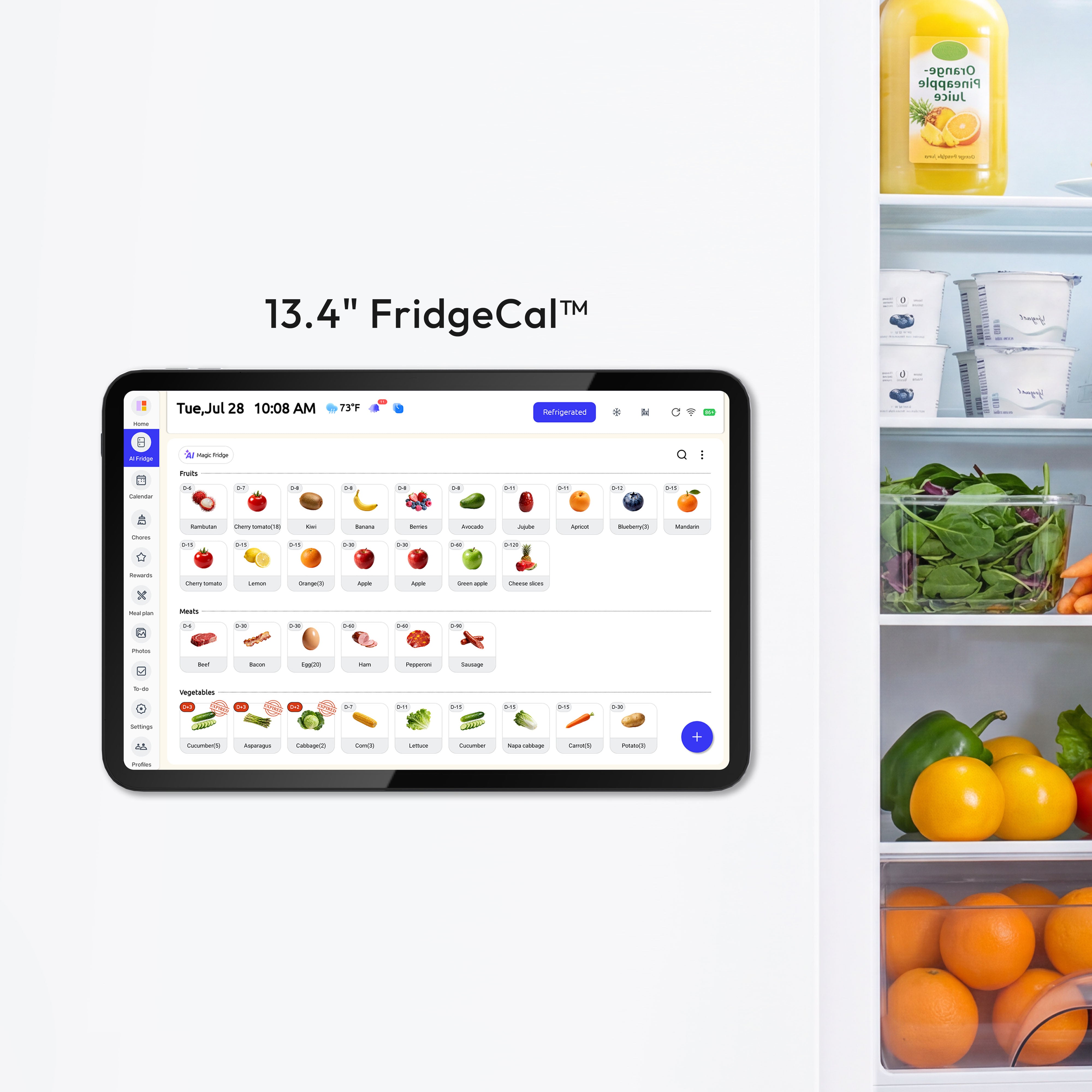
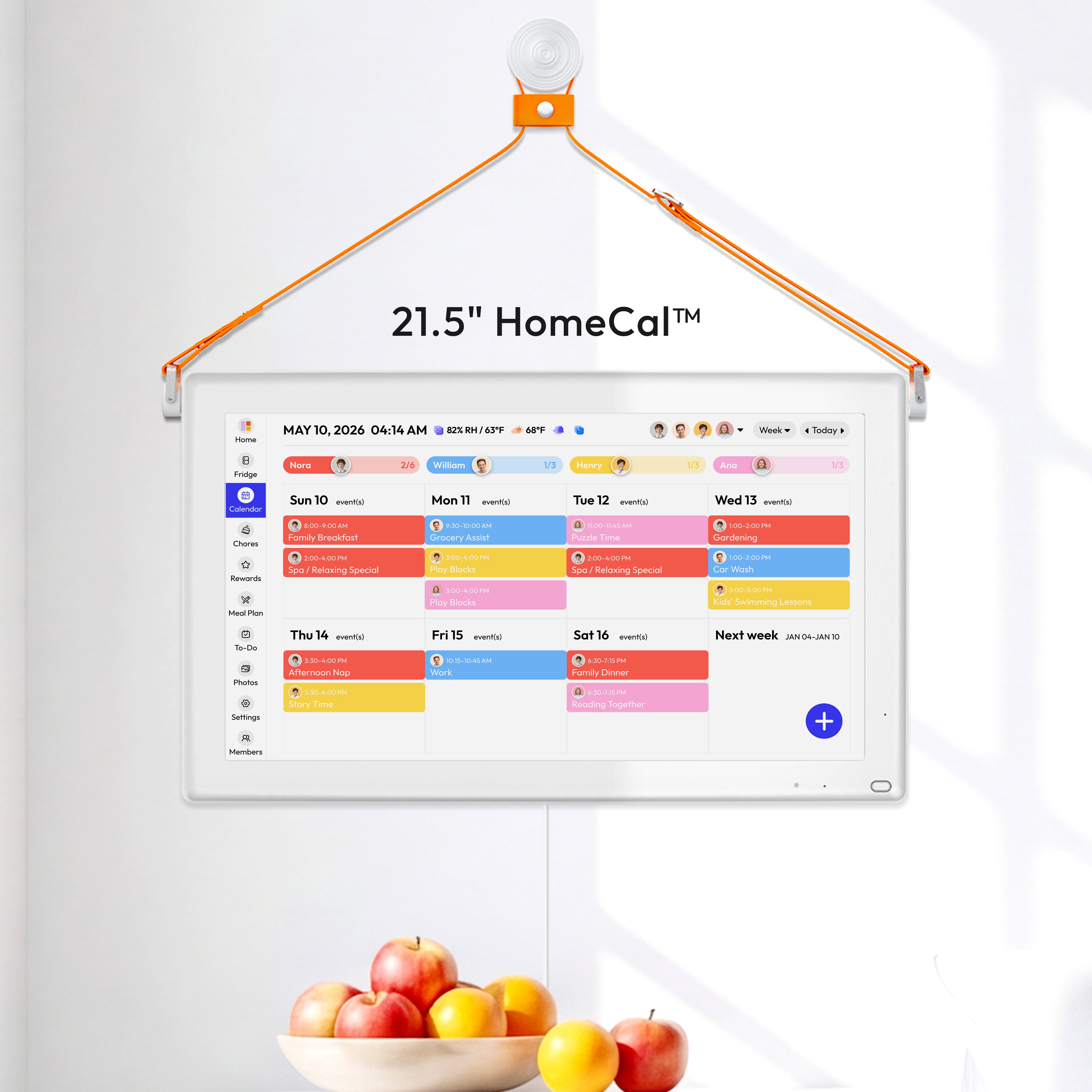
For families looking to move beyond scattered apps and text chains, Everblog offers a central hub to see your entire day at a glance. It’s a 21.5-inch digital wall calendar that syncs schedules, chores, and meal plans, creating clarity and connection for your whole household. Learn more about how Everblog can organize your family life.


