



By the time most families decide to fix their calendar setup, they're already annoyed. One parent has a work meeting in Outlook, the other is checking Apple Calendar on an iPhone, a kid's practice changed times in an email nobody flagged, and now dinner, pickup, and bedtime all feel like a logistics puzzle.
That's why syncing iphone calendar with outlook matters so much in real life. It isn't a tech project for its own sake. It's a way to stop asking, “Wait, who knew about this?” and start trusting that the schedule on your phone is the schedule.
Why Syncing Your Calendars Matters for Family Coordination
A missed soccer practice usually isn't about forgetting the practice. It's about the event living in the wrong place.
One parent adds it in Outlook at work. The other checks the iPhone calendar before leaving the house. Someone assumes the update carried over. It didn't. Now one kid is standing by the door in cleats while everyone else is still finishing dinner.
That kind of mix-up happens because families don't just have busy schedules. They have fragmented schedules. School events, work calendars, medical appointments, after-school activities, and family plans all land in different apps, different inboxes, and different devices. The problem isn't lack of effort. The problem is that each person is looking at a slightly different version of the week.
Calendar sync fixes that at the source. Instead of manually copying events from Outlook into Apple Calendar, you connect the account once and let the phone keep the schedule updated. That changes the daily experience from “I think that's still the plan” to “I can check my phone and know.”
Practical rule: If your household relies on more than one person remembering the same event, you need one system that updates automatically.
For families, this gets even more useful when shared calendars enter the picture. You might keep work in Outlook, personal plans on iPhone, and a shared family calendar visible to everyone. If you haven't set up sharing your calendar on iPhone, it's worth doing alongside sync, because visibility matters just as much as the connection itself.
Some households do fine with Apple Calendar as the main view. Others are better off staying inside Outlook. The right answer depends on who manages the schedule, where new events usually get created, and how much cleanup you're willing to do when duplicates show up.
Choosing the Right Sync Method for Your Family
Not every family needs the same setup. Some want the native iPhone Calendar app because that's what everybody already opens. Others want the Outlook app because work and personal planning already live in Microsoft's world. A smaller group just needs a workaround to view one system inside another.
The best method is the one your family will keep using.
| Method | Best For | Sync Type | Setup Difficulty |
|---|---|---|---|
| Native iOS Account | Families who want Outlook events inside Apple Calendar | Two-way account-based sync | Low |
| Outlook App | Families who already live in Microsoft apps | App-centered sync through Outlook | Low |
| iCloud Method | Households trying to bridge separate ecosystems manually | Usually limited or workaround-based | Medium |

Native iPhone sync works well for mixed Apple and Microsoft homes
If your family uses iPhones but one or both adults work in Outlook, the built-in iPhone account method is usually the cleanest starting point. You add the Outlook.com or Exchange account in iPhone settings, turn on Calendar, and Apple Calendar becomes your everyday view.
This setup is good for families that want:
- One familiar app: Apple Calendar stays the front door on the iPhone.
- Less training: Kids, co-parents, or grandparents don't need to learn a new app.
- Cleaner handoff: Events created in Outlook can flow into the same calendar app people already check.
The trade-off is that native sync depends on correct settings. If the account type is wrong or the Calendar toggle is off, it can look broken even when sign-in succeeded.
The Outlook app is simpler for Microsoft-heavy households
If work calendars, shared Microsoft accounts, and Outlook email already run the household, using Outlook directly can reduce friction. Microsoft's official Outlook for iOS app hit 1 million installs in fewer than 48 hours after its 2015 launch, which showed strong demand for a unified mobile calendar experience (Microsoft launch milestone).
That matters because Outlook on iPhone isn't some fringe option. It's a mainstream workflow that many people already trust.
When a family already lives in Outlook during the workday, asking them to switch apps for the family schedule often creates more confusion, not less.
The iCloud-style workaround has limits
Some families try to stitch systems together through exports, subscriptions, or other indirect methods. That can be fine if you only need visibility, but it usually isn't the best answer when multiple people are actively editing schedules.
Use that route only if your household has a very specific reason to avoid direct account sync.
For a broader household planning setup, it also helps to compare your overall scheduling tools, not just your phone settings. This guide to the best shared calendar for families is useful if you're also deciding how the whole family should view and manage events.
The quick decision filter
Choose Native iOS Account if you want Apple Calendar as the main interface.
Choose Outlook App if your family already manages email, meetings, and invitations in Microsoft's ecosystem.
Choose a workaround method only if you need a limited view or a very particular setup.
The Native Method Adding Your Outlook Account to iPhone
For most families, this is the setup that makes the most sense. You keep using the built-in iPhone Calendar app, but the events come from your Outlook account in the background.
That distinction matters. This isn't a one-time import. It's an account-based sync, which means the iPhone stays connected to the Outlook calendar instead of taking a static copy.

How to add the account the right way
On iPhone, go to Settings, then find the calendar account area. On many devices, that path appears under Apps > Calendar > Calendar Accounts. On others, you may reach it through the broader account settings path.
From there:
- Tap Add Account: Choose Outlook.com or Exchange, depending on the account you use.
- Sign in fully: Complete Microsoft sign-in and any permission prompts.
- Turn Calendar on: This is the step people miss most often.
- Open Apple Calendar: Check the Calendars list at the bottom and make sure the Outlook calendar is visible.
Microsoft's support guidance for connecting Outlook and iPhone calendars specifically points users to adding the account and confirming that the Calendar toggle is enabled, then checking visibility in the Apple Calendar app through the Calendars button (Microsoft support for Outlook and iPhone calendars).
Why this method works for busy families
Families don't need a clever setup. They need a dependable one.
With native sync, a parent can add an appointment in Outlook on a laptop and expect it to show up on the iPhone calendar without manual copying. That's what makes school pickups, dentist appointments, and work travel easier to manage. Everyone can keep using the iPhone's default calendar view while the Outlook account does the syncing behind the scenes.
A few practical habits make this setup smoother:
- Set one default calendar: If new events are landing in the wrong place, check which calendar the iPhone uses by default.
- Keep account labels clear: If you have personal and work Outlook accounts, name them clearly so nobody adds events to the wrong one.
- Check shared visibility: A synced calendar isn't helpful if it's hidden in the Calendars list.
If you also want a broader Apple-side setup for the household, this guide on how to sync iPhone calendar helps when you're aligning multiple family devices.
The setting that affects timing
Current iOS guidance makes one thing clear. Sync reliability depends on permissions and account type, and if Calendar access is disabled or fetch settings are too slow, events can lag (iPhone and Outlook sync behavior overview).
That matters more in a family than in a solo setup. If the soccer field changes at the last minute, you don't want that update arriving long after someone has already left the house.
The most common failure isn't “sync is broken.” It's “the account is connected, but Calendar isn't turned on or updates are delayed.”
When native sync is the better choice
Use this method if your family likes Apple Calendar's interface and wants Outlook to feed it in the background. It's especially good when one parent works in Outlook but the household still prefers the iPhone's default tools.
Skip it if your family already uses Outlook for everything and doesn't want to juggle two calendar apps.
Using the Outlook App as Your Central Calendar Hub
Some families get better results by dropping the middle layer. Instead of syncing Outlook into Apple Calendar and then troubleshooting what the iPhone does with it, they use the Outlook app as the main calendar on the phone.
That approach is cleaner than it sounds. If your work meetings, shared Microsoft calendars, and Outlook email already shape the day, it often makes more sense to keep the calendar in the same app.

Why families choose the Outlook-first approach
This method works best when the adults in the house already spend most of the day in Microsoft tools. It reduces the number of places where something can go wrong.
A few advantages stand out:
- One app for context: Calendar, email, and meeting invites stay together.
- Consistent experience: The same account structure follows you across phone and computer.
- Fewer sync layers: You're not relying on Apple Calendar to display a Microsoft calendar correctly.
If you've ever had an event show up in Outlook but not in Apple Calendar, you already know the value of cutting out one handoff.
What to set up after installing it
Installing Outlook is the easy part. The part that matters for family use is making it convenient enough that you'll check it.
After signing in:
- Turn on notifications: Make sure event alerts are enabled at both the iPhone and app level.
- Pin widgets if you use them: That keeps upcoming events visible without opening the app.
- Review calendar visibility: Hide calendars you don't need every day so the view stays readable.
- Keep one event workflow: Decide whether family events get entered in the Outlook app, on the desktop, or by one designated parent.
When this beats native Apple Calendar
If your family runs on Microsoft 365, shared Outlook calendars, and work-issued accounts, the Outlook app is often the lower-maintenance choice. You lose some of the “everything in Apple's default app” convenience, but you also avoid a lot of the small settings problems that confuse people later.
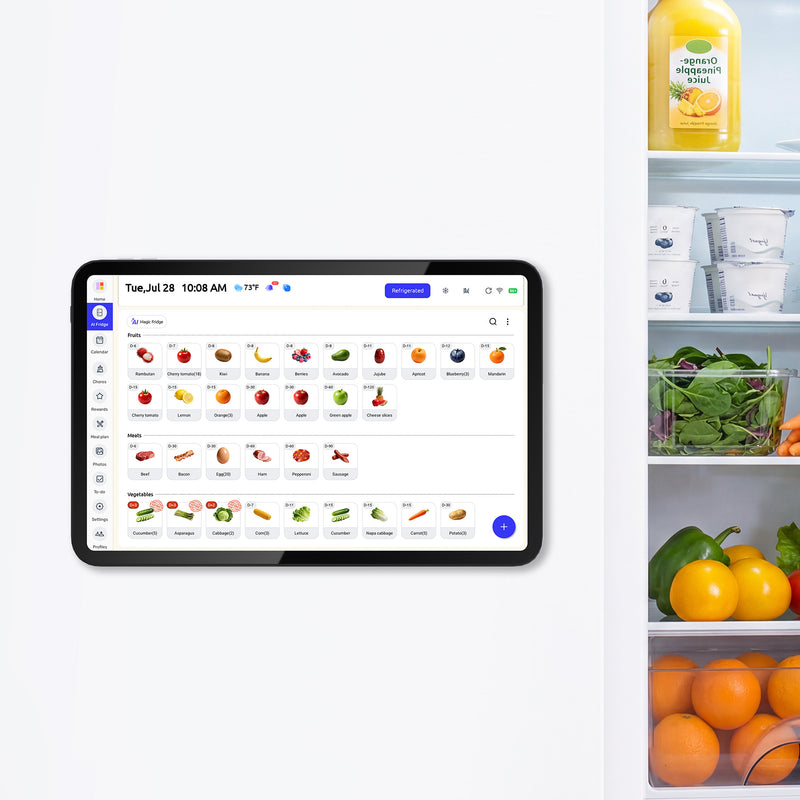
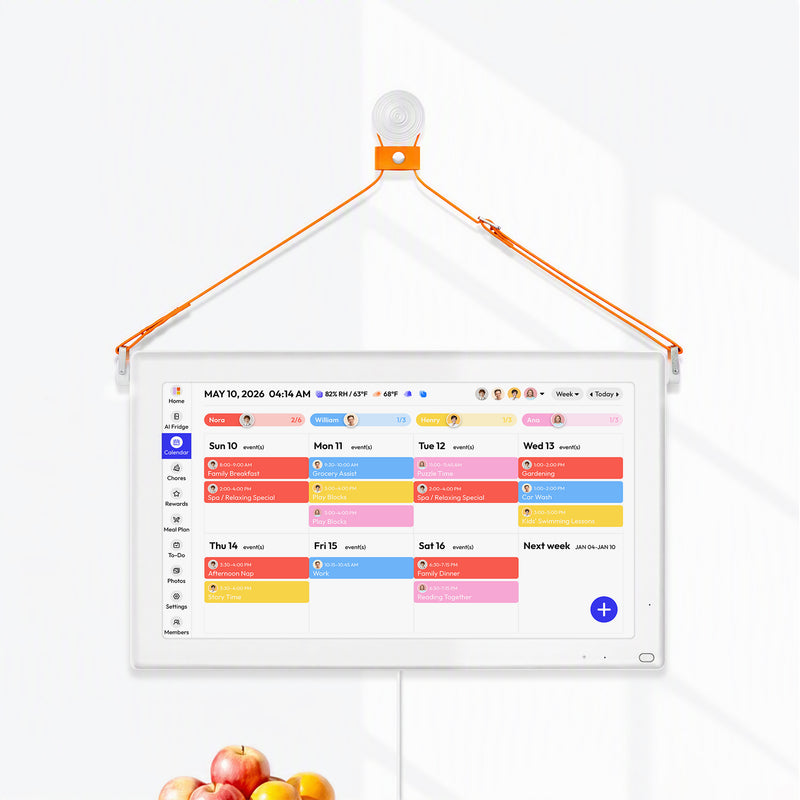
This is also the kind of setup that pairs well with a visible household display. Tools like Everblog can sit alongside phone-based calendars by pulling in Apple and Outlook accounts into one shared family view, which is useful when the challenge isn't just sync on one iPhone but household visibility across everyone.
Advanced Syncing and Family Sharing Strategies
Basic sync gets one person's Outlook calendar onto one iPhone. Family life usually needs more than that.
The moment you add shared custody schedules, rotating practices, grandparents helping with pickup, or one parent traveling for work, the problem becomes calendar governance. Who owns which calendar, where should new events be created, and what should everyone see without cluttering their phone?
Pick a source of truth and protect it
The cleanest family setup uses one primary source of truth per person. If a parent's work and personal planning mainly live in Outlook, keep Outlook as the authoritative calendar and let Apple Calendar act as the viewing layer when needed.
That works better than creating the same event in multiple places.
One practical tutorial on this topic recommends treating Outlook as the source of truth and hiding duplicate calendars in Apple Calendar after connection, because adding the same account more than once or mixing overlapping providers often creates duplicate events or the appearance of missing ones (family calendar duplication guidance).
If your family sees the same event twice, don't start deleting appointments first. Check whether the same account or feed was added more than once.
Build simple family calendar rules
Most calendar mess comes from unclear habits, not bad software. A few household rules solve a lot:
- Work stays in the work calendar: Don't copy every office meeting into a separate personal calendar unless someone else needs to see it.
- Family logistics go in one shared place: School pickups, appointments, activities, and travel should live where both adults can see them.
- Subscriptions stay read-only: Team schedules, school calendars, and holiday feeds are useful, but they shouldn't become the place where you manually edit family plans.
That last point matters. If your school publishes an ICS calendar or your sports league offers a subscription feed, use it as an information layer, not your planning layer. It's there to inform your week, not to replace the calendar where your household adds decisions.
Keep shared calendars visible but not noisy
Apple Calendar and Outlook both let you show and hide calendars. Use that. Don't delete useful feeds just because the screen looks crowded.
A cleaner approach is:
| Calendar Type | Role in the Family System | What to Do |
|---|---|---|
| Personal Outlook calendar | Main schedule for one adult | Keep active |
| Shared family calendar | Logistics everyone needs | Keep visible for both adults |
| School or sports subscription | Reference information | Hide when not needed |
| Old duplicate feed | Confusing overlap | Disable or hide |
Watch for the hidden duplication trap
Families often think they need more sync when they really need less duplication. The common trouble spots are predictable:
- Same Outlook account added twice
- Outlook plus another provider both holding the same event
- Shared calendar accepted, then copied manually
- Default calendar set wrong on one device
When the household agrees on where events should originate, syncing gets quieter. That's the ultimate goal. Not more calendars. Fewer arguments about which one is correct.
Troubleshooting Common iPhone and Outlook Sync Errors
When sync breaks, the symptoms usually look dramatic. In most cases, the cause is boring. A wrong account type, a disabled calendar toggle, or duplicate account setup does most of the damage.

New events aren't showing up
Likely cause: The account connected successfully, but calendar syncing isn't enabled, or the wrong calendar is hidden.
What to do: Open the iPhone account settings, confirm the Outlook account still has Calendar turned on, then check the Apple Calendar app's calendar list to make sure that calendar is visible.
Email works, but calendar doesn't sync
This is the big one. A frequent cause of sync failure is setting up the account as IMAP, which syncs email only. Microsoft's Q&A guidance states that calendar and contacts do not sync over IMAP. For calendar sync, the account needs to be configured as Exchange or Outlook.com (Microsoft Q&A on IMAP and calendar sync).
If you've been troubleshooting for an hour and mail works but calendar doesn't, check the account type before anything else.
Every event appears twice
Likely cause: The same Outlook account was added more than once, or a second calendar source is displaying the same events.
What to do: Open the Calendars list in Apple Calendar and hide redundant calendars first. If the duplicates disappear, you've found the overlap. Don't start deleting events until you know which feed created them.
One more thing. If your Outlook inbox is full of junk invites, newsletter clutter, or fake meeting spam, your calendar workflow gets harder to trust. Cleaning up the inbox helps. This guide on managing unwanted emails in Outlook is a useful companion if bad email hygiene is feeding calendar confusion.
A visual walkthrough can help if you want to compare your setup against a real device flow:
Frequently Asked Questions About Calendar Syncing
Can I sync a shared Outlook family calendar to iPhone
Yes, if the shared calendar is attached to the Outlook account that's connected to the iPhone and the calendar is visible in the app you're using. If it doesn't appear, check the calendar list first before assuming sync failed.
How often does the iPhone update Outlook calendar changes
It depends on the account type and your iPhone's update behavior. Some setups update automatically, while others rely on fetch timing. If changes feel slow, review permissions and account settings on the phone.
Should I use Apple Calendar or Outlook for a family schedule
Use the app your household will check consistently. Apple Calendar is often easier for iPhone-first families. Outlook is often cleaner for Microsoft-heavy households. The bigger decision is choosing one main place where events originate.
Why do event colors look different between Outlook and iPhone
Color handling doesn't always map perfectly between platforms. The event usually still syncs correctly, but the visual label may differ because Apple Calendar and Outlook organize categories differently.
What's the best way to avoid duplicate family events
Keep one source of truth per person, don't add the same Outlook account twice, and hide redundant calendars instead of deleting things blindly. Most duplicate problems come from overlap, not from missing sync.
If your family is already juggling Outlook, iPhone calendars, chores, meals, and school logistics across too many apps, Everblog is worth a look as a shared household display. It's a digital family wall calendar that brings schedules into one place and can fit alongside the sync methods above when you want the whole family, not just one phone, to stay aligned.


