





Tired of the constant back-and-forth texts trying to figure out who's picking up the kids or when that dentist appointment is? Let's cut right to the chase. The quickest way to get everyone on the same page is by sharing your iPhone's calendar.
It’s surprisingly simple. Just open the Calendar app, tap 'Calendars' at the bottom, find the calendar you want to share, and hit the little 'i' icon next to it. From there, you just need to tap 'Add Person'. Seriously, that's the core of it.
Your Quick Answer for iPhone Calendar Sharing
Getting your family’s schedule in sync shouldn't feel like a full-time job. This is the fast-track method using the built-in iCloud features that come standard on your iPhone. Think of it as the immediate fix for ending the daily scheduling chaos.

The whole process, from starting a new calendar to sending out the invites, only takes a couple of minutes. Once you tap that info "i" icon, you just add people from your contacts and send the invitation. They’ll get a notification, and boom—you’re connected.
Understanding Sharing Permissions
Before you hit send, you have a crucial choice to make: who gets to do what? You can set one of two permission levels for each person you invite, and picking the right one is key to making this work smoothly.
Deciding between 'View Only' and 'View & Edit' isn't just a technical step; it's about setting boundaries and expectations. This table breaks down what each permission level means in the real world so you can choose the right setting for each family member.
Choosing the Right iPhone Calendar Sharing Permission
| Permission Level | What They Can Do | Best For |
|---|---|---|
| View Only | See all your calendar events, but cannot add or change anything. | Grandparents who need to know the kids' game schedule, or a babysitter who needs to see the weekly plan. |
| View & Edit | Add, modify, and delete events on the shared calendar. | Your partner or a co-parent, so you can both manage appointments, add school events, and adjust plans together. |
Giving your spouse View & Edit access means they can add that last-minute doctor's visit without needing to text you first. On the other hand, giving your parents View Only access keeps them in the loop on soccer practice without them accidentally deleting it.
Choosing the right permission is the first step toward effective calendar management. Giving 'View & Edit' access to a partner can cut down on back-and-forth texts, while 'View Only' keeps wider family informed without risk.
This isn't just a niche feature for tech-savvy parents; it's become a cornerstone of modern family coordination. A 2026 study even found that 72% of co-parents said sharing a digital calendar cut their scheduling miscommunications by more than half. It really shows how a simple, well-managed shared calendar can genuinely lower household stress.
If you're interested in the data behind these tools, you can explore more calendar statistics and trends to see the full impact. It's a simple comparison that helps you confidently decide who just sees events and who gets to help manage them—a perfect starting point for any busy parent.
Creating and Managing a Shared iCloud Calendar
You could just share your existing personal calendar, but trust me, that gets messy fast. Before you know it, your work meetings are mixed in with soccer practice, and nobody can find anything. A much cleaner way is to create a brand new calendar just for the family. Think of it as your family's dedicated command center.
Getting it set up is easy. Just pop open your Calendar app, tap “Calendars” at the bottom, then hit “Add Calendar” in the bottom-left corner. Give it a straightforward name like “Family Schedule” or “Kids’ Activities.” Here’s a pro-tip I swear by: assign it a super bright, unique color—like a vibrant orange or an electric blue. That way, family events will instantly pop out on everyone’s phones.
Inviting People and Setting Permissions
Once your new calendar exists, it's time to get the family on board. Tap the little info "i" icon next to the calendar's name to pull up its settings. You’ll see an “Add Person” option—this is how you invite everyone in. You can send an invite to anyone in your contacts or just type in their email address.
This is where you decide who gets to do what, and it’s more important than it sounds. For instance:
- Give your partner “View & Edit” access. This is essential. They need to be able to add a last-minute dentist appointment or change a practice time without having to ask you first. It's all about making it a truly collaborative tool.
- For a grandparent or a babysitter, “View Only” access is perfect. They can see where everyone is supposed to be, but they can’t accidentally delete that crucial appointment for the plumber.
The whole point is to distribute the mental load. When more than one person can add and edit events, it stops being one person's sole responsibility to manage the entire family schedule.
Your family member will get a quick notification to join. As soon as they accept, the new calendar appears in their own app, already set up with the name and color you chose. The whole process usually takes less than a minute.
How to Manage or Remove People
Schedules and people change, and your shared calendar needs to keep up. Maybe the kids are older and need editing rights, or a caregiver's time with your family has ended. Managing who has access is just as simple as setting it up in the first place.
Just head back to that same info screen by tapping the "i" icon. You'll see a list of everyone the calendar is "Shared With." To remove someone, tap their name and then select "Stop Sharing." Their access is cut off immediately, and the calendar disappears from their device. It’s a simple way to keep your family’s schedule private and up-to-date for only the people who need to see it.
Sharing Your Calendar with Non-iPhone Users
That slick iCloud sharing is great, but what happens when your co-parent, in-laws, or babysitter is on an Android phone? Trying to coordinate schedules across different devices is a classic headache for blended families or anyone with a mix of tech. Don't worry, you aren't stuck sending screenshots of your week just to keep everyone in the loop.
You've got two solid ways to share your iPhone calendar with non-iPhone users, and the best one for you depends on what they need to do. Do they just need to see your schedule, or do they need to add things to it?
This quick decision tree can help you figure out the right path.

Essentially, the first choice you make—creating a brand-new calendar versus sharing one you already use—is what defines who you can share with and how much control they'll have.
Use a Shared Google Calendar for Two-Way Syncing
If you need true collaboration with Android users, your best bet is to meet in the middle with a shared Google Calendar. This is the gold standard for co-parents or close family members because it allows both iPhone and Android users to view and edit the same exact calendar. Everyone gets equal control.
It's actually pretty easy to set up. One person creates a new Google Calendar, shares it with the other person’s Gmail address, and makes sure to grant them the "Make changes to events" permission.
Then, on your iPhone, you just need to add that Google account.
- Head over to Settings > Calendar > Accounts.
- Tap Add Account and choose Google.
- Sign in with your Google info.
- Make sure the Calendars toggle is switched on.
Once you’ve done that, the shared Google Calendar will pop up right inside your native iPhone Calendar app. Any event you add will sync for the Android user to see, and anything they add shows up for you. It's the cleanest way to bridge that Apple-Android gap. For a deeper dive, check out our full guide on how to share a Google Calendar on your iPhone.
Make an iCloud Calendar Public for View-Only Access
But what if you don't need collaboration? Maybe you just want to share the kids' soccer schedule with the whole team or post the holiday rota for your side gig. For situations where people only need to see the schedule, making an iCloud calendar public is a simple and effective solution.
A public calendar gives you a special web link that anyone can subscribe to. It's perfect for broadcasting information, but remember: anyone with the link can see everything on that calendar. Never, ever use this for private appointments.
To set this up, open your Calendar app, tap Calendars at the bottom, and hit the little "i" icon next to the calendar you want to share. From there, just toggle on Public Calendar, and your phone will generate a shareable link. Send that link to your Android-using friends, and they can easily add it to their own calendar app. They won't be able to edit anything, but they'll always have the latest version of your schedule.
The friction in cross-platform scheduling is a real problem. A YouCanBookMe analysis in 2026 of 50,000 Apple users found that unshared calendars were responsible for a staggering 35% of scheduling overlaps in families. While public sharing helps, the data also pointed out that these third-party integrations can sometimes lag behind a native iCloud sync, so it's something to keep in mind.
Practical Tips for a Perfectly Synced Family
Sharing your iPhone calendar is the easy part. The real magic happens when your family actually uses it as a team, transforming it from a simple app into your household's command center. It all comes down to building a few small habits that make a massive difference.
A great place to start is with some basic "calendar etiquette." Get together and decide who’s in charge of adding what. Maybe one parent handles all the school holidays and days off at the start of the semester, while the other takes care of adding doctor and dentist appointments as they're booked. This simple agreement prevents double-bookings and stops things from falling through the cracks.
Make Your Calendar Scannable
For a calendar you can understand at a glance, color-coding is your best friend. Give each family member or event category its own color.
- Blue for Leo: All his soccer practices, games, and team events.
- Green for Maya: Her dentist appointments, piano lessons, and school project deadlines.
- Red for Family: Anything involving the whole crew, like "Family Game Night" or "Grandma's Birthday Dinner."
- Yellow for Chores: A recurring weekly reminder for "Take Out Trash & Recycling."
This visual system instantly tells you who needs to be where, cutting down on the mental energy it takes to figure out a packed schedule. If you want to take household management a step further, our guide on setting up a digital family calendar is perfect for tracking chores and rewards.
And since good scheduling is all about good communication, it helps to master other quick ways to stay in touch, like learning how to voice text on iPhone for fast updates when you're on the go.
Leverage Your Calendar’s Built-In Features
Most people barely scratch the surface of what their calendar app can do. Don't just type in an event title—use the built-in details to make every entry a powerful tool.
Always use the location field for appointments and activities. When you put the full address in for "Leo's Soccer Game," it means anyone can tap for directions instantly. No more last-minute "Where is it again?" texts.
Set custom alerts that actually help. A 30-minute reminder might work for a local appointment, but a two-day heads-up for "RSVP to Birthday Party" ensures you don't miss the deadline. You can even set a second alert for "time to leave" based on traffic.
A well-used calendar isn't about control; it's about collaboration. Small habits like using the location field and setting timely alerts reduce friction and empower everyone in the family to be more independent and accountable.
It's no surprise these apps are at the center of family life. A popular tutorial from early 2026 on iPhone calendar sharing found that family calendars average 15 events per week, with a whopping 60% of those being kid-related activities. That intense schedule explains why families end up checking their calendars about 12 times a day. You can learn more about these calendar usage statistics and what they mean for modern families.
How to Fix Common Calendar Syncing Issues
You’ve meticulously set up your shared family calendar, but your partner’s phone still doesn’t show the dentist appointment you just added. Even worse, the calendar invitation you sent them seems to have vanished into thin air. When a shared calendar stops syncing, it can unravel your whole week, but the good news is, most of these sync hiccups are surprisingly simple to sort out.

Before you start digging through complex settings, let's cover the basics. Most sync problems aren't caused by the calendar itself but by simple things we often overlook. A spotty Wi-Fi or cellular signal is a common offender, since your phone needs a solid connection to push and pull updates.
Check Your Connection and Force a Refresh
First, make sure you have a stable internet connection. Just try loading a webpage to confirm it’s working. If your connection is solid, the next move is a manual refresh—this forces the Calendar app to check for new information. I do this all the time.
It’s easy:
- Open the Calendar app.
- Tap Calendars at the bottom of the screen.
- Pull down on the list of calendars until you see the little spinning wheel appear.
This simple pull-to-refresh action is the digital equivalent of "turn it off and on again." You'd be surprised how often this resolves minor delays and makes those missing events pop up instantly.
Verify Your Calendar and Account Settings
If a refresh didn't do the trick, the issue might be hiding in your settings. It’s incredibly easy to accidentally add an event to your personal "Home" calendar instead of the shared "Family" one. Always double-check that you're adding new appointments to the correct shared calendar.
Another critical setting to check is how your iPhone fetches new data. For those instant, real-time updates, you need Push enabled.
Navigate to Settings > Calendar > Accounts > Fetch New Data. Look for your iCloud account and make sure it's set to Push. If it’s on "Fetch" or "Manually," your calendar will only update on a schedule or when you physically open the app, which explains those frustrating delays.
A common mistake is assuming all accounts update instantly. Only accounts with "Push" enabled will sync in real time. Setting this correctly is the key to preventing the frustrating lag between when one person adds an event and when another person sees it.
What to Do When Invitations Don’t Arrive
Is your calendar-sharing invitation lost in cyberspace? This usually happens if the invite was sent to an email that isn't the person's primary Apple ID. First, confirm you sent the invitation to the exact email address they use for their iCloud account.
If the email is correct, have them check their spam or junk folder. Sometimes, calendar invitations get filtered by mistake. They should also check for pending invitations right inside the Calendar app itself by tapping Inbox at the bottom of the screen.
For a more comprehensive look at stubborn issues, our guide on how to sync an iPhone calendar covers more advanced solutions. By working through these common problem areas, you can get your family’s schedule back on track and put an end to missed appointments for good.
Common Questions About Sharing Your iPhone Calendar
Even with a step-by-step guide, you’ll probably run into a few specific quirks. What if your partner uses an Android? Why isn't that dentist appointment showing up on their phone? Let’s walk through some of the real-world questions that always come up.
Can I Share My iPhone Calendar with an Android User?
The short answer is yes, but with a big catch. You can make a specific iCloud calendar public, which gives you a shareable link. Your Android-using family member can then plug that link into their Google Calendar to see your events.
The problem? It’s a view-only deal. They can see what you’re up to, but they can’t add or change a thing. If you need true back-and-forth collaboration, the only real solution is to create a shared Google Calendar and have both of you add that account to your phones.
How Do I Stop Sharing My Calendar with Someone?
Cutting off access is quick and painless. Maybe the babysitter moved away or you're just cleaning up old shares. It only takes a second.
- Jump into the Calendar app on your iPhone.
- Tap Calendars at the bottom.
- Find the shared calendar and tap the little "i" (info) button next to its name.
- You'll see a "Shared With" list. Tap the person's name you want to remove.
- Hit Stop Sharing.
That’s it. The calendar will instantly disappear from their devices, and they won't be able to see any of its events.
Why Are My Events Not Showing Up on My Partner's Phone?
This is the number one headache people face. If your carefully planned events aren't syncing across devices, don't panic. It's almost always one of these simple things:
- Check the Calendar: Did you actually add the event to the shared calendar? It’s so easy to accidentally add it to your personal "Home" or "Work" calendar instead.
- Check the Connection: Both phones need an active internet connection, either Wi-Fi or cellular, to get updates.
- Force a Refresh: Open the Calendar app, tap "Calendars" at the bottom, and just pull down on the list to force a sync.
- Verify Push Settings: For the fastest updates, make sure your iCloud account is set to "Push." You can check this in Settings > Calendar > Accounts > Fetch New Data.
Nine times out of ten, a sync problem isn't some deep technical glitch. It's usually just an event added to the wrong calendar or a small delay in fetching the data. Always check the basics first!
Should I Use Family Sharing or Manually Share a Calendar?
This really comes down to your family's setup. Apple’s Family Sharing feature is beautifully simple. Once you set up a Family Sharing group, Apple automatically creates a "Family" calendar that’s shared with everyone. It’s perfect for a straightforward, all-in-one household schedule.
But manually sharing calendars gives you way more flexibility. For example, you could create a "Co-Parenting" calendar shared only with an ex-spouse or a "Kids' Sports" calendar shared with other parents on the team. If you need to coordinate with anyone outside your immediate family, manual sharing is the way to go.
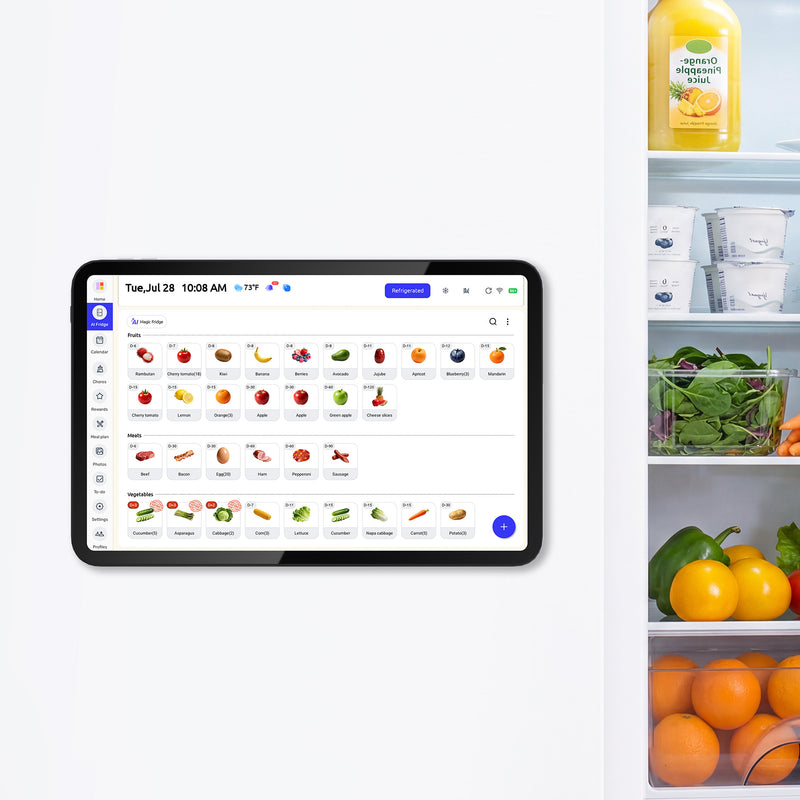
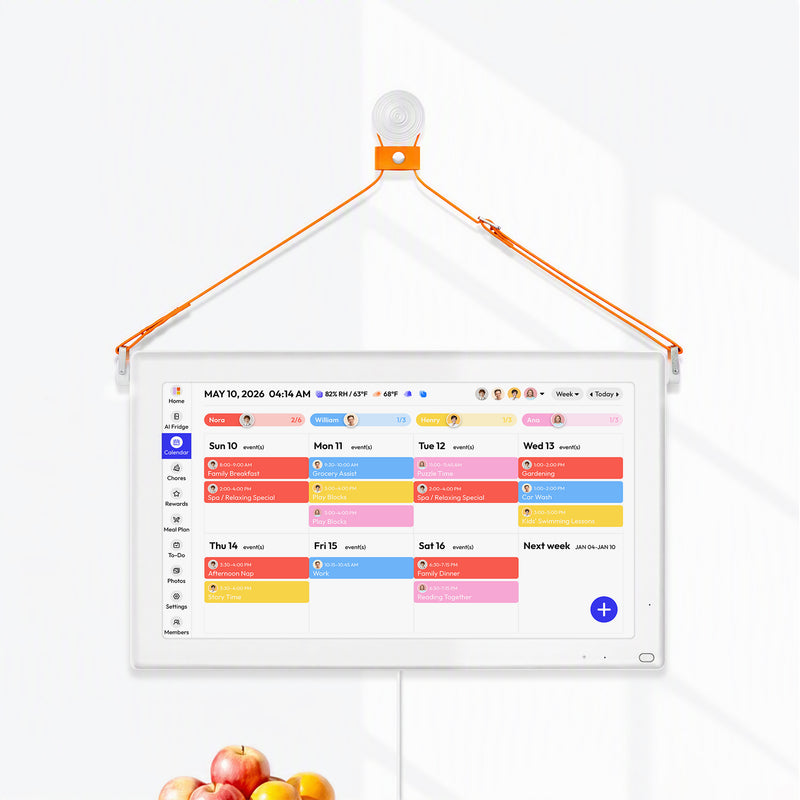
While sharing a calendar on your iPhone is a great first step, keeping the whole family truly in sync often requires a more visual and central hub. Everblog is a 21.5-inch digital wall calendar that brings your schedules, chores, and meal plans into one beautiful display. It’s designed to end the digital chaos and give your family a single source of truth, creating calmer, more organized days. Learn more about how Everblog can transform your family's coordination.


