
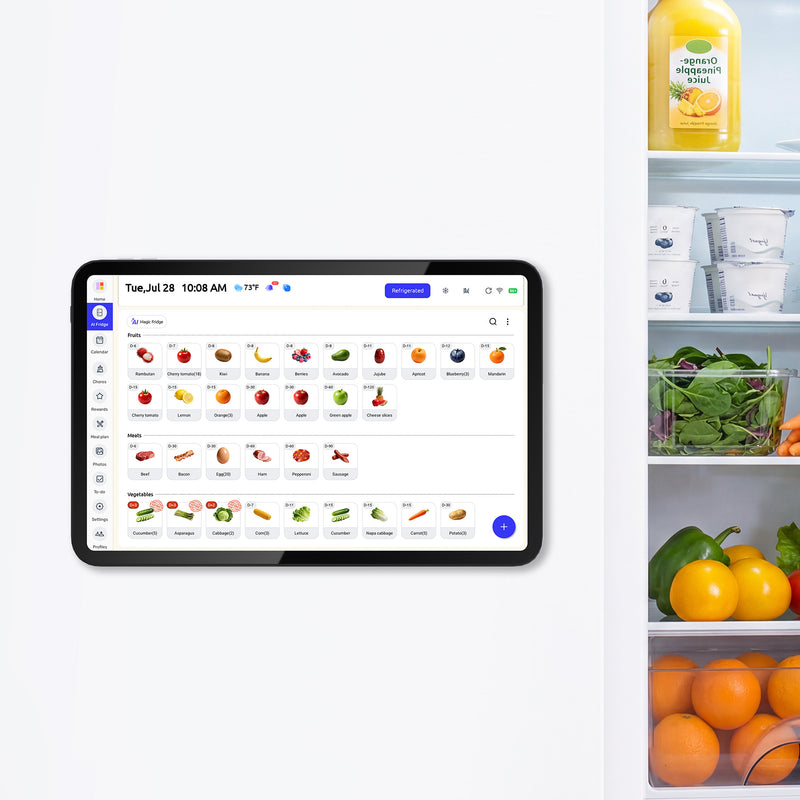


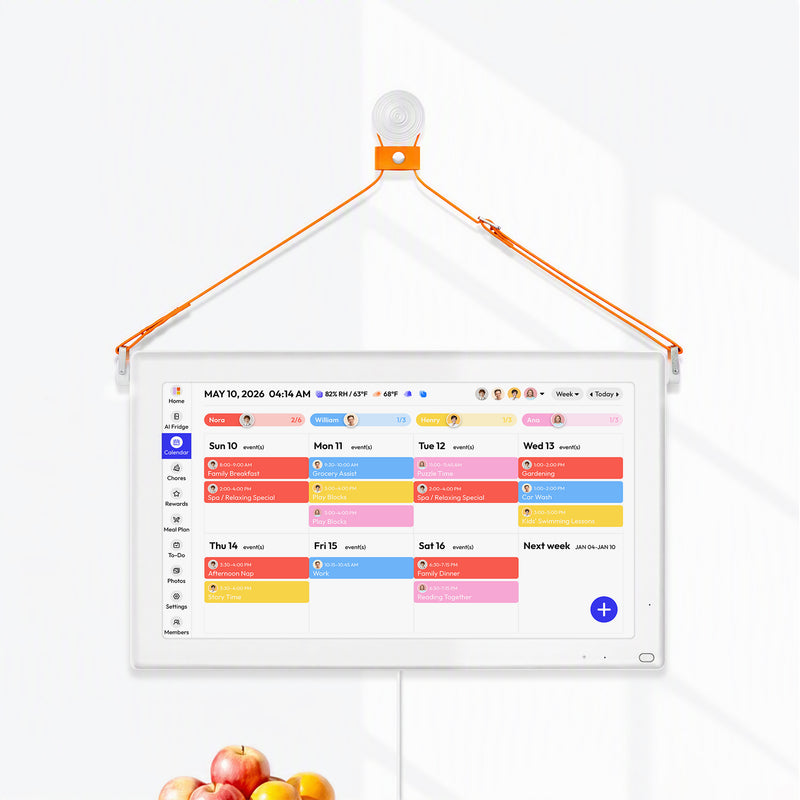



A safe home schedule setup uses two layers: show shift blocks publicly, keep sensitive details privately. In practice, this means Outlook work hours/location settings, privacy-first labels, and controlled screen placement.
Do you ever glance at a shared calendar and realize it says more than it should? That happens fast when work shifts, school pickups, and personal appointments are all visible from the kitchen or entryway. With a simple structure, you can keep everyone coordinated without exposing private information, and this guide gives you the exact setup.
Define What the Home Display Is Allowed to Show
Use a visibility policy before any syncing
In many homes, a company, and a single “Family vacation July 10–20” entry can also signal the house may be empty. Treat your shared display as “guest-readable” by default, even if only trusted people usually visit.
Because sharing policies control what level of access users can share and with whom, use Outlook settings as implementation details and align every visibility choice with your employer or school rules.
Compliance check before enabling sync:
- Confirm your employer or school policy allows work-calendar data on a home display.
- Verify with IT/HR which fields are permitted (time only, or time plus subject/location) and whether external sharing boundaries are controlled through organization relationships.
- Define who can change sharing permissions, who approves exceptions, and where those approvals are recorded.
- Log permission changes monthly (who changed what, when, and why), then remove stale access.
A reliable model is to separate events into three buckets: Public Home Board, Household Internal, and Personal Private. Put only shift blocks, pickup windows, meal plans, chores, and general activities on the board; keep medical, financial, relationship, and HR details in private calendars.

Label templates that reduce risk
Use title templates like Busy 2:00 PM–4:00 PM, On-site Shift, Remote Work Block, or School Pickup. Avoid titles like Performance Review, Therapy, Payroll Call, or specific travel dates.
Configure Outlook as a Two-Layer Work Schedule
Set recurring work patterns
Outlook supports work hours and location by day, which is ideal for rotating or split shifts. This is available with work/school accounts on qualifying Microsoft 365 subscriptions in new Outlook for Windows and Outlook on the web.
Set your baseline in Settings > Calendar > Work hours and location. Choose days, hours, and either remote or in office, then save. If you want fewer details exposed, clear location to No location and disable optional location sharing.

Handle daily exceptions without rewriting the week
Use Calendar > Work plan for single-day changes, then set office/building or I work remotely. Teams updates can sync back to Outlook for the rest of that day, and Out of office can be set from Work plan so status stays consistent.
Choose Placement and Screen Format Intentionally
Run a sightline test first
Screen placement strongly affects privacy, and a company than an angled wall or a more private office/bedroom location. Test from the hallway, dining table, and couch; if detailed text is readable, move the screen or simplify labels.
A compact display can work well in tight traffic areas, and a company helps keep text visible to family while reducing long-distance readability from doorways.
For family command centers away from guest sightlines, a company can improve readability for multi-person planning without forcing sensitive title detail.
Set Roles and Edit Permissions by Age
Assign rights before sharing invites
A practical household permission model is: under 10 = view-only, ages 10–13 = add own events, ages 14+ = manage own schedule, adults = full edit. This structure aligns with a company and reduces accidental deletions.
For work calendars, publish only view-only busy blocks to the family board. Keep your employer calendar as the source of truth, then mirror only what the household needs to coordinate rides, meals, and handoffs.
Common failure point: giving everyone edit access too early. Start restrictive, test blocked edits, then expand permissions only where needed.
Keep the Shared Screen Hygienic and Low-Risk
Treat calendar screens as high-touch surfaces
Shared displays can become contamination points, and alcohol-only disinfection may have limited activity on some high-touch surfaces. Research on salt-activated alcohol formulations showed stronger biocidal effects across glass, polystyrene, and stainless steel in lab testing.
Do not assume salty conditions make contamination irrelevant, because S. aureus can adapt under high salt stress and biofilm behavior can increase persistence. In plain terms: kitchen-adjacent screens still need consistent cleaning.

Use a short SOP for shared displays:
- Clean high-touch areas at least daily and after heavy-touch use, since high-touch surfaces should be cleaned regularly.
- Power off and unplug before wiping.
- Clean the screen first, then the casing, stand, and nearby touch points.
- Use a soft lint-free cloth and device-compatible cleaner; for Surface devices, water or up to 70% isopropyl alcohol on a cloth is supported, and liquids should not be applied directly.
- Keep moisture away from ports, seams, and buttons.
- If someone is ill, clean first and then disinfect shared-touch surfaces, and increase frequency in higher-traffic areas using community facility guidance.
If household risk is higher or guidance conflicts, consult property management and a qualified infection-control or medical professional and follow the stricter protocol.
A conservative baseline is still appropriate because cleaning visibly dirty surfaces followed by disinfection remains a best-practice prevention measure.
If your home board includes meal prep reminders, align food handling with USDA cold-storage times: keep refrigerators at 40°F or below, freezers at 0°F or below, and treat leftovers like soups/stews or cooked meat as roughly 3–4 day refrigerator items. The same chart notes frozen food at 0°F remains safe indefinitely for safety, while quality declines over time, and FoodKeeper covers 650+ foods.
Long-Term Maintenance and Troubleshooting
Run a fixed cadence: do a weekly 5-minute visibility check (labels still generic, next-week shifts visible, no private titles exposed) and a monthly permission audit (owners/delegates still correct, stale access removed, changes logged).
Common symptoms and quick fixes:
- Shared calendars not syncing: refresh the client, verify account/network status, and if external availability is missing confirm organization relationship free/busy configuration.
- Permission changes not taking effect: confirm the mailbox has the intended sharing policy applied, then retest from a non-owner account after propagation.
- Display not waking for the board: check power, sleep schedule, cable seating, and auto-lock before re-pairing the display session.
If your household is not using Outlook, apply this non-Outlook universal method:
- Find the calendar platform’s sharing settings and current default visibility.
- Set least-privilege visibility (free/busy or minimal title detail) and read-only access for most household viewers.
- Test a single-day override event from another account to confirm what others can actually see.
Practical Next Steps
Start with a 14-day rollout: Days 1–3 define what can be visible, Days 4–7 configure Outlook recurrence plus single-day overrides, Days 8–10 run sightline and permissions tests, and Days 11–14 fix labels, placement, and cleaning cadence.
- Write your Public Home Board label rules in one note.
- Configure Work hours and location in Outlook for each weekday.
- Mirror work commitments as Busy blocks on the shared display.
- Run a guest-area sightline test and reposition if details are readable.
- Assign role permissions by age and test blocked edits.
- Set a weekly screen-cleaning routine and a monthly privacy review.
If Outlook covers work blocks but your household needs chores, meal planning, and shared lists, family calendar app comparisons can help you evaluate tradeoffs like cost, reminders, and privacy controls before expanding your setup.
Important Note
The planning templates and organizational systems provided here are intended as adaptable blueprints. Every family’s needs, dietary requirements, and physical capabilities are different. We recommend tailoring these schedules to your specific health needs and household dynamics. Results from productivity or meal-planning systems may vary, and consistency remains the responsibility of the individual user.
References
- Microsoft Support: Set your work hours and location in Outlook
- Everblog: Digital family calendar privacy and secure setup
- Everblog: 13.4-inch FridgeCal calendar
- Everblog: 21.5-inch calendar
- PubMed: Salt-activated alcohol disinfectant study
- NCBI PMC: S. aureus adaptation under salt stress
- FoodSafety.gov: Food storage times chart
- Motion blog: Shared family calendar app comparison
- Microsoft Learn: Apply a sharing policy to mailboxes in Exchange Online
- Microsoft Learn: Create an organization relationship in Exchange Online
- Microsoft Q&A: Unable to see external free busy
- CDC: When and How to Clean and Disinfect Your Home
- CDC: When and How to Clean and Disinfect a Facility
- CDC Stacks: Cleaning and Disinfection for Households
- Microsoft Support: Clean and care for your Surface


