

We've all been there. You show up to your kid's soccer game, only to find out it was rescheduled an hour ago. The notification, of course, went to your partner's phone, not yours. That sinking feeling is exactly why a proper calendar sync with iPhone isn't just a nice-to-have; it's the key to a sane family schedule.
Getting all your work, personal, and shared family events into one place turns that chaos into a single, reliable source of truth everyone can see.
Why Your Family Needs a Single Source of Truth
Juggling separate calendars is a recipe for disaster. Work appointments on Outlook, personal stuff in Google Calendar, and the school schedule buried in an email—it’s exhausting. The mental load of constantly trying to remember who needs to be where, and when, is a huge source of stress.
A seamless calendar sync fixes this. It’s not just about preventing double-bookings. It’s about creating a shared, dynamic view of the entire family’s commitments. When your partner adds a dentist appointment, it pops up on your iPhone instantly. No more "I thought you knew!" moments.
A fully synced family calendar gives you:
- Fewer Mix-Ups: Schedule changes appear for everyone in real-time, ending the guesswork.
- Smarter Planning: Seeing the whole week at a glance makes it easier to plan meals, run errands, and find precious downtime.
- Independent Kids: Older kids can check their own schedules, which teaches them responsibility and time management.
This flowchart can help you figure out the best sync method for your family, depending on the types of devices you all use.

As you can see, the right path really depends on whether your household is all-in on Apple or if you have a mix of devices, like Android phones or Windows computers.
Which Calendar Sync Method is Right for Your Family
Still not sure which route to take? This quick comparison should help you choose the best way to sync calendars based on your family's specific setup.
| Sync Method | Best For | Key Benefit |
|---|---|---|
| iCloud | Families entirely within the Apple ecosystem (iPhones, Macs, iPads). | Flawless, automatic syncing across all Apple devices. It just works. |
| Google Calendar | Mixed-device families (Android + iPhone) or heavy Google users. | Universal access and easy sharing with anyone who has a Google account. |
| Exchange/Outlook | Families where one or more parent relies on a work calendar. | Keeps your work and personal life synced up on your iPhone effortlessly. |
Each method gets the job done, but picking the one that aligns with the tech your family already uses will make life so much easier.
Go Beyond Basic Syncing
Once your calendars are all talking to each other, the real organization can begin. I’m a huge fan of using color-coding to see my day instantly—blue for work, green for family, and purple for my personal appointments. It makes your schedule scannable in seconds.
To really get ahead, you can incorporate some broader strategies for managing your time. The team at Wonderment Apps put together some fantastic Top Tips for Calendar Success that are definitely worth a read.
A unified digital family calendar is more than just a schedule. It's a system everyone can trust, replacing scattered sticky notes and mental reminders with a foundation for a calmer, more connected household.
Ultimately, a great calendar sync is less about the tech and more about teamwork. It gives your family the framework to operate as a unit, turning potential scheduling nightmares into predictable harmony. For more ideas, check out our guide on creating a digital family calendar that everyone will actually use.
Using iCloud for Effortless Apple Ecosystem Syncing

If your family runs on Apple devices, using iCloud to sync your calendars is a total game-changer. It's the most native, deeply integrated way to keep everyone’s schedule aligned across iPhones, iPads, and Macs. Think of it as your family's digital command center—built right in, no extra apps needed.
The real secret to this effortless calendar sync with iPhone is your Apple ID. When everyone is signed into the same iCloud account or part of a Family Sharing plan, calendars just work together in real-time. Honestly, sorting this out solves most syncing headaches from the get-go.
Activating Your iCloud Calendar Sync
Getting your iCloud Calendar up and running is incredibly straightforward. It's all handled directly within your iPhone's settings.
Here’s the quick path to get it done:
- Open the Settings app on your iPhone.
- Tap your name at the very top to dive into your Apple ID settings.
- Select iCloud.
- You'll see a list of "Apps Using iCloud." Tap Show All to get the full view.
- Scroll down to Calendars and just make sure the toggle is switched to green.
If it's already on, you’re good to go. Any event you add to the Calendar app will now automatically appear on any other device logged into that same Apple ID. This is what makes iCloud so powerful for busy families—no more waiting for a manual refresh or wondering if someone saw your update.
A Real-World Scenario: Creating a Shared Calendar
Let's say you need a dedicated calendar just for the kids' school activities—soccer practice, parent-teacher conferences, project deadlines, you name it.
With iCloud, you can pop open the Calendar app, create a new calendar called "School Events," and even color-code it bright orange to stand out. Then, you can share it directly with your partner or older kids. Now, when your partner adds "Soccer practice at 5 PM" from their Mac, it shows up almost instantly on your iPhone while you're out running errands.
iCloud's tight integration removes the friction from family scheduling. Because it’s built directly into iOS, updates are nearly instantaneous, creating a single, reliable source of truth that the whole family can depend on.
That kind of cohesion is priceless. It cuts down on the mental load of managing everyone's life and puts an end to all those "Did you remember...?" texts.
Key Considerations for iCloud Syncing
While iCloud is fantastic for those living in the Apple world, it's worth remembering this sync relies entirely on Apple’s cloud to keep everything aligned. If you're upgrading your device, you’ll want to make sure your appointments move with you seamlessly. You can learn how to transfer old iPhone to new iPhone to ensure none of your calendar data gets left behind.
The integration also goes deeper than just events. Calendar appointments can link directly to Maps for directions or connect with Reminders for a task list. This creates a powerful organizational hub that goes way beyond just knowing a date and time. For a more detailed guide on setting up shared calendars, check out our post on how to share an iCloud calendar—it breaks the process down even further.
Integrating Google Calendar on Your iPhone

Does your work life live in Google Workspace, but your family is firmly in Apple's ecosystem? You're not alone. This cross-platform divide can feel like a headache waiting to happen, but getting your Google Calendar onto an iPhone is actually one of the most reliable setups out there.
You don't need a special app or some complicated workaround. The best way is to add your Google Account directly through your iPhone's own settings. This lets Apple’s native Calendar app pull in all your events, making it the perfect calendar sync with iPhone solution for families straddling both worlds.
Add Your Google Account Directly
The whole process is baked right into your iPhone. When you add your Google account at the system level, you're not just syncing your calendar—you can also bring over your contacts and mail if you want.
Getting it done is surprisingly simple.
- First, head into your iPhone’s Settings and scroll down to tap on Calendar.
- From there, go to Accounts, and then tap Add Account.
- You'll see a list of providers—just choose Google.
- Follow the on-screen steps to sign in with your Google email and password. You might need to do a quick two-factor authentication, too.
Once you’re in, you’ll see toggles for Mail, Contacts, Calendars, and Notes. Just make sure the Calendars toggle is green, and you're all set! Your iPhone's Calendar app will now show every calendar tied to that Google account.
For a deeper dive, we’ve put together a full guide on how to share your Google Calendar on an iPhone that covers even more detail.
Understanding Push vs. Fetch for Your Calendar
Okay, your account is connected. Now for the most important setting you need to know: Fetch New Data. This little control determines how often your iPhone checks Google for updates. It's a trade-off that directly impacts your battery life and how fast new appointments show up.
You can find this by going to Settings > Calendar > Accounts > Fetch New Data.
You'll see two main options for how your Google account syncs:
- Fetch: This tells your iPhone to check for updates on a schedule—like every 15 minutes, 30 minutes, or hourly. It’s much easier on your battery.
- Push: This sends updates to your phone instantly, the moment they happen. It’s real-time, but it definitely uses more battery.
While iCloud calendars get the "Push" treatment, Google accounts on an iPhone default to "Fetch." This is the number one reason I hear the complaint: "I added an event on my laptop, why isn't it on my phone yet!?"
The lag isn't a bug; it's by design. Because most iPhones are set to fetch data every 15 minutes or so, that's how long it can take for a new Google Calendar event to appear.
Find Your Perfect Balance of Speed and Battery
So, which setting is right for you? It really comes down to how you live. For a busy parent juggling last-minute schedule changes, a 15-minute delay could mean missing something important.
Here’s how I recommend thinking about it:
- For Maximum Battery Life: Stick with the default Fetch setting, maybe at 30-minute or even hourly intervals. This is perfectly fine for schedules that are pretty stable.
- For Faster Updates: Change your Fetch schedule to Every 15 Minutes. This is the fastest Fetch option and hits a great sweet spot between timely updates and battery life.
- For Near-Instant Updates: If you need instant sync, your best bet is to use the official Google Calendar app from the App Store. It's built for push notifications. However, many of us prefer the clean, integrated feel of Apple's own Calendar app.
By understanding this simple trade-off, you can tweak your iPhone's calendar sync to perfectly match your family's pace. It turns a common point of frustration into a powerful tool that keeps your work and home life aligned.
Connecting Your Outlook and Exchange Calendars
As a working parent, you know the feeling. The line between a work deadline and a school pickup is razor-thin. A missed meeting is bad for your job, but a missed school play is simply not an option. This is exactly why getting your Microsoft Outlook or Exchange calendar talking to your iPhone isn't just a convenience—it's a lifesaver.
A lot of people assume syncing a corporate calendar is a huge technical headache. The good news? It's not. Apple built a surprisingly straightforward way to do this right into the iPhone's settings, designed to securely link up with Microsoft’s services. This means you can finally see your work and personal life in one place, without constantly switching between apps.
The Best Way: A Direct Connection
The most reliable method by far is to add your Outlook or Exchange account directly on your iPhone. This lets Apple's own Calendar app pull in all your work events automatically, so they show up right alongside your personal stuff.
Here’s how you get it done:
- First, head over to Settings on your iPhone.
- Scroll down to find Calendar, tap it, and then go into Accounts.
- From there, choose Add Account and pick Microsoft Exchange from the list.
- You'll be asked for your full work email and a description for the calendar (something like "Work" is perfect). Hit Next.
- Your iPhone will give you two choices: Sign In or Configure Manually. You almost always want to choose Sign In.
For most companies today, the "Sign In" option just works. It will bounce you over to your company’s familiar login page, where you might have to use two-factor authentication, just like you would on your work laptop. It's fast and secure.
How This Prevents Scheduling Disasters
Let's paint a picture. It's Tuesday, and you have a critical project meeting at 4 PM. You also know your son has his first soccer game at 5 PM across town. Without a synced calendar, it's dangerously easy for one of those to slip through the cracks.
But with your Exchange calendar synced, you glance at your iPhone and see both events sitting right next to each other. The 4 PM meeting is blocked out, and so is the 5 PM game. You can instantly see that you'll need to wrap up work on time, no exceptions.
This is what it's all about—having a single, unified view of your entire day. It turns your iPhone into a real command center for your life, respecting both your career and your family commitments.
Fine-Tuning What Gets Synced
Once your account is linked, your iPhone will ask what you want to sync. You'll see toggles for Mail, Contacts, Calendars, and Reminders. You have total control here.
- Just want the calendar? Easy. Just switch off the toggles for Mail, Contacts, and Reminders. This is a popular choice for people who want to keep work email inside the Outlook app but still see their meetings in the native Calendar app.
- Want everything integrated? Leave all the toggles on. Your work emails will pop up in Apple's Mail app, and your work contacts will be right there in your phone.
If you run into trouble (especially with older corporate systems), you might have to use that Configure Manually option. This is where you'd need to ask your IT department for details like the Server, Domain, and Username. It’s less common these days, but it’s a good backup to have if the automatic sign-in fails.
Advanced Syncing and Next-Gen Calendar Tricks

Alright, so you’ve got your main calendars talking to your iPhone. That’s the foundation. Now, let's get into the really fun stuff—the tricks that go beyond basic syncing to actually save you time and mental energy.
These are the next-level methods that tap into public information and clever new tech to make your calendar work for you, not the other way around.
Pull in Public Schedules Automatically
Imagine your kid's school calendar, the city's holiday schedule, or your favorite team's entire season just appearing on your iPhone, updated on its own. That's exactly what subscribing to a public calendar does. It gives you a read-only feed of an external schedule.
This is a lifesaver for information you need to track but don't own or edit.
Most organizations—from school districts to sports leagues—publish their schedules with a web link, usually ending in .ics. You just need to find that link on their website.
Once you have it, here’s how to add it:
- Head into Settings > Calendar > Accounts.
- Tap Add Account, then choose Other.
- Select Add Subscribed Calendar.
- Just paste the link into the Server field and hit Next.
That’s it. Your iPhone now fetches all those events and keeps them updated in the background. No more typing in every single half-day or holiday—it’s just there, woven right into your daily schedule.
The Screenshot-to-Event Revolution
We’ve all been there: squinting at a paper flyer or a picture of a birthday invite, manually typing every last detail into our calendar. It’s slow, and it’s so easy to mix up a time or misspell an address.
But what if you could just take a picture and be done with it?
This isn't science fiction anymore. With iOS 26, Apple introduced a killer feature using Apple Intelligence that lets you create an event right from a screenshot. You can snap a photo of a school newsletter or a party invitation, and your iPhone will draft the calendar entry for you.
This single feature can slash manual event creation time by an estimated 35-40%. When you think about how 60-70% of family events come from outside sources like emails and flyers, the time savings really add up. As 9to5Mac has covered, this is a huge leap forward.
This shift from manual typing to intelligent scanning is a game-changer. It eliminates the small but frequent errors that can cause major scheduling headaches, making your calendar both faster and more reliable.
Let's say your child brings home a flyer for a weekend bake sale. The old way involved a lot of typing.
The new way is ridiculously simple:
- Take a clear photo of the flyer.
- Open the picture in your Photos app.
- Your iPhone automatically spots the date, time, and location.
- A suggestion pops up to "Create Event." Tap it.
A pre-filled calendar entry appears with the title, date, time, and address already plugged in. All you do is give it a quick once-over and tap "Add." A task that took a couple of minutes now takes seconds. This is the future of managing a family schedule—turning real-world chaos into a perfectly organized digital plan with almost zero effort.
How to Fix Common iPhone Calendar Sync Issues
Even with everything set up just right, calendar sync can sometimes hit a snag. An event you added on your laptop is nowhere to be found on your phone, or suddenly you're seeing double. It’s frustrating, I get it.
But before you throw your phone across the room, let's walk through a few simple fixes for the most common sync headaches. More often than not, it’s just a simple setting that’s been overlooked.
Events Not Appearing on Your iPhone
This is by far the most frequent complaint. You add an important meeting on your Mac, but it never makes its way to your iPhone. When this happens, run through this quick checklist first.
- Check Your Connection: This one sounds obvious, but it's the first thing to check. Your Calendar app needs Wi-Fi or cellular data to pull in new events from services like Google or iCloud. No connection, no sync.
- Is the Right Calendar Visible? Open the Calendar app and tap "Calendars" at the bottom of the screen. Make sure the specific calendar you’re expecting to see (like "Work" or "Family") actually has a checkmark next to it. It’s surprisingly easy to accidentally hide a calendar.
- Confirm Your Default Calendar: Head over to Settings > Calendar > Default Calendar. Is this set to the calendar you actually use every day? If it's pointing to an old or unused account, new events might be getting saved there by default instead of where you expect them.
Honestly, these three simple checks solve the problem more than 80% of the time. They're the first place I always look.
Suddenly Seeing Duplicate Events
Waking up to a calendar filled with duplicate appointments is just plain confusing. You see two entries for "Team Meeting at 2 PM" and two for "Pick up kids at 3 PM." This almost always happens for one very specific reason.
You’ve synced the same calendar account in two different ways.
For instance, you might have added your Google account through your iPhone's main settings, but you also installed the official Google Calendar app, which is syncing on its own. Both are trying to do the same job, and the result is a calendar full of clones.
To fix it, just pick one sync method. If you prefer Apple's built-in Calendar app, go into Settings > Calendar > Accounts, find the duplicate account, and remove it. If you'd rather use a third-party app, go into that app's settings and stop it from syncing to your main Apple Calendar.
The key is to have only one path for each calendar account to sync with your device. This prevents the system from getting confused and creating those frustrating duplicate entries.
Updates Are Taking Forever to Appear
Another classic issue is a major delay. Your partner adds a doctor's appointment to the shared calendar, but it takes 15 minutes (or more) to finally show up on your iPhone. This isn't actually a bug; it's a feature.
As we covered earlier, accounts like Google or Outlook often use a setting called Fetch to save battery life. Instead of constantly checking for updates, your phone "fetches" them on a schedule—every 15 or 30 minutes, for example.
If you need faster updates, you can change this. Go to Settings > Calendar > Accounts > Fetch New Data and choose a more frequent schedule. Just remember there's a trade-off: the faster the sync, the bigger the hit on your battery life.
Answering Your Top iPhone Calendar Sync Questions
Getting your calendars to sync with your iPhone is a great first step, but a few nagging questions always seem to pop up. Let's walk through some of the most common ones so you can get your schedule working perfectly for you.
Can I Sync Calendars if I Don’t Have Wi-Fi?
Absolutely, though it depends on your connection. Your iPhone will happily sync your calendars using its cellular data, so you'll stay up-to-date while you're on the go.
The only time it won't work is if you're completely offline—no Wi-Fi and no cellular service. Once your connection is back, everything will update automatically.
Will Syncing Drain My Battery?
It can, but you're in complete control. The "Push" setting, which updates your calendar in real-time, is the most power-hungry option. It's constantly checking for new events.
For a much better balance, try switching your accounts to Fetch every 15 or 30 minutes. This gives you timely updates without making a noticeable dent in your battery life.
Why Can't I Edit a Subscribed Calendar?
This is a common point of confusion! Subscribed calendars, like public holidays or a team's game schedule, are designed to be read-only. You're essentially just viewing someone else's calendar, not managing it yourself.
Because you don't have permission to edit the original source, you can't add, change, or delete events on it.
I see this mistake all the time: trying to manage a team schedule using a subscribed calendar. For any kind of collaborative planning, you need a proper shared calendar from a service like iCloud or Google. This gives multiple people permission to make changes, turning it into a truly interactive tool.
Using a shared calendar ensures everyone can contribute, so it's not just a static display of information from one person.
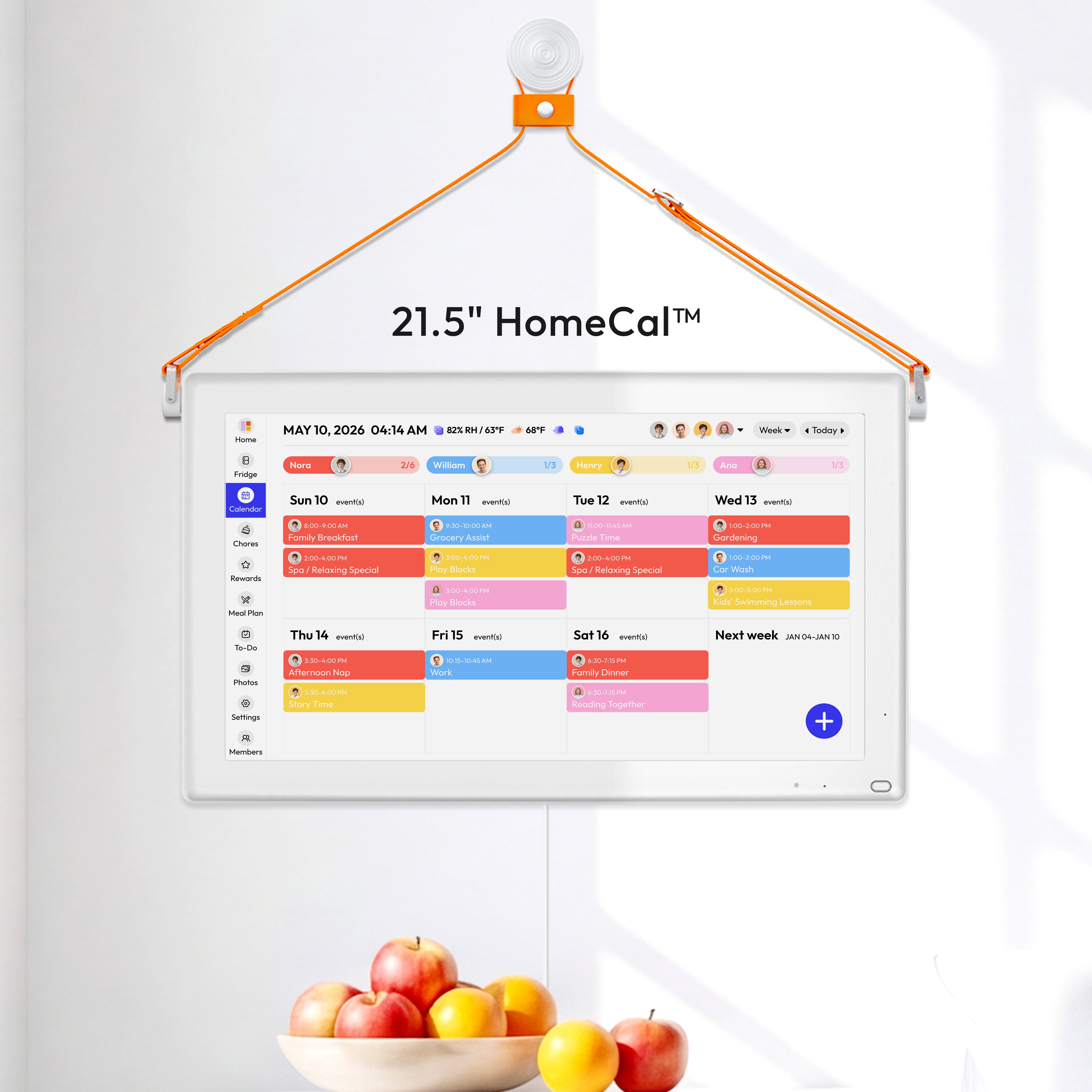
Ready to bring your family's entire schedule into one beautiful, central hub? The Everblog is a 21.5-inch smart display that syncs all your calendars, chores, and meal plans, ending the daily chaos. With no subscriptions and all features included, it's the ultimate command center for a calm, organized home. Discover how Everblog can transform your family's routine today.


