
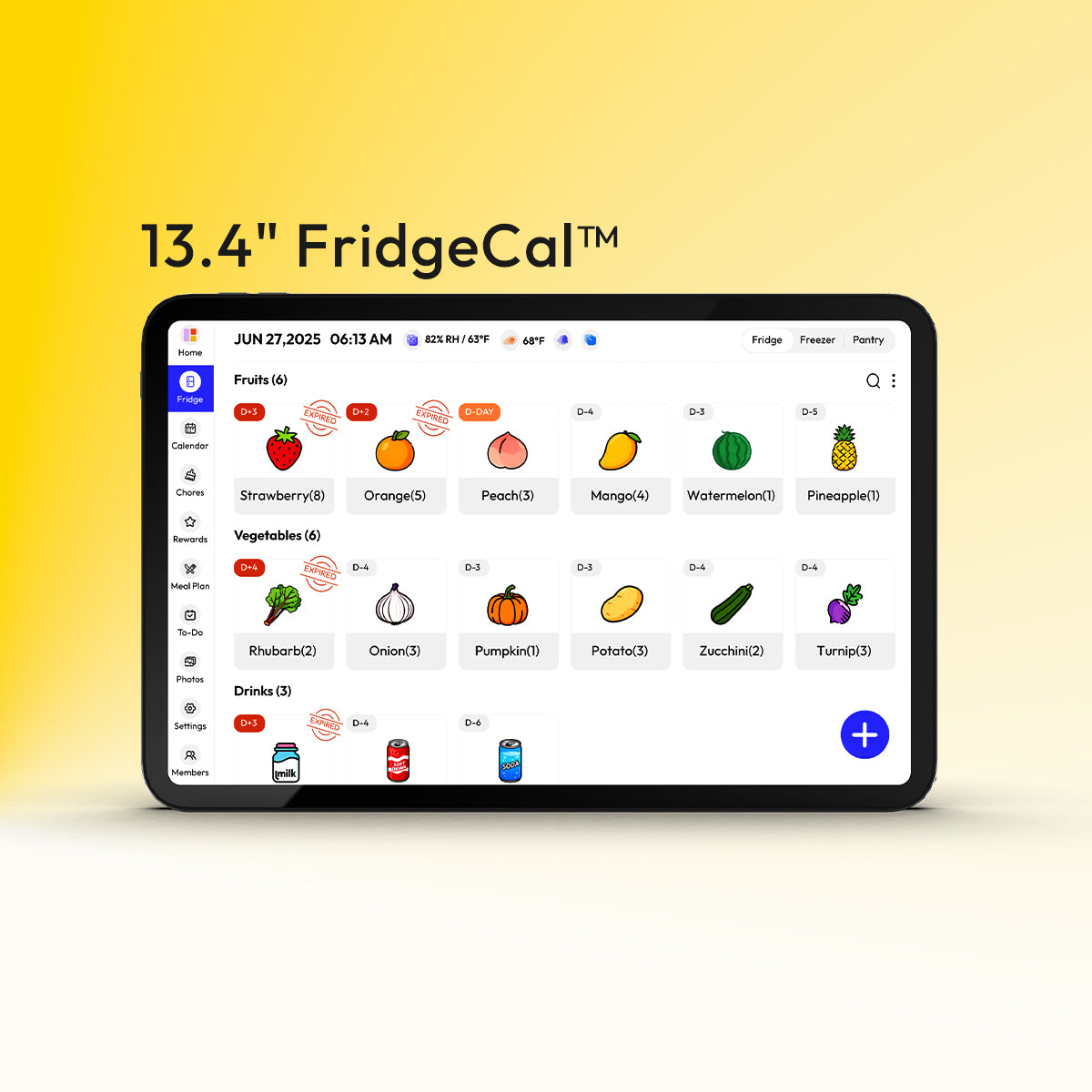
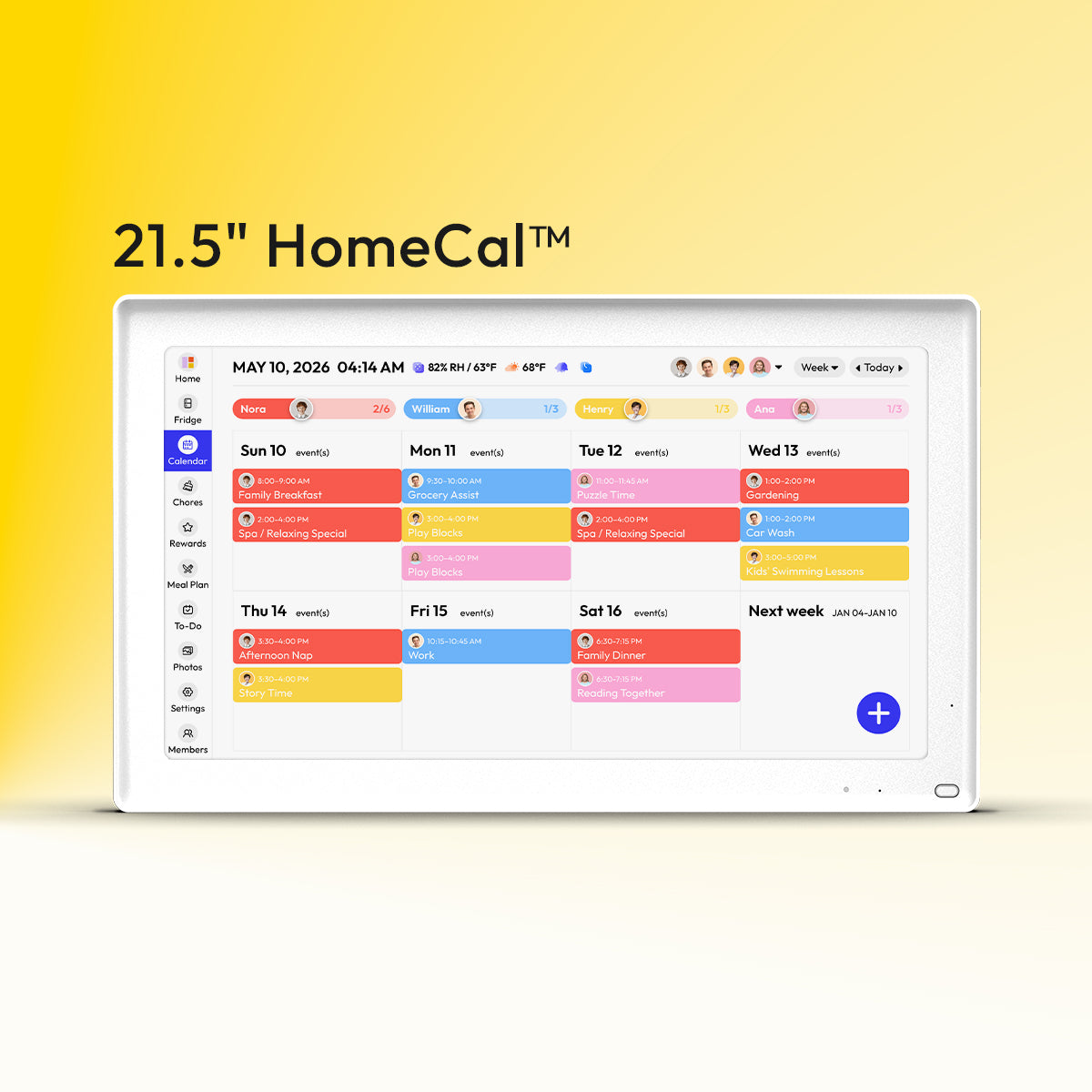


For a kitchen family-calendar touchscreen, the safest default is a microfiber cloth, a little distilled water, and immediate drying. That removes grease and fingerprints without creating streaks, coating damage, or touch issues.
Does your kitchen command center look cloudy by dinner, with fingerprints over the meal plan and taps that stop registering on the grocery list? A simple cleaning routine matters more than people expect, because these screens sit in the same steam, oil mist, and traffic flow as the rest of the kitchen. You’ll leave with a practical method, a prevention plan, and a maintenance rhythm that keeps the screen readable and responsive.
Start With the Right Cleaning Standard
Powered-off screens and thick microfiber cloths are the safest starting point for a kitchen touchscreen. When the display is off, smudges show more clearly, static is lower, and you are less likely to grind dust across the surface while wiping. For a shared family calendar, that matters because the screen is touched all day for schedules, meal plans, and reminders.

Kitchen touch panels can lose responsiveness when grease, moisture, and micro-scratches build up. Capacitive touch surfaces read small electrical changes under glass or acrylic, so a greasy film is not just cosmetic. One lab summary in the source notes that 73% of sensor unresponsiveness complaints were tied to improper cleaning, which is a useful reminder that “stronger cleaner” is often the wrong fix.
a company, but kitchen conditions can shorten that life. Heat, humidity, steam, dust, and grease all work against screen clarity, circuit health, and touch performance. If your family relies on one central display to coordinate school pickups, dinner plans, and recurring tasks, protecting the screen is really protecting the whole workflow.
Use a Three-Pass Cleaning Method
Pass 1: Lift Dust Before You Touch Grease
Start with a dry microfiber pass using light, overlapping strokes. This removes loose dust and crumbs first, which lowers the chance of dragging grit across the panel. In practice, this is the fast reset step you can do after dinner or while updating tomorrow’s calendar block.
Pass 2: Break the Grease Film Without Flooding the Screen
A lightly dampened microfiber cloth with distilled water is the safest next move for fingerprints, cooking haze, and sticky spots. Press and lift rather than scrub, and hold the cloth on stubborn residue for about 8 to 10 seconds so the film softens before you wipe. If the surface still feels tacky, add one drop of pH-neutral dish soap to the cloth, make one controlled pass, and stop there.

Pass 3: Dry Immediately and Let the Panel Reset
Dry the screen immediately and let it air-dry for 60 seconds before you start tapping again. Do not press buttons while the surface is wet, and do not soak the edges or seams. This final minute is easy to skip, but it is what prevents moisture seepage and the phantom taps that make a family hub feel unreliable.
Know What Not to Use
Paper towels, vinegar, alcohol, and all-purpose sprays are a bad default on coated kitchen touch panels. Paper fibers can scratch. Sprays can seep into seams. Strong cleaners can wear down coatings or leave behind residue that makes touch performance worse, not better.
Some display-care guidance allows low-strength isopropyl alcohol or a display-safe cleaner, but that should be a manufacturer-approved exception, not your first choice. For a family calendar mounted in the kitchen, distilled water on microfiber is the safer baseline because the screen is exposed to steam, repeated daily touches, and nearby food prep. If the manual is silent, use the gentlest method that works.
Dish soap with warm water works well on greasy kitchen glass, but treat the touchscreen surface and the surrounding frame as two different cleaning zones. The bezel, nearby backsplash, and adjacent glass can often handle stronger degreasing than the display itself. Keeping that distinction clear prevents the common mistake of using “kitchen cleaner logic” on delicate electronics.
Placement Changes How Dirty the Screen Gets
Put the Screen in the Workflow, Not in the Splash Zone
Most family kitchen touchscreens work best around 56 to 60 inches from the floor, with one-step access near the fridge and clear sightlines from the main prep area. That placement supports quick checks of the weekly plan and grocery list without forcing everyone to stop beside the oven, sink, or entry path. A taped paper mockup for one week is a smart test before final mounting, especially if kids and adults both use the display.

Size for Readability So You Do Not Creep Toward Steam
Displays around 15 to 21 inches are easier to read across a kitchen, which reduces the temptation to mount the screen too close to the stove just to make the text legible. A larger central hub also makes meal plans, school events, and assignments easier to scan from 5 to 8 feet away. If the calendar is readable from the prep zone, people can glance at it without touching it as often with messy hands.
Prevention Beats Deep Cleaning
Turning on the range hood before heating oil and wiping kitchen glass weekly cuts down the oily film that settles on cool surfaces. The same prevention logic works for your touchscreen. Use a splatter screen when frying, keep the hub out of direct steam, and wipe the frame monthly so grease does not migrate back onto the display.
Build a Maintenance Rhythm the Household Can Keep
Use a Light Routine More Often
Most screens do well with cleaning every 1 to 2 weeks, with deeper attention every 2 to 3 months if oils keep building up. For a busy household, the most sustainable version is simple: a dry microfiber wipe during the weekly calendar reset, then a damp-and-dry clean on the weekend. That is usually enough to keep meal planning visible and touch response consistent.
Pair Screen Care With System Care
a company. If your calendar runs on a rechargeable battery, avoid regularly draining it below 20%, unplug after a full charge, and power it off fully if it will sit unused for more than a day. For plug-in models, surge protection and periodic restart checks are worth adding to the same monthly home-organization routine.
Review Mount and Reach as the Family Changes
Quarterly screw checks and monthly layout reviews keep the screen usable as routines shift. If family members keep missing the top corners, leaning awkwardly, or touching the panel with food-covered hands, the issue may be placement rather than cleaning. Small adjustments of 1 to 2 inches can improve posture, reduce accidental smears, and make the display feel like part of the home system instead of one more annoying device.
Practical Next Steps
The safest repeatable routine is power off, dry wipe, lightly damp wipe, then dry again. It is fast, low-risk, and easy for any adult in the house to follow without guessing which cleaner is safe. That matters because a family calendar only works when everyone trusts it enough to use it.
A central display that is readable, synchronized, and easy to maintain supports more than a clean screen. It supports fewer missed appointments, smoother meal planning, and less mental load for the person who usually carries the schedule alone.
Action Checklist
- Turn the touchscreen off and unplug it before cleaning.
- Make one dry pass with a thick microfiber cloth to remove dust first.
- For grease or fingerprints, use distilled water on the cloth, not on the screen.
- Hold the damp cloth on sticky spots for 8 to 10 seconds, then wipe gently.
- Dry the panel right away and wait about 60 seconds before tapping again.
- Keep the screen near the fridge or prep sightline, but away from oven steam and sink splash.
- Pair a weekly wipe with your family calendar reset and a monthly check of firmware, battery, and mount stability.
Important Note
The planning templates and organizational systems provided here are intended as adaptable blueprints. Every family’s needs, dietary requirements, and physical capabilities are different. We recommend tailoring these schedules to your specific health needs and household dynamics. Results from productivity or meal-planning systems may vary, and consistency remains the responsibility of the individual user.
References


