

You know the problem of scattered family schedules if you ever had to blow off an appointment because it was only on your husband’s phone, or if your kid forgot their soccer practice for the third time in a row. This is where an online family calendar can solve the problem if only families choose the right one to suit their needs.
1. Match the Calendar to What Your Family Actually Needs
What Does Your Family Actually Need?
Think about what's broken right now. Are people missing appointments because they don't check their phones? Is meal planning chaos? That's what you're solving for.
- The Central Hub Family: You need one spot where everyone looks at the schedule. Your main problem is people ignoring their phone calendars. You want a big digital family calendar on the wall that's impossible to miss.
- The On-the-Go Family: Your family is rarely home together. Mobile access matters most, but a display helps during morning chaos. You need solid phone sync with a home screen as backup.
- The Complex Coordinator Family: You're juggling multiple kids across different schools, tons of activities, and work schedules that never line up. You need reliable sync, clear color coding, and a way to assign tasks to specific people.
Matching Features to Your Biggest Pain Points
| Your Problem | What You Actually Need |
| "No one checks their phone calendar" | Large, centrally-placed display (15"+ screen) in kitchen or mudroom |
| "We keep double-booking time slots" | Two-way sync with conflict detection and shared calendar permissions |
| "Kids forget their chores and activities" | Visual task lists with checkboxes and color-coded member assignments |
| "Managing 5+ different calendars is chaos" | System that imports from Google Calendar, iCloud, Outlook, and school portals |
| "Setup and tech frustrate our family" | Plug-and-play options with simple interfaces, not DIY tablet solutions |
2. Choosing the Right Screen Size and Resolution

Screen Size Matters More Than You Think
A 10-inch tablet might seem adequate until you try reading next Tuesday's soccer practice time from across the kitchen. Here's what actually works:
- 10-13 inches: Only works if mounted at eye level within 3-4 feet of where people stand. Good for a desk or small countertop space.
- 15-17 inches: The sweet spot for most kitchens. Readable from 6-8 feet away. Works well for wall mounting at normal height.
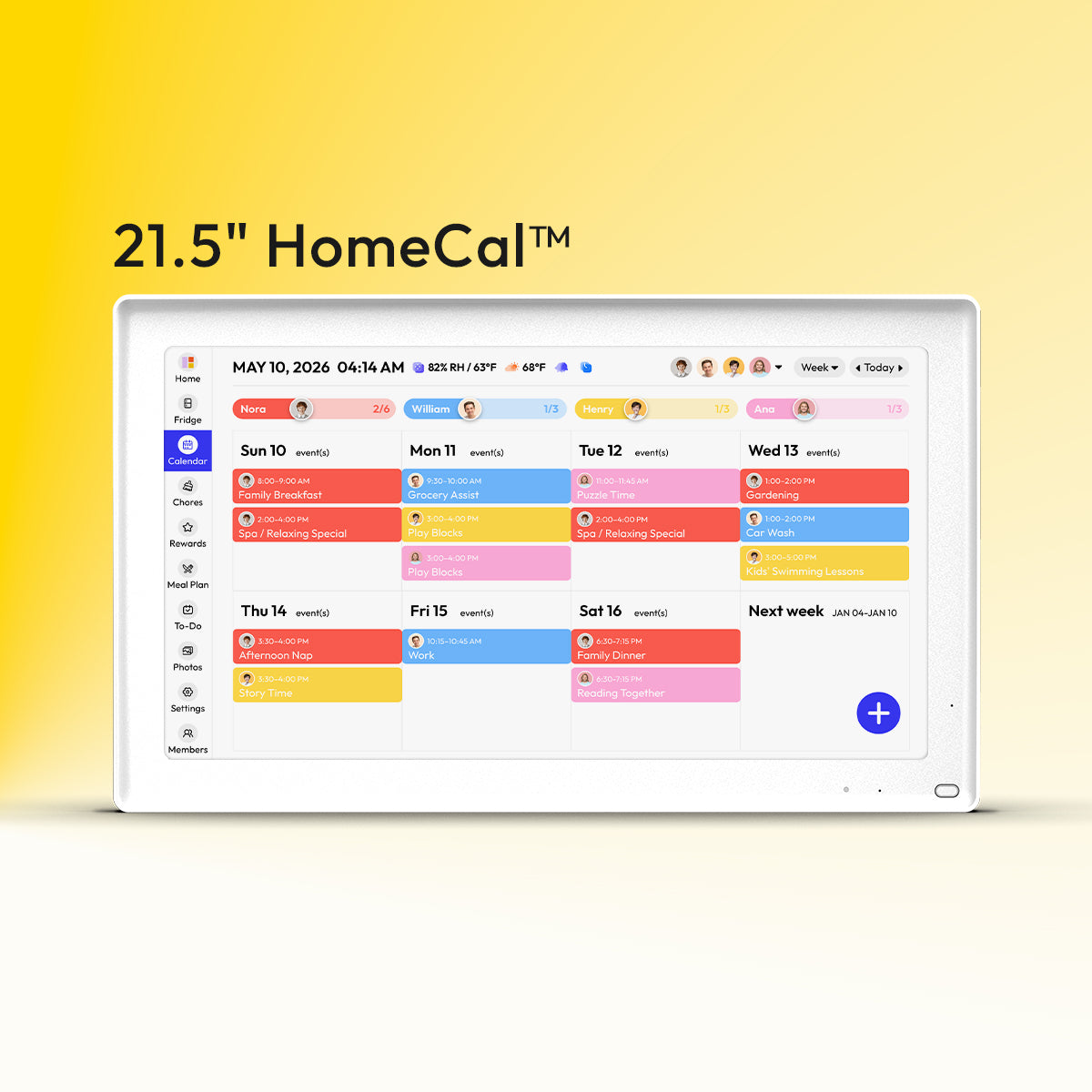
- 21+ inches: A 21.5-inch display like the Everblog 21.5" Digital Calendar gives you enough space to view a full week of color-coded family events, chore lists, and even fridge inventory reminders without constant scrolling. At this size, the calendar becomes genuinely useful from across the room, not just when you're standing right in front of it.
The bigger screen also means you can fit more information without scrolling. A week view with everyone's events plus a task list needs real estate.
Resolution and Display Quality for Daily Readability
Resolution matters more than you might think, especially if you're using the calendar for recipes, checking food dates, or letting kids access learning apps. A 21.5-inch screen at 1080p looks as sharp as a laptop. Anything less and the text gets fuzzy. That's annoying when your kid is trying to read homework dates from across the kitchen.
Most calendars use LCD screens. They work fine in normal lighting and support touch. E-ink screens look like paper and are gentler on your eyes, but they're black and white only and refresh slowly. Not great if you need color coding. LED screens are really bright but harsh at night and use more power.
Is touch a must-have? Not really. If the calendar syncs well with everyone's phones, you'll probably do most updates there anyway.
3. Making Sure All Your Calendars Sync Properly
Two-Way Sync
One-way sync pushes events from your phone to the display, but changes on the display don't sync back. You end up updating the same thing twice. Two-way sync works both directions. Add an event on the wall calendar and it shows up on everyone's phones. Delete something on your phone and it disappears from the display. That's what you need.
Most systems work with:
- Google Calendar (works with Android and iPhone)
- Apple Calendar/iCloud (for Apple-only households)
- Microsoft Outlook (common for work schedules)
- Family apps like Cozi or FamCal
Auto-Sync Saves You the Hassle
Auto-sync handles everything in the background after initial setup. No manual refreshing or checking if updates went through. Systems with auto-sync for Google or Outlook keep your family's schedules, chores, and tasks current across all devices without you doing anything. Add soccer practice on your phone during lunch, and it's on the kitchen display when you get home.
Real-time sync updates within seconds. Delayed sync takes minutes or needs manual refresh. Premium dedicated calendars usually include auto-sync built in. Budget tablet setups might require you to configure it yourself or refresh manually.
4. Features That Make Daily Life Easier
Family Calendar Color Coding
Give each family member their own color. Mom gets blue, Dad gets green, kids get red and yellow. Now everyone can glance at the calendar and instantly see whose event is whose. You'll spot right away that Tuesday is packed with kid stuff while Thursday is all work meetings.
Here's what works:
Assign colors to people, not to activities. That's simpler to remember. Choose colors that stand out well against each other. Do not pair orange and red or baby blue and baby green. The average system supports 4-6 family members well before colors become too similar in shade. Beyond that point, it gets confusing. Some families designate a color for joint activities like going to Grandma's for dinner.
Ensure that the system accommodates your need to see all people's schedules simultaneously or narrow it down to just one individual if that is what you want.
Task Lists and Chore Management

Calendar events are for things happening at specific times. Task lists are for things that just need to get done. Many digital family calendars include both.
Look for these features:
Recurring tasks let you schedule “Take out the trash” to repeat every Tuesday and Thursday without having to enter it each time. Assignment of tasks helps you understand whose task is whose. Say bye-bye to “I thought you were doing it” fights. Checkboxes let kids mark tasks as completed. Some apps include stars or celebrations, which kids adore. Quick add lets you enter “Buy milk” in 2 taps instead of filling out a form. The ability to integrate shopping lists and meal planning is a nice feature, but not an important one.
Additional Features Worth Considering
| Feature | Why It Helps | Priority Level |
| Smart fridge management | Track food expiration, reduce waste, plan meals based on what you have | High (if food waste is a pain point) |
| Weather integration | See if outdoor activities need rain backup plans | Medium |
| Meal planning module | Answer "What's for dinner?" once per week, not daily | Medium to High |
| Entertainment/app access | Kids can use learning apps, and family can access recipes and games | Medium (adds value to large displays) |
| Photo display/screensaver mode | Screen shows family photos when calendar is idle | Low (nice but not functional) |
| Rewards system for kids | Gamifies chore completion with goals and animated emojis | Medium (good for families with young kids) |
| Shared notes | Attach notes to events like "Bring signed permission slip" | Medium |
| Sleep mode | Automatically saves energy when not in use | Low (standard feature) |
5. Using Fridge Manager on Your Calendar

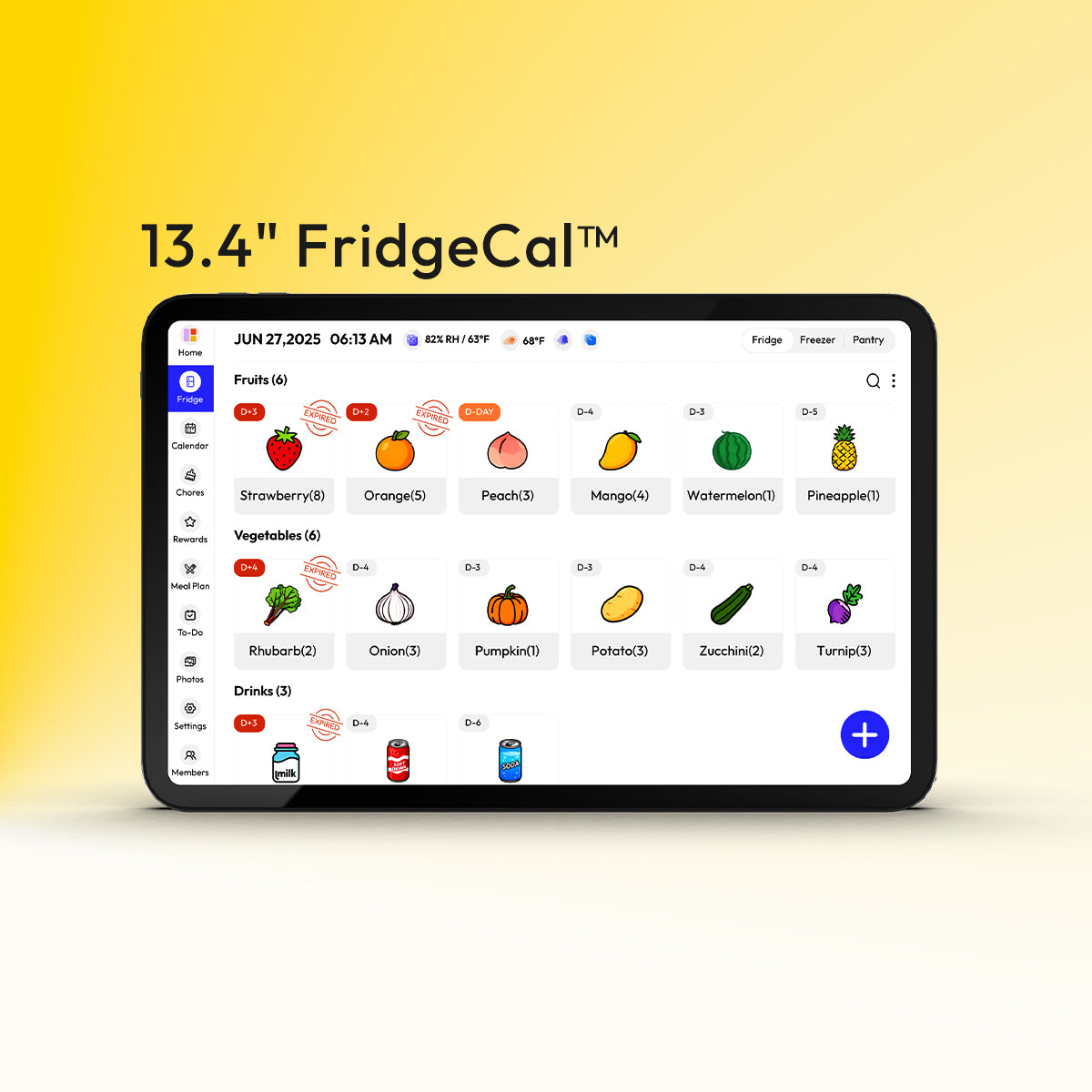
Among the most recent digital family organizers that go beyond just scheduling is the feature of smart fridge connectivity. This is truly helpful if reducing food waste is a value that your family upholds.
What you get:
- Fridge contents with expiring items are displayed directly on your calendar screen
- A breakdown of the contents (amount of fruit, vegetables, protein sources, or snacks)
- Meal planning is when you plan your meals using what you already have, reducing waste and last-minute grocery shopping trips
- Soft notifications before expiration so you can use them before they expire
For families who dispose of spoiled ingredients or feel frazzled by "What's for dinner?" this integration can definitely save money and stress. Since you're already looking at the calendar, you can plan meals for the week while you review what you need to use. This would be most effective if the whole family could readily log entries as they acquire them, which is why a large kitchen touch screen would be a good idea for this system.
6. What Digital Calendars Actually Cost
Digital family calendars range from free (repurposed tablet with free software) to around $700 for premium dedicated devices, though many premium options are frequently discounted to the $300-400 range.
- Free options: Utilize an extra tablet or an old iPad with free calendar apps. You will require a stand or mount (approximately $20-50). The disadvantages are its limited screen size and lack of a calendar interface.
- One-time purchase devices ($150-400): These are digital calendars with software pre-installed in them. They do not require monthly payments, and devices in the higher range ($300-$400) come equipped with features such as smart refrigerator management, entertainment applications, and meal planning.
- Subscription services ($5-15/month): More sophisticated calendar applications designed specifically for families, including meal planning, habit tracking, and unlimited cloud storage. These are device-agnostic and cost between $60 and $ 180 per year.
For people like us, paying $200 to $400 upfront for a device with nothing more to pay is exactly on par. You get a good screen size, reliability, and functionality that would otherwise run $60 to $180 per year on other systems.
Finding Your Perfect Family Digital Calendar
Find a screen large enough to see from across the kitchen, make sure it integrates well with the calendars you already use, and select functions your family will use on a weekly basis. For families dealing with the constant "What's for dinner?" question and throwing away expired food, a calendar like the Everblog 21.5" Digital Calendar with its smart fridge manager can pay for itself by reducing waste and streamlining meal planning. The combination of a 21.5-inch display, two-way sync with all major calendar services, and integrated Fridge Management makes it a comprehensive solution for busy households. Align the calendar with your pain points, not with the most tech-savvy feature.
Expert Insights on Choosing and Using Your Digital Family Calendar
Q1: What's the best electronic family calendar for a large family?
A large family requires strong color coding and support for a large screen size (21+ inches). Systems with screens of 21+ inches perform better with complex schedules than tablets, as they are made for multiple users at the same time. You can search for solutions with the following features, which would be the most beneficial for large families, as they would require only one application to handle different tasks.
Q2: Do digital wall calendars work without WiFi?
All require Wi-Fi for initial setup and synchronization, but some will display previously loaded events when offline. However, phone updates will require internet connectivity.
Q3: Can I use a regular tablet as a family calendar display?
Yes. A wall-mounted tablet with a calendar application is the most popular DIY solution. You can use an existing tablet or simply purchase an Android tablet that costs between 100 and 150 dollars. It is not very sleek, but it is okay.
Q4: How do I get my family to actually use the digital calendar?
So, begin with one rule: nothing on the calendar means it won't happen. Check the calendar daily with the children until it becomes a habit. Use rewards for children who view and complete their assignments.
Q5: Can grandparents access our family calendar remotely?
Yes, if you allow calendar sharing through Google Calendar or other calendar services, such as iCloud. They can view (and edit if you allow) it from their own device anywhere in the world. Handy for planning visits, for example.
Q6: Are smart features like fridge management worth it, or should I stick to a basic calendar?
It depends on your pain points. If your main issue is "people forget to check their phones," then a basic calendar display is sufficient. However, if your issues extend to food waste and the stress of daily meal planning, a digital calendar with Fridge Manager and Meal Planner features will really help alleviate your mental load. These features work together to track what's in your fridge, remind you of expiring items, and help you plan meals based on what you already have.


